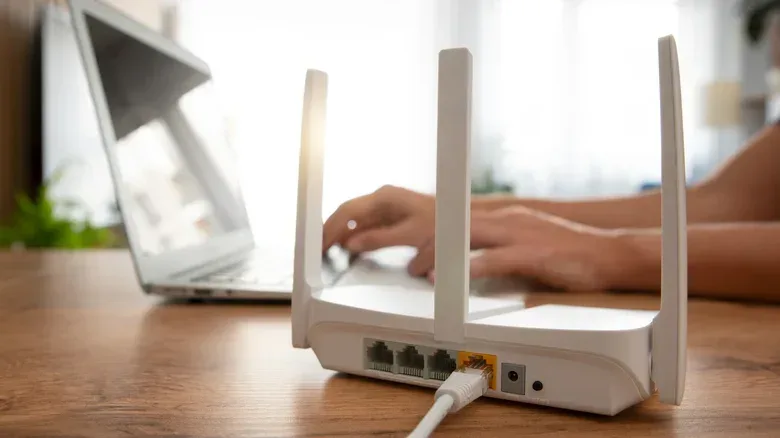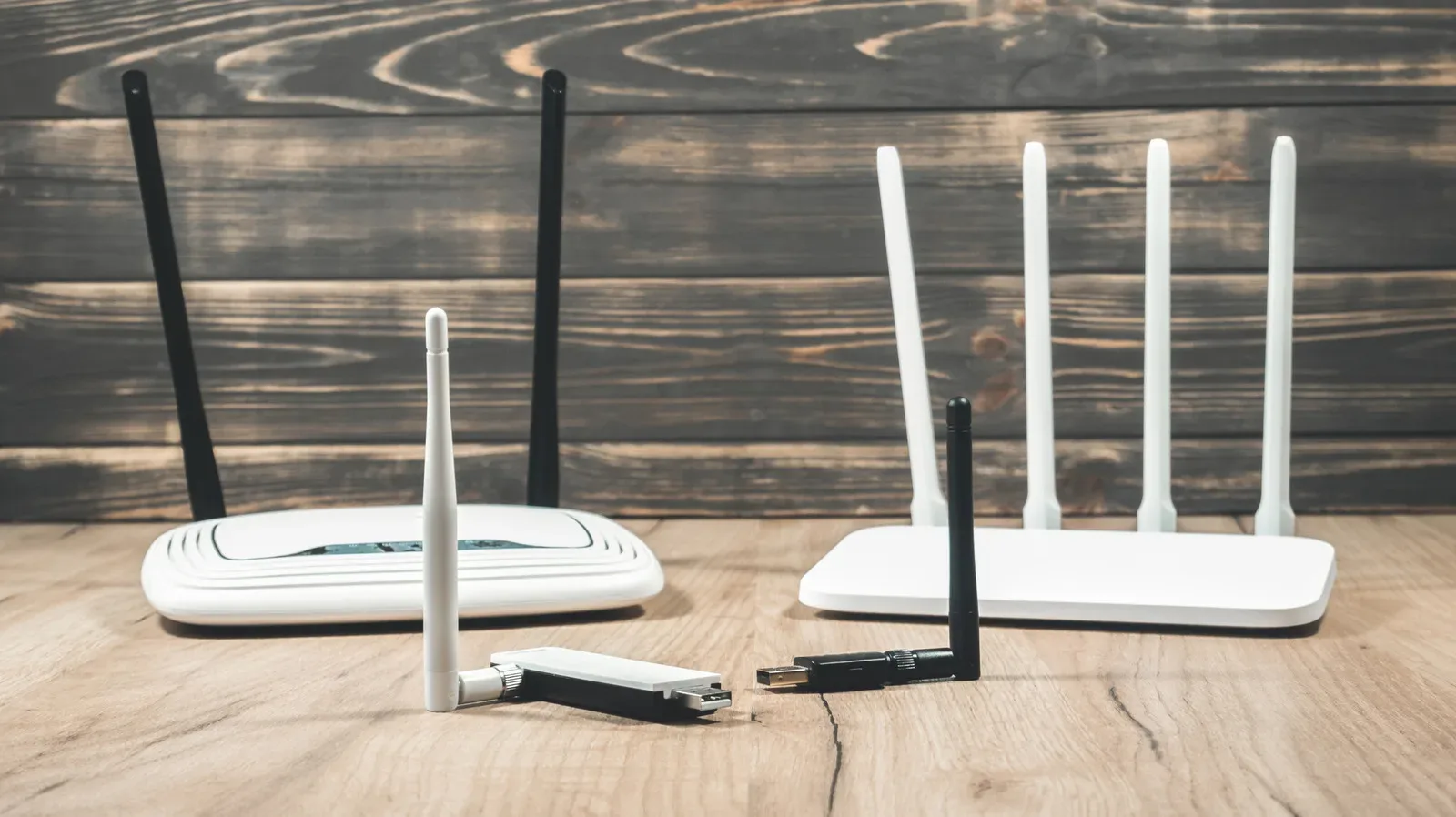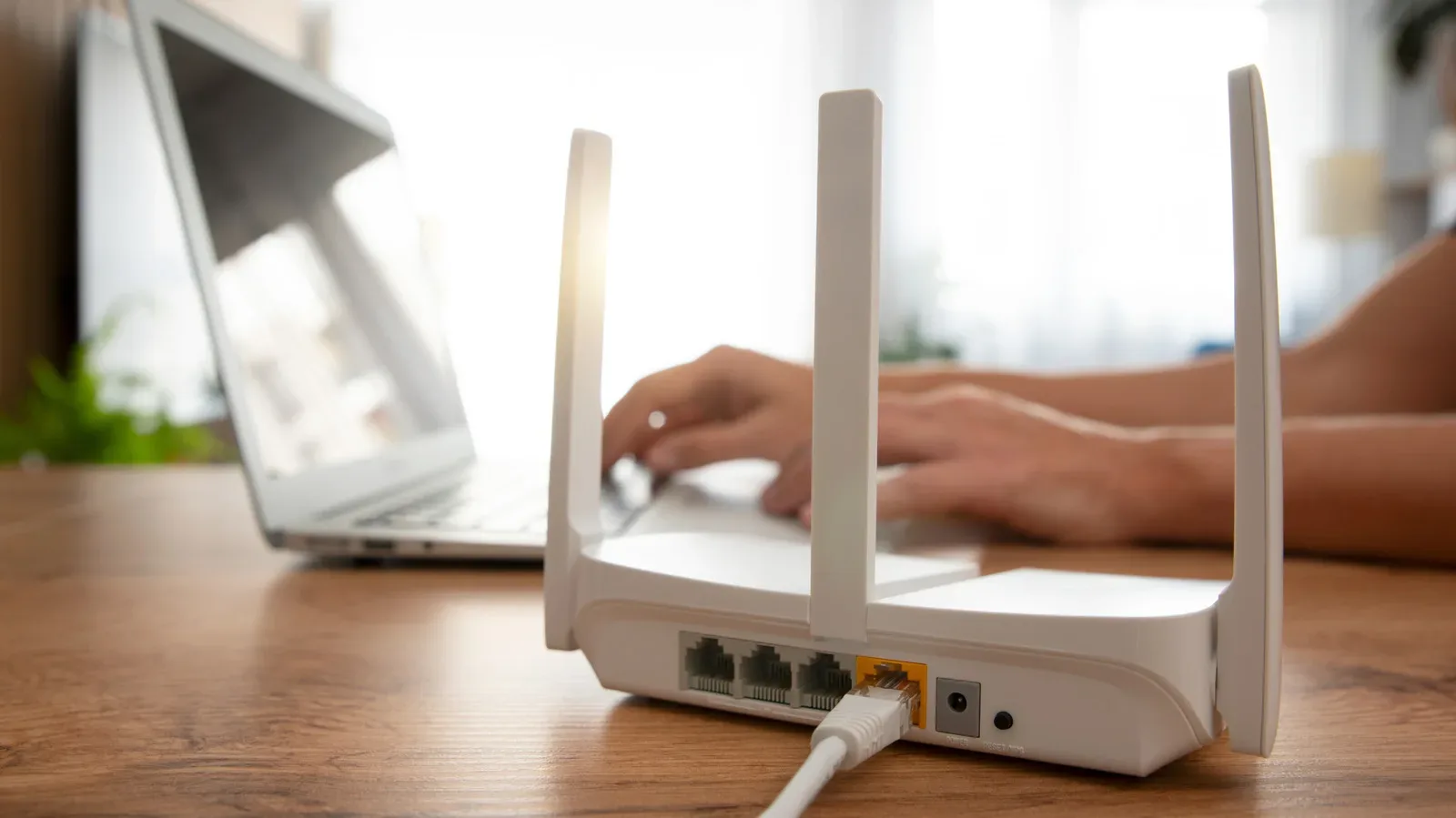
Paying for fast internet and getting slow downloads, buffering video or unreliable online play is an especially irritating modern contradiction. A strong Wi-Fi icon does not necessarily settle the mystery, either. The problem may not be the connection entering the home; it may be the frequency band a particular phone, laptop, console or smart-home device has chosen to use inside it.
Most current routers broadcast on the 2.4GHz and 5GHz Wi-Fi bands. Newer Wi-Fi 6E and Wi-Fi 7 hardware can add 6GHz. These bands are not interchangeable versions of the same experience: each makes a distinct trade-off among range, obstacle penetration, available capacity and congestion. A router feature called band steering often rolls two or more bands into one visible network name, then attempts to select the best option automatically. It is convenient when it works well. But a device can sometimes remain on 2.4GHz even when a usable 5GHz connection would deliver better real-world performance.
For a household where a gaming PC, phone, streaming device and smart accessories are all competing for wireless attention, separating those choices can be a practical troubleshooting step rather than a reason to immediately replace hardware or upgrade an internet plan. It is also worth keeping the scope clear: this will not create more speed than the broadband service provides, and it cannot make a weak higher-frequency signal magically reach through every wall. It can, however, stop devices from making an unhelpful automatic choice.
The three Wi-Fi bands, without the router-menu fog
2.4GHz is the long-range workhorse. It dates back to the original Wi-Fi standard released in 1997 and remains essential because many smart-home products support only this frequency. Its signal is better at getting through walls and obstacles than the higher-frequency alternatives. That makes it useful for devices far from the router, especially devices that do not need much throughput.
The trade-off is capacity and interference. The 2.4GHz band generally carries less data than 5GHz, and it is more susceptible to interference from other devices. In a crowded apartment building, many nearby networks may be contending in the same limited slice of spectrum. That competition can lead to inconsistent results even when the internet plan itself is fast.
5GHz is generally the more attractive choice for bandwidth-hungry nearby devices. Although it has existed for a long time, it became broadly mainstream in the 2010s. It can carry substantially more data than 2.4GHz, including gigabit internet speeds and potentially higher. For a laptop or smartphone used reasonably close to the router, 5GHz may therefore be the better candidate for game downloads, high-resolution streaming and other large transfers.
Its compromise is range. Higher frequencies do not penetrate obstacles as effectively, so a device behind several walls or at the edge of coverage may receive a less dependable 5GHz connection. In that situation, 2.4GHz can be the smarter choice despite its lower ceiling. The point is not that 5GHz wins in every room; it is that an automatic router decision is not always right for every device.
6GHz, introduced with Wi-Fi 6E and Wi-Fi 7, continues the same pattern: more opportunity for speed, but more limited range. It also has a larger amount of available spectrum, and fewer devices currently use it, so congestion is less likely to be the issue it can be on 2.4GHz. It is relevant only when both the router and the connecting device support it.
Related coverage includes Your Wi-Fi Band Could Be the Reason Devices Feel Slow.
What band steering does—and why it can occasionally get in the way
Band steering is the router feature behind a single Wi-Fi name that silently covers multiple frequencies. In technical terms, the name is the SSID, short for Service Set Identifier: it is the network label shown in a phone or computer’s Wi-Fi list. A combined SSID is meant to spare people from deciding whether to join, for example, a 2.4GHz or 5GHz version of the same home network.
That approach has a sensible purpose. The router and device can react to changing conditions rather than forcing every family member to manually manage a network list. Yet devices may stick to 2.4GHz rather than move to 5GHz even when the latter is available and strong. The visible signal indicator can compound the confusion: stronger signal alone does not mean faster usable performance.
Disabling band steering exposes separate network names for the individual bands, putting the choice back in the owner’s hands. On many routers, a 5GHz network will appear with a suffix such as _5G. A router with 6GHz support can create three separate networks. This provides a simple division of labor: put a phone, laptop or other performance-focused device on the band that performs best in its location, while leaving range-dependent smart-home hardware on 2.4GHz.
There is no requirement to move everything to 5GHz. In fact, that would misunderstand the feature. Smart-home devices commonly only use 2.4GHz, and their duties usually do not demand high transfer rates. Meanwhile, a 5GHz signal that is too compromised by distance and walls may be less useful than a solid 2.4GHz connection. Separate SSIDs are valuable because they enable deliberate choices and make the cause of a poor connection easier to identify.
How to turn off band steering safely
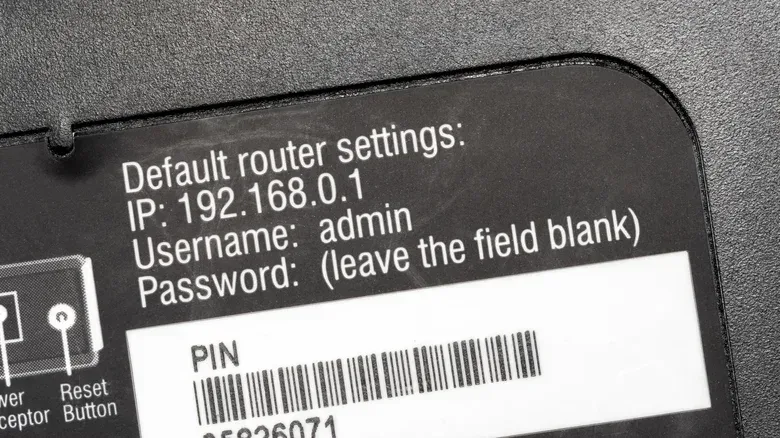
Router interfaces vary by brand and internet provider, but the basic path is consistent. First, locate the router administration address and login credentials. They are often printed on a label on the underside or rear of the router. Common local addresses include 192.168.0.1, while some routers provide a branded web address. If the router has a companion app, that can also be the management route.
- Open the router’s administration page or companion app.
- Find Wi-Fi Settings or Wireless Settings.
- Look for a control called Band Steering, Auto-Band Selection, Dynamic Connect or Smart Connect. The label differs by router.
- Disable that feature, save the change and reboot the router if prompted.
- Check the Wi-Fi list on each device for the newly separated network names.
- Reconnect each device to the appropriate band, then observe whether the issue has improved in the places where it matters.
Afterward, the router’s advanced wireless settings normally allow the SSID and password of each band to be changed. Clear labels reduce accidental connections. For example, identifying the bands explicitly can make it much easier to tell whether a laptop was returned to 2.4GHz after an update, reset or network change.
Do not assume every provider-issued router will permit this adjustment. Some internet-provider hardware does not expose a band-steering control. In that case, using a separate Wi-Fi router or access point is a possible way to take control of the wireless setup, provided it is compatible with the household’s broader network arrangement.
For gaming and downloads, diagnose the local link before blaming the plan
Large game patches make Wi-Fi problems unusually obvious because they sustain heavy data use for a long period. But the same diagnosis matters for cloud saves, voice chat, streaming and ordinary browsing. If a device is on 2.4GHz when a reliable 5GHz option exists, it may not be using the local wireless link most suited to those tasks.
That is particularly worth considering on a PC used for both work and games. Network housekeeping will not replace thoughtful desktop organization, but it is part of a cleaner setup; Windows virtual desktops can also help create a more focused gaming-PC workspace. In both cases, the useful fix is not a headline-grabbing upgrade but making sure existing tools are configured for the job at hand.
A sensible method is to change one variable at a time. First identify the band in use, then reconnect the affected device to the alternate appropriate band and compare normal activity from the same location. This avoids treating every slow result as proof that a router, console, PC or broadband service is defective. It also avoids a promise the evidence cannot support: an environment with thick obstacles may genuinely favor 2.4GHz.
Channels are another lane of the traffic problem
Even a correctly selected band can suffer from congestion. Every Wi-Fi band is divided into smaller frequency ranges called channels. The road-lane comparison is useful: if numerous nearby networks occupy the same lane, their devices must compete for airtime. The result can be variable speed, stalls and poor reliability.
The 2.4GHz band has 14 channels, though only channels 1 through 11 are available in North America. Channels 1, 6 and 11 are commonly recommended because they do not overlap with each other. This makes them practical starting points when examining a crowded 2.4GHz environment.
Android users can scan nearby network activity with Wi-Fi Analyzer, which uses the phone’s antennas to show the channels in use. A cluster of overlapping neighboring signals alongside unused channels can be a reason to try a manual channel change. On iPhone, AirPort Utility offers a limited channel-scanning view, though it was designed to manage legacy Apple routers and support is not guaranteed beginning with iOS 27. NetSpot is another option on Windows and macOS.
Once a less congested channel has been identified, return to the router’s wireless settings and make the adjustment. This is most likely to matter in dense housing, where many networks are operating in close proximity. The 5GHz and 6GHz bands can be checked as well. With its greater available spectrum and lower current device use, 6GHz is less likely to face the same congestion issue.
Wi-Fi 7’s Multi-Link Operation is promising, but not a shortcut
It is natural to wonder why a device cannot simply use 2.4GHz and 5GHz at once. Most devices cannot communicate over multiple bands simultaneously in that way. Wi-Fi 7 introduces Multi-Link Operation, or MLO, a feature intended to combine multiple bands to increase bandwidth or reduce latency depending on the use case.
Its practical limitation is compatibility. Both ends of the connection need support: a Wi-Fi 7 router and a device capable of MLO. Even then, it should not be treated as a guarantee of doubled internet speed. Real-world results have been mixed, and some early Wi-Fi 7 routers and devices were developed before MLO was standardized. In other words, MLO is a developing capability, not a substitute for checking ordinary band selection, range and congestion first.
One advanced setting to consider when 5GHz keeps dropping
Frequent 5GHz dropouts can sometimes involve Dynamic Frequency Selection, or DFS. DFS permits access to less congested spectrum, but some of those channels are also used by weather or military radar. Radar takes priority, requiring the Wi-Fi network to give way. Some lower-cost devices may also behave erratically on DFS channels.
Where dropouts are the central complaint, disabling DFS is one troubleshooting option. That is not an all-purpose performance recommendation: DFS exists to access less crowded spectrum, so turning it off can reduce the available choices. It is best approached as a targeted change, followed by monitoring whether the affected device becomes more stable.
The broader lesson is straightforward. Fast broadband, a strong signal reading and a modern router do not guarantee that every device has landed on the best Wi-Fi path. Separating bands, assigning devices based on their actual needs and location, and checking channel crowding are practical ways to turn a vague “the Wi-Fi is slow” complaint into a set of manageable checks.