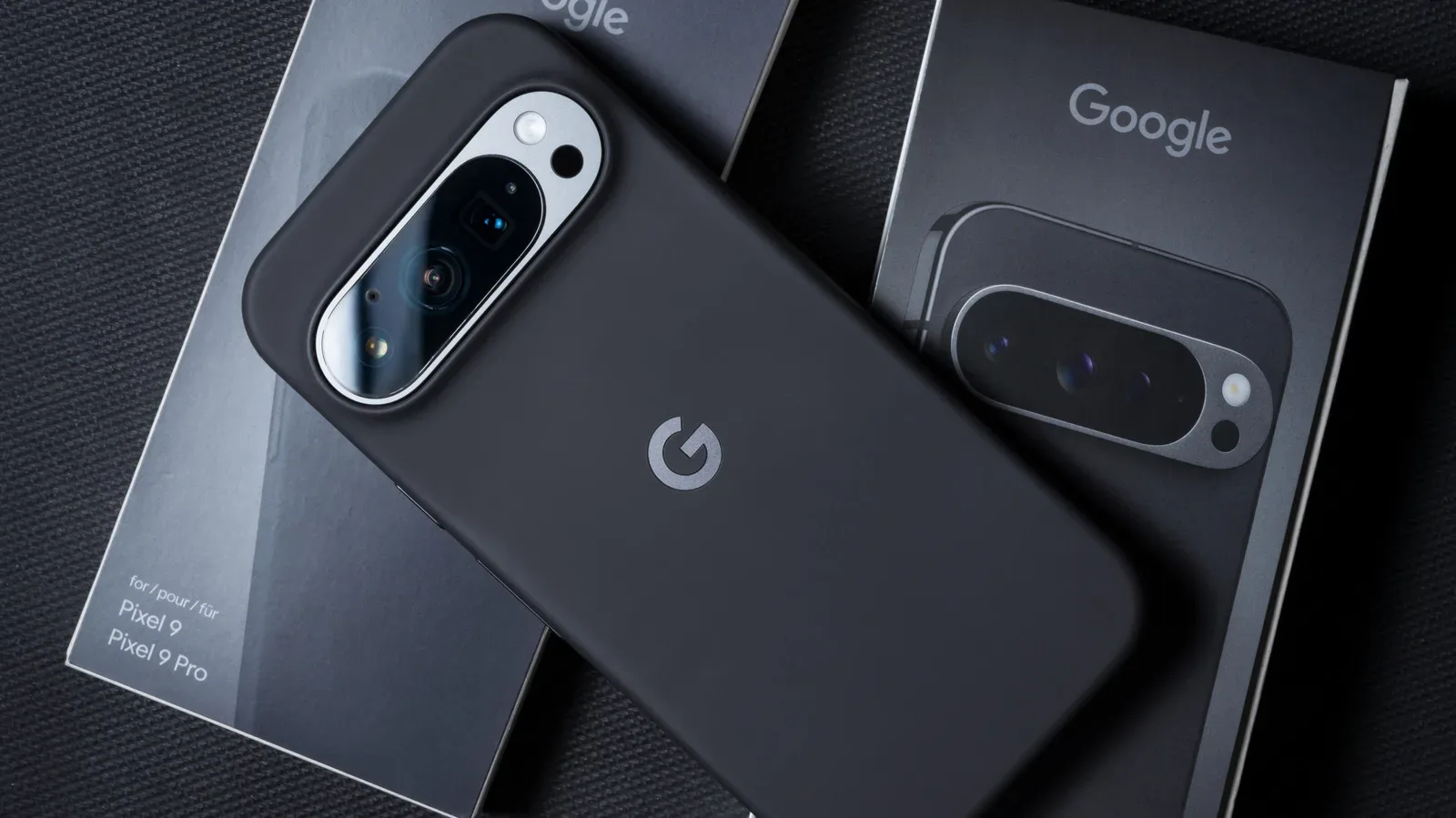
Some of the most useful phone features are not the splashiest additions in a major software release. Pixel’s Quick Tap is a good example: a double-tap on the rear of the handset can trigger a selected action, saving a trip through the lock screen, Quick Settings, app drawer, or a stack of menus.
The idea is deliberately simple. Quick Tap gives a compatible Pixel one back-of-phone gesture, with one assigned built-in action at a time. That limitation is important, but it also makes the feature more practical: it works best when treated as a shortcut for the task that repeatedly interrupts a person’s day.
It can be a flashlight toggle when walking into a dark room, a screenshot command when two physical buttons are awkward to reach, or media playback control while cooking, exercising, or otherwise occupied. It can also open an app, reveal notifications, display recent apps, or summon Gemini without needing to speak aloud. None is individually groundbreaking. Together, they show why a small physical gesture can be more useful than another icon buried in an interface.
Which Pixel phones support Quick Tap?
Quick Tap is available on Pixel 4a (5G) and later Pixel phones. It is configured in Settings > System > Gestures > Quick Tap to start actions.
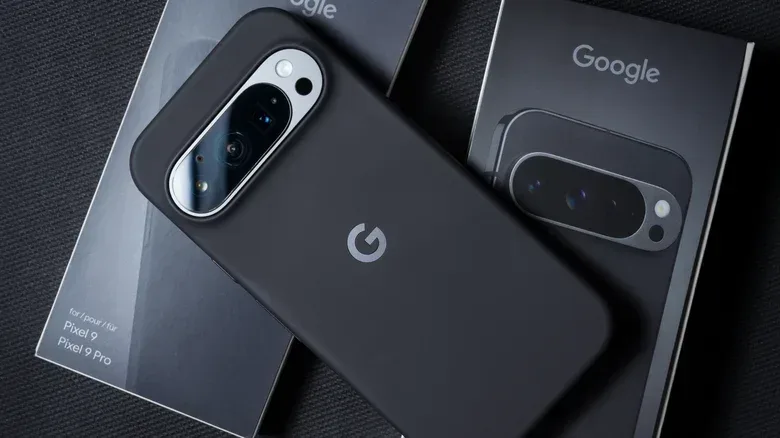
The feature should not be confused with tapping the screen. It recognizes a double-tap on the back of the phone. In practical terms, that makes it a hardware-adjacent gesture: the display does not need to be the target, and the selected action can be accessible without navigating through the usual on-screen controls.
On the Pixel 9 Pro Fold and Pixel 11 Pro Fold, the rear glass panel can be tapped when the device is open or closed. That matters because foldables can change how comfortably a user reaches their controls depending on which form they are using. The Quick Tap target remains on the rear glass rather than becoming an extra action to hunt for on the inner display.
Available Quick Tap actions
After enabling Quick Tap, users choose the action the double-tap will perform. Because only one can be active, the best choice is usually not the feature that sounds most novel; it is the one that removes the most frequent friction.
- Toggle the flashlight: A direct way to turn the light on or off, including while the phone is locked.
- Take a screenshot: An alternative to pressing the power and volume-down buttons together.
- Play or pause media: Useful for music, video, and podcasts across supported streaming apps.
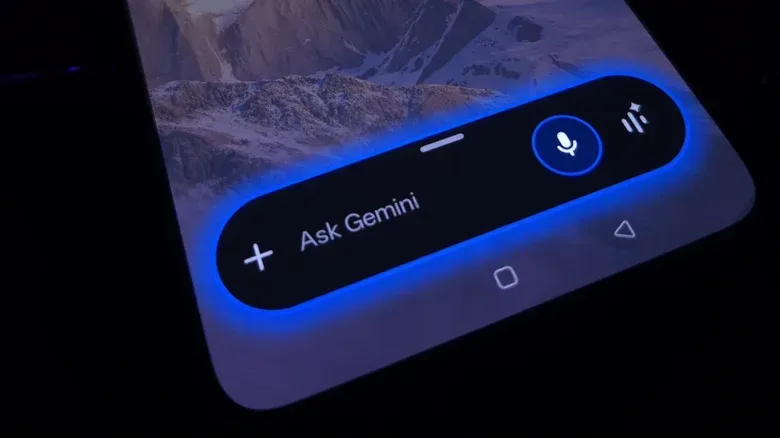
- Access Gemini: Opens the assistant without speaking to the phone.
- Show notifications: Pulls down the notification shade without swiping from the top edge of the display.
- Show recent apps: Opens the overview screen for switching among recently used apps.
- Open an app: Launches a chosen installed app.
These are not interchangeable in real life. A person who often needs temporary lighting gets more value from flashlight control than from a shortcut to an app already sitting on the home screen. Someone who captures conversations, reference material, or on-screen instructions may find screenshots more worthwhile. Media control has its own obvious appeal when the phone is within reach but the screen is inconvenient to operate.
Related coverage includes Pixel Quick Tap Turns the Back of Your Phone Into a Useful Shortcut.
Launching an app is the broadest option because it makes Quick Tap a direct route to whatever service matters most to the owner. That could be a smart-home control app or Google Wallet. It could just as easily be a game already installed on the device, including a mobile title being used alongside a cross-platform game such as Terraria. The key distinction is that Quick Tap starts an app; it is not described as a universal in-game command system.
Choosing the right shortcut is the real setup step
Quick Tap’s single-action design can initially feel restrictive, especially for people accustomed to automation tools that layer many commands behind gestures. But the limitation avoids an extra decision every time the phone is tapped. The gesture becomes muscle memory only when its result is consistent.
A sensible way to choose is to identify a task that has three traits: it happens often, it is mildly annoying through normal controls, and it benefits from quick one-handed access. Flashlight and media playback are strong candidates because both are often used while the phone is locked or while the other hand is busy.
Screenshot capture is also a compelling option for anybody who finds two-button presses unreliable. The normal button combination is not complicated, but it can require shifting grip at exactly the moment an ephemeral screen needs recording. A rear double-tap can reduce that interruption.
Notification shade and recent-apps shortcuts fit a different pattern. They do not replace a particular physical control so much as they reduce repeated navigation. These choices may suit someone who moves among messages, authentication prompts, media controls, and other ongoing tasks. By contrast, an app-launch assignment makes the most sense when one app consistently needs to be reached faster than the rest.
Cases, magnets, and accidental activations
Back-tap gestures depend on the phone recognizing the physical input, so a protective case can affect the experience. Quick Tap is most straightforward on an uncovered Pixel. A light case may still allow normal activation, while a particularly thick case can make taps less dependable.
Before deciding the feature does not work, it is worth checking the Quick Tap setting called Require stronger taps. This option is designed to reduce accidental triggers when a phone is placed down or slipped into a pocket. If intended taps are not registering, turning that option off and testing again may help.
Placement also matters. Users with a magnetic accessory attached to the back may need to try taps around different areas to find a spot the gesture recognizes reliably. That is a useful reminder that the ideal configuration is not necessarily the same for every case or accessory arrangement. A shortcut is only a convenience if it activates when intended and stays quiet when it is not.
There is an unavoidable trade-off here. Stronger filtering can lower the chance of accidental actions, but may demand more deliberate taps. Less filtering can make the feature easier to trigger, while increasing the possibility of an unwanted activation. The practical solution is not a universal setting; it is testing the setup a person actually carries daily.
Quick Tap works best as part of a gesture layout
Quick Tap is one option within Pixel’s broader Gestures section, found at Settings > System > Gestures. Using those controls together prevents one shortcut from having to solve every access problem.
For example, a user can reserve the rear double-tap for the flashlight while setting the power button’s double-press gesture to open the camera or Google Wallet. Pressing and holding the power button can summon Gemini. Flip to Shhh enables Do Not Disturb when the phone is placed face down, while tap-or-lift options can show the time, notifications, and other information.
This arrangement is less about memorizing every available gesture than assigning different physical movements to distinct needs. A rear tap can handle the task that benefits from immediate access; a double press of the power button can prioritize a camera or payment function; putting the device face down can signal that alerts should stop. Each action has a different physical context, reducing the chance of overlap.
Additional tools can expand the idea, with care
People who want more than one back-of-phone command can look beyond the built-in feature. Tap, Tap can supplement Quick Tap with double-tap and triple-tap support and more than 50 potential actions. A pop-up menu or folder app can also make the double-tap open a collection of frequently used tools or apps instead of just one destination.
That flexibility changes the equation. A menu can place several shortcuts behind the same gesture, but it adds a second step and may be less immediate than a direct action. Third-party tools also introduce another app and another set of configuration choices. For many people, the native one-action approach is preferable precisely because it is quick to understand and requires less upkeep.
The useful takeaway is to begin with the built-in controls. Pick one task, use it long enough to learn whether the gesture feels natural through the actual case and accessories on the phone, then adjust sensitivity or placement if necessary. Only then is it worth considering extra tools for more complex behavior.
Quick Tap does not transform a Pixel into a different device. It simply makes one repeated action faster. That is often the point of a good shortcut: not spectacle, but fewer swipes, fewer button combinations, and one less reason to put down whatever is already in the other hand.