
Google Messages has become a central part of the modern Android experience. The app sits at the intersection of ordinary SMS texting and RCS chats, the newer messaging standard Google has promoted as a broader replacement for the limitations of traditional carrier text messages. That evolution has made it easier for many people to stick with the preinstalled app rather than hunt for a separate texting client.
But “default” is not the same as “ideal.” A messaging app is one of the most personal pieces of software on a phone: it sets expectations around replies, makes noise during conversations, occupies screen space, surfaces automated suggestions and, increasingly, offers AI tools. The useful setup is therefore not one universal collection of switches. It is the one that reduces friction without hiding the tools a person genuinely uses.
These five Google Messages options are reasonable candidates to review. Some are mainly about attention and visual clutter; others involve conversational boundaries or a preference to keep AI functions out of a private communications app. Turning them off is optional, not a verdict on the features themselves.
1. Consider disabling RCS read receipts
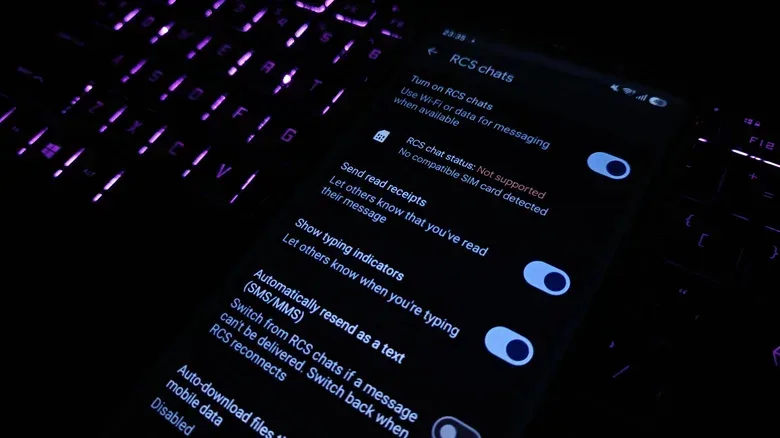
Read receipts are the indicators that show a message has been opened or read. In an RCS conversation, they can provide useful reassurance: a friend knows a plan was seen, or a sender does not have to wonder whether a message arrived unnoticed. RCS, short for Rich Communication Services, is the chat standard associated here with features beyond basic SMS texting, including this type of conversation status indicator.
The downside is social rather than technical. A read receipt can turn the gap between reading and replying into visible information. That may be unhelpful when someone has seen a message while busy, tired, working or simply not ready to give a thoughtful answer. The setting can make a familiar everyday delay feel like a demand for an immediate response.
There is an important trade-off: disabling read receipts gives the user more room to read first and respond later, but it also means giving up that signal in return. Anyone who relies on read status for coordination may prefer to leave it enabled. For less urgent chats, however, removing the receipt can make the conversation feel less like a queue of obligations.
To change the setting, start from the main Google Messages screen:
- Tap the profile picture in the upper-right corner.
- Select RCS chats.
- Turn off Read receipts.
This does not solve the bigger question of how quickly people expect responses, but it does stop the app from presenting message-reading as a public event. If a message is genuinely urgent, the more direct solution remains being explicit about urgency rather than interpreting a small visual status marker.
Related coverage includes 5 Google Messages Settings to Turn Off for a Quieter, More Private App.
2. Turn off the in-app outgoing and incoming message sounds
Google Messages can play sounds when a message is sent or received while the app is already open. These are distinct from the broader question of whether the phone should alert the user to an incoming message at all. The setting addressed here controls the little sound effects attached to activity inside the app.
For some people, audio feedback makes a device feel responsive. In a rapid back-and-forth conversation, though, the accumulated beeps and pops can become distracting to the person holding the phone and to everyone nearby. This is especially true in shared spaces, during a call, or when a user is already receiving plenty of notification noise from the rest of the device.
Disabling these effects is a clean, low-stakes adjustment because it does not require abandoning message notifications. It simply makes the open-app experience quieter. It may be particularly useful for people who prefer vibration or visual cues, or who want to avoid adding more sound to a busy day.
- Tap the profile picture in the upper-right corner of the main Messages screen.
- Choose Settings.
- Find Hear outgoing and incoming message sounds.
- Switch that toggle off.
Small sound settings can seem trivial, but they matter because messaging is repeated constantly. Removing one unnecessary noise can make a phone feel less demanding without affecting the actual ability to communicate.
3. Remove Bubbles if floating chats steal more space than they save
Bubbles are floating circular chat shortcuts that remain onscreen while a person uses other apps. Selecting one opens the associated conversation, allowing a chat to be kept visually close at hand. Android introduced bubble chats with Android 10 in 2019, after the basic floating-chat concept had already appeared in Facebook Messenger.
The intended advantage is obvious: someone juggling an active conversation and another task can return to the thread with a tap. A Bubble could be more appealing on a tablet, a foldable device or another large screen where there is room to spare.
On a conventional phone, the compromise may be less attractive. The floating icon occupies part of an already compact display, while opening the conversation still takes over much of the screen. For many replies, tapping the reply control from a notification is a simpler route. That method keeps the interaction focused on the immediate response rather than leaving a persistent object hovering over other apps.
People who rarely need a chat permanently within reach can prevent Google Messages from using Bubbles:
- Open the profile menu from the main message list.
- Tap Settings.
- Select Bubbles.
- Choose None.
This is not an argument that Bubbles are inherently bad design. They serve a recognizable multitasking purpose. The practical question is whether that purpose occurs often enough to justify a permanent claim on screen real estate. If the answer is no, notifications remain the less intrusive shortcut.
4. Decide whether Gemini belongs in your messages app
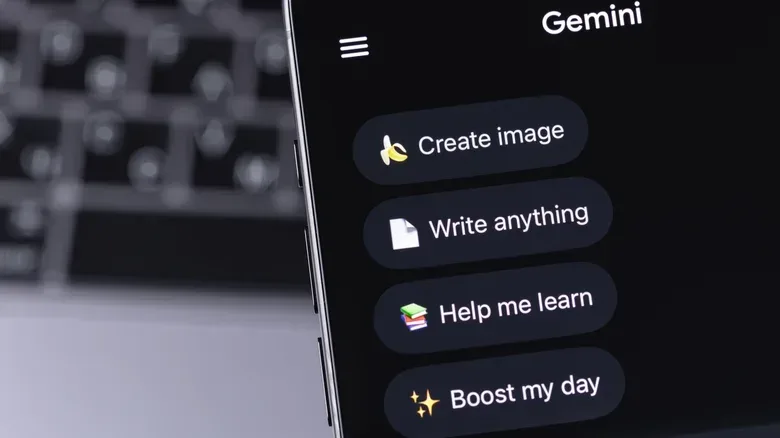
Google Messages includes a Gemini option that places a Gemini chat inside the messaging app. Gemini is Google’s AI chatbot, and LLM means large language model: the category of AI system used to generate and respond to text prompts.
For users who already have access to Gemini elsewhere on an Android phone, the immediate practical question is whether an additional AI chat surface inside Messages is useful. A dedicated Gemini app may make more sense for people who want to use the chatbot frequently, while a messaging app can remain reserved for conversations with actual contacts. Separating those activities may also make an inbox simpler to scan.
Privacy is the more consequential consideration. AI features can involve different terms or policies from the rest of a service, and that can make it difficult for a user to understand precisely what applies once an AI option is enabled. Anyone who is uncomfortable with that uncertainty, or who simply does not need the feature in Messages, has a straightforward reason to leave it disabled.
That does not require assuming every use is inappropriate or that every user has the same privacy threshold. It means treating an AI assistant as an intentional choice rather than a default part of private messaging. Review the applicable controls and policies before using it for information that is sensitive, personal or confidential.
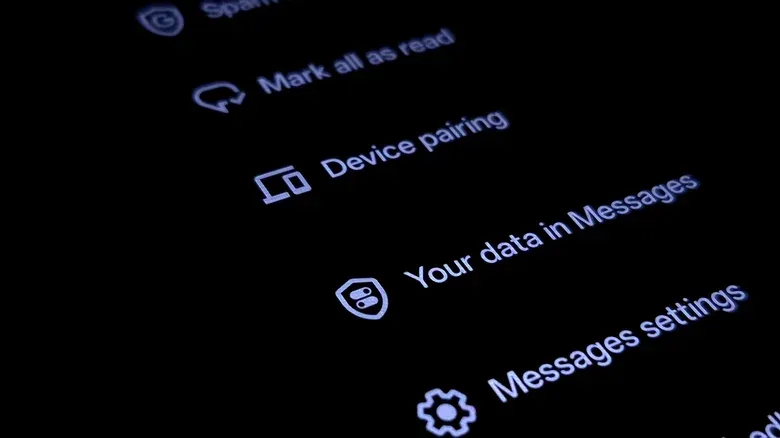
To turn the feature off, open Google Messages settings, find Gemini in Messages, and disable it.
Managing app permissions and data-related settings is often a good maintenance habit, whether the device runs Android or iOS. For a comparable iPhone-focused checklist, see these iPhone privacy settings worth checking.
5. Cut back on Nudges without necessarily losing birthday reminders
Nudges are prompts intended to bring conversations back to attention. Google Messages can remind a user that it has been a while since they replied and suggest a follow-up. It can also surface birthday reminders. Both functions fall under the same general feature area, but the supplied settings path allows reply prompts and birthday prompts to be managed separately.
The reply side of Nudges is built around a reasonable problem: messages are easy to defer and easy to forget. Yet a reminder is only helpful if it appears when a person is available and willing to respond. If it arrives during the same period of overload that caused the delay in the first place, it becomes another piece of notification-style clutter rather than useful assistance.
There is also a difference between a practical reminder and an app attempting to influence social behavior. Some people will welcome a prompt to reconnect; others will find it amplifies pressure around delayed replies. Turning off reply nudges lets the user rely on their own inbox habits, calendar, or deliberate follow-up time instead.
Birthday reminders can be assessed independently. A person who finds relationship prompts annoying may still appreciate a timely reminder for a birthday. Conversely, anyone who wants a fully quiet inbox can disable both.
- Tap the profile picture at the top of the main Messages list.
- Open Settings.
- Go to Suggestions & Actions, then Nudges.
- Adjust the reply and birthday reminder toggles to match your preference.
A useful way to review messaging defaults
These five controls fall into three different categories. Read receipts affect the social expectations around a conversation. Sounds, Bubbles and Nudges affect attention, noise and screen clutter. Gemini in Messages raises a question about utility and comfort with AI-related data practices.
That distinction matters because it prevents an all-or-nothing approach. A person may keep birthday reminders while switching off reply prompts, welcome read receipts for close family while disliking them in other contexts, or find Bubbles valuable on a larger device but irritating on a phone. The right configuration can be selective.
Before changing anything, consider a short audit: Which app behaviors regularly interrupt you? Which features make a message harder to answer rather than easier? Which data-related functions would you only use after reading the relevant terms? The answers point toward settings worth changing far more effectively than a generic “turn everything off” rule.
Google Messages can stay capable without being noisy, overly persistent or stuffed with every available chat feature. A few minutes in its settings can make the app better match the way its owner actually communicates.