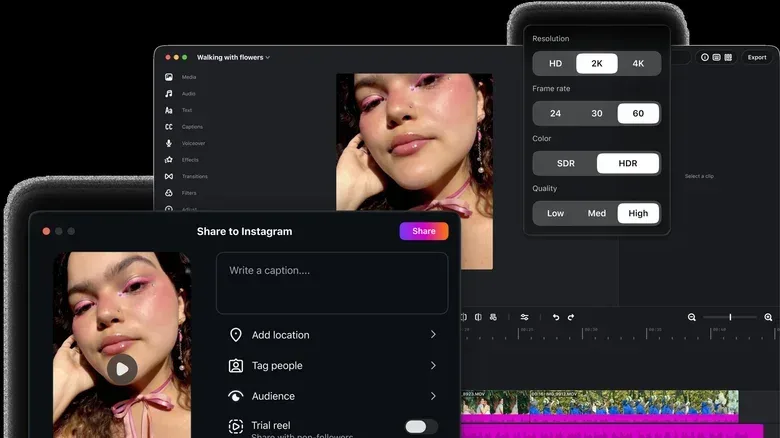
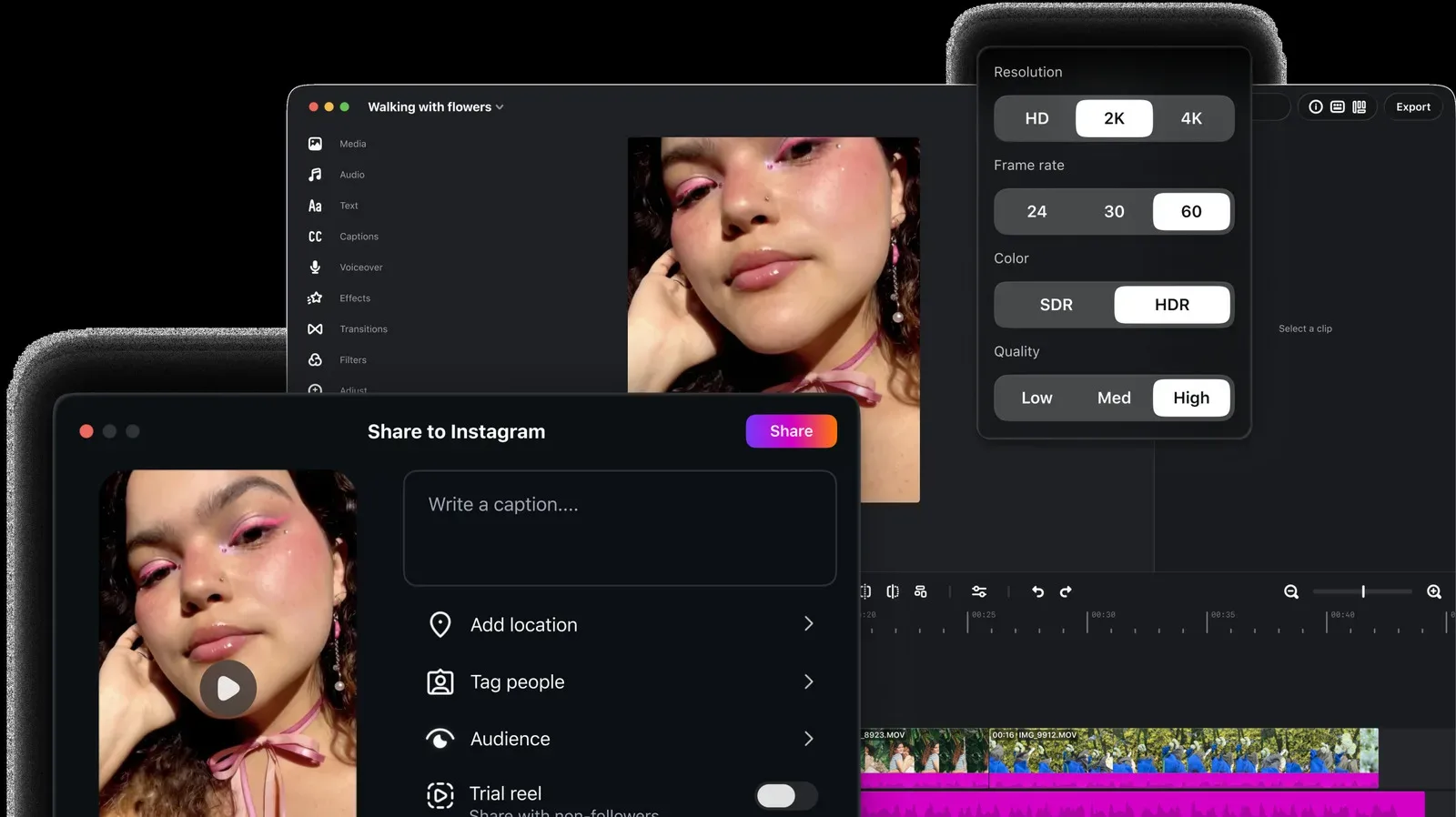
Instagram’s Edits video-editing app has expanded to Mac, giving creators a desktop workspace for projects that need more space and more precise control than a phone interface can comfortably offer. The move brings the app’s core short-form editing approach to a larger screen while adding desktop-oriented tools including a full multi-track timeline, keyframes, visible audio waveforms, color controls, keyboard shortcuts and custom fonts.
Edits was introduced early last year as Meta’s answer to ByteDance’s CapCut, a video editor widely used by TikTok creators. Meta says the app has built momentum quickly: CEO Mark Zuckerberg said during the company’s most recent earnings call that Edits has more than 50 million active users. That is a substantial claimed audience for a relatively new editor, and the Mac version signals that Meta wants Edits to be useful for more than rapid, phone-first social uploads.
A separate report on the rollout likewise highlights the app’s multi-track desktop tools. The important part for creators is not simply that Edits has moved onto a computer; it is that the workflow now accommodates the kinds of adjustments that become fiddly when every edit is made through touch controls on a small display.
What the Mac edition adds
The desktop version keeps the familiar ingredients of the mobile app. Creators can combine multiple video clips and audio tracks, add visual effects, and use music from Edits’ audio library. Finished projects can be exported without a watermark or posted directly to Instagram from within the application.
For more context, explore Sony Revives Walkman-Era MDR-3 Headphones With USB-C, Mic and Stranger Things Edition.
The larger interface is meant to make the assembly and refinement stages less cramped. Meta specifically identifies the following tools:
- Multi-track timeline: a layout that lets video, music and other audio elements occupy separate horizontal tracks, making their relationship easier to see and adjust.
- Keyframes: controls that set a property at defined points in time, allowing an editor to create changing transitions or motion rather than applying one static setting to an entire clip.
- Precise audio waveforms: visual representations of audio volume over time, intended to help users place cuts on beats with greater accuracy.
- Splitting, cutting and trimming: fundamental timeline operations for dividing a clip, removing portions, or changing its start and end points.
- Color wheels, log conversions and curves: tools for changing a video’s color and tonal presentation.
- Dedicated keyboard shortcuts and custom fonts: desktop conveniences that can speed up repeated actions and give on-screen text more control over its appearance.
None of those terms automatically makes a video better. Their practical value is control. A creator may be able to make a fast cut on a phone, for example, but distinguishing a spoken phrase from a music hit, lining up several clips, or revisiting several layers at once is usually easier when the timeline is visible at a useful scale and commands can be triggered from a keyboard.
Why a timeline matters for ambitious edits
A timeline is the central map of a video project. On a basic edit, it may only hold one sequence of clips and a soundtrack. In a multi-track project, the editor can place music underneath the main footage, put sound effects on another layer, reserve another for narration, and add extra video elements or overlays above the primary picture. The arrangement is visible rather than buried behind a sequence of touch menus.
That matters when a creator is working with several clips, several audio elements, or a deliberate rhythm. If a cut needs to land exactly as a song’s beat arrives, a waveform can provide a visual cue. Rather than relying only on playback and guesswork, the editor can inspect peaks in the audio display and position the cut more deliberately. Meta describes the feature as supporting beat-accurate cuts.
Keyframes serve a different purpose. They are markers that tell the editor how a setting should look or behave at a particular moment. Set one value at the beginning of a clip and another later on, and the software can create the change between them. In practice, that can support dynamic transitions and other changes over time. It is a step beyond applying a fixed effect because it gives an editor a way to determine when the change starts and ends.
For gaming-adjacent creators, the appeal is straightforward even without any game-specific features being announced. A highlight reel, reaction clip or edited montage often needs footage, commentary, music and text to coexist. Edits on Mac is positioning itself as a place to arrange and polish those elements with more room to work, while retaining a direct route to Instagram at the end of the process.
Color tools, explained without the grading fog
Meta also calls out color wheels, log conversions and curves. These are all color and tone tools, but they address different parts of the task.
Color wheels are controls used to shift color balance. They give editors a way to push an image toward different color casts and work toward a chosen look. Curves are typically used for finer tonal adjustments, enabling changes to brightness and contrast across different portions of the image rather than using a single blanket adjustment.
Log conversion is particularly relevant to footage recorded in a log format. Log video is designed to retain a broad range of image information and can initially appear flatter than footage intended for immediate viewing. Conversion tools help move that material toward a finished-looking presentation. The availability of a conversion tool does not mean every creator needs it; it means users handling that kind of footage have a relevant part of the workflow available inside Edits.
Together, these options indicate that the Mac app is intended to cover both basic assembly and a more considered finishing pass. Meta’s description of the tools as giving videos a “finished grade” points to that second stage: the work of bringing clips into a consistent final appearance after timing and structure are in place.
Watermark-free exporting remains strategically important
Edits users can export finished work without a watermark, the same as on mobile. The feature has a practical value beyond presentation. A watermark can tie a file visibly to a specific application or platform, which is inconvenient for creators who need a clean exported version for their own archives or distribution plans. Meta’s approach leaves the final export unmarked while also making Instagram publishing available directly from the app.
That combination makes Edits part of a larger creator workflow rather than only an Instagram posting utility. A user can prepare a video in Meta’s editor, retain a clean export, and publish to Instagram without moving through a separate upload process. The Mac version extends that workflow to projects where a desktop timeline makes more sense.
The competitive context is also clear. Edits was released to challenge CapCut, which remains a go-to editor for many TikTok creators. Meta has not presented the Mac app merely as a screen-size adaptation; the company is leaning on multi-track editing, dynamic keyframes, detailed audio work and color treatment to establish a more capable desktop offering.
What is still planned rather than available
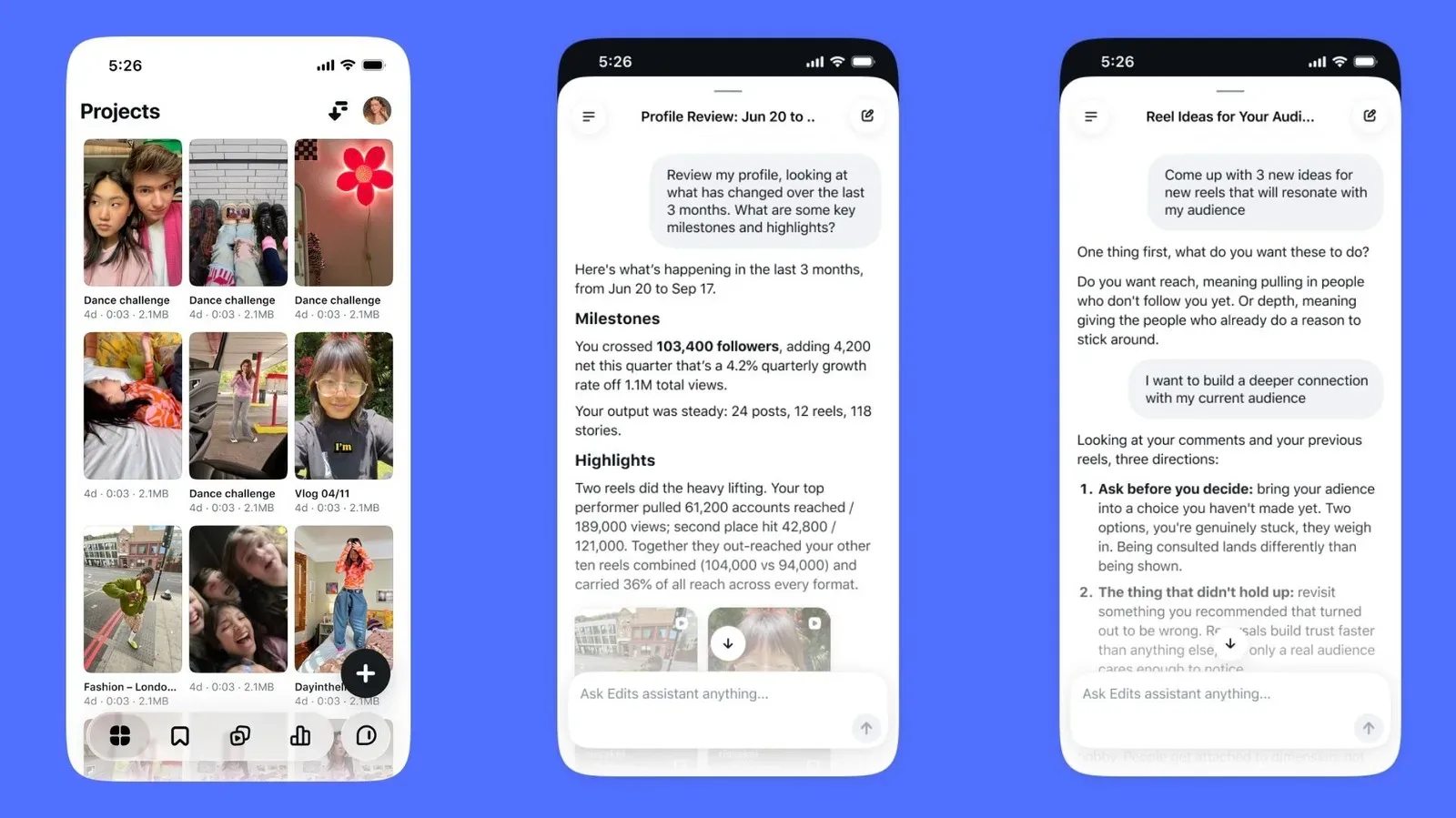
One notable workflow feature is not here yet. Meta says it is working on the ability to move between the desktop and mobile applications while editing the same project. That could be significant for people who begin an edit away from a desk and later want to make precise changes on a Mac, or who want to take a desktop project back to a phone for final adjustments.
For now, it should be treated as planned functionality, not a confirmed current capability. Meta also says additional desktop features are in development, but it has not detailed them. Creators deciding whether the Mac app fits their workflow should therefore focus on what has been identified: a multi-track desktop timeline, keyframes, waveform-based audio editing, color wheels, log conversions, curves, shortcuts, custom fonts, watermark-free export and direct Instagram publishing.
The bigger takeaway for creators
Edits’ Mac arrival is a bid to make the app useful at two scales. The mobile version can continue to serve quick, on-the-go editing, while the desktop version targets projects whose layers, timing and finishing touches benefit from a larger workspace. The distinction is less about where a video will be watched than how much organization it needs before publishing.
Meta’s reported 50 million active users gives the expansion some context: Edits is already operating with a sizable user base, and the company is now trying to retain users whose work grows beyond a phone-only timeline. The upcoming cross-device project editing would make that pitch stronger if delivered, but the Mac app’s present toolset already establishes a clear direction. Edits is aiming to be a social-video editor that begins with convenience, then stays useful when a creator needs more tracks, cleaner timing and more deliberate finishing control.