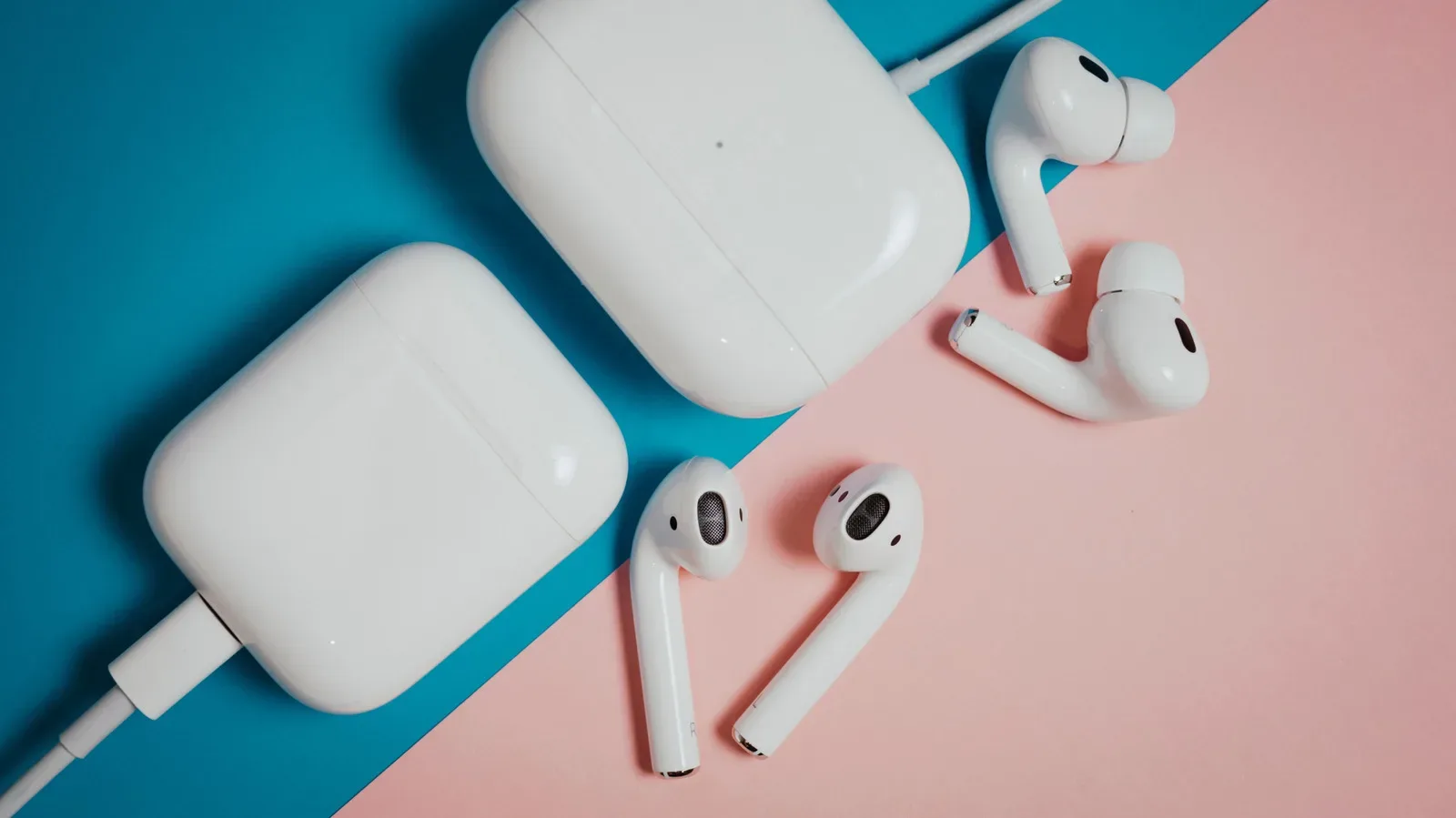
AirPods updates are deliberately low-drama: there is no prominent download button, progress bar or familiar “install tonight” screen. That makes the process convenient when it works in the background, but distinctly unhelpful when you suspect your earbuds are behind on a feature or an irritating connection problem.
The important distinction is that AirPods use firmware, rather than the full operating-system updates installed on an iPhone, iPad or Mac. Firmware is the software embedded in a device that governs its core operation. In AirPods, that can include the behavior of wireless connections and supported audio features. Apple distributes those updates automatically, so users cannot manually command an installation at a chosen moment. They can, however, verify the installed version and create the conditions in which an update can arrive.
That is worthwhile whether the goal is a newly added feature or simply a smoother day-to-day experience. Some releases are chiefly bug fixes and reliability improvements, but firmware can also enable more substantive additions. Live Translation, studio-quality audio recording and remote camera control are among the features introduced through AirPods firmware updates. Custom EQ is also available on AirPods with an H2 chip following the iOS 27 update.
Start with the Apple device, not the earbuds
Before looking at the AirPods themselves, update the iPhone, iPad or Mac that they use. New AirPods firmware can depend on current iOS or macOS software, so an out-of-date host device can be the practical obstacle even when the earbuds are charged and paired.
On an iPhone or iPad, open Settings, choose General, then select Software Update. The device will either offer an available update or confirm that its software is current. Mac users should similarly ensure that macOS is up to date.
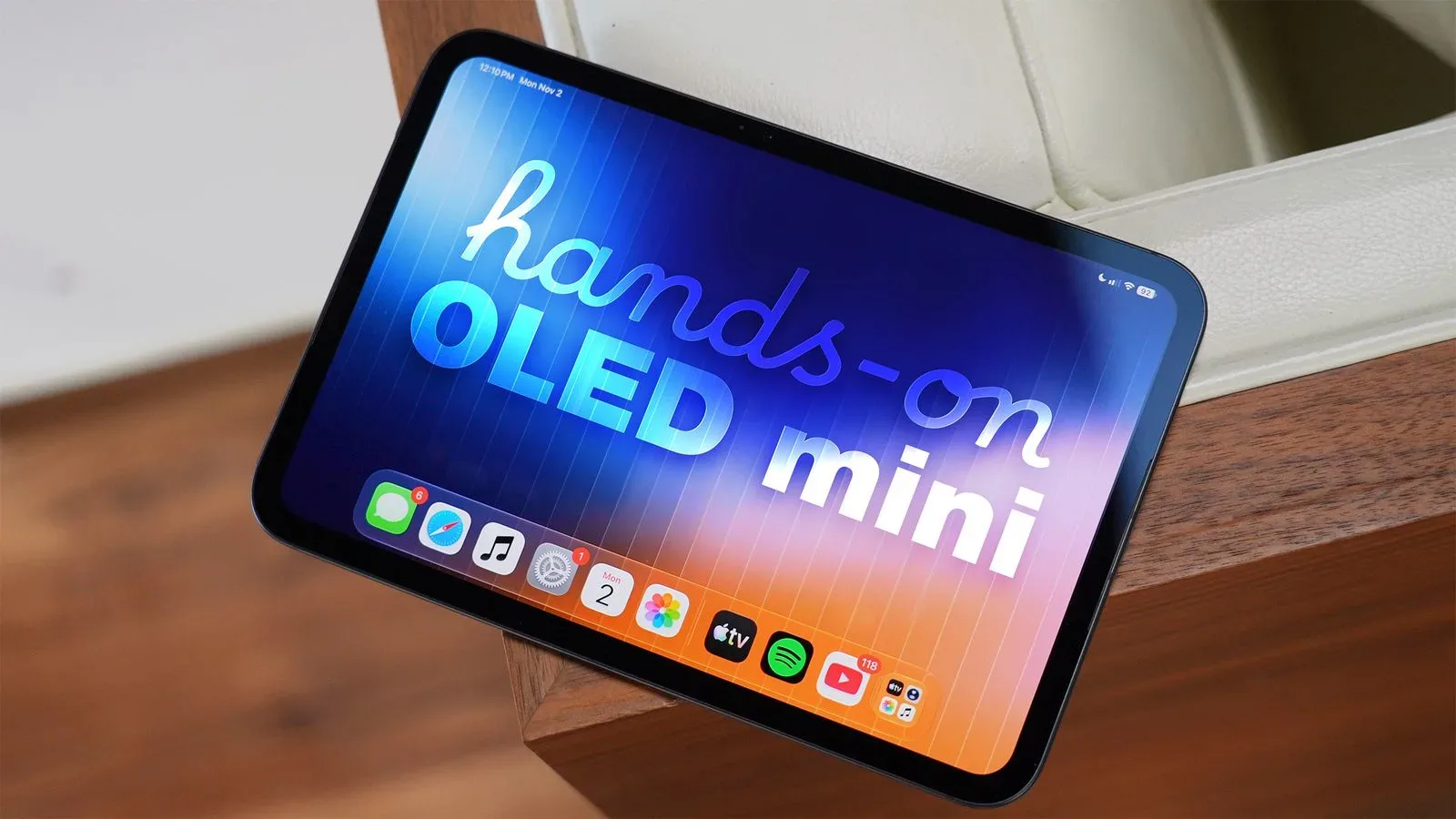
This step should not be treated as a guarantee that AirPods will update immediately. It is preparation, not a manual installation command. Still, it removes a key compatibility concern before troubleshooting the earbuds. An iPad can also be the paired device used for this process; for a broader look at a gaming-oriented tablet option, see this OLED iPad Mini overview.
How to find the firmware version on AirPods
Checking the version number first turns a vague suspicion into something measurable. If the installed version matches the latest firmware listed for that particular AirPods model, there is no update to chase. If it differs, the update may still install on its own once the proper conditions are met.
On iPhone or iPad
- Connect the AirPods to the iPhone or iPad.
- Open Settings.
- Choose the AirPods menu that appears near the top of the Settings screen.
- Scroll to the About section and locate Version.
The number shown there is the firmware version currently installed on the earbuds. It is not the iPhone’s iOS version, nor is it a Bluetooth setting; it identifies the software running on the AirPods.
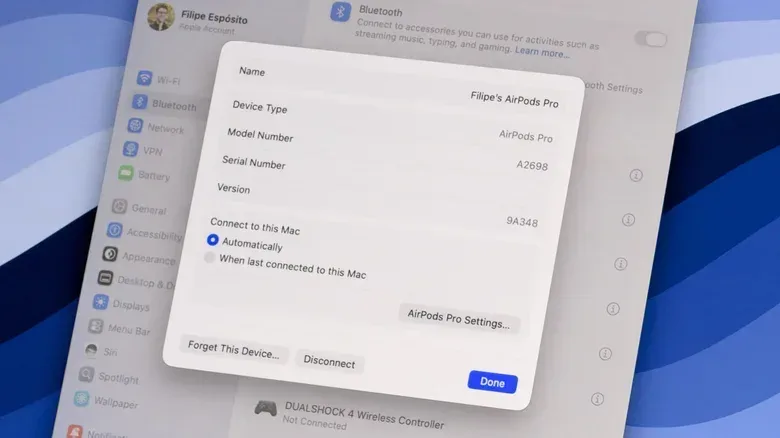
On Mac
- Open System Settings.
- Go to Bluetooth.
- Find the connected AirPods.
- Select the i information button beside them to view the version details.
Next, compare that number with the latest version listed for the corresponding AirPods model on Apple’s AirPods firmware information page. Model matters here: a version intended for one AirPods product should not be used as the benchmark for another. A mismatch indicates that the pair is likely awaiting a newer firmware release.
The closest thing to an AirPods update routine
There is no supported way to force an immediate firmware install. Apple’s process is automatic, so the practical task is to leave the earbuds in an update-friendly state rather than repeatedly searching for a nonexistent update button.
Use this checklist:
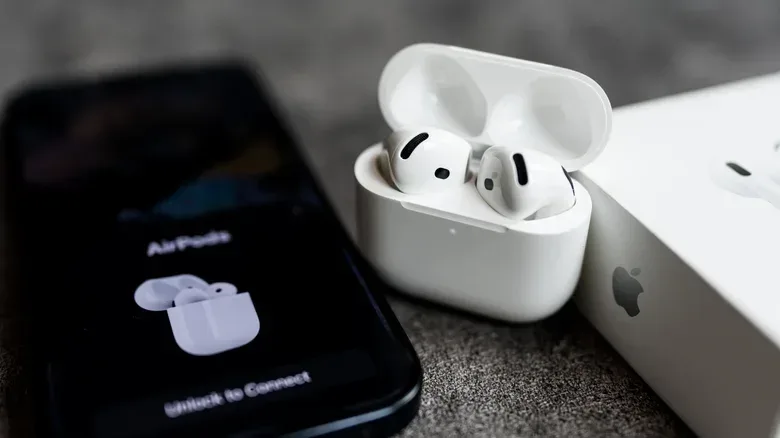
- Make sure the AirPods are paired with an iPhone, iPad or Mac.
- Confirm Bluetooth is enabled on that paired device.
- Connect the paired device to Wi-Fi. AirPods firmware will not download through 4G or 5G cellular service.
- Put the earbuds in their charging case.
- Close the case lid.
- Connect the case to power.
- Keep the case within range of the paired Apple device.
- Leave the setup alone for roughly 30 minutes.
After waiting, reconnect the AirPods and revisit the version field. That last check matters because the case does not display a confirmation and the paired device does not present the kind of update history people may expect from phones and computers.
The method is nearly the same for AirPods Max: place them in their case and connect them to a charger while keeping them near the paired Apple device. The broader principle is unchanged—pairing, Bluetooth, Wi-Fi and external power all need to line up, followed by time for the automatic process to occur.
Why Wi-Fi, charging and proximity matter
The routine can look overly cautious, but each part addresses a different requirement. Wi-Fi supplies the network path for the firmware download. Bluetooth allows the connected Apple device and the AirPods to communicate. Charging reduces the chance that the process is interrupted by a low battery. Staying within range preserves the connection between the earbuds and their paired device.
Closing the charging case is part of Apple’s recommended setup as well. In other words, the best approach is not to keep opening the lid, reconnecting the earbuds and checking every few minutes. Set them up, let them remain charged nearby, then check the version after about half an hour.
This automatic model has an obvious tradeoff. It avoids making every owner manage another update screen, but it gives users less direct control when they want a particular fix or capability. The version comparison is therefore the most useful diagnostic tool available: it separates “these AirPods are already current” from “they may be waiting for the update conditions to be met.”
What an update may actually change
It is sensible to keep expectations calibrated. Not every firmware release brings a flashy feature, and release notes may be limited to bug fixes and other general improvements. Those changes can still matter. Wireless earbuds depend on stable connections and predictable device behavior; reliability fixes may address the sort of small interruptions that are hard to diagnose from the user side.
At the same time, firmware has become a route for meaningful feature additions. Live Translation, studio-quality audio recording and remote camera control demonstrate that an AirPods update can alter more than background maintenance. Compatibility still applies: new features are frequently restricted to newer hardware. Custom EQ, for example, is available to AirPods models equipped with the H2 chip, rather than every AirPods product ever made.
That distinction prevents two common assumptions. First, installing the latest firmware does not mean every newly publicized AirPods capability will appear on an older pair. Second, an older model is not necessarily abandoned simply because a headline feature targets newer hardware; it may still receive fixes or other improvements.
If the version still does not change
Do not assume a failed update after one attempt. Recheck the fundamentals: the host Apple device should be on its latest software, Bluetooth should be on, Wi-Fi—not cellular data—should be active, and the AirPods should be charged in their closed case near that device. Then allow another uninterrupted period.
Owners who use AirPods but do not have an Apple device have a different route. An Apple Store or Apple Authorized Service Provider can update the firmware. That option is especially useful because the standard automatic workflow relies on an iPhone, iPad or Mac as the paired device.
The main lesson is refreshingly simple despite the hidden mechanics: check the version, compare it with the current release for the exact model, then give the AirPods a powered charging case, Wi-Fi-connected paired device and time. There may be no button to press, but there is a reliable way to make sure the automatic system has what it needs.