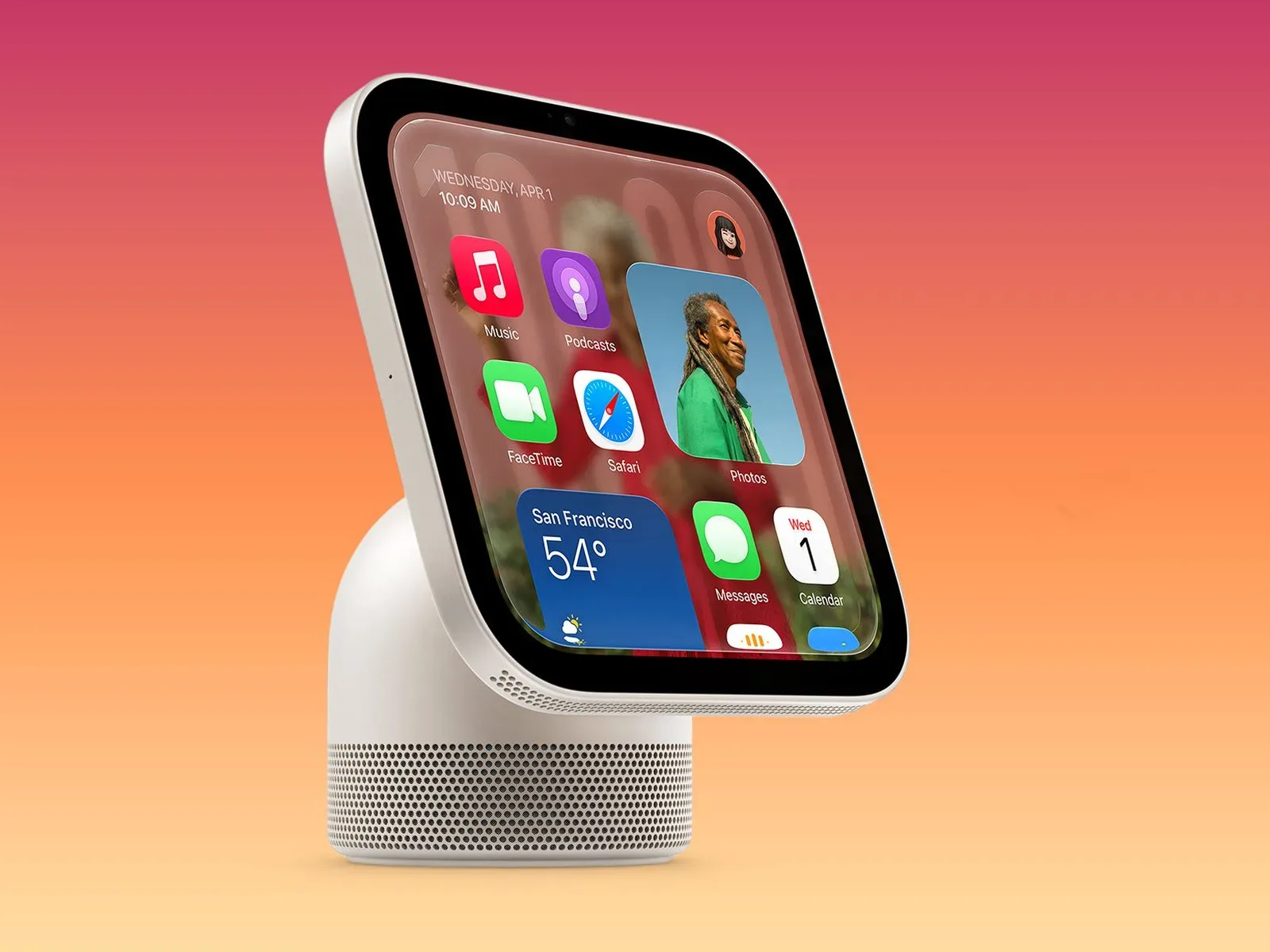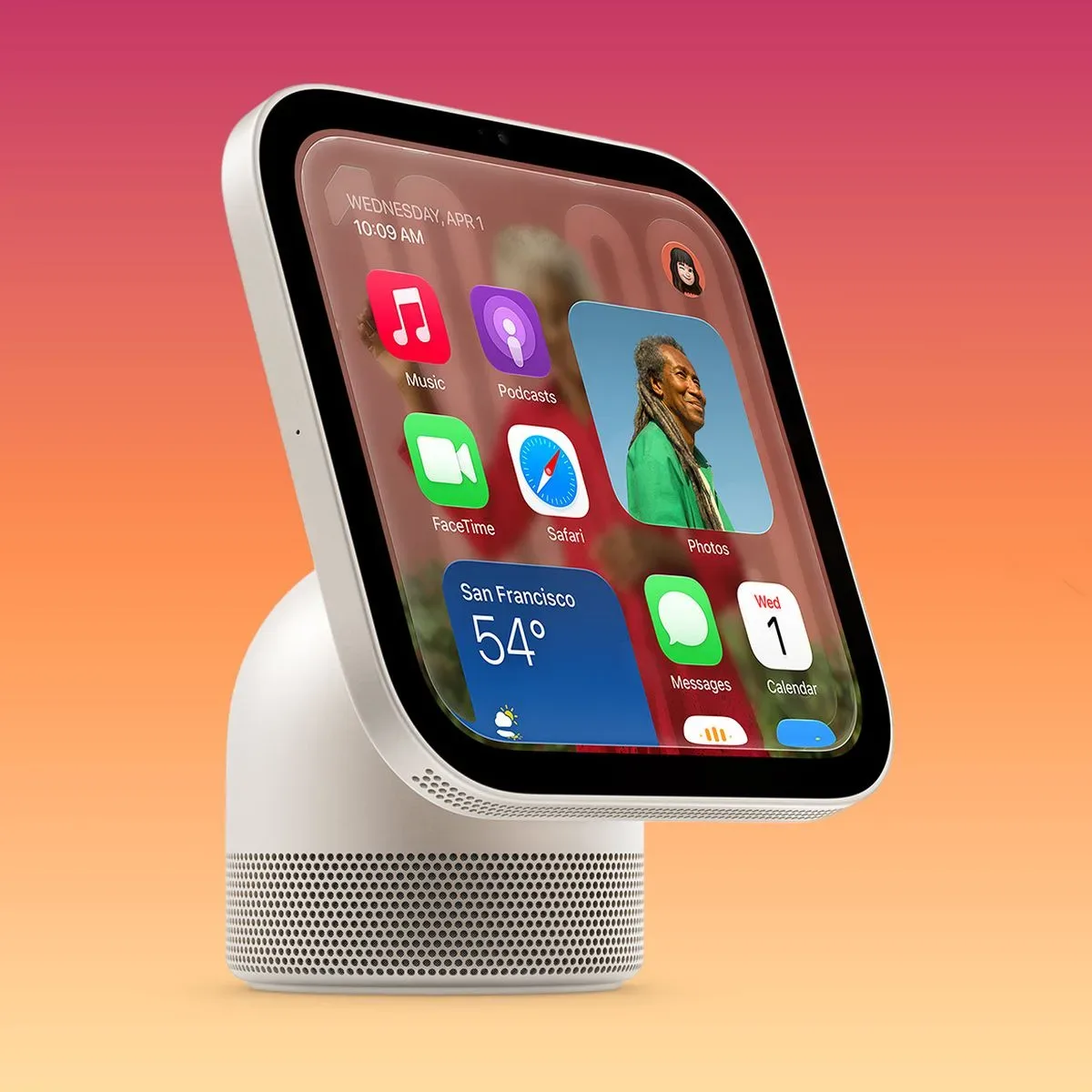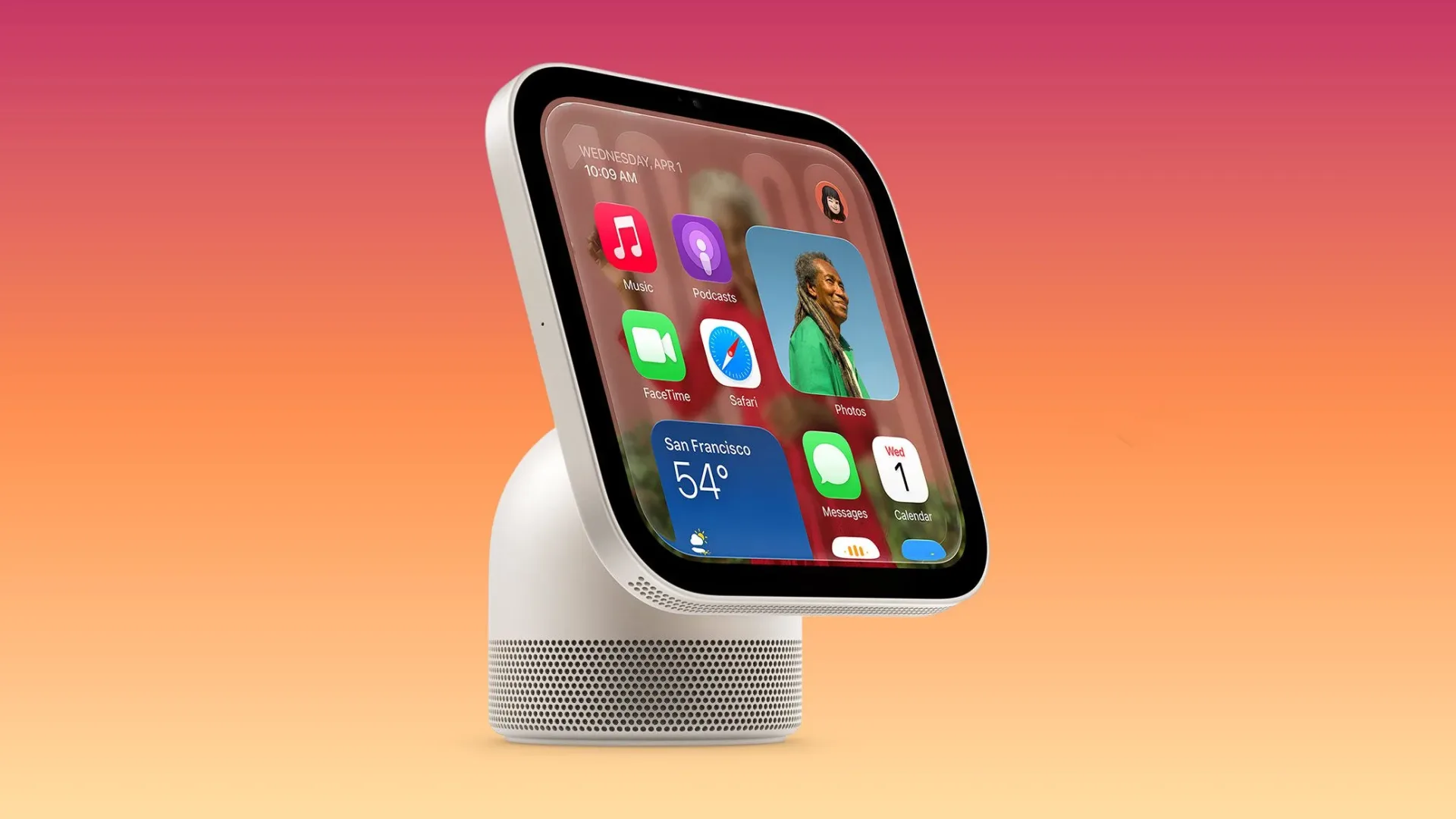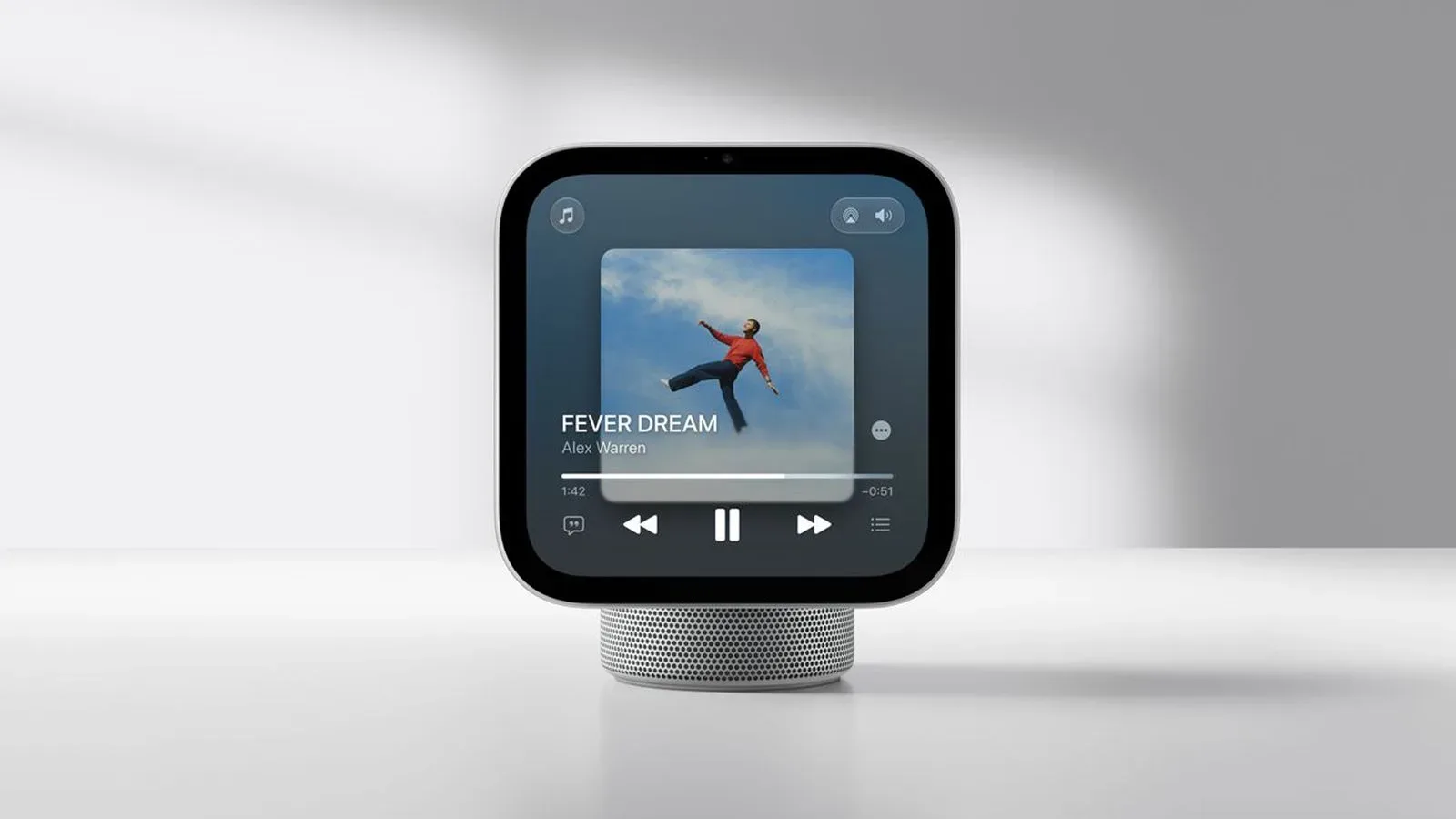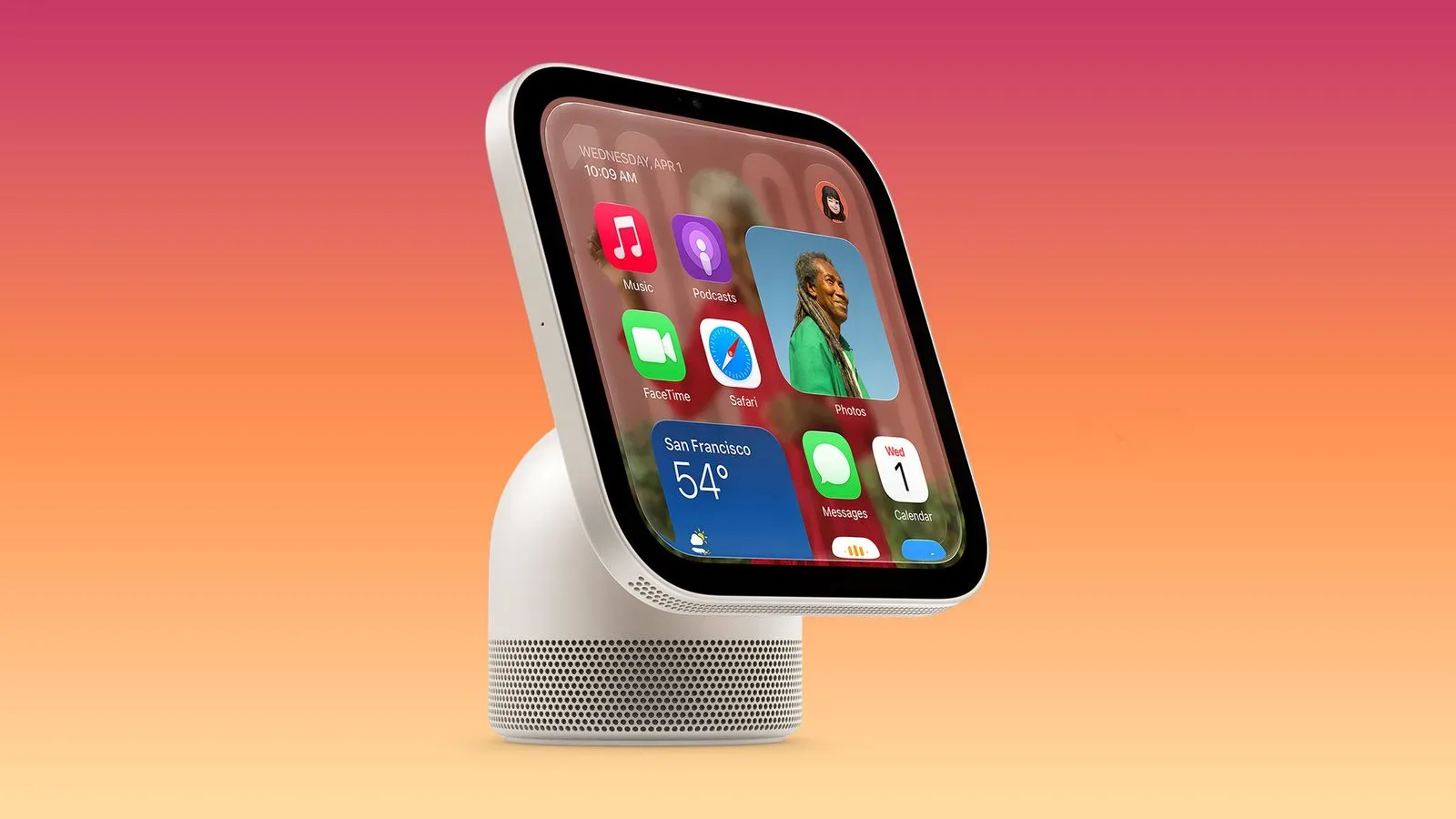
Apple’s HomeView is due to launch on November 13, but HomeView Software 27.2 has already put several pieces of the device’s interface into view. The early software release points to a product built around at-a-glance information and visual customization rather than a conventional iPhone-style app grid.
The newly visible details include 20 default wallpapers, a face-editing screen for the Lock Screen, automatic Light and Dark Mode switching, a startup “Hello” presentation, a Control Center interface, and multiple animated Snoopy options. Behind the friendly UI, the software also identifies a new launcher named BreadBoard and a separate Control Center process called CupBoard.
Those names are a notable signal that HomeView is not simply iOS with a new coat of paint. HomeView does not use SpringBoard, the launcher framework associated with iOS. Instead, it appears to have its own software structure and interaction model for the new device.
Twenty wallpapers, with room for personal photos
HomeView Software 27.2 includes 20 default wallpapers in a variety of colors. That is a relatively straightforward feature on its face, but it establishes an important part of how the device is meant to live in a room: even when it is not actively being used, its screen can be made to match a user’s preferred look.
The evidence also indicates that users will likely be able to select their own photos as wallpaper. That remains less certain than the bundled wallpaper count, so it should be treated as an expectation rather than a confirmed feature list item. Still, photo-based personalization would fit with a screen intended to be seen regularly in a home environment.
HomeView uses “faces,” and wallpapers may appear on the Home Screen. In this context, a face is the on-screen design selected for the device’s Lock Screen—an arrangement of visual elements and information, rather than merely a static background. The distinction matters. Wallpaper sets the backdrop, while the chosen face appears to govern the identity and presentation of the screen users see when HomeView is idle or locked.
Face editing suggests the Lock Screen is central to the experience
An image of HomeView’s face-editing interface shows users choosing the design they want on the Lock Screen. That puts customization at the center of the product’s everyday interface, not somewhere buried behind a utility menu.
The available information does not spell out every setting a face can contain, so it would be premature to assume complication-style widgets, third-party options, or a specific editing workflow. What is clear is simpler: HomeView has a dedicated UI for changing its Lock Screen design.
For prospective owners, the practical takeaway is that the device appears designed to have a selected visual state, not merely a blank standby screen. That makes the wallpaper collection and face selection complementary features. One controls the screen’s visual environment; the other controls the particular presentation placed over it.
Snoopy brings animation to a selected face
One of the face choices has a particularly playful angle. Selecting the Snoopy face gives HomeView access to numerous Snoopy animations. The software evidence establishes that there is more than a single looping animation, though it does not detail every animation or explain the conditions that trigger them.
Animated faces can serve a different purpose from information-dense layouts. Rather than optimizing the display for rapid scanning, they make the device feel more ambient and decorative. The Snoopy option therefore appears to be aimed at people who want a home screen that has some personality when it is visible across a room.
It also reinforces the notion that faces are a major part of HomeView’s product identity. A system that treats the Lock Screen as a customizable display surface has room for both functional designs and more expressive ones. HomeView’s face editor, wallpapers, and Snoopy animations collectively point in that direction.
Control Center and automatic appearance changes
A setup animation in the software shows Control Center on HomeView. Control Center is the quick-access area used for commonly needed device controls. The material available here confirms its presence, but does not provide a complete inventory of toggles or settings. It should not be read as proof of any particular smart-home control, media shortcut, or connectivity option beyond the existence of the interface itself.
HomeView will also offer Light Mode and Dark Mode, with the ability to move between the two automatically based on time of day. Light Mode and Dark Mode refer to interface color treatments: lighter surfaces and darker surfaces, respectively. Automatic switching means the device can change that presentation as the day progresses without a user needing to manually alter the setting each time.
That may sound ordinary because it is familiar from other Apple devices, but it has a sensible role on a display intended to remain visible in a home. A bright daytime interface can be appropriate in a lit room, while a darker presentation may be less visually aggressive later in the day. The key confirmed detail is the time-based automatic option; the software information does not specify whether there are other rules or schedules for switching.
A familiar greeting at startup
At startup, HomeView displays the familiar “Hello” text. It is a small flourish, but it links the new device to an established Apple setup and boot experience. More importantly, it is another piece of evidence that the software is far enough along to expose presentation details beyond raw system components.
There is no need to overread this visual. The greeting does not confirm setup steps, supported services, account requirements, or any other launch behavior. It simply shows that the device begins with a recognizable welcome screen.
BreadBoard replaces SpringBoard, while CupBoard handles Control Center
The more technical discovery is the naming of HomeView’s system pieces. iOS uses SpringBoard as its launcher—the core interface responsible for presenting the main device environment. HomeView, by contrast, uses a newly named launcher called BreadBoard.
HomeView’s Control Center UI is handled by a process called CupBoard. A process, in software terms, is a running program component assigned to a particular job. The names themselves have a light, food-themed pattern, but the important implication is architectural: the HomeView interface has dedicated components rather than relying on the exact iOS launcher arrangement.
That does not, on its own, tell us how different HomeView will feel in use. A separate launcher can still share visual conventions with Apple’s other platforms. Nor does it confirm app support, multitasking behavior, or how users navigate every screen. But it does establish that HomeView is being treated as a distinct software environment, which makes sense for a device organized around faces, an always-visible display, and a tailored Control Center.
For a useful comparison of why product timing and platform investment can matter beyond a single hardware launch, the wider games business is also dealing with development-risk questions, as seen in this report on Chronicles: Medieval’s funding situation before early access. The circumstances are very different, but both underscore how much a finished interface or product can depend on work that happens well before the public gets access.
The “HomeView Software 26” graphic and iPad mini testing clue
HomeView Software 27.2 also contains a hidden “HomeView Software 26” graphic. That is consistent with the possibility that the HomeView had been intended to arrive sooner. The available evidence adds to the suggestion that Siri AI readiness may have delayed the device, but it does not provide a definitive internal timeline or a formal explanation from Apple for any change in plans.
Separately, Apple appears to have tested the HomeView interface on a sixth-generation iPad mini ahead of launch. This is a practical development clue rather than confirmation that HomeView is an iPad mini in another form. Testing an interface on existing hardware can help developers evaluate a screen experience before the final device is broadly available. The evidence does not specify the extent of that testing, which teams performed it, or whether every part of the eventual HomeView experience was tested that way.
What is confirmed, suggested, and still unknown
HomeView Software 27.2 provides a clearer outline of the device than a simple product announcement alone. Still, software discoveries and visible assets have limits. The safest way to read the current picture is to separate directly supported details from reasonable inferences.
- Confirmed in the software material: 20 default wallpapers, face editing for Lock Screen designs, a startup “Hello” display, Control Center, Light and Dark Mode, automatic time-of-day switching, Snoopy animations, BreadBoard, and CupBoard.
- Strongly suggested: user-selected photo wallpapers and a Home Screen role for wallpapers.
- Not established by these details: the complete list of faces, the full Control Center feature set, every Snoopy animation, the exact navigation model, and the exact reason for any earlier-than-expected release plan changing.
That boundary is especially useful as the November 13 launch approaches. The early release gives a credible preview of HomeView’s visual personality and core system vocabulary, but it is not a substitute for a complete feature specification. At present, the clearest picture is of a distinct Apple display interface that emphasizes selectable faces, color and photo personalization, quick controls, day-to-night appearance changes, and a launcher built specifically for the product rather than lifted directly from iOS.