Grok has entered Google Workspace as a free add-on for Google Docs, Sheets and Slides, putting an AI side panel alongside the document rather than sending users to a separate chatbot tab. The appeal is immediate: turn rough notes into a structured document, make a presentation from an outline, or ask questions about a selected spreadsheet range without leaving the file.
But “free” does not mean “frictionless,” and it certainly does not mean “permission-light.” The add-on’s capabilities sit beside a notably consequential consent screen. Before treating it as a handy drafting companion, individual users and Workspace administrators should understand what the tool can access, where it can operate, and what it means for material read by an external AI service.
The sensible framing is not that Grok is automatically unsafe, nor that every AI-assisted document is a disaster movie with a blinking red countdown clock. It is simpler: its usefulness depends on the job, while its access requirements demand a deliberate decision.
What the Google Workspace add-on does
SpaceXAI released the free Grok add-on in July 2026. A single installation applies across the three supported Workspace editors: Docs, Sheets and Slides. Once installed and signed in, the tool is opened through Extensions > Grok > Open Grok. It then appears in a side panel, in the same general on-screen territory users may associate with Google’s own Gemini panel.
An LLM, or large language model, is the type of AI system at work here. In practical terms, it generates or transforms language based on patterns in data and the prompt it is given. That makes it well suited to first drafts, summaries, formatting help and idea organization. It does not make every response dependable merely because it sounds polished. The distinction matters when the output will be published, used to make a decision, or passed around a workplace as if it were verified research.
Within Docs, Grok can write into the document itself. A user might provide unstructured notes and request a draft with headings and lists. That is a real workflow benefit when the objective is to get a blank page moving. Its edits are reflected as visible revisions in Docs version history, which creates a practical review path: users can inspect what changed and undo it when the AI takes the document in a direction nobody asked it to go.
In Slides, the add-on can produce a deck from an outline and create slides intended to fit an existing presentation theme. It can research from the web or from X. In Sheets, it can work with ranges selected by the user, identify particular cells in its answers, write formulas into the formula bar, insert charts and rerun scenarios after an assumption changes. Those changes are ordinary edits that can also be undone.
That last detail is more meaningful than it sounds. An AI assistant that leaves normal, reversible Workspace edits is easier to supervise than one that hides its work behind an opaque workflow. It does not erase the need to check a formula, verify a cited answer or confirm that a chart represents the intended range. It does give the person responsible for the file a straightforward way to inspect and roll back the results.
Related coverage includes How to Add Grok to Google Docs, Sheets and Slides.
Installation is quick; reviewing access should not be
Grok is available through the Google Workspace Marketplace. It can be installed there by selecting Install, choosing the Google account and continuing through the authorization prompts. Users already working in Docs, Sheets or Slides can instead go to Extensions > Add-ons > Get add-ons. Workspace administrators can deploy the add-on across an organization.
The setup sequence is easy. The permissions are where the decision gets serious.
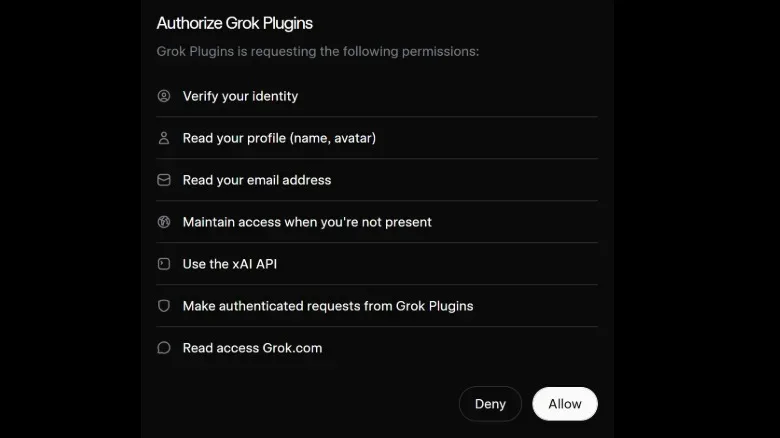
Grok requests permission to see, edit, create and delete all Google Docs files and all Slides presentations in the account. That request applies even if installation begins inside one specific document. Its Sheets scope is narrower: it covers spreadsheets where the add-on has been installed. Drive access is described as applying to files used with Grok. The add-on also asks for permission to connect to an external service, which enables it to send material it reads to SpaceXAI.
For everyday users, the practical question is not merely “Will I use this in one document?” It is “Am I comfortable granting this level of access to this account’s Docs and Slides?” Those are very different questions. A spare account holding low-stakes material presents a different risk calculation from an account full of work documents, school records, contracts, private creative drafts or shared presentations.
For organizations, deployment should not be treated as a decorative productivity upgrade. Admins should determine whether the requested access fits internal policies before enabling it widely. That means considering which accounts would receive it, what kinds of files those accounts contain, and whether the intended tasks actually justify the permission footprint. A free add-on can still carry a meaningful governance cost if employees begin using it with sensitive or important material by default.
Connectors raise the stakes further
Grok can apparently use connectors to pull context from recent emails or Google Drive files. This can make an assistant more useful because it has more background to work from. It also increases the significance of the data-access choice. An AI can only meaningfully summarize, synthesize or reference information it is allowed to read; expanding its context therefore expands the material that may be involved in a prompt and response.
A cautious approach is to leave connectors off unless a specific workflow clearly needs them. If they are enabled, users should be especially selective about the prompts they send and avoid treating generated prose as a safe place to paste more private context. The technical convenience is real, but it is not a substitute for data judgment.
Where Grok looks useful—and where it needs a human in the loop
The strongest use cases in the supplied feature set are bounded, reviewable tasks. Converting notes into a formatted starting draft is sensible when the user will edit it. Asking Sheets to point to relevant cells can speed up navigation across a known range. Requesting a formula can be a useful shortcut when the user understands the desired calculation and checks the formula before relying on it. Generating a slide structure from an outline can save setup time before a person fills in the message, evidence and visual judgment.
These are assistance tasks, not delegation tasks. The person using the add-on remains responsible for accuracy, tone, factual claims and the consequences of an error. In particular, citations should be checked at the original material, rather than treated as a magic stamp of truth. A response can include citations and still frame a source inaccurately, overlook caveats or draw a conclusion the cited material does not support.
The X research option deserves even greater caution. A social platform can surface immediate reactions and discussion, but it is not inherently a verification system. If Grok brings information from X into a document or deck, it should be treated as a lead to investigate, not as a final factual foundation. That is especially true for politically charged, reputational or fast-changing topics.
The larger cultural anxiety around AI-generated material is not limited to office documents. Questions of authenticity and provenance also show up in creative work, as seen in the dispute involving alleged AI-generated soundalikes. In a Workspace setting, the immediate issue is more mundane but still important: know what the system produced, know what it read, and make sure a responsible person verifies the result before it travels any further.
Grok versus Gemini: free access is not the only difference
Google’s Gemini is built into Workspace and can be opened through the Ask Gemini icon in Gmail, Docs, Sheets, Slides, Drive and Chat. However, access is not universally free. Work users need an eligible Workspace plan, while personal users need Google AI Plus, Pro or Ultra. Google incorporated Gemini into its Business and Enterprise plans in January 2025, ending a separate add-on that had brought a Business Standard seat to $32 per user each month.
Grok’s no-cost installation is therefore its clearest advantage for someone without paid Gemini access who wants an AI panel inside the three document-editing applications. It also has the distinct option to draw research from X. Whether that is an advantage will depend on the user and the task; it is not a blanket quality guarantee.
Gemini has the broader Workspace reach. It can operate in Gmail, Drive and Chat as well as Docs, Sheets and Slides, while Grok is directly limited to the three editors. Grok’s connectors can extend its context toward Gmail and Drive, but that workaround is inseparable from the extra data access it asks users to grant.
For someone already entitled to Gemini through work or a subscription, Grok is not an automatic upgrade. It is another tool with a different access model, a smaller set of directly supported Workspace apps and an X-based research option. The better choice is the one that fits the task and the account’s privacy boundaries—not necessarily the chatbot with the loudest entrance.
A practical checklist before pressing Install
- Read every permission screen. Pay particular attention to the ability to see, edit, create and delete Docs and Slides across the account.
- Decide whether the account is appropriate. Consider the documents and presentations already stored there, not just the file open during installation.
- Keep connectors off by default. Enable email or Drive context only when there is a clear, justified need.
- Use it first on low-stakes work. Draft structures, formatting, simple formula help and presentation outlines are easier to review than consequential research or sensitive documents.
- Check AI output line by line when accuracy matters. Review formulas, citations, cell references, claims and any external research before reuse.
- Use version history and undo. Grok’s changes can be inspected and reversed, so take advantage of that safety net.
- For admins, assess it as an organization-wide access decision. Broad deployment should follow a policy review rather than a rush to provide the newest AI button.
Grok’s Workspace integration makes AI assistance accessible in the places where many people already write, calculate and build presentations. That convenience is meaningful. So is the access it seeks. Used with limited scope, careful review and a clear understanding of permissions, it can be a useful side-panel assistant. Used casually on an account full of material it never needed to see, it can turn a few clicks of convenience into a much bigger decision than it first appears.