Every collector eventually meets the same final boss: the folder called “New Folder (47).” It may contain card scans, convention receipts, photos of shelf displays, valuation spreadsheets, eBay reference images, warranty PDFs, and a mysterious document named “final_FINAL_use-this-one.pdf.” Google Drive’s Gemini-powered Organize My Files feature is intended to make that digital pile a little less intimidating by proposing file moves for a user to review and approve.
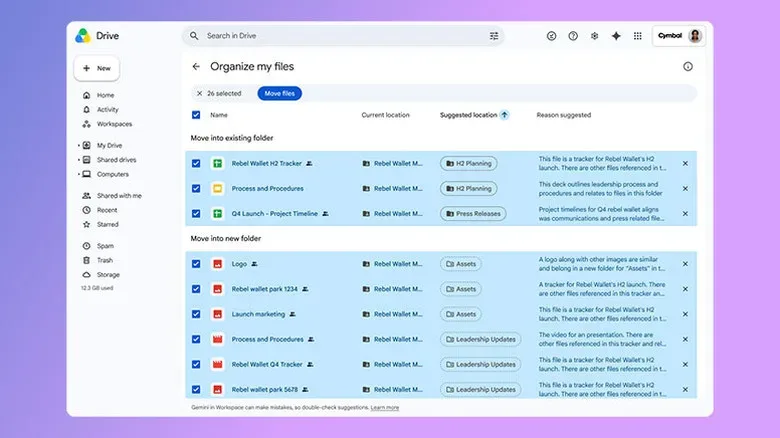
The feature, which Google began testing last fall and started rolling out to Workspace users in June, uses Gemini to recommend destinations for loose files based on a person’s existing organizational approach. Crucially, it is a suggestion tool rather than an autonomous cleanup button. Users are shown proposed actions and can choose which ones to accept through checkboxes.
That approval step matters for anyone maintaining records tied to physical games, trading cards, memorabilia, or other collectibles. A misfiled screenshot is annoying; a misplaced record of an item’s condition, provenance, or purchase history can create a much more frustrating scavenger hunt later. Gemini’s approach appears designed to keep the human in charge while removing some of the repetitive work of deciding where an obvious file ought to live.
What Organize My Files can do in Google Drive
From the web version of Google Drive, eligible users can open My Drive and select Suggest file moves. Gemini then presents a separate window containing its recommendations. Each suggested move can be reviewed individually before it is approved.
The system may also propose creating folders when it thinks a new destination would make sense. Google Drive provides preview cards for suggested documents and files when a user hovers over them, giving people a chance to check what is being moved instead of trusting a thumbnail and hoping for the best.
For a collector, this could be useful in narrow, practical ways. A Drive with a clear structure such as “Pokemon Cards,” “Nintendo Games,” “Receipts,” and “Insurance Inventory” may have recent uploads sitting unfiled at the top level. If those files have meaningful names, Gemini may be able to point them toward the relevant folders. The important qualifier is that it makes recommendations based on the organizing structure already in place; it is not presented as a replacement for deciding how a collection should be cataloged.
It also will not rename files. That limitation is more important than it sounds. A photo called “IMG_4837.jpg” or a scan called “Scan 2026-09-14.pdf” gives any organizational system far less to work with than “1999 Base Set Charizard front scan.jpg” or “GameCube purchase receipt September 2026.pdf.”
Eligibility comes before the cleanup quest
Organize My Files is not available on free Google accounts. Individual users need a Google AI Pro or Google AI Ultra subscription for the option to appear in Drive. Google AI Pro is listed at $20 per month and includes 5TB of additional storage plus YouTube Premium Lite, among other benefits. Whether that broader bundle is worthwhile will vary sharply from one person to another, particularly if Drive is not their primary storage service.
The feature is also available to Business, Enterprise, and Education customers, with boundaries around what it can touch. A workplace account cannot be used to organize a person’s private files, and Gemini cannot organize shared files or folders used with colleagues. Its organizational suggestions are limited to private folders.
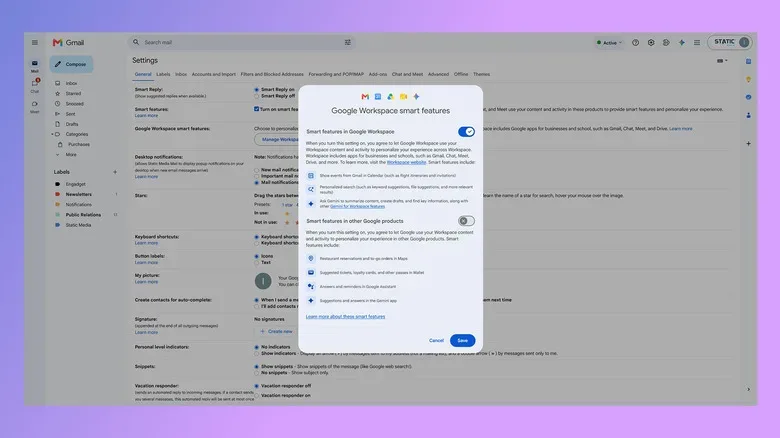
Before it can be used, Google Workspace smart features must be enabled. They are switched on by default in most places where Google offers Workspace, but it is worth confirming the setting rather than assuming it is active. In Gmail on the web, users can follow this path:
- Select the settings cog.
- Choose See all settings.
- Under the General tab, find Manage Workspace smart feature settings.
- Enable smart features in Google Workspace if they are disabled.
Once those requirements are satisfied, the Drive workflow is comparatively simple:
- Open Google Drive in a web browser and go to My Drive.
- Select Suggest file moves near the top of the page.
- Examine Gemini’s proposed changes in the new window.
- Tick the checkboxes beside the actions that should be carried out.
That is not exactly a cheat code for defeating years of digital disorder, but it may be a worthwhile shortcut for the recurring stream of files that slips through after a folder system has been established.
Names and hierarchy are still doing the heavy lifting
The most useful takeaway is less about artificial intelligence and more about filing habits. Gemini does not appear to read the contents of documents to form these suggestions. That means the quality of its recommendations is likely to depend heavily on filenames and the folder hierarchy a user has already built.
For collecting, the best preparation is a straightforward, repeatable naming convention. There is no single perfect format, but consistency helps. Someone documenting sealed games might include platform, title, edition, and date. A trading-card archive could use set, card number, player or character, grade, and whether the image is a front or back scan. Receipts and invoices can include the seller, item description, and date.
- Useful: “Pokemon Base Set Charizard 4-102 front scan.jpg”
- Useful: “Nintendo Game Boy Advance SP cobalt purchase receipt 2026-08-04.pdf”
- Less useful: “photo_1012.jpg”
- Less useful: “untitled document.pdf”
A sensible hierarchy can be just as valuable. For example, a broad collection folder could contain subfolders for inventory, purchases, high-resolution photos, authentication, grading, insurance, and sold items. The exact arrangement should match how the owner actually looks for information. A system that is technically elegant but too cumbersome to use will eventually become another digital attic.
This is especially relevant to collectors who keep reference material alongside their own inventory. A folder structure can separate personal item records from market screenshots, checklists, release information, and event photos. It can also distinguish records that need to be retained, such as invoices or grading submissions, from temporary images that are only useful while researching a purchase.
A review-first AI tool, not an archive curator
Gemini’s approval-based design is the right fit for files with long-term value. A collector should still inspect suggestions, particularly where similarly named items could belong in different places. “Mario kart receipt” might be a purchase record for a game, a repair invoice for a cabinet, or a photo of a flea-market find. Machines are excellent at offering a route; people remain better at knowing why an item matters.
The feature may be most valuable after an initial manual cleanup. If a Drive is largely filled with untitled documents and unstructured uploads, the time required to rename and sort that material may outweigh the immediate benefit of Gemini’s recommendations. But once an owner has taken that first pass, the tool could help keep future stray uploads from accumulating.
That is a familiar maintenance problem in collecting. Cataloging a backlog is a project; preventing the next backlog is a habit. The same goes for device hygiene more broadly, whether that means organizing cloud files or staying current on platform protections such as the security updates covered in recent iOS security patches for Apple device owners.
Organize My Files does not promise to understand every scan, receipt, photo, or spreadsheet in a Drive, and it cannot turn vague filenames into a meticulously curated archive. What it offers is more modest: a way to surface plausible destinations for private files and let users approve the moves. For people with an established filing system—and just enough discipline to name things before tossing them into Drive—that could make the next digital cleanup feel less like sorting bulk cards at 2 a.m.