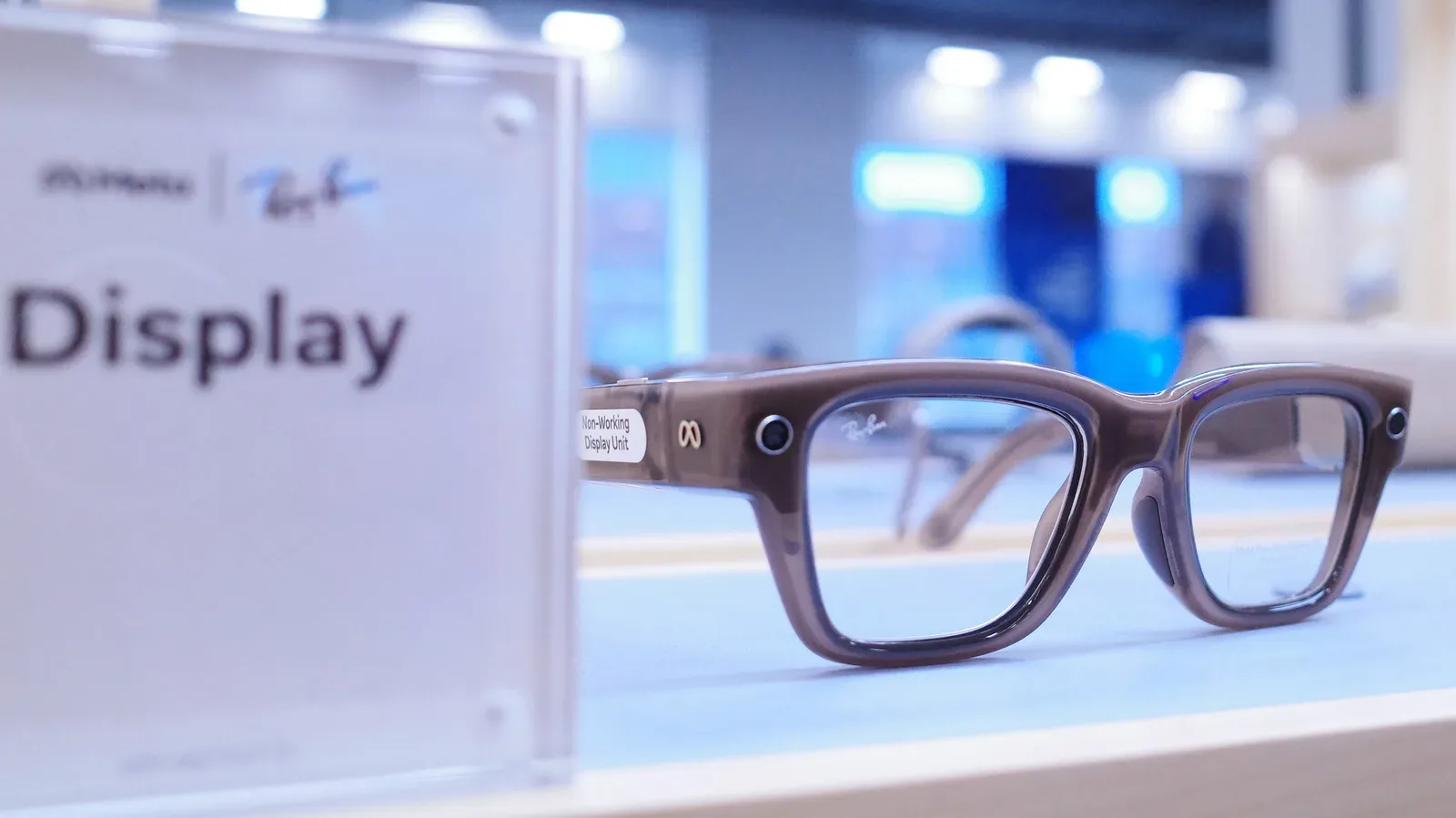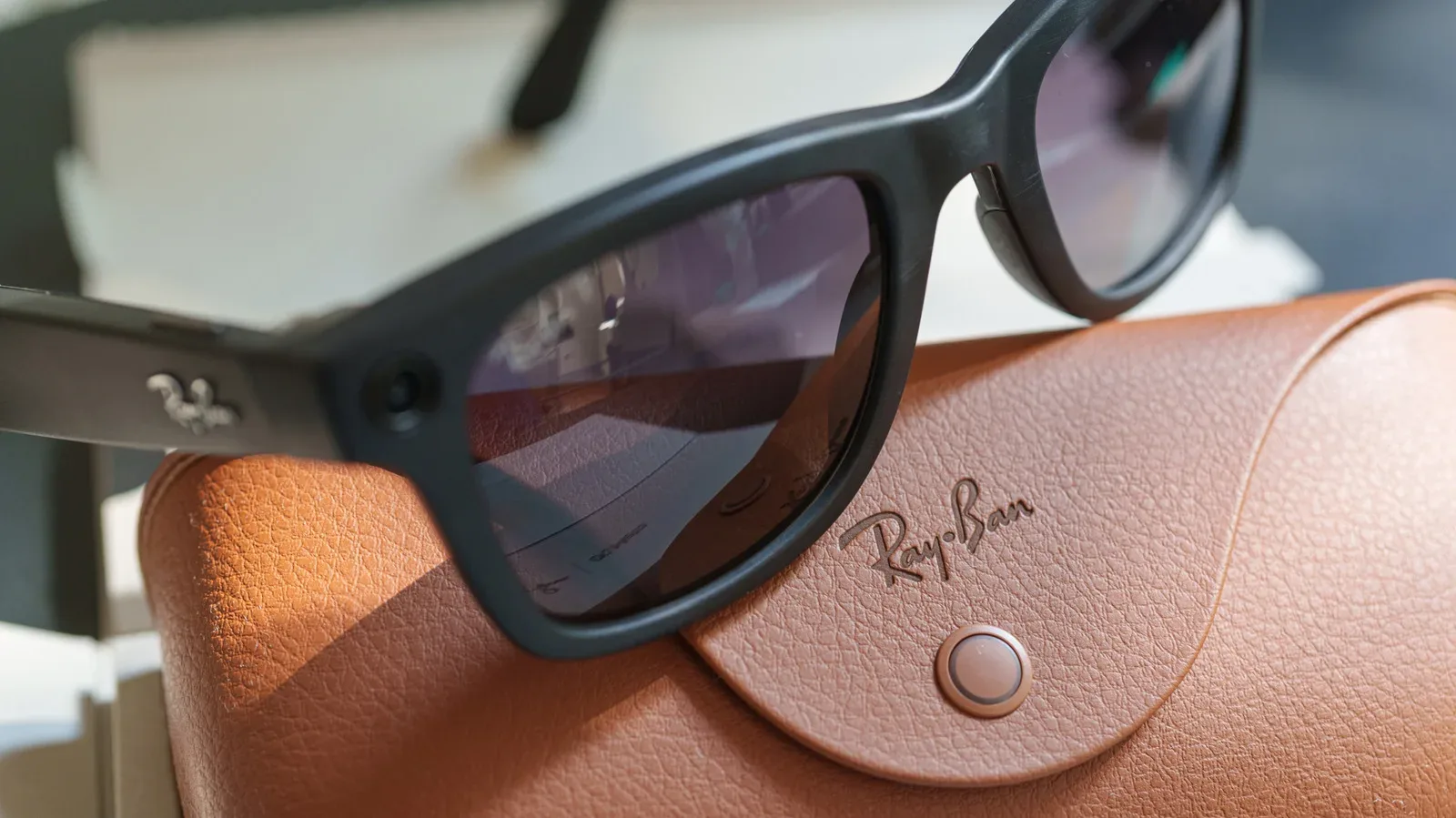
Smart glasses are built around a useful illusion: that a camera, microphones and an assistant can blend into something as ordinary as a pair of frames. That convenience makes the privacy choices easy to overlook. On Ray-Ban Meta glasses, however, the settings that govern voice activation, cloud copies of gallery media, optional product analytics and visual AI interactions are not one master switch. They apply to different kinds of information and produce different trade-offs.
The practical takeaway is simple: a photo you take for your gallery is not treated the same way as an image you show the assistant to identify a plant or translate a menu. Likewise, turning off the “Hey Meta” wake phrase does not mean the glasses cannot use microphones for calls, video recording or an assistant request deliberately launched with the touch controls.
Before changing anything, it helps to decide what matters most: minimizing unexpected activation, preventing a temporary cloud copy of ordinary captures, declining optional usage analytics, or keeping visual AI requests from being retained for model training. The Meta AI app presents a setting for each of those goals, but none is a total opt-out from all processing needed to make the glasses work.
1. Disable “Hey Meta” if accidental wake-ups are your biggest concern
With voice activation enabled, the glasses listen for the wake phrase “Hey Meta.” That is the feature’s job, but it also creates the possibility that a nearby conversation will sound close enough to launch the assistant unintentionally. For a device intended to be worn throughout the day, reducing that risk can be more important than hands-free convenience.
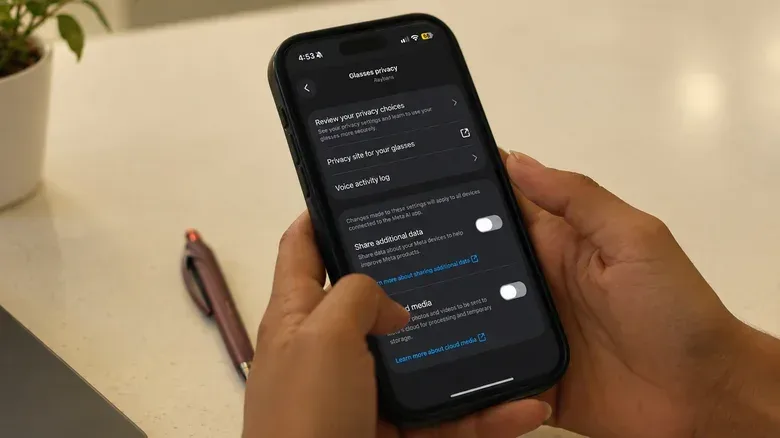
In the United States, users cannot stop Meta from storing recordings of AI voice interactions in the cloud. Saved recordings can be deleted manually, but that requires an ongoing habit rather than a one-time setup decision. The relevant history can be reviewed or removed through Glasses privacy > Voice activity log.
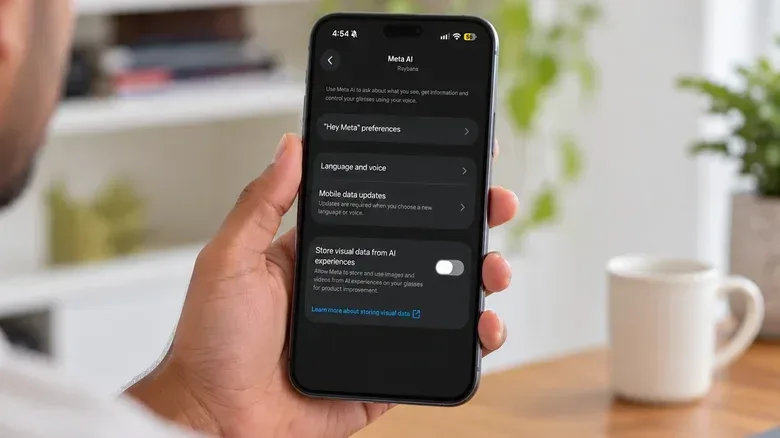
To stop wake-word activation, put on the glasses, make sure they are connected to the phone, then open the Meta AI app. Select the glasses, go to Meta AI > “Hey Meta” preferences, and turn off the “Hey Meta” toggle.
This is a targeted change, not a muzzle for the hardware. The right-temple touchpad can still invoke the assistant, and the microphones remain available for calls and video. Audio will also still be processed when the assistant is intentionally used. In other words, this setting removes always-ready wake-phrase detection; it does not prevent voice data from being involved after a user explicitly starts an AI interaction.
Who should use this setting?
It is particularly sensible for people who want the glasses primarily as a camera, headphones or calling device and do not expect to use voice commands often. It is also the clearest option for someone who wants to reduce accidental assistant launches without giving up the ability to use the assistant through touch controls when needed.
Related coverage includes Four Ray-Ban Meta Privacy Settings to Review Before Daily Wear.
The cost is obvious but limited: speaking to the glasses becomes less immediate. The remaining controls preserve access while making the decision to start an AI interaction more deliberate.
2. Turn off Cloud media to avoid Meta-held copies of gallery captures
The Cloud media control applies to photos and videos captured for the glasses’ gallery. Under normal handling, captures stay on the glasses until they are imported to a phone. If Cloud media is enabled, Meta can retain copies on its servers for up to 30 days.
To turn that off, open the connected glasses’ settings in the Meta AI app and select Glasses privacy > Cloud media. Photos and video recording still work afterward, and media can still be imported to the phone. The trade-off is the loss of cloud-dependent functions, including voice-controlled photo sharing and autocapture.
There is an important distinction here. Meta says routine photos and videos captured for the gallery are not used to train its AI models or deliver ads, whether Cloud media is on or off. The setting is therefore about whether those gallery captures can be stored temporarily in Meta’s cloud, rather than an AI-training control for ordinary photos.
It also does not govern an image used in a visual AI request. If a wearer asks the assistant about something seen through the camera, that image needs to be sent to Meta’s servers to produce an answer. That is a separate data route with a separate setting.
Cloud media is not the same as phone backup
Disabling Cloud media does not guarantee that imported photos never reach a cloud service. A phone configured to automatically back up its camera roll through iCloud or Google Photos may upload those same files after import. That can still be a perfectly acceptable choice, but it is a separate decision made in the phone’s backup settings rather than the glasses app.
That layered setup is a recurring reality for connected devices. The glasses settings affect the glasses service, while the phone and its apps may have their own syncing behavior. Similar ecosystem limitations can shape whether accessory features are available elsewhere; wireless earbuds can also retain core functions while reserving some features for a particular software ecosystem.
3. Decline optional additional-data sharing
Photos and recordings are only part of the picture. Meta separates data needed to operate and protect the glasses from optional “additional data.” The latter includes usage analytics, such as which features are used and how frequently.
Usage analytics are not necessarily media content, but they can still describe how a person interacts with a device that may be worn for long stretches of the day. A record of feature use can help a company understand how products are used. Whether to contribute that information is a personal choice, and the app provides an opt-out.
In the Meta AI app, select the connected glasses, then navigate to Glasses privacy > Share additional data and switch the toggle off.
This is probably the lowest-friction privacy adjustment of the four. It does not change photo handling, calls or music playback. It also does not turn off every category of collection: Meta continues to collect information it says is necessary for operation and safety, while voice commands and camera-based AI requests remain subject to their respective policies and settings.
It is equally important not to overread the control. Switching it off does not delete data already collected. It changes future sharing of the optional additional-data category, not the past and not every form of device-related data.
4. Stop retention of visual AI data for training
Visual AI is where the distinction between “taking a photo” and “asking a question through a camera” matters most. When a wearer asks the assistant to identify a plant or translate a menu, visual information must be sent to Meta’s servers so the service can generate a response. That is called a visual AI interaction, and it is separate from an image intentionally saved to the gallery.
In September 2026, Meta introduced an option to stop visual data from these smart-glasses AI interactions being retained for AI training. Before that option, such information could be stored for training and reviewed by human contractors. The newer setting gives users a way to prevent future visual AI material from being kept for that purpose or made available to human reviewers for product improvement.
To enable the opt-out, the glasses must be out of their case and connected to the phone. In the glasses settings of the Meta AI app, select Meta AI and turn off Store visual data from AI experiences.
This does not mean visual questions stop working. Meta still processes the image in order to answer the question. The meaningful change is what happens after that necessary processing: the data is not retained for AI training or sent to human reviewers for product improvement after the user has opted out.
The feature compromise is real, even if its full scope is not yet clear
There is a stated downside. Visual reminders may cease working, including requests for the glasses to remember an object for later. Meta has not specified whether any other features may be affected. Anyone who relies on that kind of recall feature should weigh its usefulness against the preference not to retain visual AI data for training.
The control is also prospective rather than retroactive. It does not erase visual information that was processed before the setting was changed, and it does not alter the treatment of voice interactions. If older voice requests are a concern, the Voice activity log is the relevant place to review them.
A practical way to choose the right combination
These four toggles make more sense when treated as answers to four different questions:
- Do I want the assistant listening for a wake phrase? If not, disable “Hey Meta” and use the touchpad for intentional requests.
- Do I want ordinary gallery photos and videos held temporarily in Meta’s cloud? If not, disable Cloud media, then separately inspect phone backup preferences.
- Do I want to provide optional feature-use analytics? If not, switch off Share additional data.
- Do I want visual AI requests retained for model training or product-improvement review? If not, disable Store visual data from AI experiences.
For a privacy-first configuration based on the available controls, all four can be switched off. The glasses can still take photos and record video, import media to a phone, make calls, play music and answer assistant questions started deliberately. The sacrifices are largely convenience-oriented: no wake phrase, no cloud-media features such as autocapture or voice-controlled sharing, no optional analytics contribution, and potentially no visual reminders.
Finally, each pair needs its own review. Owners with more than one Meta glasses model, including first-generation Ray-Ban Meta glasses, must change the visual-data setting separately on every pair. It is worth checking the other controls per device as well rather than assuming a preference on one set of glasses automatically applies everywhere.