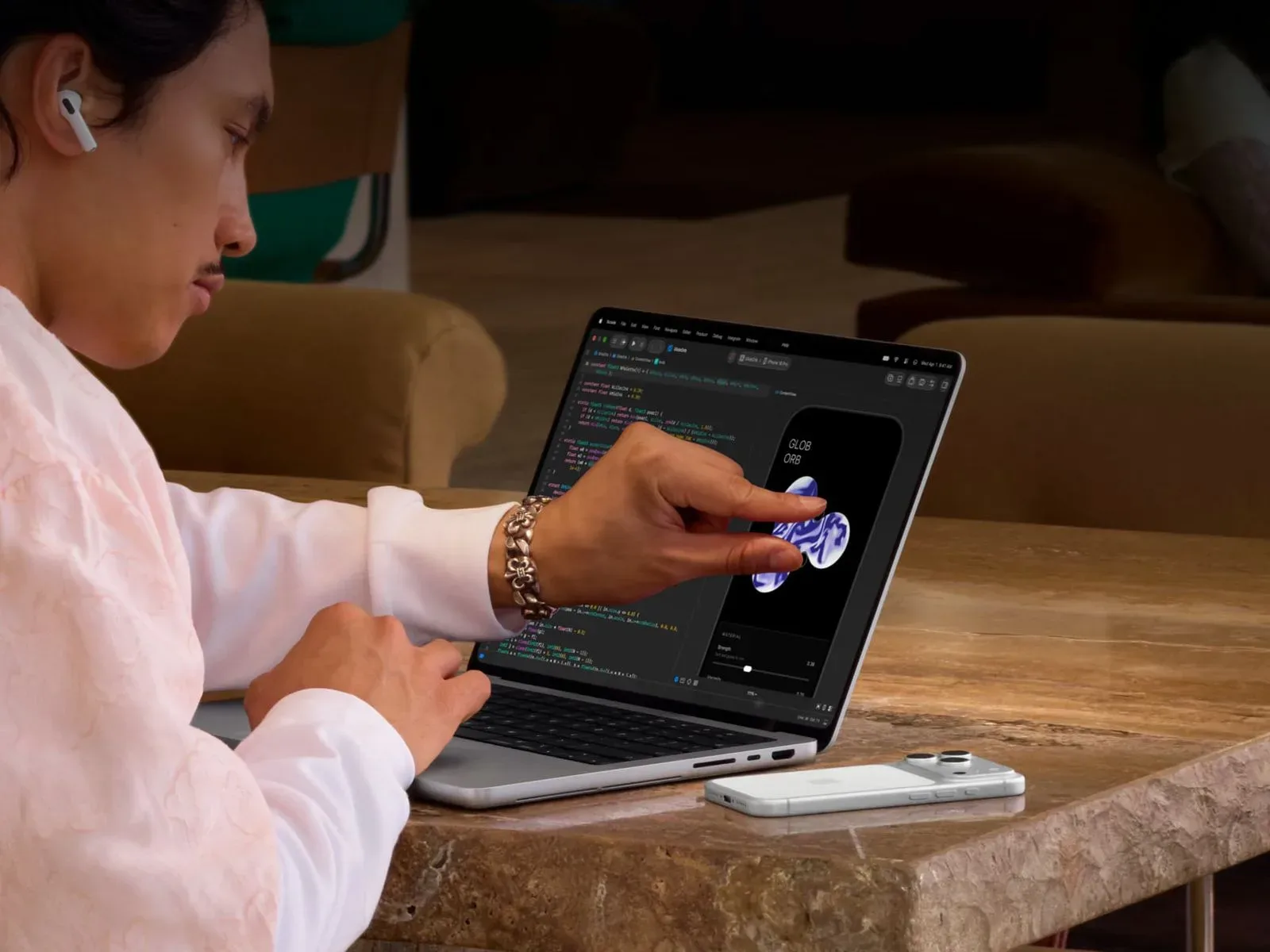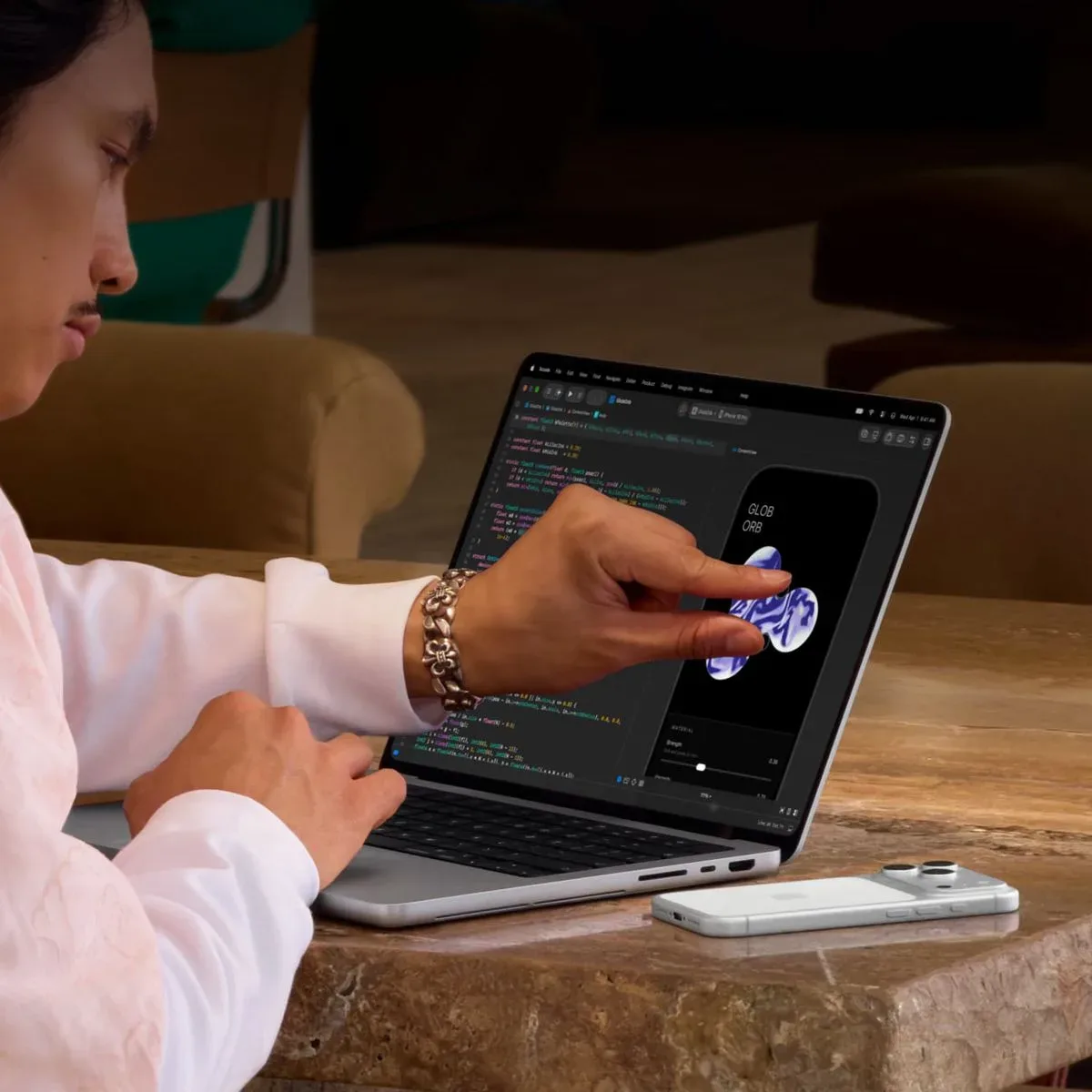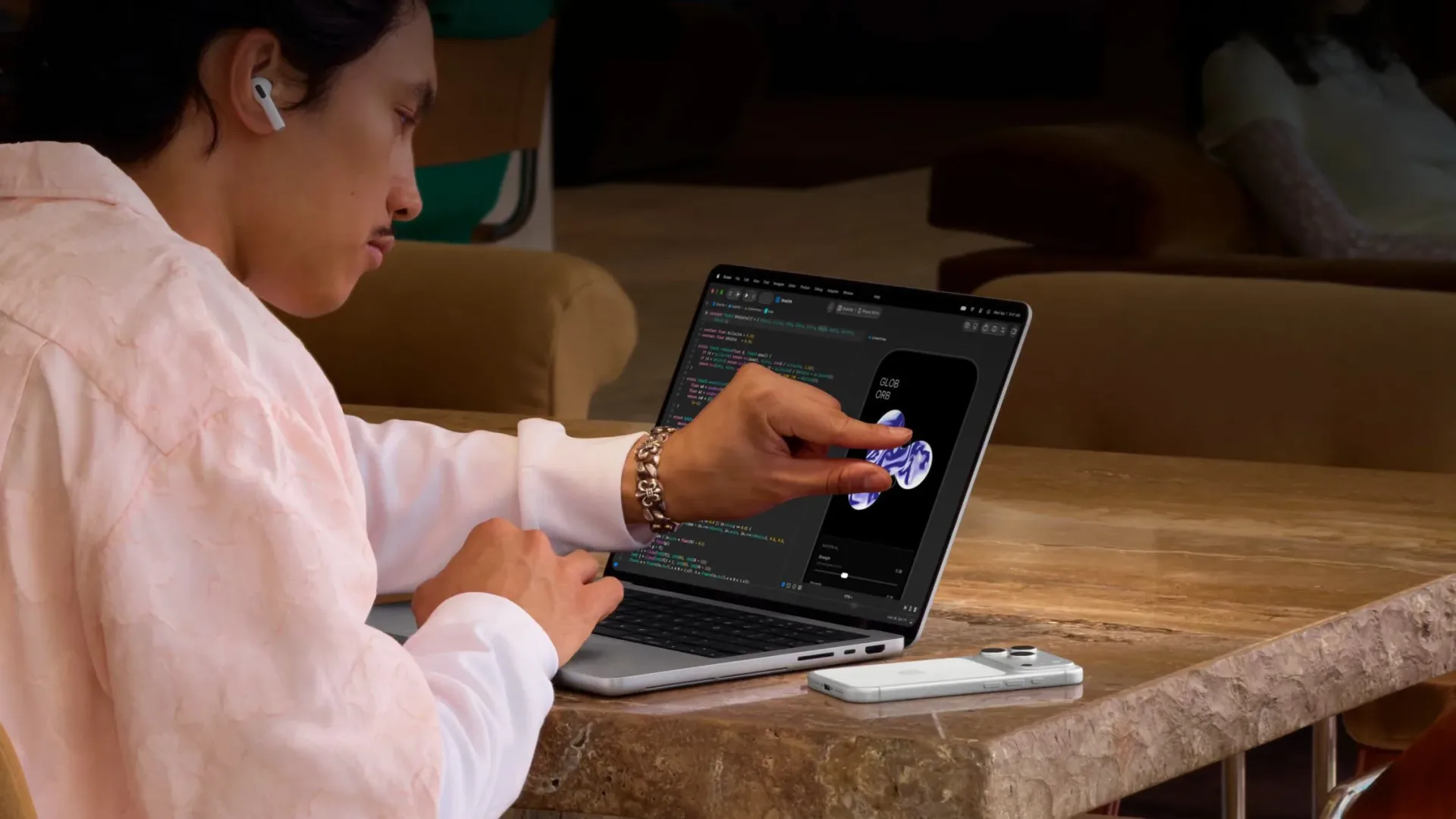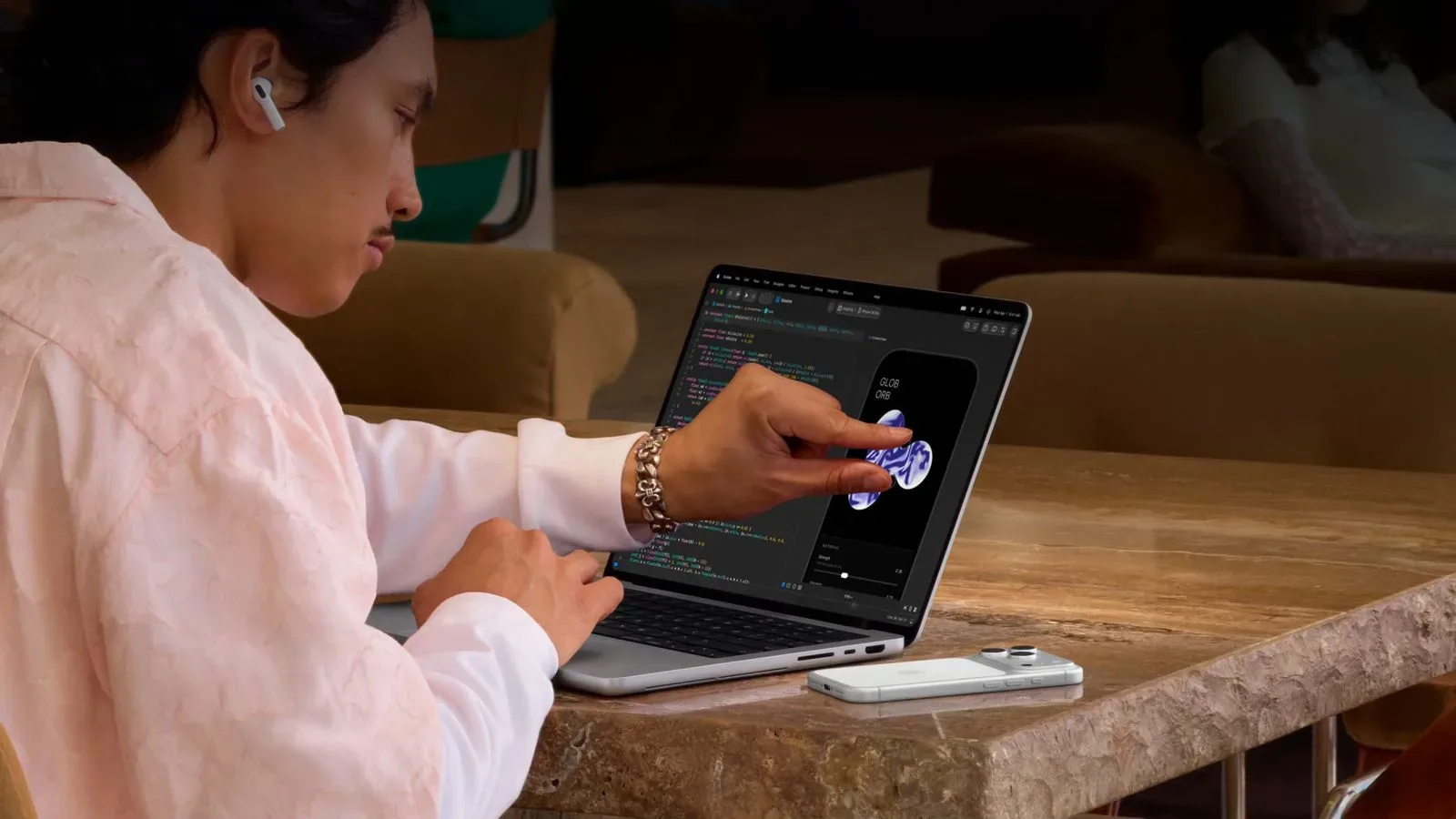
Apple’s newly announced MacBook Pro with a PROLED XDR Display is the company’s first Mac with a touch-capable screen. Rather than turn macOS into an iPad-like operating system across the board, the approach shown so far appears to be a selective one: leave the desktop interface visually familiar for trackpad and mouse use, then temporarily make key controls easier to hit when a finger reaches the display.
That distinction matters. macOS is built around small, dense controls and pointer precision. Apple’s demonstrations indicate that the operating system will adapt those controls on contact instead of permanently enlarging the entire interface. Menu-bar items can expand beneath a fingertip, the familiar red, yellow and green window controls can grow before a selection is made, and a hidden Dock can be revealed with an upward swipe from the bottom of the display.
For people who switch constantly between keyboard, trackpad and direct manipulation, it is a notably cautious solution to a long-running Mac question: can a desktop operating system accept touch without giving up the information density and precision that make it work at a desk?
A Mac interface designed to bend, not break
For years, Apple’s public position was closely associated with the idea that putting touch on a Mac would demand a broad redesign. In 2016, Phil Schiller, then Apple’s senior vice president of marketing and now an Apple Fellow, said a touch Mac would require the menu bar to be redesigned for fingers, potentially conflicting with pointer-device use.
The new MacBook Pro’s behavior suggests Apple is attempting to resolve that tension dynamically. The menu bar reportedly retains its normal appearance. When a user moves a finger over an item, however, the active target expands, giving the user a larger area in which to complete the selection.
That is an example of a context-sensitive control: an interface element that changes according to how it is being used. Here, the visual desktop is not necessarily being redesigned for every moment of use. Instead, macOS recognizes touch as a different input mode and adjusts an element at the point where finger precision becomes the issue.
There is an obvious practical reason for that approach. A mouse pointer and trackpad cursor can select very small targets because the pointer represents a fine point. A fingertip covers considerably more of the screen and can obscure the control it is trying to activate. Enlarging the target at the moment of interaction is intended to make taps more dependable without forcing mouse and trackpad users to navigate an always oversized desktop.
Small controls are the key test
Apple is applying the same concept to the Mac’s traffic-light window buttons. These controls traditionally sit in the upper-left corner of a window and are used to manage its size and position. On the touch MacBook Pro, they become larger when touched, then accept a tap for the selected action.
This is more significant than it may sound. Window controls and menu-bar commands are exactly the sort of compact desktop elements that can feel natural with a cursor but awkward with direct touch. The MacBook Pro’s touch design, as demonstrated, does not treat that awkwardness as a reason to discard traditional windowed computing. It treats it as a targeting problem that can be addressed locally.
Whether that works outside a brief demonstration remains an open question. The source material does not establish how every macOS control will behave, nor does it show how consistently these enlarged targets will appear across all software. It does, however, lay out a clear design principle: touch should be accommodated where it arrives, while the longstanding desktop structure remains available.
Gestures bring familiar direct manipulation to the screen
The touch-enabled MacBook Pro also supports gestures that will be familiar to users of phones and tablets, though their purpose is still tied to desktop tasks. An upward swipe from the lower edge reveals the Dock. Other cited interactions include swiping through a webpage, pinching to zoom in on a photograph, dragging presentation slides from one presentation to another, and double-tapping a window to make it fill the screen.
Direct manipulation is the useful technical idea here. Rather than moving a cursor to a target and clicking, the user touches the content itself: scrolls the page with a swipe, enlarges a photo with a pinch, or moves a slide by dragging it. On a conventional MacBook, the trackpad already supports gesture-driven navigation, but the touch display makes the object on screen the immediate surface of interaction.
For work that involves arranging visual material, dragging and dropping could be one of the most consequential additions. The cited example is moving slides between presentations. In principle, that kind of touch action is easy to understand because the input maps directly onto the on-screen task. Still, the new MacBook Pro will have to prove that reaching for the display is genuinely useful enough to complement trackpad workflows rather than interrupt them.
The ability to double-tap a window to fill the display similarly gives a common desktop command a touch-oriented shortcut. It does not replace window management; it offers another route into it. That pattern runs through the announced interaction model: touch is an additional path, not presented as the sole way macOS should be used.
The Dynamic Island becomes a floating widget
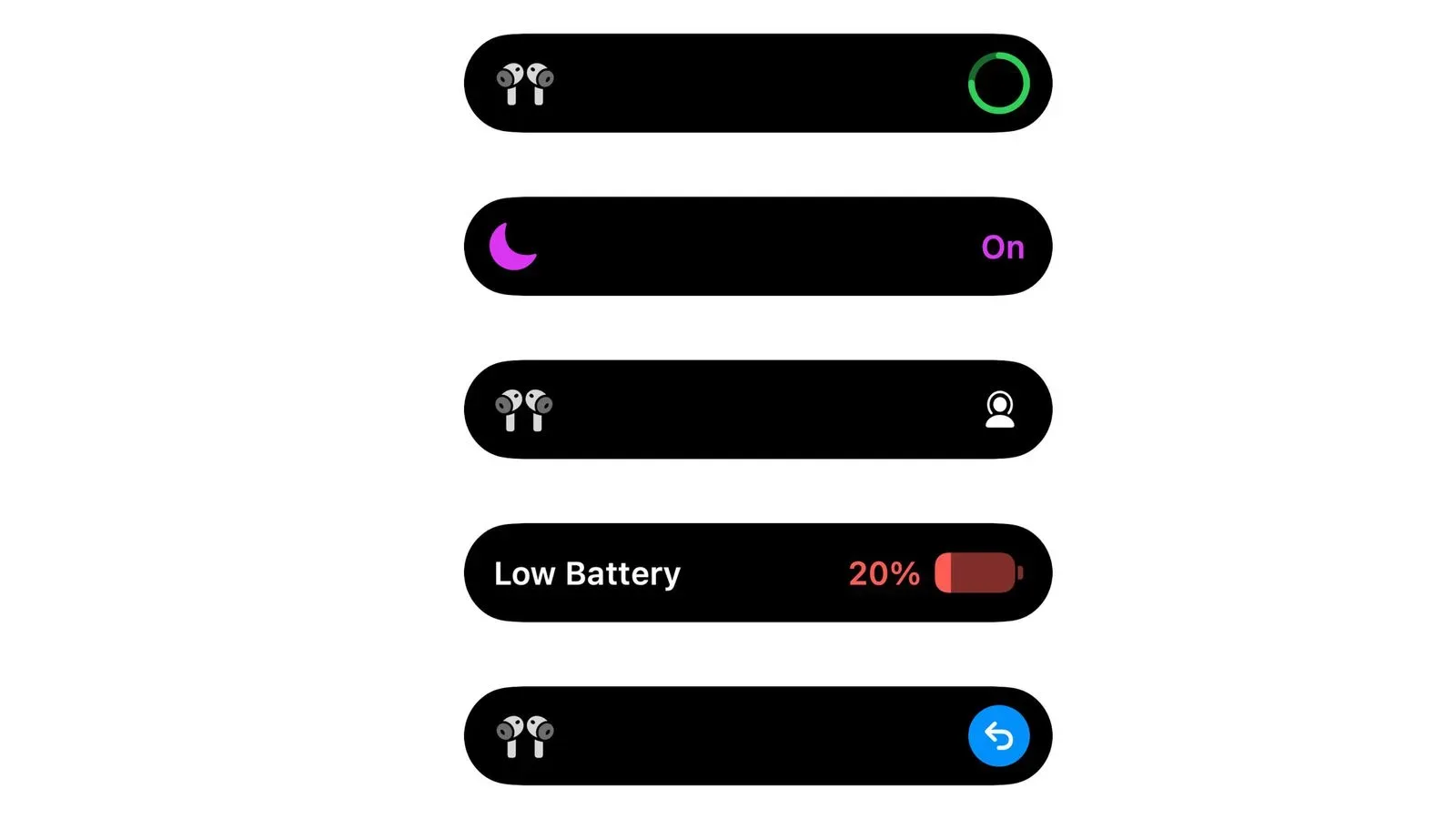
Apple also showed the MacBook Pro’s Dynamic Island pulling down into a floating widget. The available information does not specify every use for that widget or all of the information it will display, so it would be premature to treat it as a complete replacement for the menu bar, Dock or standard windows.
What is clear is that it gives the new display a touch-oriented interaction tied to an element that can be pulled toward the user’s finger. In design terms, a floating widget is a compact on-screen panel that appears above other content rather than occupying a permanent location in the main workspace. The usefulness of this implementation will depend on what macOS places there and how much control it gives users, details that have not been established here.
Existing apps may get touch support without updates
One of the most important claims around the new machine is compatibility. Apple says macOS automatically translates touch input into clicks, which means many existing apps may work with the touchscreen without developers issuing touch-specific updates.
That translation layer is important because a new input method is only as useful as the software that responds to it. In straightforward terms, macOS can interpret a finger action as the click an older app already expects. A user may therefore be able to interact with familiar app controls through touch even if that app was created before this MacBook Pro existed.
That should not be confused with a guarantee that every application will be perfectly optimized for fingers. An app can accept click-equivalent input while still containing tiny buttons, tightly packed tools or workflows that make more sense with a pointer. Apple’s adaptive system-level enlargements may help in some situations, but the real quality of touch interaction in specialized software will depend on the app’s interface and on how macOS handles its controls.
That is especially relevant for precision-oriented professional work. The announcement material points to “precision work in pro apps” as a central issue, but does not yet offer day-to-day testing to settle it. Touch is potentially useful for navigating, scrolling, zooming and manipulating visible content; whether it is equally effective for detailed commands and fine control is a question that needs broader real-world use after launch.
Signs of touch preparation were already in macOS
The operating system had already shown signs of touch-focused work before this hardware announcement. macOS Golden Gate introduced iPhone-style pull-to-refresh gestures in Safari, Mail and Calendar. Pull-to-refresh is the action of dragging downward through a list or page to request updated content. It is a familiar gesture on touch devices because it makes refreshing feel physically connected to the content being viewed.
In addition, code in macOS 27.2 included touch-specific gesture recognition in Safari, Notes, Photos and Quick Look. Gesture recognition means the software distinguishes patterns of movement—such as a swipe or pinch—and maps them to actions. The listed apps cover browsing, notes, images and file previewing, all areas where direct touch could be particularly intuitive.
Those additions do not answer every compatibility or usability question, but they establish that the new MacBook Pro is not introducing touch to an entirely unprepared version of macOS. The system has been adding gesture-oriented behavior in prominent first-party apps, while the click-translation claim offers a bridge to a wider existing application library.
What buyers know now
The 14-inch touch-enabled MacBook Pro starts at $2,899, while the 16-inch version starts at $3,399. Both are available to pre-order, with an official launch scheduled for Friday, November 6.
At those starting prices, the touch screen will be judged as part of a premium professional laptop rather than a low-risk experiment. Buyers who already work fluidly with a trackpad may want to focus on whether touch can save steps in tasks such as scrolling, zooming, window filling and arranging visual items. Buyers interested in a full iPad-style conversion of macOS should set expectations differently: the available demonstrations point to a conventional Mac interface that becomes more touch-friendly when necessary, not an abandonment of the mouse-and-trackpad desktop model.
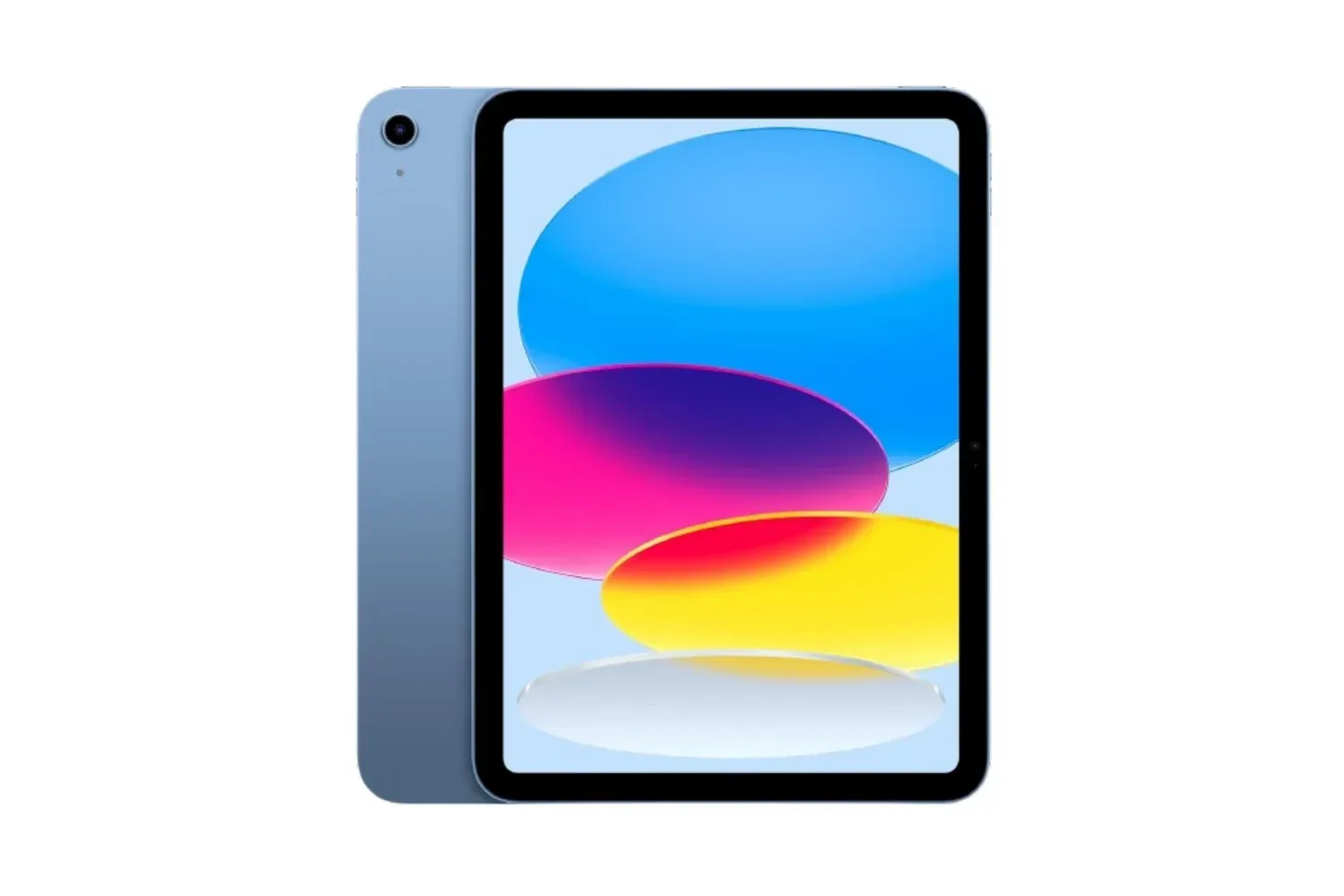
The wider Apple hardware context also makes the distinction noteworthy. The company already has touch-first devices and services around its ecosystem, including an A16 iPad offer that includes Apple Arcade trial eligibility. The new MacBook Pro’s role is not described as duplicating that experience. Its visible strategy is to preserve macOS conventions, then give fingers larger and more direct ways to interact with them.
Until the laptop reaches customers, the most important unanswered issue is simple: how naturally do these shifting controls behave in sustained use? Apple has shown a thoughtful answer to the targeting problem, and it has supplied a compatibility path for existing apps. The larger test will be whether that restrained adaptation makes a touchscreen Mac feel like a useful extension of desktop computing rather than a feature users admire briefly and then leave untouched.