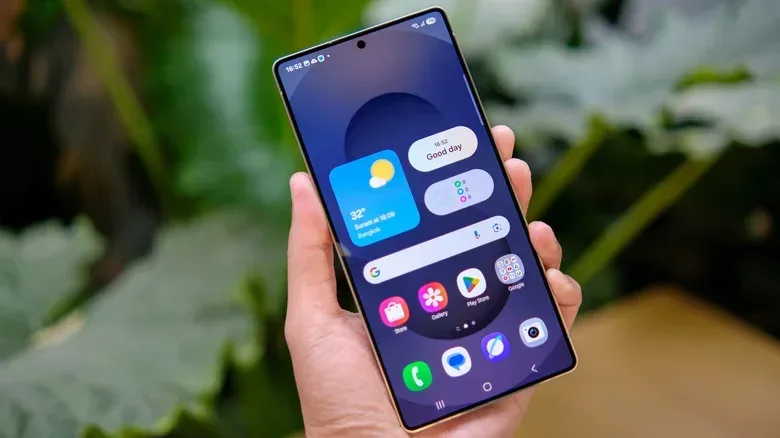
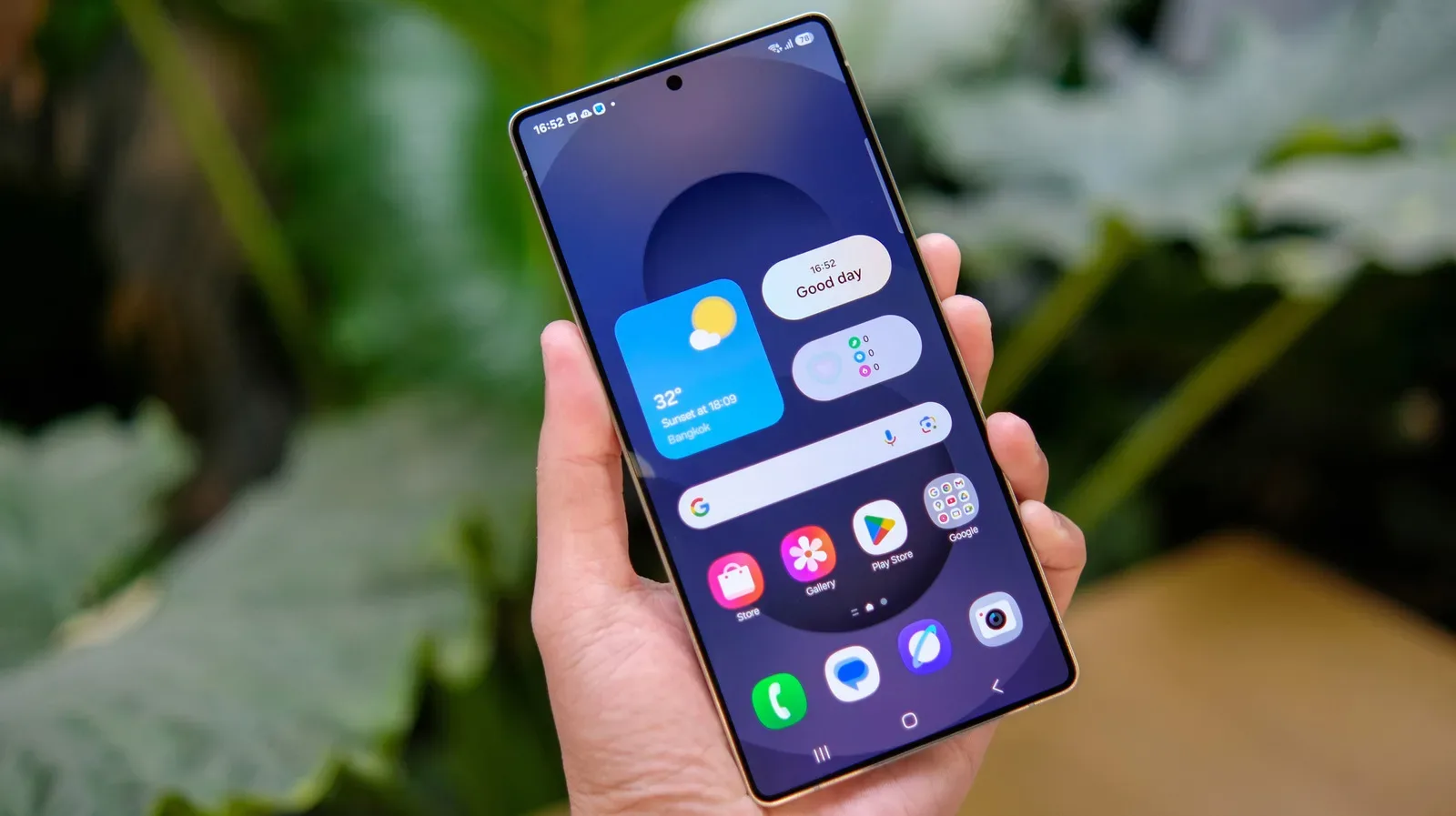
There are few tiny tech problems more irritating than pressing and holding an Android app icon, dragging it toward a new spot, and getting absolutely nowhere. The phone is otherwise working; the icon simply refuses to participate. Before treating the device like it has developed a serious fault, start with the most likely explanation: the home-screen layout has been locked.
Android home screens are deliberately flexible, but that flexibility comes with settings that can be easy to overlook. A lock can prevent icons from being moved. Automatic sorting can make app positions appear to change on their own. A launcher—the app that draws the home screen and app drawer—can also behave inconsistently if its temporary stored data, known as its cache, is causing trouble.
The useful part is that these are settings and maintenance checks, not reasons to immediately reset a phone or assume an app has disappeared. The right fix depends on which symptom is happening: icons cannot move at all, icons appear to reorganize, or the whole home screen has become unresponsive.
First, identify which icon problem you actually have
“My icons moved” can describe several different things, and separating them makes troubleshooting much faster.
- Icons will not move: You can press and hold an icon but cannot drag it to another location. A locked home-screen layout is the leading possibility.
- Icons keep changing order: The phone may be using an automatic sort option, particularly in the app drawer. Sorting can use alphabetical order, installation date, or another available method.
- The layout changed after an update: An app or operating-system update can alter the home-screen grid. A grid is the arrangement of rows and columns that determines how many icons fit on the screen.
- The home screen feels frozen or crashes: The launcher cache may be worth clearing, especially on devices that do not provide a layout-lock option.
The distinction between the home screen and the app drawer matters here. The home screen is the set of pages shown when you leave an app. The app drawer is the wider list of installed applications, where sorting tools are commonly found. An automatic sort setting in the app drawer may explain a different order there, but it is not necessarily the reason a particular home-screen icon cannot be dragged.
The most likely fix: turn off Home Screen Layout lock
A locked layout is meant to protect an arrangement once it is the way you want it. It can stop accidental icon movement, but it can also create the very convincing impression that the phone has stopped cooperating. Many Android makers enable a home-screen lock by default.
On many Samsung phones, open Settings and search for Home Screen. Look for Lock Home Screen Layout and turn it off. That should allow icons to be moved again.
Menus vary among manufacturers and Android versions, so another device may phrase the option differently or place it under a Home section rather than the same Samsung menu. The core idea is unchanged: locate the home-screen settings, find the setting that locks the layout, and disable it if you want to rearrange apps.
Related coverage includes Why Android Icons Won’t Move and How to Fix Them.
What turning the lock off changes
Disabling the lock does not sort or erase apps by itself. It simply restores the ability to alter the layout. Try moving one icon after changing the setting. If that works, the issue was a deliberate restriction rather than a launcher failure.
After you have arranged the screen, you can choose to enable the layout lock again. That may be useful for people who frequently move icons by accident while handling their phone, or who want to preserve a carefully organized first page. The important practical point is to remember it is enabled: the same protective setting will block future changes.
If icons are moving by themselves, inspect sorting settings
A layout that changes without your input is a different annoyance. Android phones may offer automatic sorting in the app drawer. Depending on the phone, that can organize apps alphabetically, by installation date, or through other listed criteria. The function is convenient for someone who wants a predictable app list, but less so for someone who expects a manually curated order to stay put.
Check the home-screen or app-drawer settings for sorting controls. On Samsung phones, these options can be found through Settings; on some other Android devices, look under Home. Review the active ordering method before changing anything. If the phone is sorting alphabetically, for example, the new arrangement may be expected behavior rather than evidence of a bug.
It is also worth accounting for recent software changes. Major operating-system updates can modify the home-screen grid, which may alter where icons fit and how the existing arrangement looks. An app update can likewise affect the launcher’s behavior. That does not automatically mean the phone has lost apps or that manual customization is gone; it may mean the layout needs to be adjusted after the update.
Resetting the layout is an option, not the first move
If the home-screen configuration remains unsatisfactory after checking sorting and lock settings, resetting the home screen is another available step. Restarting the phone afterward can help establish whether the issue was a temporary behavior. But it makes sense to begin with the smaller, reversible checks: confirm the lock status and inspect sorting first.
That sequence is less disruptive. A reset is best treated as a way to recover from an arrangement that has become too messy or inconsistent to correct comfortably, rather than the automatic answer to every immovable icon.
On Pixel and stock Android, clear the launcher cache if the screen is unresponsive
Some Android devices, including Google Pixel phones, may not offer the same locked-layout control. If an icon still cannot be moved and the home screen feels erratic, the launcher cache becomes a more relevant place to investigate.
A launcher is the system app responsible for the home screen. It presents app icons and handles the surrounding home-screen behavior. Google Pixel devices use Pixel Launcher, while Samsung phones use One UI. The exact launcher name changes by manufacturer, but the role is similar.
A cache is temporary data an app keeps so it can operate efficiently. In this case, the launcher cache relates to the home screen. When that temporary data becomes bloated, it can contribute to crashes and inconsistent behavior, including icons that appear frozen. Clearing the cache is intended to remove that temporary data; it is distinct from treating the whole phone as if it needs a complete reset.
How to clear a launcher cache
- Open the phone’s Settings.
- Go to the section for installed Apps.
- Find the device’s launcher app. On a Pixel, this is Pixel Launcher; on Samsung hardware, it is One UI.
- Open that app’s storage settings.
- Select the option to clear cache.
- Restart the phone afterward.
The reboot is a sensible follow-up because it gives the launcher a fresh start after its temporary data has been cleared. If the home screen becomes responsive again, the issue was likely tied to that launcher behavior rather than a permanent limitation on moving icons.
Be precise when navigating the storage screen: the recommended action is clearing the cache. The point is to address temporary launcher data, not to casually change broader settings because menu labels happen to look similar.
When Safe Mode is the next diagnostic step
If the home screen remains unresponsive after clearing the launcher cache and restarting, Safe Mode can help narrow down the cause. Safe Mode is a troubleshooting startup mode used to check whether a third-party app may be contributing to the problem.
This is not a promise that a third-party app is responsible. It is a way to separate that possibility from the phone’s core home-screen behavior. If the issue changes in Safe Mode, that points the investigation toward apps installed separately from the phone’s standard software. If it does not, the earlier checks—layout lock, sorting, launcher behavior, and the effects of recent updates—remain the more relevant areas to review.
For many users, though, Safe Mode will not be necessary. A locked layout explains the classic case where every other part of the phone seems fine but icons refuse to budge. Automatic sorting explains why an app list can look unexpectedly reorganized. Cache clearing is the next measured step when the launcher itself seems unstable.
A sensible order of operations
The easiest way to avoid unnecessary troubleshooting is to work from the simplest explanation outward:
- Check whether the home-screen layout is locked and turn the lock off if you need to move icons.
- Inspect automatic sorting if apps appear to be rearranging.
- Consider whether a recent app or operating-system update changed the grid or layout behavior.
- On phones without a layout-lock setting, or when the home screen is freezing, clear the launcher cache and restart.
- Use Safe Mode if the problem persists and you need to determine whether a third-party app could be involved.
Mobile settings can occasionally create a problem that looks far more dramatic than it is. In this case, the fix is often a single home-screen toggle. For more Android and Google-related platform changes, see our coverage of Google Search’s optional Wallet data connection in AI Mode.