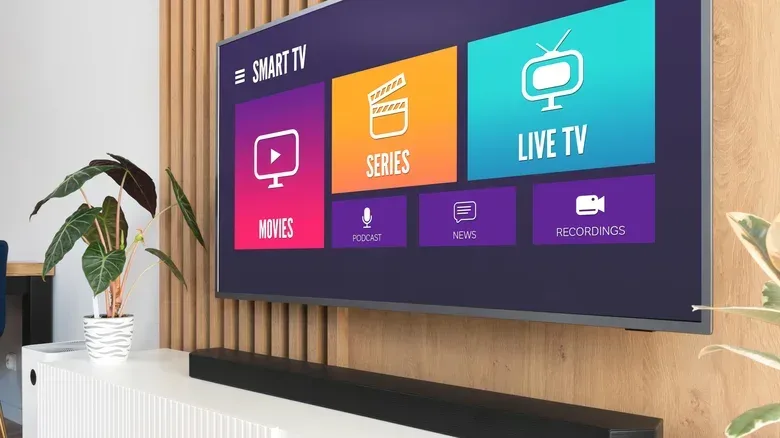
A smart TV disconnecting from Wi‑Fi is an especially annoying household problem because it tends to arrive mid-stream, precisely when somebody has committed to one more episode. The television may show a perfectly healthy wireless network, connect for a few minutes, and then surrender to buffering or drop off entirely.
The important bit is that the TV is not automatically the culprit. Wireless conditions can change when furniture is moved, a router is replaced, a television is relocated, or more devices join the network. A stable setup can become unreliable without any single dramatic failure. The practical fix is to separate a TV-specific issue from a broader network problem, then choose a connection method that prioritizes consistency rather than chasing the highest possible number on a router box.
Start by working out what is actually failing
Before changing a pile of settings, connect a phone or laptop to the same Wi‑Fi network around the television. If that device also struggles, the fault is more likely to sit with the router, internet gateway, or internet service than with the TV. If the phone or laptop remains reliable while the TV drops out, focus on the television’s saved network settings, software, wireless band selection, and location.
This small test matters because it prevents a common troubleshooting trap: repeatedly reconnecting the TV while the entire home connection is unstable. It also makes the next step clearer. A network-wide problem calls for attention to the router or gateway; a TV-only problem is more likely to respond to updates, a clean reconnection, or a change of band.
There is also a useful reminder here for anyone whose gaming and entertainment gear all depends on one connection. A disruption can affect far more than streaming, as shown by how a network issue can force a service onto an older backup. For a living-room TV, however, the aim is simpler: give one relatively stationary device a dependable route to the network.
Restart in the right order, then check TV software
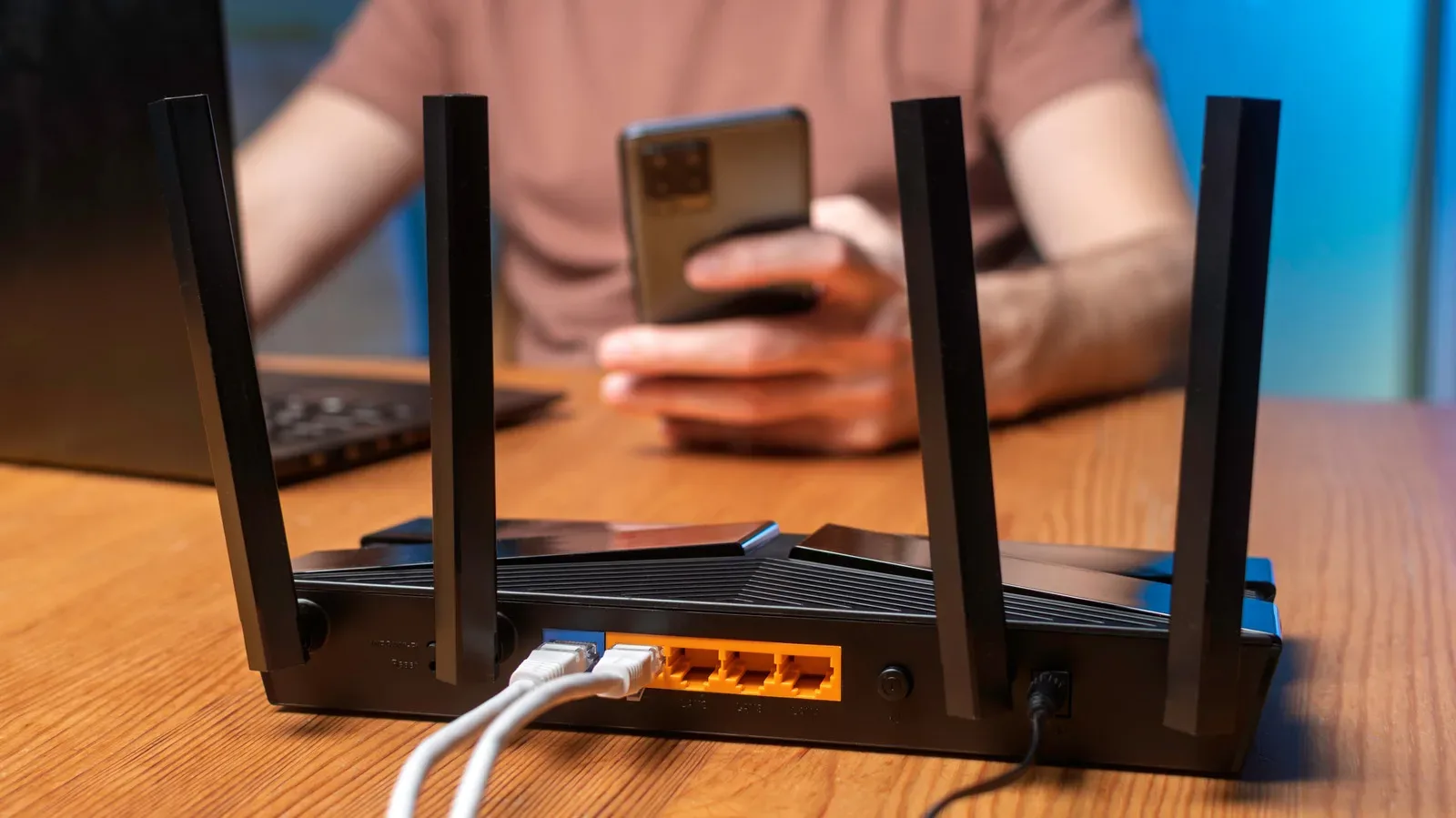
A restart is mundane, but it is a sensible early move. Unplug the TV for two minutes. Unplug the router for about a minute, then reconnect the router first and allow it to establish its connection before turning attention back to the television. This order gives the network equipment time to come back before the TV tries to join it.
If the disconnections continue, inspect the TV’s system settings for a firmware or software update. Firmware is the low-level software that helps hardware operate, while a system update can include fixes to the TV’s networking behavior. When the TV cannot stay online long enough to update itself, identify the exact model and check the manufacturer’s support information for a USB-based update option.
After that, remove the stored Wi‑Fi connections from the TV and set the network up again. Saved connection details are not always the cause, but clearing them is a focused step that avoids endlessly retrying a possibly troublesome old configuration.
5GHz versus 2.4GHz: speed, range, and walls
The choice between 5GHz and 2.4GHz is at the center of many smart-TV Wi‑Fi problems. These names refer to wireless frequency bands. In simple terms, 5GHz is generally the faster choice, while 2.4GHz reaches farther and usually handles walls better.
When signal strength is good, 5GHz is the preferable option for a smart TV, particularly for 4K streaming. A 4K stream needs a steady connection of roughly 20 Mbps; Netflix suggests 15 Mbps, but 20 Mbps or more is preferable. The key word is steady. A connection that briefly reaches an impressive speed but repeatedly weakens is less useful than one that holds enough bandwidth consistently.
5GHz has a limitation that often explains the mystery: its range is shorter and walls are harder for it to cross. A TV several rooms away from the router may be able to see the network but still lack the stable signal required to remain connected. In that situation, 2.4GHz can be the more dependable fallback, even though it is slower.
2.4GHz is not automatically the easy answer, though. It is commonly more crowded. Nearby wireless networks, Bluetooth devices, and microwaves can contribute to interference. That does not mean every Bluetooth remote or microwave will knock a TV offline; it means the 2.4GHz band has more potential competition in a typical home. The TV’s network-status display can help compare signal strength on each band, making this a decision based on the room rather than a rule applied blindly.
A sensible band-selection rule
- Use 5GHz when the TV receives a strong, stable signal. It is generally better suited to 4K streaming.
- Try 2.4GHz if the TV is too far from the router, or walls prevent 5GHz from staying reliable.
- Compare both using the TV’s own network-status screen after making the bands separately selectable.
- If neither band is steady, treat placement or a wired connection as the next question rather than repeatedly swapping bands.
Band steering may be making the decision for you
Many routers use band steering. This feature presents multiple bands under one Wi‑Fi name and automatically moves devices between them. The intended benefit is convenience: the router tries to put a device on the band it considers most suitable.
For a smart TV, that automation can become unhelpful. A television can be placed on a band that does not offer the best stability for its exact position, and switching behavior can hurt speed or connection consistency. Turning off band steering gives each available band a distinct network name, allowing the TV to be assigned deliberately to 2.4GHz or 5GHz instead of relying on an automatic choice.
This is not a declaration that band steering is inherently bad. It can be useful for a general mix of household devices. It is a troubleshooting measure when one fixed device—such as a TV—keeps making a poor connection decision. Separate names make testing meaningful: connect to one band, observe whether it holds, then try the other.
Router channel selection can matter as well. A channel is a smaller slice of a Wi‑Fi band that a router uses to communicate. On 5GHz, older smart TVs may not support DFS channels. DFS, short for Dynamic Frequency Selection, is a channel-management mechanism; a TV that lacks compatibility may not find a network using those channels at all. If an older set has trouble locating or maintaining a 5GHz network, choose a fixed non-DFS channel rather than leaving the setting on Auto. Channels such as 36, 40, 44, and 48 are examples to select manually where the router provides them.
Bluetooth remote features can complicate 2.4GHz
Many smart TVs default to 2.4GHz in an effort to preserve a connection over distance. That choice can conflict with Bluetooth-dependent remote features, including voice functions, because 2.4GHz is also used by Bluetooth. If the TV’s issues line up with Bluetooth remote use, try disabling Bluetooth-reliant remote features to see whether the wireless behavior improves.
Accessibility needs should take priority over a speculative tweak. If Bluetooth features are important, the better response may be moving the TV to 5GHz, reducing the distance to the router, or switching to Ethernet rather than sacrificing a feature that is genuinely needed.
Ethernet and mesh: stop asking Wi‑Fi to cross the entire house
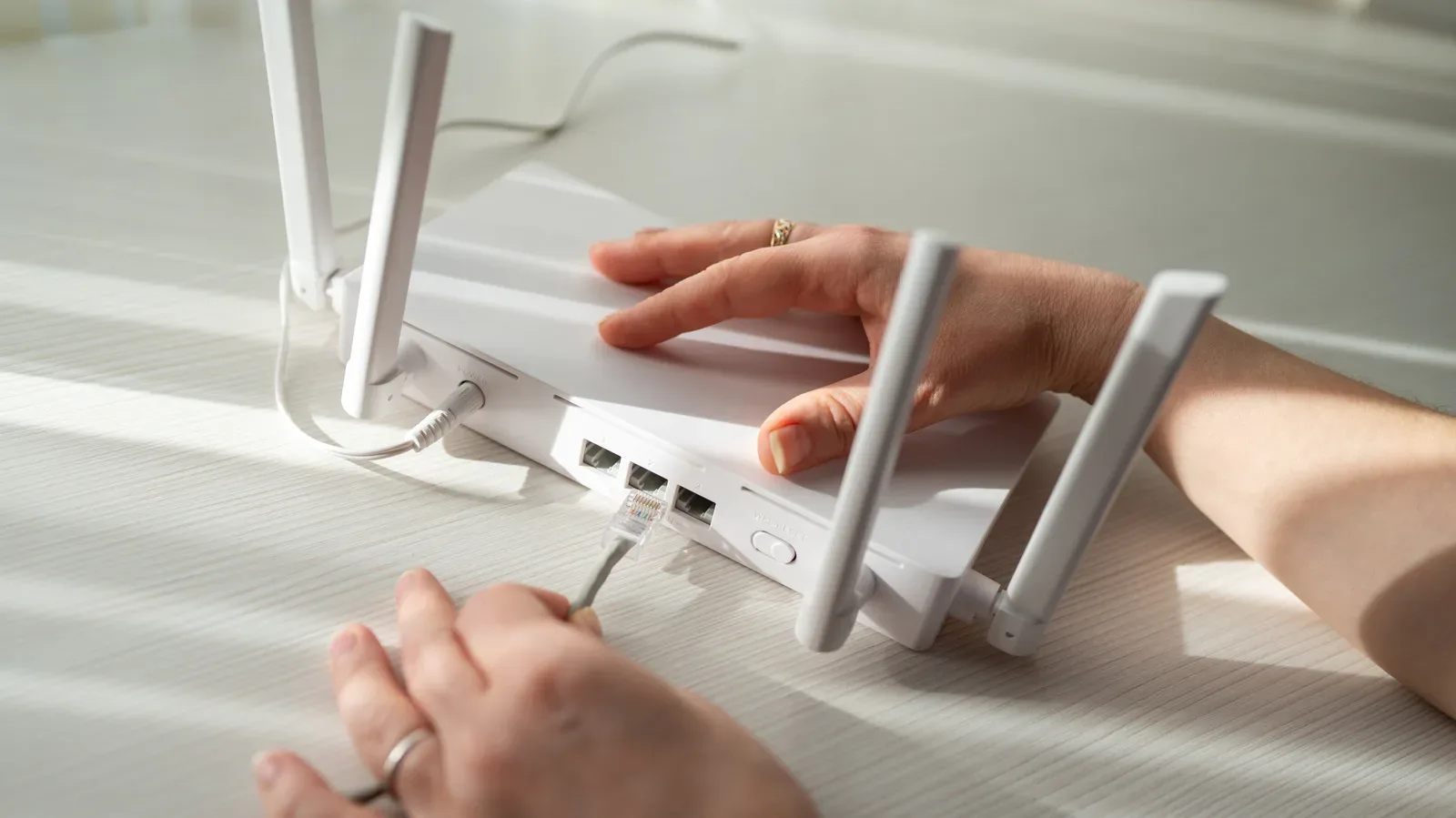
An Ethernet cable is the direct, practical answer when it is feasible. A wired connection removes the TV’s Wi‑Fi reception from the equation entirely. It is especially attractive when the router is near the television and a cable can be run cleanly without turning the room into an obstacle course.
If the router is too far away, a mesh network can be a more workable option. Mesh systems use multiple nodes to extend network coverage. Many nodes include Ethernet ports, so a node placed near the TV can connect wirelessly back to the network while the TV connects by cable to that nearby node. This does not magically repair a weak mesh link—the node itself still needs a strong connection—but it can reduce the final stretch between the network and the television.
The larger lesson is that smart-TV reliability is about the full route, not merely whether the Wi‑Fi symbol appears on screen. Router location, walls, band choice, automatic steering, channel compatibility, interference, and software can each be relevant. Test one variable at a time, favor a stable connection over theoretical peak speed, and use a cable when the wireless path simply is not cooperative.