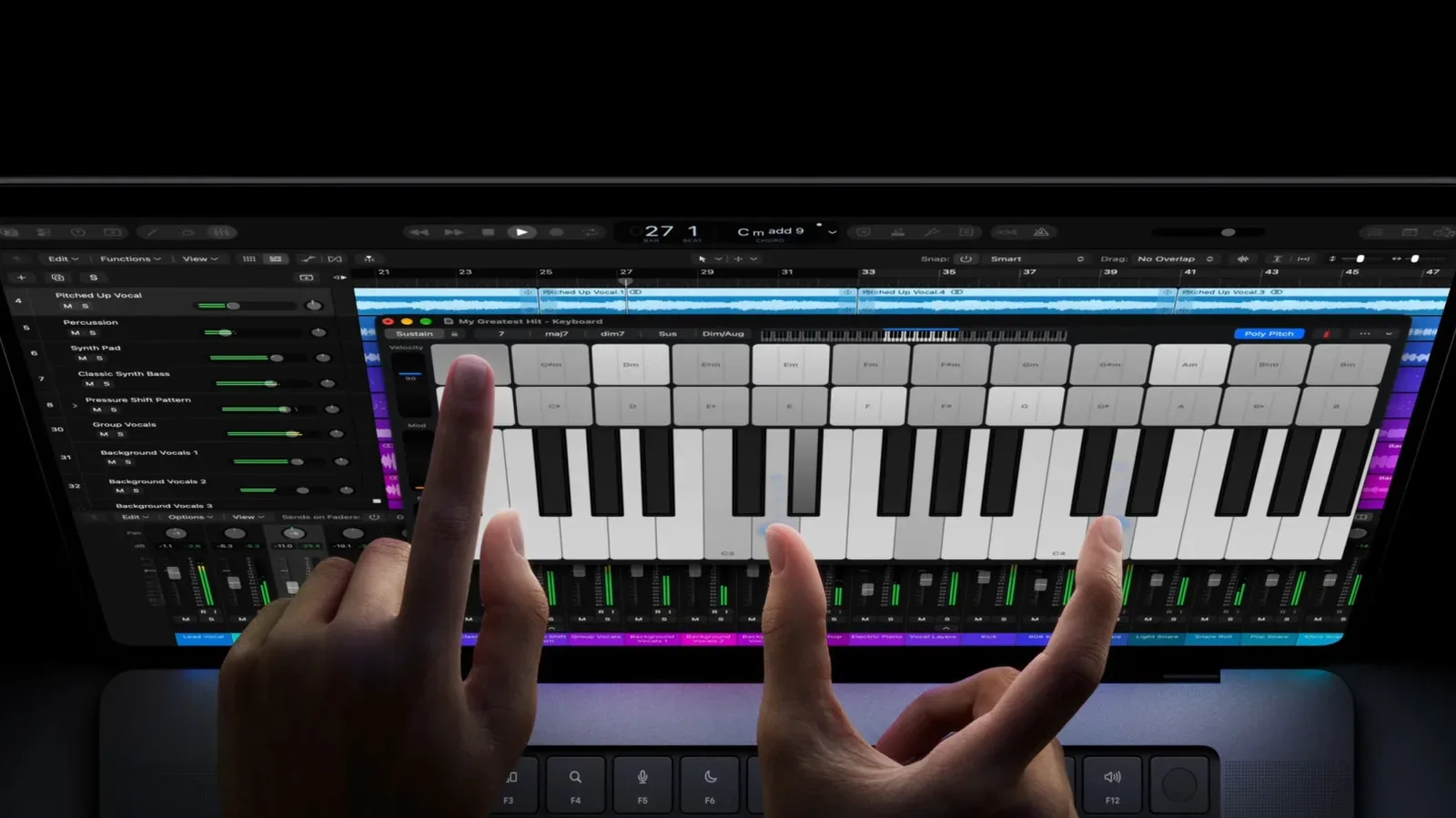
A touchscreen laptop can look like the best of both worlds: a familiar clamshell computer with a display you can tap, swipe and scroll like a tablet. But for anyone choosing a device for gaming, creative work, school, streaming or general PC use, the touchscreen itself is usually not the deciding feature. The more useful question is whether a tablet’s portability-first design can cover the jobs you actually need to do.
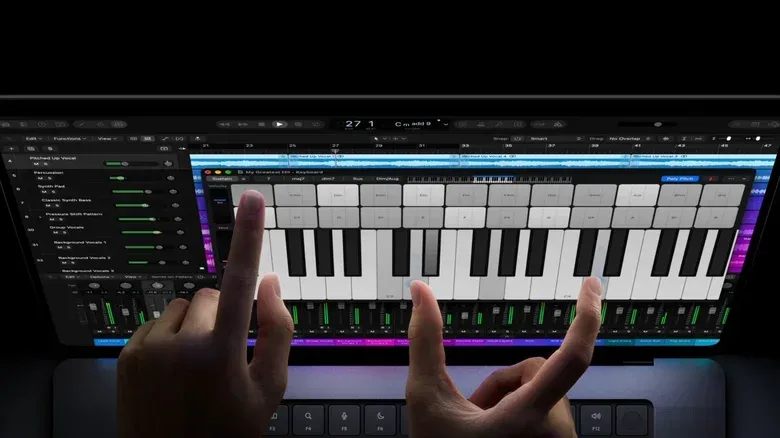
That distinction matters because the tablet and laptop categories have moved closer together. Apple has announced its first touchscreen Mac, the PROLED MacBook Pro, while iPads have become more Mac-like through shared processors in many models and an iPadOS multitasking interface that resembles desktop workflows. Android tablets have also taken steps toward a more PC-like role. Yet operating systems, input methods, ports and graphics capability still create meaningful separation.
A tablet may be the smarter purchase for somebody who mainly wants a light device for video, web browsing, social media, casual tasks and travel. A laptop remains the more broadly capable tool when the workload calls for desktop-grade software, sustained keyboard-and-pointer work, connections to several accessories, or demanding graphics. Adding a touch display to that laptop can be pleasant; it rarely transforms the core answer.
The touchscreen is an extra, not the foundation
The immediate advantages of touch on a laptop are easy to understand. It can be quicker to flick through a lengthy page, tap a control, pinch and zoom, or interact with a mobile app during development. On a convertible 2-in-1, folding the keyboard away can also make couch browsing feel closer to using a traditional tablet.
Those conveniences are real, but they do not replace the pieces that make a laptop a laptop. A keyboard and trackpad come built in. On tablets, they are normally optional purchases. That changes both the cost comparison and the day-to-day experience for anyone who writes frequently, manages files, works in spreadsheets, edits media or spends long sessions navigating desktop interfaces.
A physical keyboard provides tactile feedback and a more ergonomically sensible typing position than an on-screen keyboard. It also does not cover part of the display while in use. A trackpad, meanwhile, is valuable when precision matters: selecting a particular string of text, placing a cursor, or moving through a detailed timeline in an audio or video editor is generally more controlled with a pointer than with a fingertip.
Touch does not make these tools obsolete. Instead, it gives laptop owners another input option alongside them. That is why a touchscreen laptop should usually be evaluated as a normal laptop first. If its keyboard, trackpad, software support, performance, memory and storage meet the need, touch can be a useful bonus. If those fundamentals do not fit, a screen that accepts taps will not rescue the purchase.
Portability is a major tablet advantage—until accessories enter the bag
Tablets are often hundreds of dollars less expensive than laptops and are lighter to carry. For a long flight, that combination can be compelling: a slim device is easier to hold for a film, read on, or pull out for a short task. A touch-first interface also resembles the workflow many people already know from their phones. That can make a tablet especially approachable as a first computer for children or seniors, provided its apps cover what they want to do.
But portability is not only a question of the device’s starting weight. It is also about what must travel with it to complete a task. Tablets commonly offer few physical ports. iPads can have a single port, and other tablets may only provide two. Connecting storage, a display or multiple peripherals may therefore mean carrying a USB hub or a Thunderbolt dock.
A dock or hub is an adapter that expands one connection into several. It can be useful, but it is another item to buy, pack and set up. If the tablet also needs a keyboard case, trackpad or mouse to perform regular work, its apparent simplicity becomes less clear-cut. None of that means a tablet is a bad choice; it means the comparison should include the complete setup rather than just the bare device.
The same principle applies to price. A low upfront price is valuable, particularly while memory prices are rising. Yet shoppers should account for the accessories their routine demands. Someone who genuinely uses a tablet mostly by hand may need none of them. Someone who will type, point and connect external devices every day should price that reality in from the start.
For gaming, software and graphics horsepower draw the sharpest line
The biggest divide is often not touch capability at all. It is the combination of software and hardware. Tablets typically run Android or iPadOS, operating systems rooted in locked-down smartphone platforms. Laptops run Windows, macOS or Linux, which have fewer restrictions and access to a wider range of more capable applications. In some cases, the needed app simply does not have a true Android or iPadOS equivalent.
That matters for professionals, but it also matters for PC players. A user who needs particular desktop software or wants a heavy-duty gaming machine generally has much stronger reasons to consider a laptop. More expensive laptops can include advanced GPUs that substantially exceed what even an iPad Pro can provide.
GPU means graphics processing unit: the component responsible for graphics-focused workloads. In practical terms, it is a key part of why higher-end laptops can target demanding games and intensive visual tasks. The source material does not make a performance promise for any specific laptop or game, and buyers should not assume every touchscreen model is gaming-ready. The point is that the laptop category can offer a level of graphics hardware that tablets do not match.
Likewise, a touchscreen does not by itself make Windows or macOS more tablet-like. Those desktop operating systems are not built around touch in the same way as Android and iPadOS. The finger-friendly experience can be welcome for short interactions, but a player navigating a conventional desktop launcher, an editor working on a timeline, or a student organizing documents will likely return to the trackpad and keyboard.
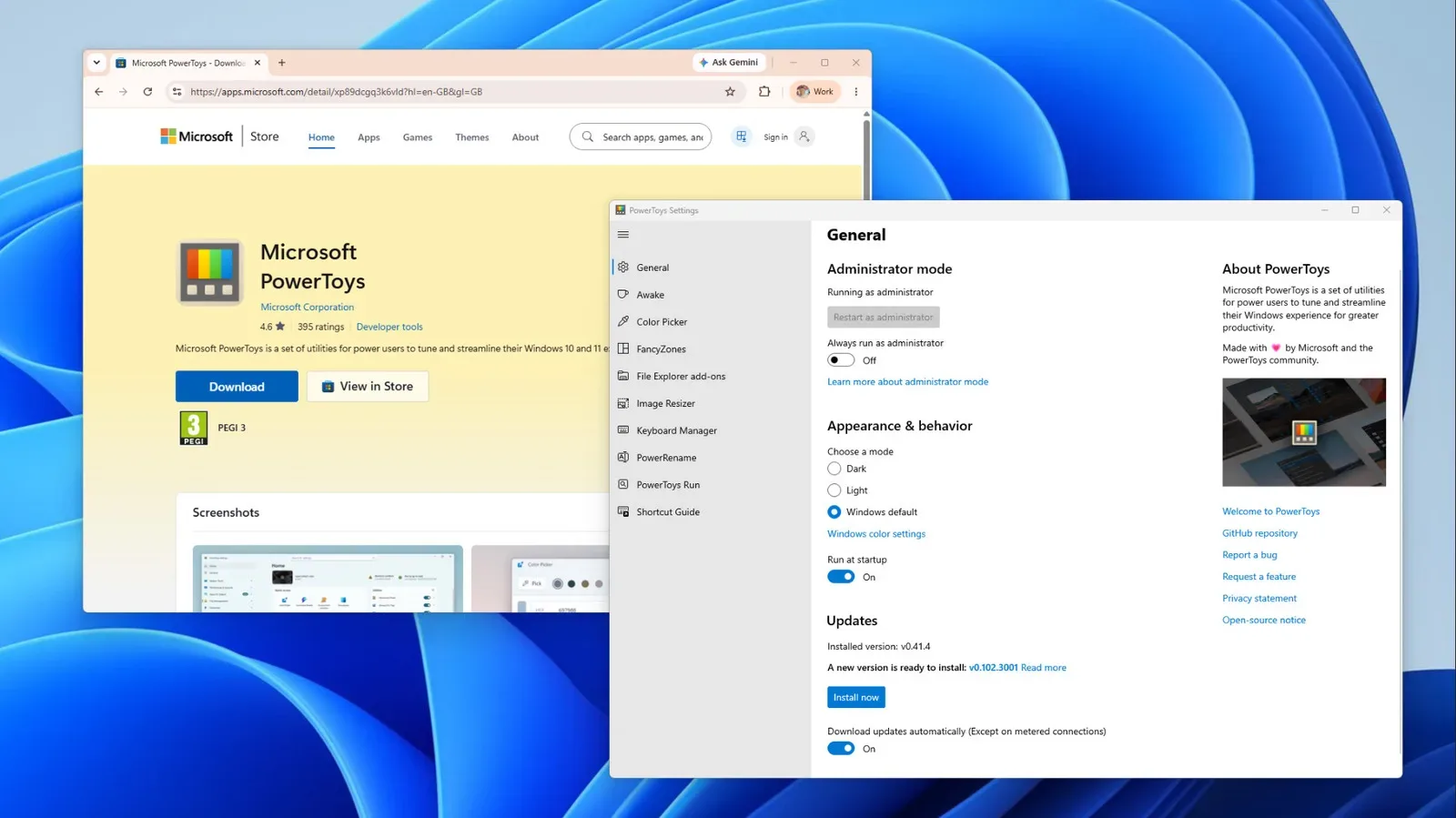
For a Windows user looking to improve the desktop experience rather than replace it with a tablet workflow, tools can matter as much as input hardware. Microsoft PowerToys can cut down on tedious Windows setup and file tasks, a reminder that the strengths of a PC often come from its broader software environment and customization options.
Convertible designs have a specific use case
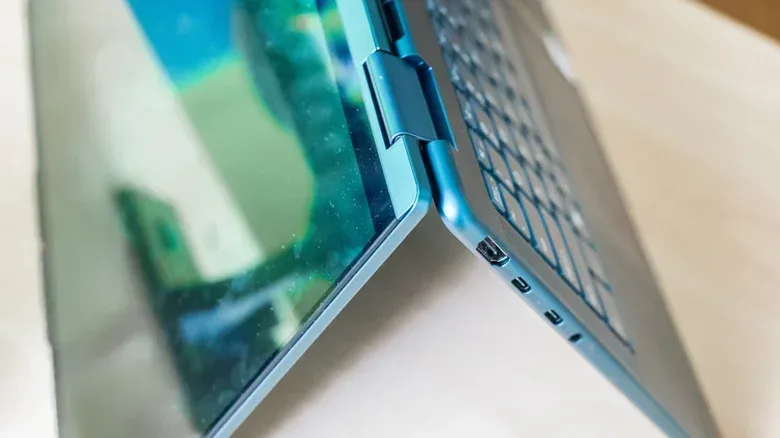
A foldable 2-in-1 laptop is the clearest argument for a touchscreen laptop. It can serve as the work device during the day, then fold into a tablet-like shape for lighter browsing or social media later. For a buyer who knows they will use both modes, consolidation can be appealing.
There are still ergonomic limits. Long sessions of drawing or handwritten note-taking on a vertical laptop screen are not especially comfortable. A dedicated tablet or drawing pad is generally the better physical format for that work. This is an important distinction because “has a touchscreen” and “is a good drawing device” are not interchangeable claims.
For illustration, handwriting and high-end photo editing, touch can be more than a convenience. For many other tasks, it will be intermittent. That makes it sensible to consider how often the screen will actually be touched after the novelty fades. Scrolling a few pages with a finger is pleasant, but it may not justify sacrificing performance, screen size, memory, storage or budget.
Buy for the bottleneck, not the feature list
The useful buying exercise is to identify the point where your current or intended workflow becomes difficult. If carrying a computer is the problem, a light tablet has a strong case. If writing, accurate selection and multitasking are the recurring frustrations, a laptop’s built-in keyboard and trackpad carry more weight. If the task requires desktop-only software, robust graphics capability or several connections, a laptop becomes still more compelling.
Then ask a separate question: do you need touch at all? The answer may be yes for illustration, handwritten notes, certain photo-editing work and a convertible that will genuinely be used in tablet mode. Otherwise, a non-touch laptop may be the better-value choice. It could cost about the same as a comparable tablet, or leave room in the budget for hardware that has a bigger daily effect.
Two upgrades deserve particular attention: RAM and storage. RAM, or random-access memory, is the short-term working space software uses while running. Having enough can help multitasking remain smooth. Storage is the longer-term space for apps and files. More of it can reduce the need to constantly delete or move content around.
Those are practical, durable benefits over the life of a device. With memory prices described as especially high, it is worth deciding deliberately where limited funds go. A better GPU may serve a gaming or graphics-heavy need. A bigger screen may improve daily work. More RAM and storage can reduce friction every time several apps or large files enter the picture. Touch is valuable when it supports a known habit, not merely because it appears on a specification sheet.
A straightforward way to choose
- Choose a tablet first if low weight, lower cost, travel, media viewing and a touch-centric interface are your priorities—and the apps you use are available in a suitable form.
- Choose a laptop first if you need a built-in keyboard and trackpad, more ports, desktop operating systems, demanding software or stronger graphics options.
- Choose a touchscreen laptop if you already need the laptop fundamentals and can identify regular touch uses such as quick navigation, mobile-app testing or a convertible tablet mode.
- Choose a non-touch laptop if touch is not central to your routine and the money is better directed to RAM, storage, a larger display or a more capable GPU.
There is no universal winner because the devices solve different problems. Tablets can be excellent, affordable and easy to carry. Touchscreen laptops can add flexibility without giving up the core laptop package. But the touch layer should be the final part of the decision, not the first. Start with the software, input, ports and performance your everyday work and play require; only then decide whether reaching out to tap the screen is worth paying for.