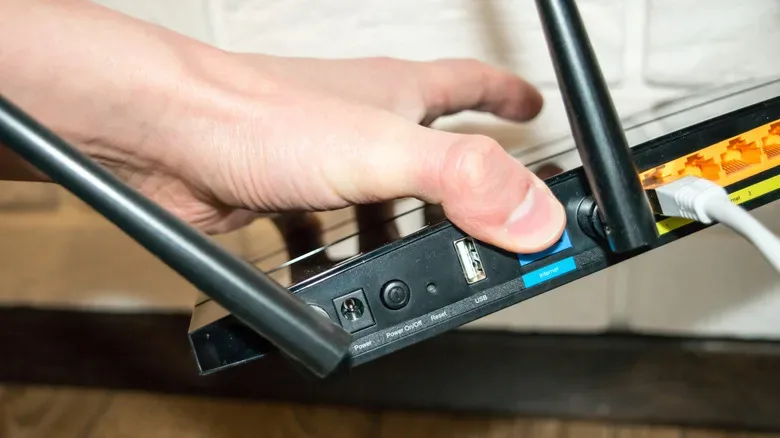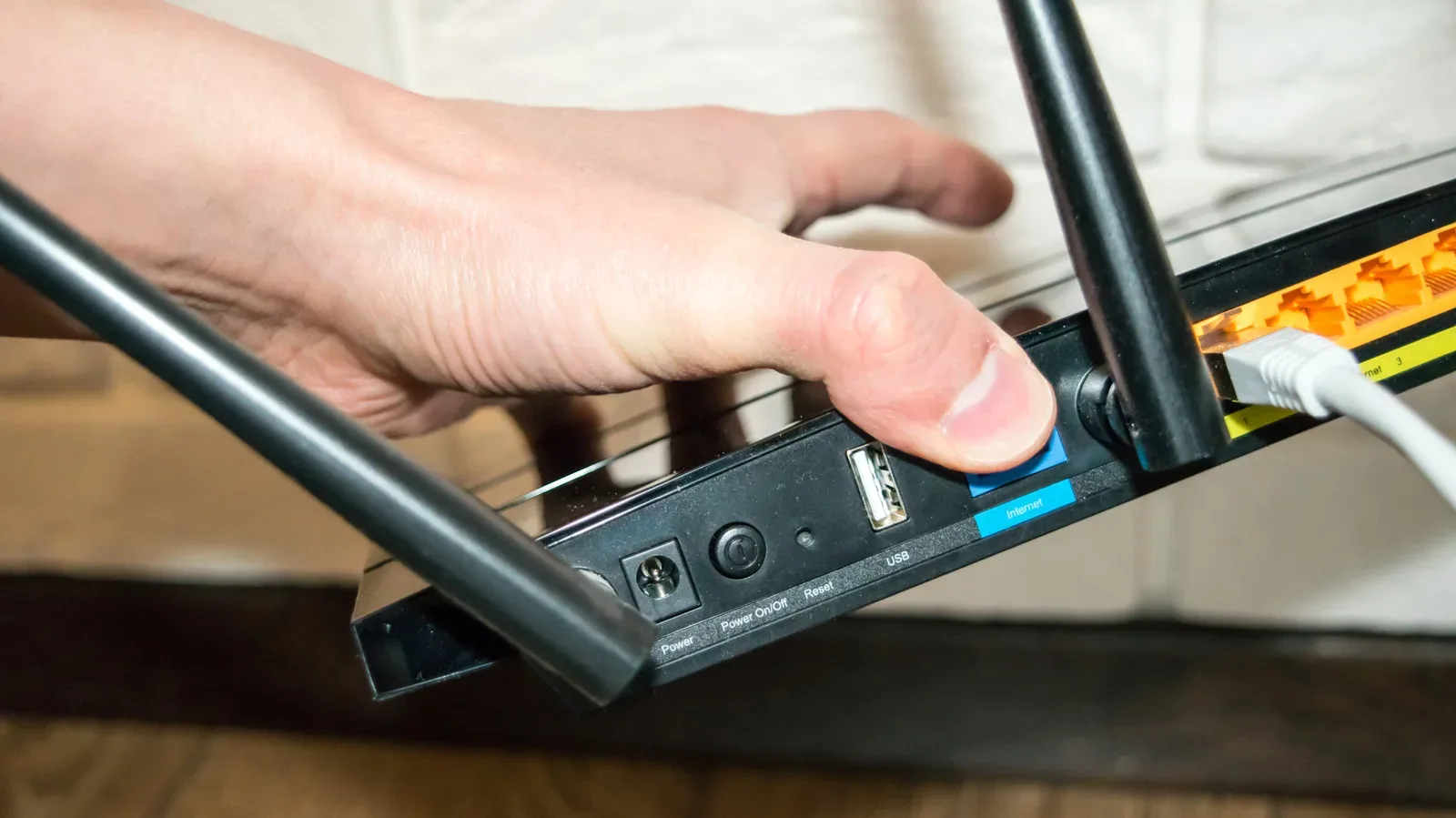
The USB port on the back of a Wi-Fi router is easy to dismiss. It sits beside the WAN and LAN connections, often unlabelled beyond a tiny USB symbol, and it has none of the obvious importance of the cable bringing internet into the house. For a gaming setup, however, that quiet little socket can occasionally do useful work: sharing a small drive across devices, reviving a non-wireless printer, or—on supported hardware—providing another route online when the usual broadband connection fails.
It is not a secret route to unlimited storage, instant downloads, or a replacement for proper backup hardware. Think of it more as a utility slot. Routers are modest computers, with processors, memory, and streamlined operating systems handling traffic around a home network. More recent models may also include USB 3.x rather than USB 2.0, giving them considerably more room to make that port useful. Whether any particular feature exists comes down to the router’s manufacturer, model, firmware, and sometimes the exact USB device attached.
For players juggling screenshots, clips, mods, patches, and the general digital clutter of PC gaming, understanding the distinction between “convenient shared storage” and “safe long-term storage” is the important bit. A router-mounted drive can be excellent for the former. It should be approached very cautiously for the latter.
Turn a spare USB drive into a basic network share
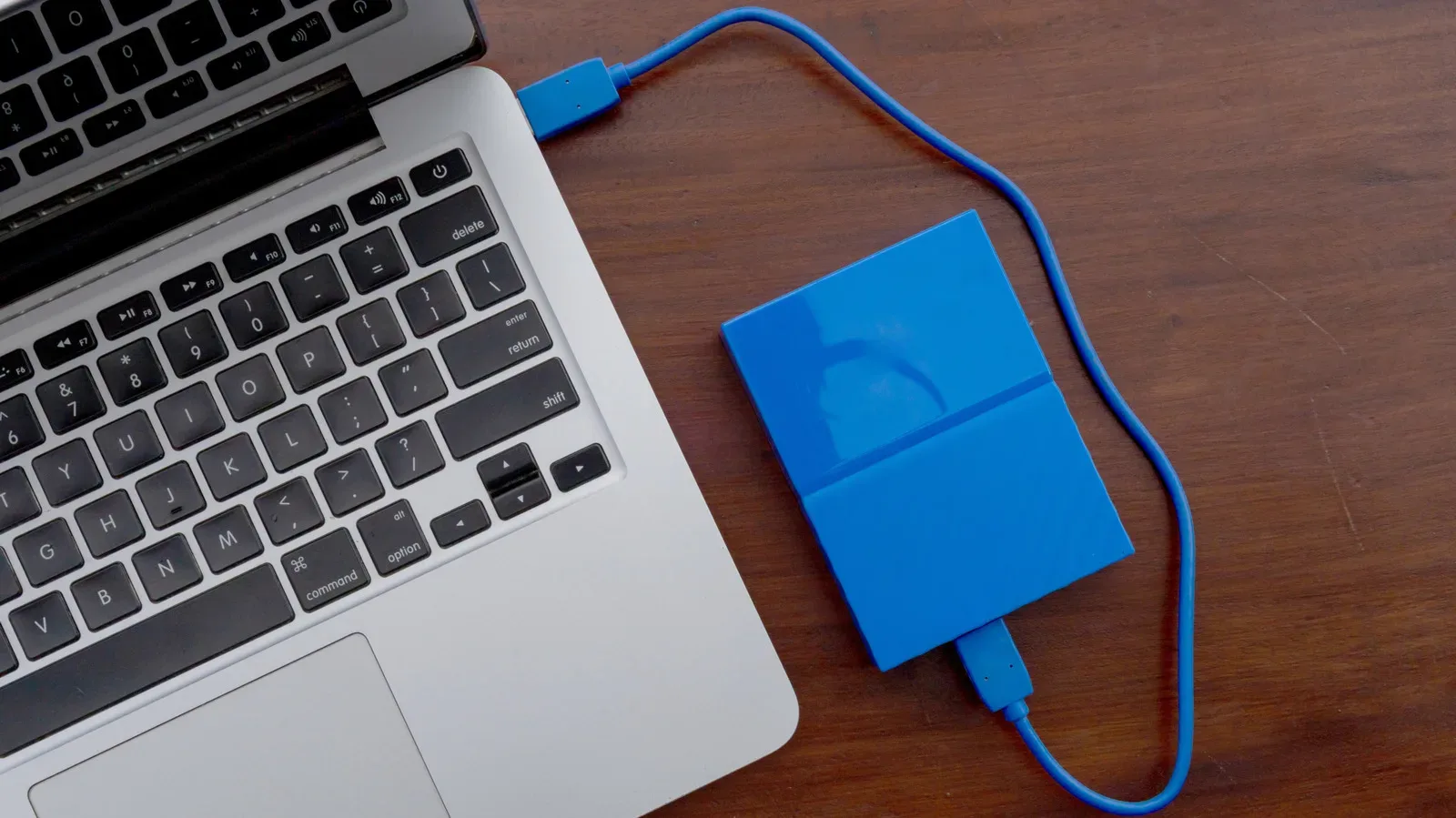
The most common router USB feature is storage sharing. Attach a USB flash drive, external hard drive, or SSD, enable the appropriate setting in the router’s administration interface, and devices connected to that network may be able to browse the drive. The menu wording varies. It may appear as File Sharing, USB Storage, Media Sharing, or a branded label such as ReadySHARE.
When it is available, the router exposes that drive via a network protocol. SMB—also called Samba in many contexts—is the familiar option for file browsing on PCs and many other devices. Some router interfaces also offer FTP. The exact path, access controls, compatible file systems, and user-account options vary widely, so the manual and support pages for the specific router are more useful than a generic setup checklist.
A shared drive can make sense for material that is helpful to have in one place but would not be catastrophic to lose. That might include exported screenshots, a folder of short clips waiting to be edited, controller firmware downloads, mod archives, or documents that need to move between a desktop and laptop without repeatedly plugging and unplugging a stick. It can also be a simple home media shelf for videos or music supported by the connected devices.
For PC players who move between machines, this is a tidier option than leaving a portable drive connected to one computer all day. Everyone on the same local network can potentially reach the files, subject to the router’s permissions. It also lets the desktop stay off while another machine needs a clip, image, or installer.
That convenience is particularly relevant to households where the game room does double duty as a workstation, streaming corner, and tech graveyard. A router-level share is not glamorous, but neither is hunting through three USB sticks called “NEW FILES,” “new files 2,” and “actually new files.”
Do not mistake a share for a backup plan
A router and one attached drive create one place where files live. That is storage, not a dependable backup strategy. If the drive fails, the router malfunctions, a file is deleted, or a power event causes trouble, the data can still disappear. Important saves, irreplaceable captures, tax records, and personal photos should live in more than one independent location.
There is another gaming-specific reason for restraint: a router USB share is not a sensible place to install an entire modern game library and expect normal performance. Game launchers, operating systems, permissions, drive formatting, and the router’s own processing limits can all complicate that plan. Even when a shared folder is accessible, it is best treated as a place to move, stage, or archive files—not as a magical network SSD for launching everything.
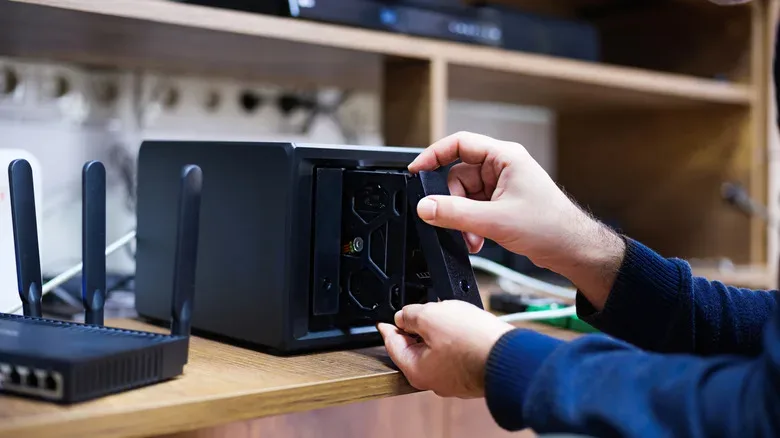
For a more durable local-storage setup, a dedicated network-attached storage device, or NAS, is generally the appropriate category of hardware. A NAS can support multiple drives and redundancy arrangements such as RAID. RAID can help reduce the impact of a single drive failure in certain configurations, but it is still not the same as keeping separate backups. The practical rule remains unchanged: redundancy is useful; copies in separate places are safer.
USB speed and power are the two unglamorous bosses
Before attaching a drive and envisioning a personal mini-server, check which USB standard the router actually has. Older units may provide USB 2.0, whose theoretical ceiling is 480Mbps, or 60MBps. Real-world performance can be lower, and routing, file-sharing overhead, wireless conditions, the attached drive, and the client device all matter. Transferring a large folder of recorded footage or a sizeable archive can therefore take a very long time.
USB 3.x-equipped routers can offer a better starting point, but the label alone does not guarantee spectacular network transfer rates. A router is still splitting attention between Wi-Fi, routing, security functions, and its storage-sharing service. The wired or wireless connection on the device accessing the files can be just as decisive as the USB port itself.
Power draw can cause another problem. Some portable hard drives need more power than a router’s USB port reliably supplies. A flash drive is a lighter ask; a larger portable hard drive may not be. If a drive disconnects, fails to spin up, or behaves inconsistently, the limitation may be power rather than the sharing setting. Drives with their own external power adapters avoid placing that entire burden on the router.
At that point, though, the convenience math changes. If a permanently powered drive is becoming a central piece of the home network, spending more on a purpose-built NAS may be more sensible than asking the router to moonlight as one. The USB approach shines when it solves a small problem with hardware already on hand, not when it is forced into an enterprise cosplay routine.
A possible lifeline when broadband goes down
Some routers can use a compatible cellular modem connected through USB. On models that support it, that 4G or 5G connection can serve as the primary internet service or as a secondary one. The fallback arrangement is commonly called dual WAN failover or multi-WAN: when the normal ISP line stops working, the router can move traffic to the cellular connection.
This capability is entirely model-dependent. The router must have firmware support for the particular type of cellular connection, and compatibility should be confirmed before anyone buys a dongle for the job. Mobile data plans and data limits also matter, especially for games that need large patches or updates. A fallback connection may be ideal for keeping essential devices online and continuing a voice chat, but it may be a poor fit for downloading a huge release-day update.
Some modern routers can also share an Android phone’s connection through USB tethering. This can be useful in a pinch and has a small practical advantage over switching every device to a phone hotspot: devices can remain connected to the same router Wi-Fi network. But it is not equivalent to automatic failover when someone must physically plug in the phone when an outage occurs. It also ties up the phone and uses its mobile-data allowance.
For multiplayer games, any cellular fallback should be viewed with realistic expectations. It can get a household back online, but latency, signal quality, carrier congestion, and data restrictions are separate issues. Being connected is not necessarily the same as having a smooth competitive match.
Printer sharing can rescue older hardware, with catches
The router USB port may also let an older wired USB printer join the network. For a household with one printer and several computers, that avoids connecting the printer to a single PC whenever someone needs to print. It can be useful for shipping labels, tournament brackets, card-inventory lists, or the occasional document that refuses to become less urgent just because the printer is in another room.
Compatibility is again the big asterisk. Router and printer support differ, and some setups require a companion utility on a computer. TP-Link, Netgear, and Asus have offered utilities for Windows and macOS in this area, while printing directly from Android or iPhone may not be supported through the router-sharing method. Modern printers with their own Wi-Fi functions will often be simpler, but router sharing can keep an otherwise serviceable USB-only model useful.
How to decide whether the port is worth using
- Identify the router model and USB standard. Confirm whether it has USB 2.0 or USB 3.x and check the manual for storage, printer, tethering, or cellular-modem support.
- Choose a low-risk first job. A spare flash drive holding screenshots or installers is a more sensible trial than the only copy of a save archive.
- Enable sharing deliberately. Use passwords and permissions where the router offers them. Do not expose a file share to the wider internet unless there is a specific, well-understood reason to do so.
- Test from the devices that matter. A Windows desktop, Mac, console-adjacent laptop, and phone may not all see the share or printer in the same way.
- Keep important data elsewhere too. Router-attached storage is a convenience layer, not the guardian of the one capture, save, or document that cannot be recreated.
There is a useful middle ground here. The USB port is not dead weight, and it does not need to become a whole home-lab project. It can quietly reduce friction around a gaming and PC setup, whether that means a shared clip folder, a functional legacy printer, or a supported emergency internet route. Players following developments such as the expanding 2026 Overwatch roster discussion know that games keep growing in both size and surrounding digital clutter. A little network housekeeping can help—provided the router USB port is used for what it is good at, rather than trusted with jobs it was never built to handle.