A new phone is supposed to feel like a clean save file: your accounts, your choices, your layout. Yet Samsung Galaxy owners can still open a fresh handset in 2026 and find an app drawer already populated with software they did not select. Some of it may be useful. Some may be irrelevant from the first minute. And some may be there because a particular region, retailer or carrier arrangement put it there.
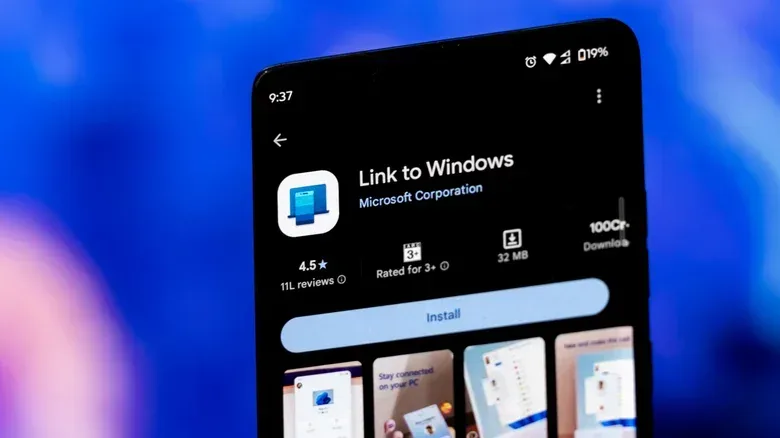
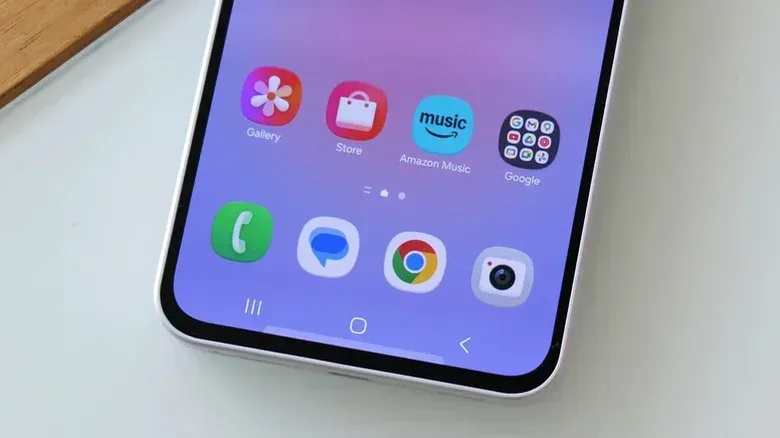
The common term for that unwanted software is bloatware: apps installed before the owner has decided whether they want them. On a Galaxy device, that can mean Samsung-made optional apps such as Samsung Shop, Samsung TV Plus and Samsung Global Goals, alongside third-party apps that can include Facebook, Instagram, LinkedIn, OneDrive and Spotify. The exact lineup is not universal; it can vary by phone model, country and carrier.
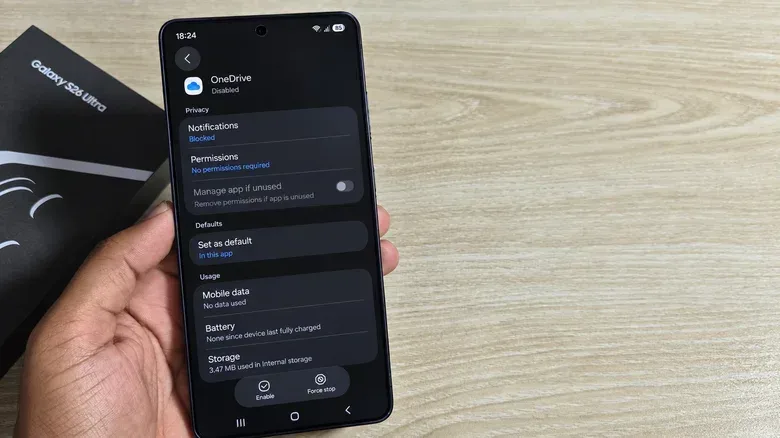
That distinction matters. There is no single definitive “Galaxy bloatware list” that applies to every person with a Samsung phone. More importantly, an app somebody else calls junk may be part of another person’s daily routine. OneDrive is a simple example: it has a clear purpose for someone already using Microsoft’s cloud storage, while a person who keeps their files in Google Drive may see it as a redundant second cloud app.
The useful response is not to remove everything with an unfamiliar logo. It is to make deliberate choices about the apps on your phone—and to understand the three very different cleanup tools Samsung offers: uninstalling, disabling and hiding.
Why the complaint has lasted so long
Galaxy software clutter is not a new argument. The 16GB Samsung Galaxy S4 drew criticism in 2013 because reports indicated that only about 9.5GB was usable after Android, Samsung’s software and bundled applications took their share. Storage capacities and software options have changed since then, but the basic frustration remains recognizable: buyers expect the phone’s app list to start with their decisions, not a pile of decisions made on their behalf.
Samsung has made the situation more manageable by letting users remove or disable many preinstalled apps. That is real progress, but it does not guarantee a blank slate. A premium price also does not automatically mean an uncluttered app drawer. The Galaxy S26 Ultra, for instance, has been cited as a recent example of the contrast a person may notice after moving from a Google Pixel, even though both phones come with their own preloaded software.
There is also a continuing commercial reason to pay attention to what appears on a device. In July 2026, Samsung entered an agreement to preinstall Amazon Music on certain Galaxy phones and tablets. The included models were not specified. Eligible new subscribers can receive a three-month Amazon Music Unlimited trial, but a trial that is activated and then forgotten renews at the paid rate.
That does not make the app inherently bad, and a trial can be worthwhile for someone who wants it. The practical issue is consent through attention: if an app arrives already installed, it is easier to overlook both the app and any subscription choice tied to it. Treat a promotional trial like any other recurring service. Before activating, know whether it renews and make a reminder to review it before the trial ends.
First, decide what actually belongs on your phone
Before changing settings, take a short pass through the app drawer and separate apps into three groups:
- Keep: apps you actively use, or services you already rely on, such as the cloud storage provider where your files live.
- Remove: apps you know you will not use and that offer an Uninstall option.
- Leave alone for now: apps whose role is unclear, particularly anything that sounds like a system component or a core phone function.
This avoids turning a small cleanup task into a troubleshooting project. Samsung’s core apps—including Phone, Messages, Contacts, Gallery and My Files—cannot be deleted. More broadly, unfamiliar system services should not be disabled merely because their names do not explain themselves well. A tidier app drawer is not worth risking a feature you later need.
It is also worth separating duplicate services from duplicate icons. Having both OneDrive and Google Drive installed may be unnecessary if you only use one of them. But an app that appears similar to another is not automatically disposable. Ask a straightforward question: do I have an account, files, subscriptions or routines connected to this service? If yes, keep it until you are sure what would change without it.
Uninstalling: the cleanest option when it is available
Uninstalling removes an app from the phone and frees the storage it occupies. This is the best result for an app you do not use and do not want to keep around.
There are two ways to do it on a Galaxy phone:
- Swipe up from the Home screen to open the app list.
- Press and hold the app you no longer want.
- Choose Uninstall, if that option appears.
Alternatively, open Settings, go to Apps, select the app, then choose the uninstall option from its app page.
The phrase “if that option appears” does a lot of work here. Preinstalled software does not always behave like an app you downloaded yourself. An app may have no uninstall control because it is part of the device’s supplied software set. When that happens, the next best choice may be disabling it.
Disabling: stopping an app without deleting its files
Disabling is not the same as uninstalling. It prevents an app from running and removes its icon from view, but the app’s files remain on the device. As a result, disabling does not reclaim the storage occupied by that app.
To disable an eligible preinstalled app:
- Open Settings.
- Tap Apps.
- Select the app you want to stop using.
- Tap Disable.
This is usually the sensible middle ground for a bundled app you do not want to see or have running, but cannot uninstall. It is also reversible. Return to the same app page in Settings and tap Enable if you decide you need it later.
Think of disabling as shelving a game rather than deleting it from the library. It clears the immediate clutter and prevents the app from participating, but it does not return its occupied space. For people whose priority is a calmer device rather than maximizing available storage, that may be entirely enough.
Menu labels and available options can differ by Galaxy device and software version, so the path may not look identical on every handset. If an app has no Disable button, do not attempt to force a solution by disabling unfamiliar components elsewhere in Settings.
Hiding: a visual cleanup, not a software cleanup
Hiding is the lightest intervention. It removes an app’s icon from the Home and Apps screens, but the app stays installed. Crucially, hidden apps can still send notifications. Hiding also does not free storage and does not revoke permissions.
That makes it useful for reducing visual noise, but inadequate if your goal is to stop an app from interrupting you. To hide an app:
- Touch and hold an empty area of the Home screen.
- Tap Settings.
- Choose Hide apps or Hide apps on Home and Apps screens.
- Select the apps to hide, then tap Done.
Use hiding for an app you do not want in your face but are not prepared to disable. It is an organizational choice, not a storage-management tool and not a privacy control.
Hidden apps need a notification check
An app disappearing from the drawer can create the misleading impression that it has been dealt with completely. It has not. If a hidden app remains allowed to send alerts, it can still break through with notifications even though its icon is out of sight.
To stop those alerts:
- Go to Settings.
- Open Notifications.
- Tap App notifications.
- Select the hidden app.
- Turn off Allow notifications.
Notification permissions control alerts; they do not remove an app, erase its files or undo any permissions it already holds. That distinction is why the correct sequence depends on the problem. Want space back? Uninstall where possible. Want a bundled app to stop running and vanish from the app list? Disable it where available. Want the screen to look less busy? Hide it, then separately decide whether its alerts should remain enabled.
A low-risk Galaxy cleanup routine
A careful five-minute review is often more effective than a one-time spree of removals. Open Settings, inspect the app list, and make choices only for apps you recognize. Then revisit subscriptions associated with any preinstalled trial you activate.
- Uninstall optional apps you definitely do not use.
- Disable removable-looking bundled apps only when you understand what they are.
- Hide icons only when visual clutter is the concern.
- Turn off notifications separately for apps you hide but do not want to hear from.
- Keep an eye on trials that renew automatically, including eligible Amazon Music Unlimited offers.
The wider issue is familiar to anyone navigating a platform built around apps, stores and default services. Digital ecosystems are valuable precisely because they put many options within reach, but convenience can turn into clutter when choice is made before the owner arrives. The same tension sits behind wider debates over software storefronts and their entrenched audiences, including the difficulty of shifting established PC storefront habits.
On a Galaxy phone, the immediate fix is pleasantly mundane: inspect, choose, and use the least destructive option that solves the problem. Not every preinstalled app deserves removal, but none should get to occupy your screen, storage or attention simply because it arrived first.