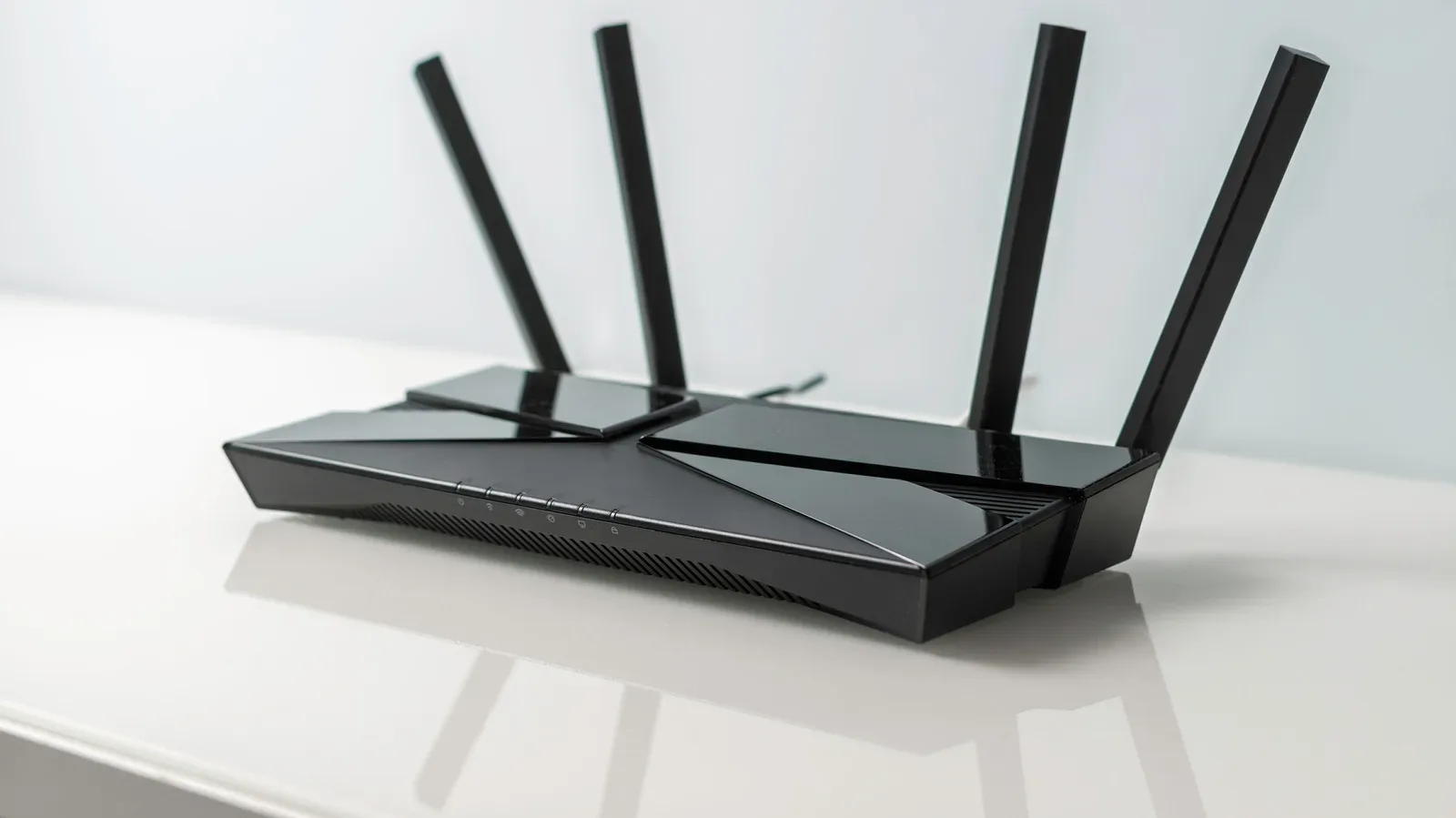
There is a particularly annoying kind of home-network problem that tends to arrive after a gaming setup has slowly grown beyond its original plan. A router that once had enough Ethernet sockets now has a console, a gaming PC, a smart TV, a desktop workstation and perhaps a network-attached storage drive competing for a handful of LAN ports. The temptation is to blame the router and start shopping for a replacement.
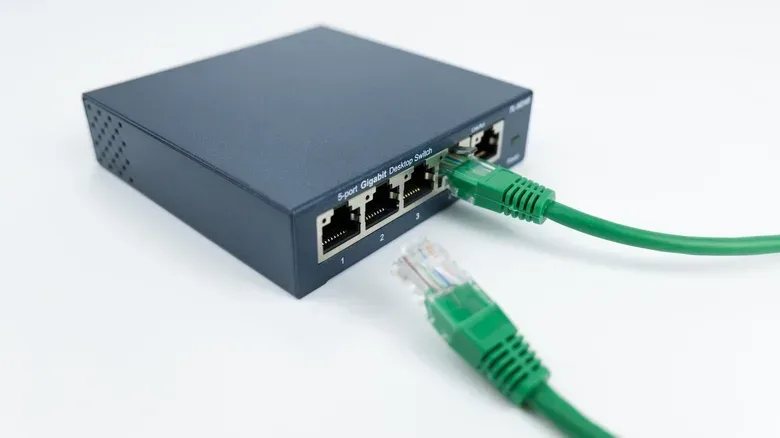
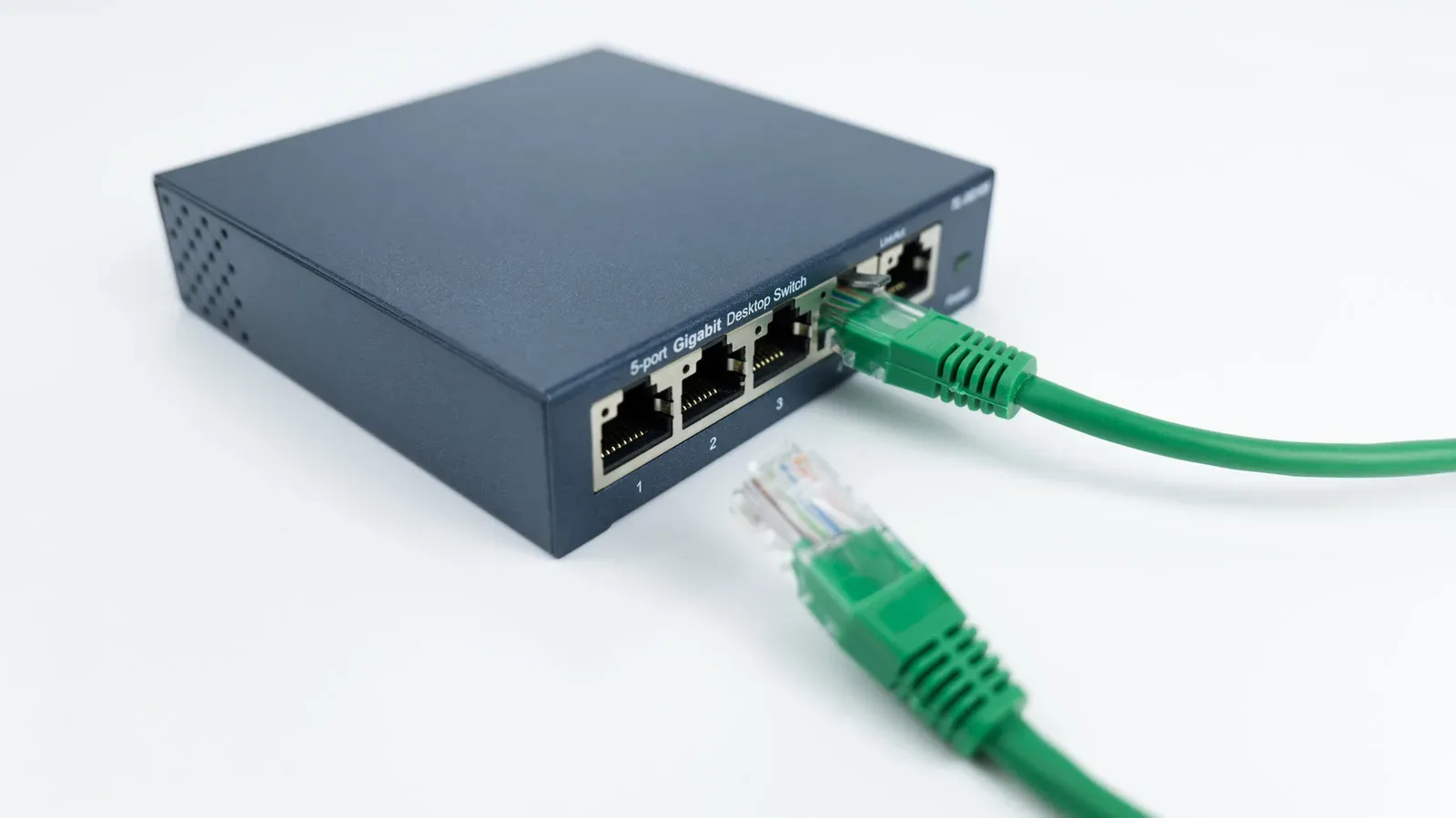
Usually, that is unnecessary. If the router is otherwise doing its job, the straightforward answer is an Ethernet switch: a compact device that takes one connection from a router and turns it into several more wired connections. It is an expansion point for a local network, rather than a replacement router.
That distinction matters for players who want a more consistent connection for online games, or for households where a 4K streaming device, console downloads and large PC file transfers can all happen at once. Wi-Fi has improved considerably, but a direct Ethernet connection remains a useful option where stability and predictable performance matter. Adding ports can be much less disruptive than replacing networking hardware, changing Wi-Fi settings or rerouting an entire room.
The basic fix: connect a switch to a LAN port
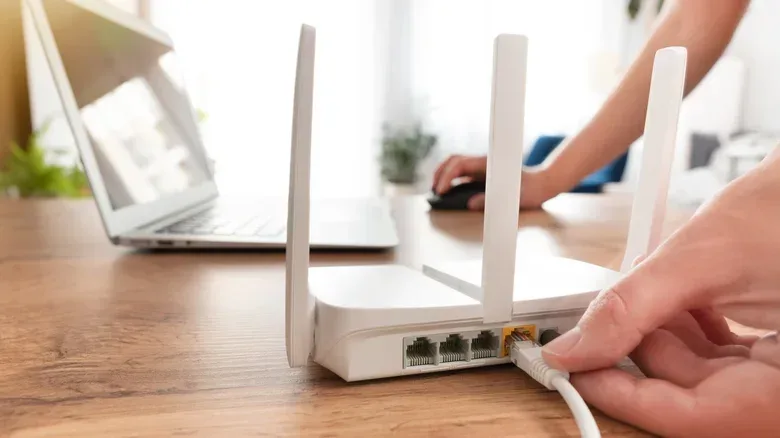
Most home routers have four LAN ports and one WAN port. LAN stands for local area network: these are the sockets intended for devices inside the home, including PCs, consoles and switches. WAN, or wide area network, is the connection used to link the router to a modem when the two are separate devices.
For more context, explore Shift Up CEO Says Stellar Blade Once Had Only About Three Months of Salary Runway Before Sony Support.
The important practical rule is simple: connect the switch to a LAN port on the router, not the WAN port. The switch then makes additional LAN connections available to devices nearby.
Think of the router as the part of the setup that manages traffic between the home network and the internet. It receives incoming data and sends it toward the phone, PC, console or other device that needs it. A basic switch has a narrower job. It adds connections to the local network and directs traffic from devices attached to it to the appropriate destination. It does not replace the router, and it does not improve or change the router’s Wi-Fi coverage.
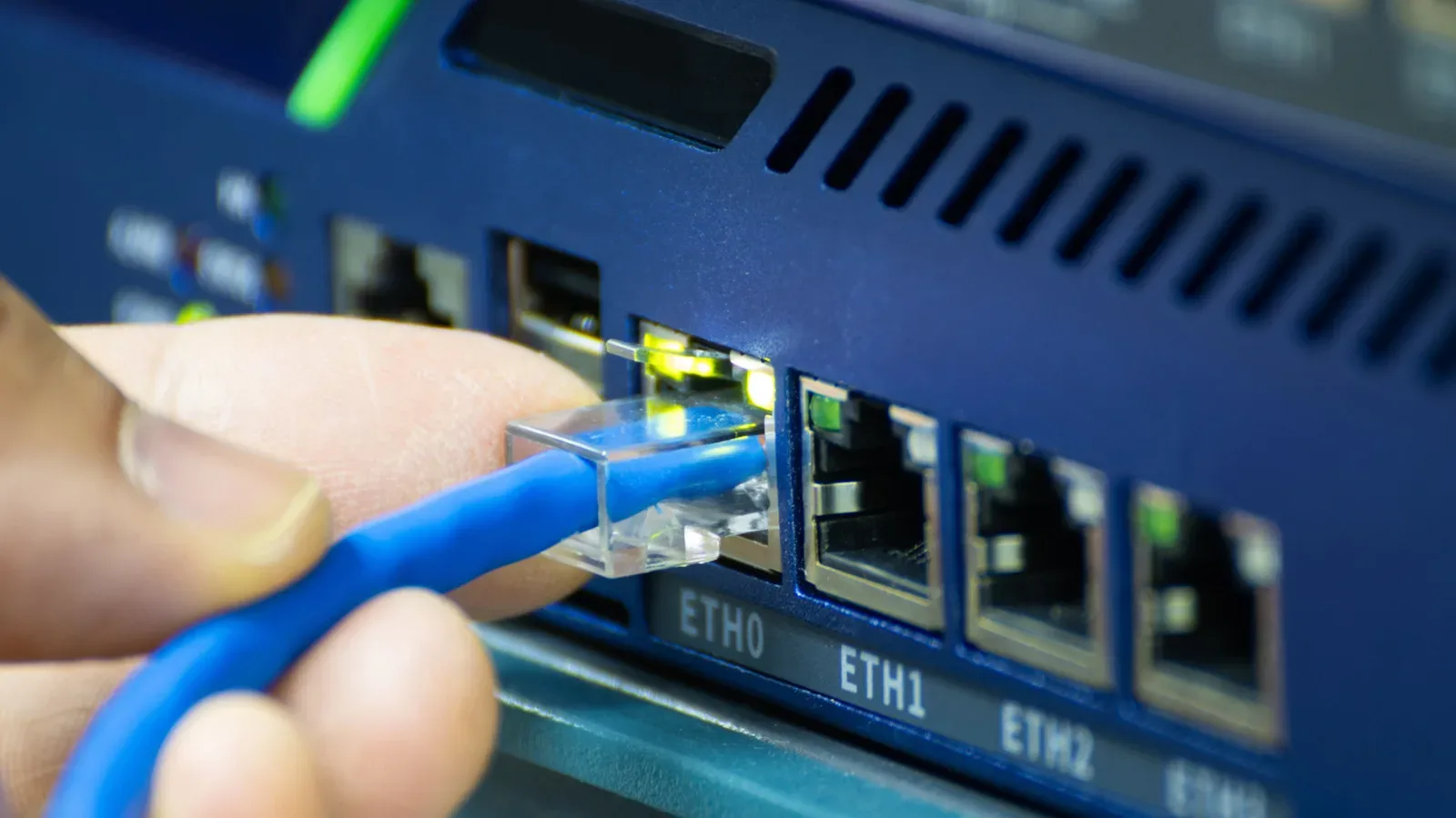
This is why a switch is a sensible answer when the only issue is port count. It leaves the existing internet connection, router configuration and wireless setup intact. For a typical living-room or desk setup, the process is essentially connecting the switch to the router with an Ethernet cable, then connecting the console, PC, TV or other devices to the switch.
Count ports realistically before choosing one
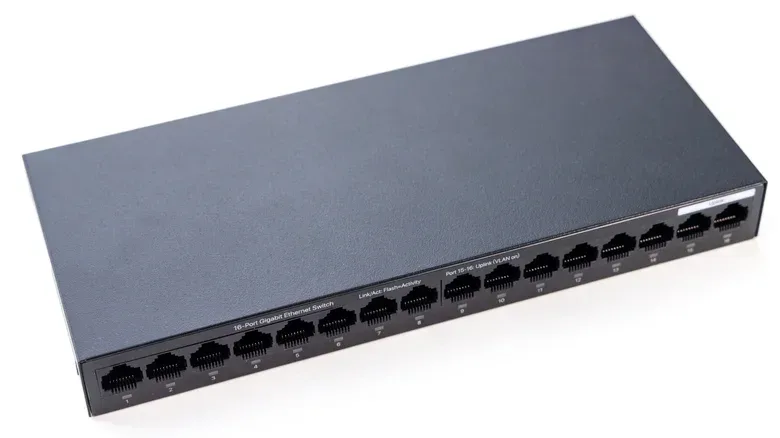
Switches commonly come with five, eight or 16 ports, with models offering still more connections also available. One port is used for the cable back to the router, so the number of devices a switch can add is one lower than the number printed on the box.
- A five-port switch provides four extra device connections after one port links back to the router.
- An eight-port switch provides seven extra device connections.
- A 16-port switch provides 15 extra device connections.
That small bit of arithmetic avoids a frustrating purchase: a five-port model may be perfect for a console, TV, PC and NAS, but it will not provide five free sockets in addition to the uplink. It is worth listing the devices that need a cable now, then leaving room for the next addition rather than planning only around today’s exact count.
Use a switch, not a splitter
The wording is not just pedantic. A proper Ethernet switch is the device meant to extend a wired home network. It functions more like a USB hub or HDMI switch in the sense that it expands access from a single existing connection. An Ethernet splitter is not the interchangeable answer to a shortage of LAN ports.
For a gaming household, that means the switch is the equipment to consider when several devices need their own normal network connection: perhaps a console and smart TV by the display, or a PC, NAS and work machine at a desk. The router still handles the home network’s connection to the internet; the switch simply makes it possible to connect more gear to that network by cable.
There is another advantage to keeping devices wired where convenient. Local network traffic does not have to be internet traffic. A PC communicating with a NAS is an example: the transfer is happening inside the home network. That kind of direct connection can be important for moving large files, and it is not limited by the household’s ISP plan in the same way as traffic traveling out to the internet and back.
Unmanaged versus managed: most setups need the easy option
Shoppers will encounter two broad descriptions: unmanaged and managed switches. An unmanaged switch is generally the practical pick when the goal is simply to create more Ethernet ports. It requires no setup and is designed to work as a plug-and-play expansion.
A managed switch includes more advanced networking capabilities, such as monitoring and virtual networks. A virtual network is a way to separate traffic into logical groups even when devices use the same physical networking equipment. Those features can be useful in more specialized environments, but they are not necessary for the ordinary problem of connecting more home devices.
In other words, do not accidentally turn “my router has no ports left” into a networking project. For most players, the desired result is not a dashboard full of settings. It is a reliable wired connection for the console or PC, with the rest of the home network continuing to work normally. An unmanaged switch is designed for that job and generally costs less than a managed model.
Speed is the specification that can make or break the upgrade
Adding ports is only half the decision. The other question is whether the switch matches the speed capability of the equipment around it. Ethernet performance is determined by the capabilities of the router’s port, the device’s port and the cable between them.
A common baseline is gigabit Ethernet, often labeled 1G, meaning 1 gigabit per second. Many unmanaged switches offer at least gigabit speeds, which should make them suitable for many home connections. But a faster network can be constrained by one slower piece of equipment in the chain. This is a bottleneck: a limit imposed by the slowest relevant link.
For example, a computer and router may both have 2.5-gigabit Ethernet ports, and the cable may support that speed. Put a 1-gigabit switch between the router and computer, however, and devices connected through that switch will be restricted to the switch’s 1-gigabit capability. The faster ports do not make the slower switch faster.
A switch adds capacity, but it cannot create a faster link than the standards supported by the router, switch, device and cable.
Before buying, check the labels near the router’s LAN ports. Markings such as 1G or 2.5G identify their standards. If the markings are absent, the router manual or online documentation can clarify what each port supports. Then check the Ethernet capability of the PC, console or other device that will connect through the switch, as well as the cable specification.
The sensible approach is to connect the switch to the fastest router LAN port that the switch can actually use. Pairing a 2.5G-capable switch with an appropriate 2.5G router port may preserve that capability for compatible connected devices. Connecting a gigabit-only switch to that same port will still provide a gigabit connection through the switch, not 2.5G.
Internet speed and local speed are not the same question
It is also useful to separate two kinds of performance. The speed of online play, downloads and streams is ultimately affected by the household’s internet service plan, because that traffic must reach the ISP and the wider internet. A faster Ethernet link inside the home cannot make an internet plan deliver more speed than its limit.
Local traffic is different. When a PC communicates with a NAS on the same network, it does not need to make that internet round trip. The local Ethernet capabilities of the PC, NAS, switch, router path and cables therefore matter directly to that transfer. This distinction is especially useful for homes that use local storage alongside games, media or work files.
For gaming, this means a wired switch should not be treated as a magic upgrade for every online problem. It is a practical way to add stable wired access where a suitable cable route already exists. It will not alter Wi-Fi performance, replace the router’s routing role or bypass the limits of the ISP plan. What it can do is eliminate the unnecessary compromise of leaving a nearby console or PC on wireless merely because the router ran out of sockets.
When an Ethernet cable cannot be run
Sometimes the room that needs the connection is too far from the router, and routing new cable through walls is unrealistic. There are a few alternatives that can create a wired-style path without conventional in-wall Ethernet installation.
- MoCA adapters can carry broadband over a home’s existing coaxial wiring.
- Powerline adapters use electrical outlets and a home’s electrical wiring for the connection.
- Surface-mounted fiber optic kits use very thin cable that can run along baseboards, offering high-speed performance without signal degradation, though they cost more and must be installed carefully to avoid damaging the cable.
Each option addresses a different physical constraint. The key is not to confuse these with a switch. A switch solves the “not enough ports in this location” problem. MoCA, powerline and surface-mounted fiber are options to consider when the problem is “the desired location is difficult to reach with a cable.” In some homes, both solutions may be useful: one method brings a connection to the room, then a switch fans it out to a console, TV and PC.
A low-drama upgrade for a crowded setup
As more devices share a home network, the four LAN ports on a typical router can disappear surprisingly quickly. A compact unmanaged Ethernet switch is often the least complicated response: use one router LAN port for the uplink, select enough remaining ports for the nearby gear, and make sure its Ethernet speed does not undercut faster hardware already in place.
That is a modest piece of hardware with a meaningful practical effect. It can keep the console, gaming PC and other fixed devices connected by Ethernet without demanding a new router or a wholesale network rebuild—leaving more time for the games rather than an accidental home-IT side quest.