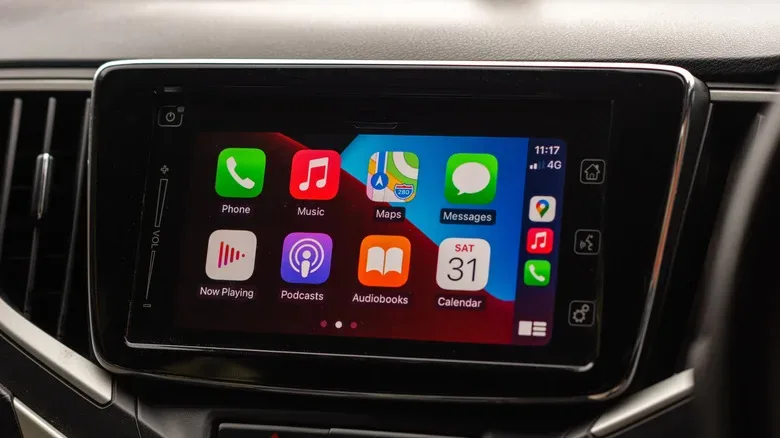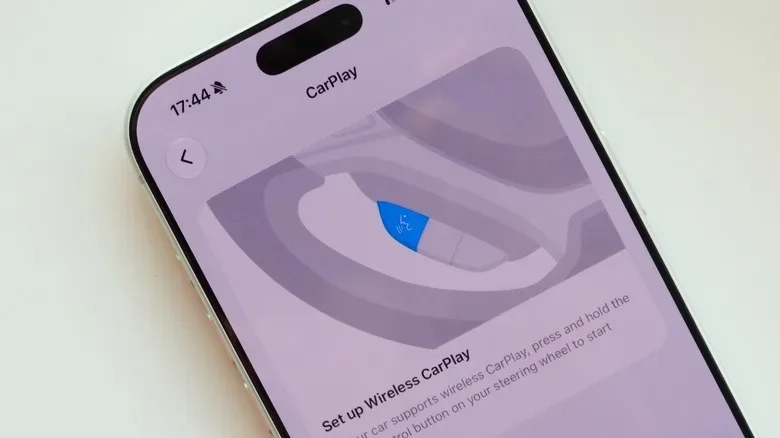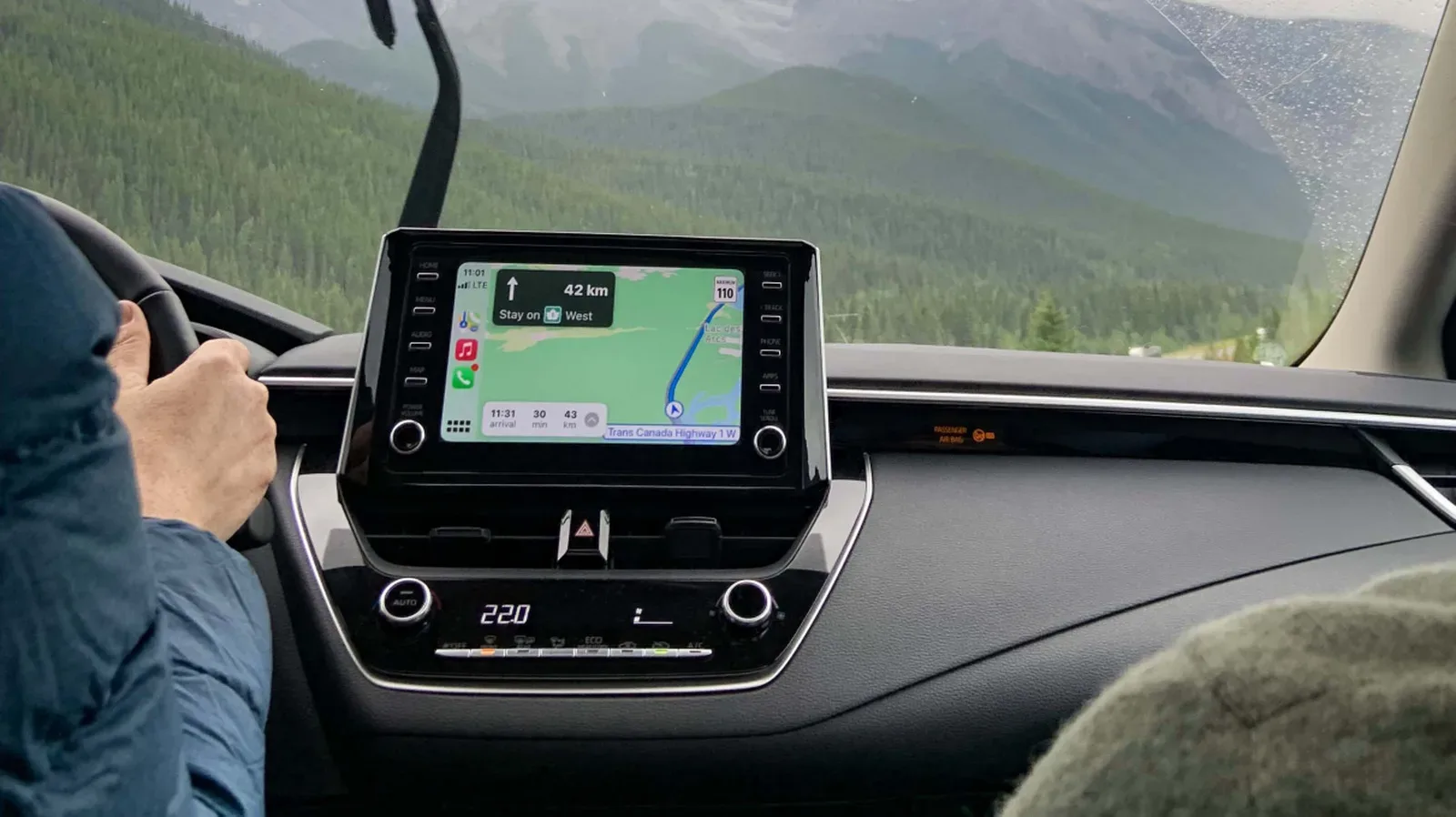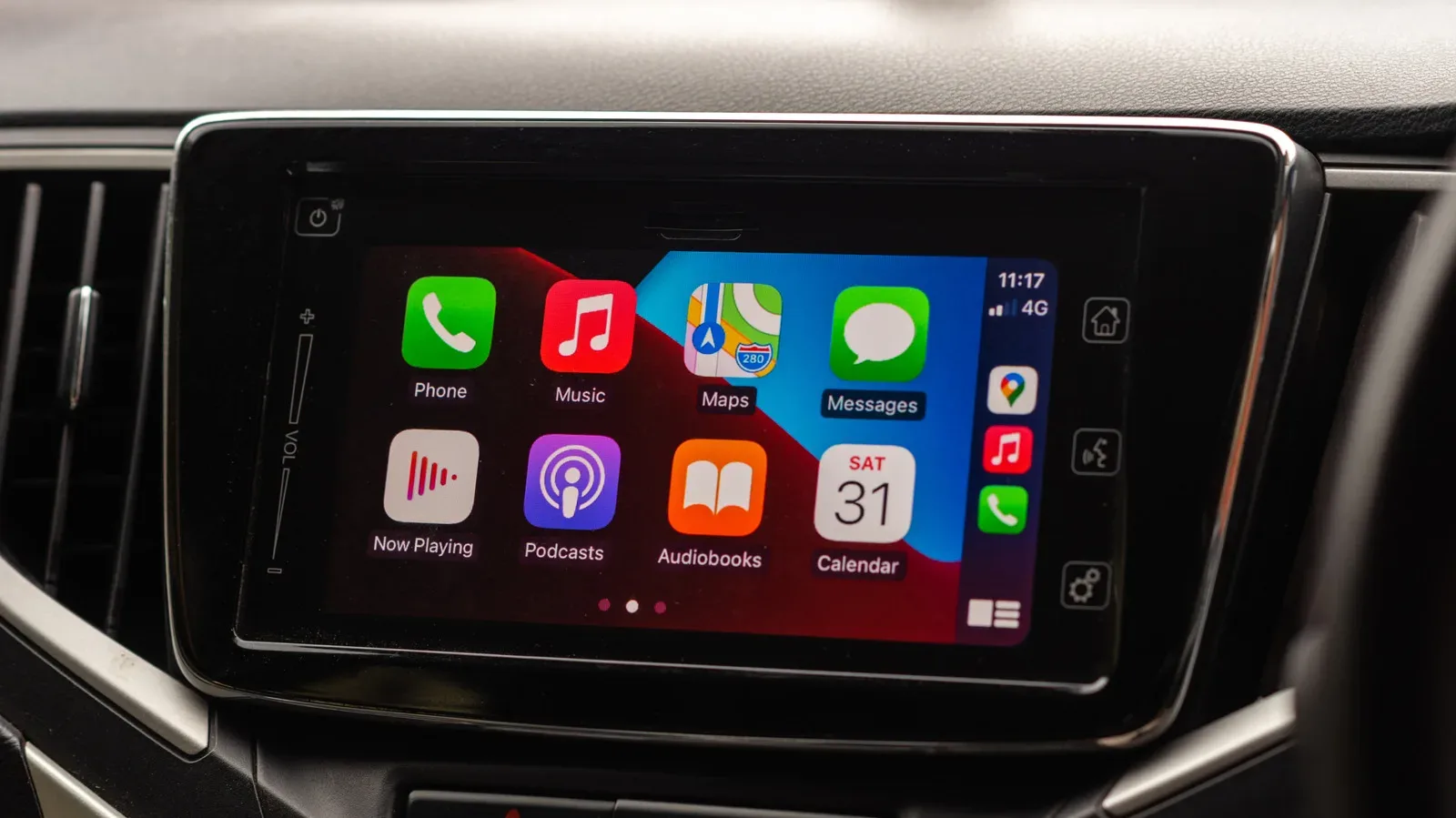
Apple CarPlay is built around a very understandable assumption: if an iPhone has already been paired with a compatible vehicle, the driver probably wants that connection ready the moment the car starts. For plenty of people, that is exactly the point. Maps, music, messages, and other familiar iPhone apps appear on the dashboard without an extra ritual of cables, menus, and button presses.
But automatic convenience can become a minor automotive boss battle when it happens on every single journey. Perhaps a passenger needs the phone, perhaps the vehicle is being used for a short errand, or perhaps the dashboard is simply more peaceful without a rotating selection of notifications and route suggestions. Wireless CarPlay can also place an additional demand on an iPhone battery, which matters when a long day is ahead and there is no charging option in the car.
The useful part is that CarPlay does not have to be an all-or-nothing commitment. iPhone settings provide ways to stop one particular vehicle from connecting, remove the pairing if a vehicle does not offer the relevant toggle, or disable CarPlay more broadly through Screen Time restrictions. Each approach has a different level of permanence, so the best fix depends on whether the aim is a short break, a clean reset, or a total lockout.
Why CarPlay reconnects in the first place
Once an iPhone and a CarPlay-compatible vehicle have been paired, the devices generally remember one another. The next time the car is started, CarPlay will normally attempt to reconnect automatically. That behavior saves time for drivers who use navigation and streaming services regularly, but it can feel intrusive for anyone who does not want the infotainment screen taking over the moment they enter the vehicle.
CarPlay is often preferred over a manufacturer’s native infotainment software because it puts a version of the iPhone interface on the display. The trade-off is that its persistence can be surprisingly noticeable. A connection that feels invisible when it works as intended becomes much more obvious when it is not wanted.
It is worth separating an unwanted automatic connection from a connection failure. If CarPlay is behaving unpredictably, disconnecting at random, or refusing to connect when required, removing the relationship may be part of troubleshooting. If it works perfectly but appears too eagerly, a less drastic setting may be the tidier answer.
Disable CarPlay for a car in iPhone Settings
The first place to check is the CarPlay management area on the paired iPhone. Open Settings, select General, and then choose CarPlay. The phone should show vehicles it knows about. Select the car that is reconnecting when you would rather it did not.
For vehicles that support the option, this screen includes a CarPlay control that can be switched off. Turning it off stops the iPhone from automatically launching CarPlay for that vehicle. It is a practical middle road: the pairing information remains available, but CarPlay no longer treats every ignition cycle as an invitation to begin its dashboard performance.
- Open Settings on the iPhone paired with the vehicle.
- Tap General.
- Choose CarPlay.
- Select the relevant vehicle from the list.
- Turn off the available CarPlay setting for that car.
Reversing the decision is straightforward. Return to the same vehicle page and enable the control again. That makes this route especially useful for drivers who mostly enjoy CarPlay but occasionally want a dashboard vacation.
Use “Forget This Car” when the toggle is unavailable
Not every older CarPlay-equipped vehicle will present the same management option. If there is no simple switch for disabling the connection, the more decisive option is Forget This Car on that vehicle’s CarPlay page.
This removes the relationship between the iPhone and the selected car. It does not erase every CarPlay pairing stored on the phone; it applies to the specific vehicle chosen from the list. That distinction is important for households with multiple cars, or drivers who use CarPlay in both a personal vehicle and another vehicle.
Forgetting the car is likely the better route if the goal is to make the vehicle stop recognizing the iPhone altogether. It is also a sensible reset if the existing pairing is acting strangely. The practical consequence is that using CarPlay with that car again will require pairing it again, rather than simply returning to a toggle and switching it back on.
Before deleting a pairing, consider which problem needs solving. A temporary preference is usually best served by a temporary setting. A persistent conflict, an old vehicle no longer used, or a connection that needs to be rebuilt can justify forgetting the car. It is the difference between muting an annoying party member and removing them from the save file.
Block CarPlay across the iPhone with Screen Time
For a wider restriction, iOS also lets users turn CarPlay off through Screen Time. Although Screen Time is commonly associated with managing app use, its restrictions include an option for CarPlay. This is the more comprehensive choice for someone who wants CarPlay unavailable rather than merely inactive for one familiar vehicle.
Navigate through Settings, then Screen Time, then Content & Privacy Restrictions. From there, open Allowed Apps & Features and disable CarPlay. With CarPlay disabled in this section, the feature is blocked on the iPhone.
- Open Settings.
- Tap Screen Time.
- Enter Content & Privacy Restrictions.
- Select Allowed Apps & Features.
- Disable CarPlay.
This option is best treated as a broad switch rather than a vehicle-by-vehicle preference. It can be useful for users who want to eliminate the temptation or distraction of the in-car interface, but it is overkill if the only complaint is one vehicle reconnecting automatically.
When turning it off makes sense
CarPlay remains useful even if it is not useful on every trip. Navigation and audio apps can make an unfamiliar journey easier, and newer changes in iOS 27 further emphasize its role as a polished in-car extension of the iPhone. Still, there are ordinary reasons to opt out.
- Fewer dashboard distractions: Some drivers may prefer not to have notifications and app prompts presented on the vehicle display.
- A familiar route: If no navigation or music controls are needed, the native infotainment system or a quiet screen may be enough.
- Battery conservation: Avoiding CarPlay can help reduce demand on the iPhone battery, particularly on days when charging is unavailable.
- Sharing needs: Wireless CarPlay can interfere with AirDrop, which can be inconvenient when photos or other files need to be shared nearby.
- Simple control: A driver may just prefer choosing when an iPhone joins the car rather than accepting an automatic connection.
There is no requirement to disable the feature simply because it is sometimes unwanted. Many vehicles make it easy to leave CarPlay and return to the manufacturer’s own infotainment interface. That is likely the fastest option when the goal is merely to stop looking at CarPlay for the current drive, not to change future behavior.
Do not turn a settings annoyance into a wireless problem
If wireless connections are irritating, the answer should stay inside the device and vehicle settings. Hardware intended to disrupt Bluetooth or other wireless signals is not a clever substitute for disabling a pairing, and it can affect devices beyond the one causing the annoyance. For more on that distinction, see why a Bluetooth jammer is not a clever fix for wireless annoyances.
CarPlay gives iPhone owners several legitimate controls: deactivate it for a selected car when the option is available, forget the relevant vehicle where needed, or use Screen Time for a full iPhone-wide restriction. That is enough control to turn automatic CarPlay from an unavoidable startup sequence into an intentional choice.