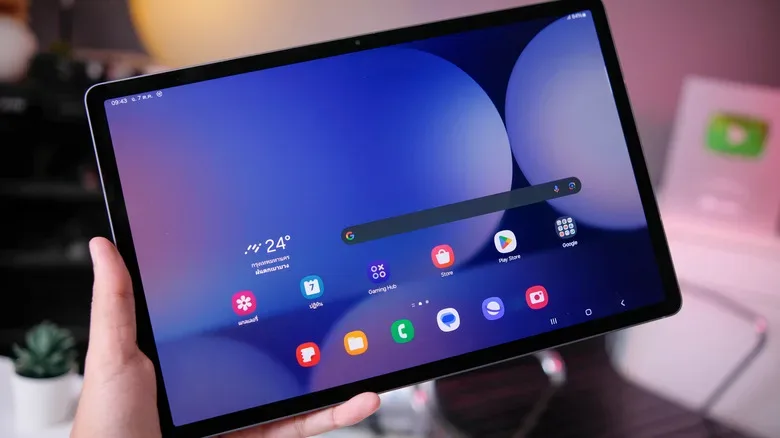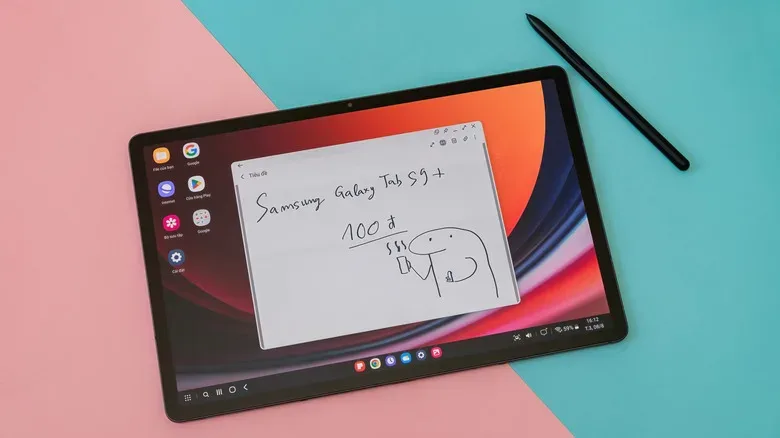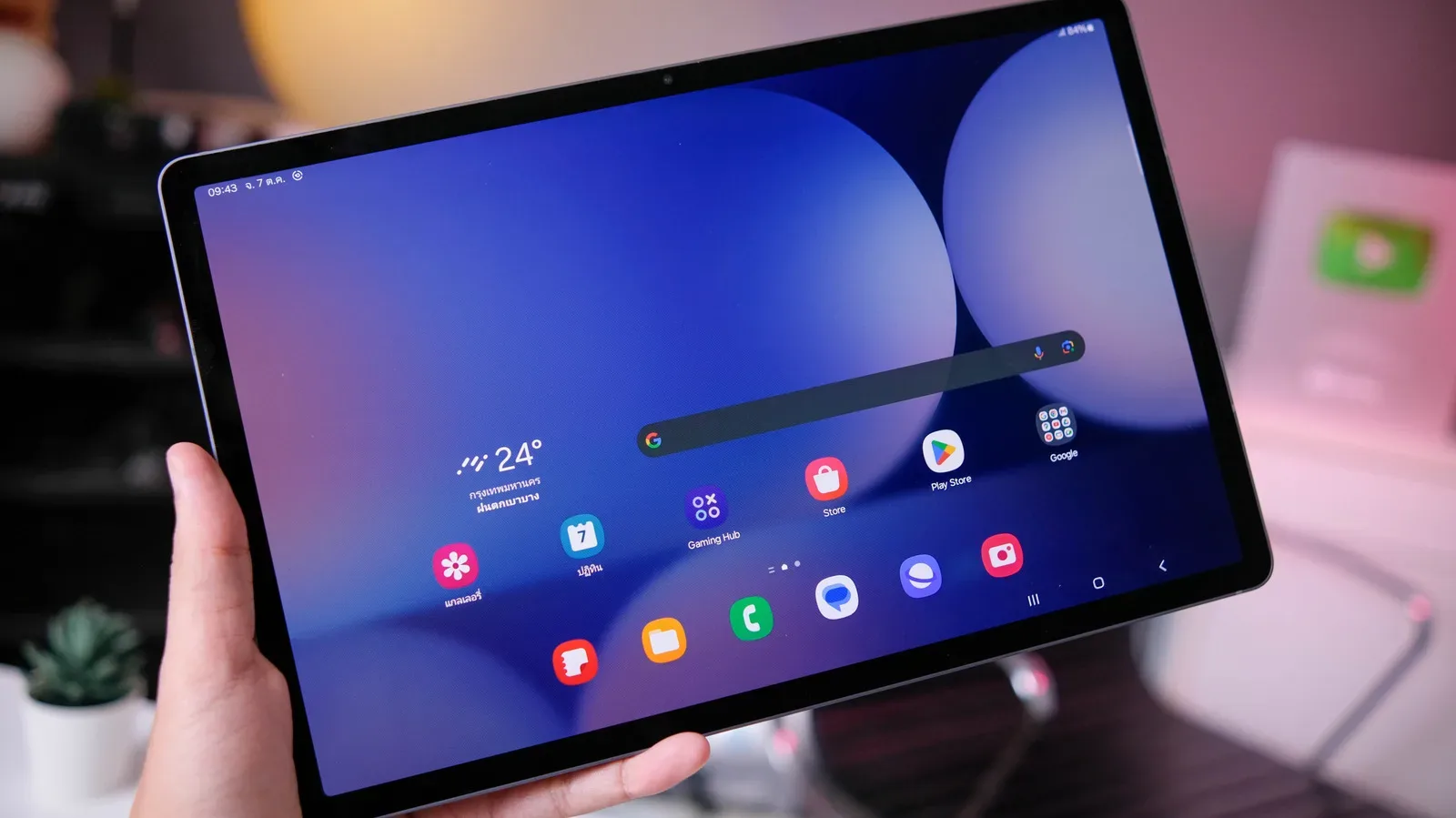
A Samsung Galaxy tablet can go from dependable couch companion to stubborn glass rectangle with astonishing speed. One minute it is handling a stream, a sketch, a browser full of tabs or a game session; the next, an app is hanging, the interface is dragging, or the touchscreen has decided it would rather contemplate the void. Before assuming the worst, start with the classic piece of tech troubleshooting wisdom: restart it.
A reboot is not a magic spell, although it can feel like one when a slow tablet returns to normal. It closes active processes, gives the operating system a fresh start and can clear up minor software hiccups without deleting personal files. Samsung Galaxy tablets offer a few distinct restart routes, and the right one depends on whether the device is still responding.
The important distinction is simple. Use a regular restart when the tablet still accepts taps and button presses. Use a forced restart when the display or controls have frozen. If neither works, move gradually through power and charging checks before treating a factory reset as the serious, data-erasing option it is.
Start with a normal restart for minor trouble
If the Galaxy tablet is functioning but feels unusually slow, an application repeatedly crashes, or a menu is being a little theatrical about opening, a standard restart should be the first move. It is quick, it does not remove apps, photos or documents, and it avoids taking more drastic action for what may be a temporary problem.
There are two convenient ways to reach the restart command. The first uses the tablet’s physical controls:
- Press and hold the Side/Power button and the Volume Down button together.
- Wait for the power menu to appear on the screen.
- Select Restart, then confirm the choice if the tablet asks.
- The tablet should power down and start itself again.
On Galaxy tablets where the display is behaving normally, the Quick Settings panel provides an on-screen alternative. Swipe down to open Quick Settings, tap the power icon, choose Restart, and confirm. This is especially handy if the device is already in hand and the touchscreen is cooperative.
Neither method should erase local data. Still, “restart” and “reset” are often casually used as if they mean the same thing, and they absolutely do not. A restart simply turns the device off and back on. A factory reset removes the tablet’s contents and returns its software setup to a fresh state. Do not choose the latter when the former is all that is needed.
When the screen is frozen, force the restart
A frozen tablet cannot helpfully display a power menu, and it will not care how insistently someone taps the screen. That is where a forced restart comes in. This is designed for a Galaxy tablet that is unresponsive to touch input or ordinary commands.
Press and hold Volume Down and the Side/Power button at the same time. Keep both buttons held for at least seven seconds. The screen should go dark, the device may vibrate briefly, and the Samsung logo should appear as the tablet begins restarting.
It can be tempting to release the buttons immediately after the display changes, but hold them long enough to give the process time to trigger. A forced restart is not the same as deleting data or restoring factory settings. It is a hardware-level way to make the device reboot when the normal software interface is unavailable.
If a Galaxy tablet is totally frozen, a forced restart is the sensible next step—not an instant reason to wipe the device.
After it comes back on, take a moment to observe what happens. If the tablet now runs normally, the lockup may have been an isolated software stumble. If the same app freezes it again, consider closing or updating that app before assuming the tablet itself is at fault. If the entire system repeatedly becomes unresponsive, it may be time to investigate further.
If the restart does not work, work through the power options
A tablet that will not respond after a normal or forced restart can be unsettling, but there are still non-destructive steps to try. First, hold the Power button for up to two minutes. The aim is to force a full shutdown if the device is caught in an awkward state and has not responded to the shorter button combination.
Once it is off, leave it powered down for around one minute. Then press the Power button again to see whether it will start normally. Giving the tablet this short pause is a modest step, but it separates a simple fresh boot attempt from repeatedly pressing controls while the system may still be trying to recover.
If the display remains lifeless, battery charge becomes the next suspect. Letting the battery run all the way down is one option when the tablet is stuck and cannot otherwise be shut down. After it has fully discharged, connect it to power and let it charge for about 30 minutes before attempting to turn it back on.
That half-hour matters because a device with a deeply depleted battery may not react instantly. Avoid reading too much into the first few moments after connecting a cable. If the tablet has power but no response after these steps, the issue may be more than a routine software slowdown.
A sensible escalation order
- Tablet is slow but usable: perform a regular restart from the power menu or Quick Settings.
- Screen and controls are frozen: hold Volume Down and Side/Power together for at least seven seconds.
- Forced restart changes nothing: hold Power for up to two minutes, leave the device off for one minute, then try again.
- No response persists: allow the battery to drain, charge for 30 minutes, and retry.
- Problems continue after successful boots: back up data, assess factory reset carefully, and use diagnostics or support as appropriate.
Factory reset is a last resort, not a casual refresh button
If a Galaxy tablet can boot but continues to malfunction after restarts, a factory reset may be worth considering. It is the nuclear option in this troubleshooting chain: potentially effective for persistent software trouble, but destructive to the data stored on the device.
A factory reset deletes installed apps, personal photos, files and other data on the tablet, restoring it to an initial setup state. Back up anything important before going further. That means confirming that the files you care about are actually accessible somewhere else, not merely assuming they synced at some point in the past.
When ready, the path on the tablet is Settings > General Management > Reset > Factory Data Reset. The device will require multiple confirmations, appropriately so. Read the on-screen details before completing the procedure, particularly if the tablet holds material that has not been backed up.
A reset can address problems rooted in the software configuration, but it cannot repair a failed button, a damaged battery, a faulty display, or another physical component. If trouble remains even after a reset, the evidence points more strongly toward a hardware issue or a problem that requires direct support.
Use Samsung Members diagnostics before guessing
Samsung’s Members app includes a diagnostic tool that can help narrow down what is wrong. Open Samsung Members, go to Support, and run the available diagnostic checks. These can examine areas including software, battery behavior, network connections, sensors, buttons and cameras.
Diagnostics do not guarantee an answer to every problem, but they provide a better starting point than random button presses and hopeful sighing. A failed component check can also be useful context if the tablet needs to be taken to Samsung Support or a repair shop.
For people whose tablet is part of a broader gaming-and-tech setup, keep the same troubleshooting mindset everywhere: isolate the simplest likely cause before spending money or replacing hardware. The storage crunch affecting computer players, covered in our look at why SSDs and hard drives have become a tougher buy for PC gamers, is a reminder that practical maintenance and careful diagnosis can matter as much as shiny upgrades.
Most Galaxy tablet slowdowns and one-off freezes do not require dramatic measures. Begin with the regular restart, use the forced button combination when touch controls have locked up, and save factory resetting for the situations that truly justify it. The tablet may be having a bad moment. It does not necessarily need a complete digital rebirth.