A smart TV problem can make a console setup feel far more broken than it is. When the display refuses to behave, it is easy to blame the game system, HDMI cable, app, router and television all at once. A factory reset is the nuclear option in that chain of suspicion: it can return a Vizio TV to its out-of-box state, but it also removes the setup work that made the screen feel like yours.
That trade-off matters. A reset can be sensible when a settings issue or corrupted data is behind persistent trouble. It is not a universal repair button, though. Hardware faults and problems limited to one app may remain exactly as they were, except now the TV must be set up again from scratch.
Before erasing anything, write down or otherwise securely save every account login you use on the TV. That includes streaming services and any credentials needed when reconnecting services after setup. If passwords are kept in a password manager, make sure it is accessible from another device. A factory reset removes TV logins, so a screen that is already inconvenient does not need to become an account-recovery project too.
How to factory reset a Vizio TV
Vizio TV menu layouts vary by model, so the first part of the route may have a different label. The destination is the same: Reset to Factory Settings, found under an Admin & Privacy area.
- Press Menu on the Vizio remote.
- Select the Gear or Settings icon.
- Open one of the following paths, depending on the model:
- Admin & Privacy > Reset to Factory Settings
- System > Admin & Privacy > Reset to Factory Settings
- All Settings > Admin & Privacy > Reset to Factory Settings
- Enter the TV PIN. If no personally chosen PIN comes to mind, the default is 0000.
- Select Reset, then press OK to confirm.
- Wait for the television to restart.
Once it reboots, the TV returns to its regular initial-setup wizard. Work through the prompts to restore the connection and the basic configuration needed for your household and gaming devices.
What a factory reset actually removes
“Factory reset” means the TV is being restored to the condition of its original software setup rather than merely being turned off and on. The important practical consequence is that personalization is lost.
Expect to re-enter and rebuild the parts of the experience that accumulated over time:
- Picture and audio settings
- Channel lineup information
- Parental controls
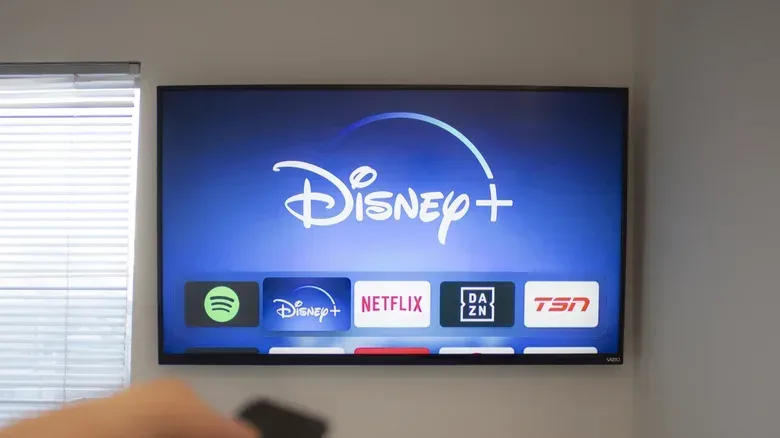
- App and service logins
- Downloaded apps and software updates
- Smart-home integrations
For a gaming display, the first category deserves a little extra attention. Picture and sound choices are personal, and they can also determine how a console looks and feels in a room. A reset means revisiting those choices after the wizard is finished. If several people use the TV, it is also worth warning them that apps and parental-control settings will not survive the process.
Related coverage includes How to Factory Reset a Vizio TV Safely.
The reset therefore has a time cost beyond the reboot itself. It is not only a matter of waiting for the television to come back on; it means reconnecting services, installing what is needed again and rebuilding preferences. Treat it as a clean slate, not as a quick refresh.
Try a power cycle before wiping the TV
If the symptom is a vague glitch rather than a clearly broken configuration, start with the less destructive option: rebooting or power-cycling the television. A power cycle means completely removing power for a short period instead of only using the remote to put the set into its usual off state.
- Turn the TV off.
- Unplug it from power.
- Leave it unplugged for at least 30 seconds.
- Plug it back in and turn it on.
This does not guarantee a fix, and it does not erase settings. That is precisely why it is the better opening move. If the problem disappears after the power cycle, there is no need to rebuild the TV. If it returns, note whether it happens everywhere or only in a specific place, such as one app or one connected device. That distinction helps prevent a full reset from becoming needless busywork.
A simple way to narrow down the issue
Before resetting, identify the symptom as narrowly as possible. Is the problem visible in every TV function, or only while using a particular app? Does it appear only from an HDMI-connected console or other device? Is it a one-off event, or does it return after a restart?
These are useful questions because a reset is most plausible when the TV’s saved files or settings are responsible. By contrast, a hardware issue or a fault specific to an individual app may persist after the wipe. There is no option here to choose a particular app or operating-system version, so resetting cannot be used to select an older version as a workaround for a suspected faulty update. If one app is the culprit, avoiding that app may be the only available workaround on the TV itself.
For players, that also means separating a console-side issue from a television-side one before deleting the TV configuration. If the trouble is isolated to an HDMI device, the reset could leave the original cause untouched while adding a lengthy reconfiguration job. Conversely, if the odd behavior remains broadly present throughout the Vizio interface and survives a power cycle, a reset becomes a more defensible escalation.
The privacy choice during setup: Viewing Data
During the post-reset setup wizard, Vizio may ask about Viewing Data. This refers to automatic content recognition, often shortened to ACR.
ACR is a content-identification system. In this case, it can recognize or fingerprint what appears on the screen for advertising and marketing purposes. Its reach is not limited to built-in streaming apps: it can include over-the-air broadcasts and material played through HDMI-connected devices. In other words, it can be relevant even when the TV is mostly used as a display for a console.
The practical choice is straightforward: read that setup screen carefully and do not treat it as a required step merely because it appears in the standard wizard. Skipping Viewing Data avoids enabling that ACR setup. A factory reset creates a natural moment to reconsider a privacy setting that may have been accepted during an earlier, faster setup.
Why this matters for a Vizio gaming setup
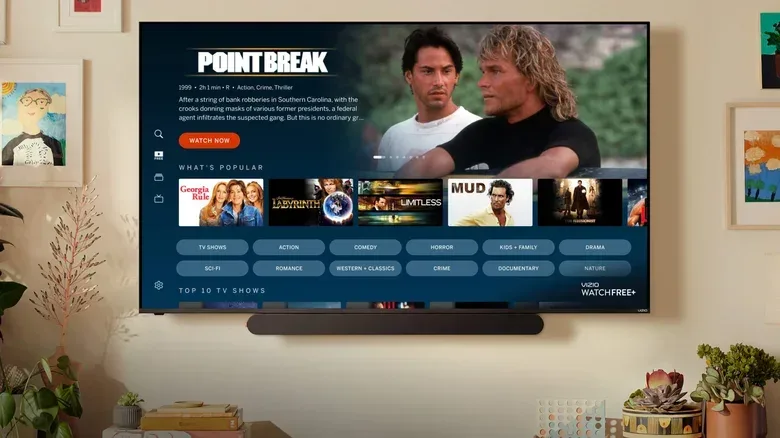
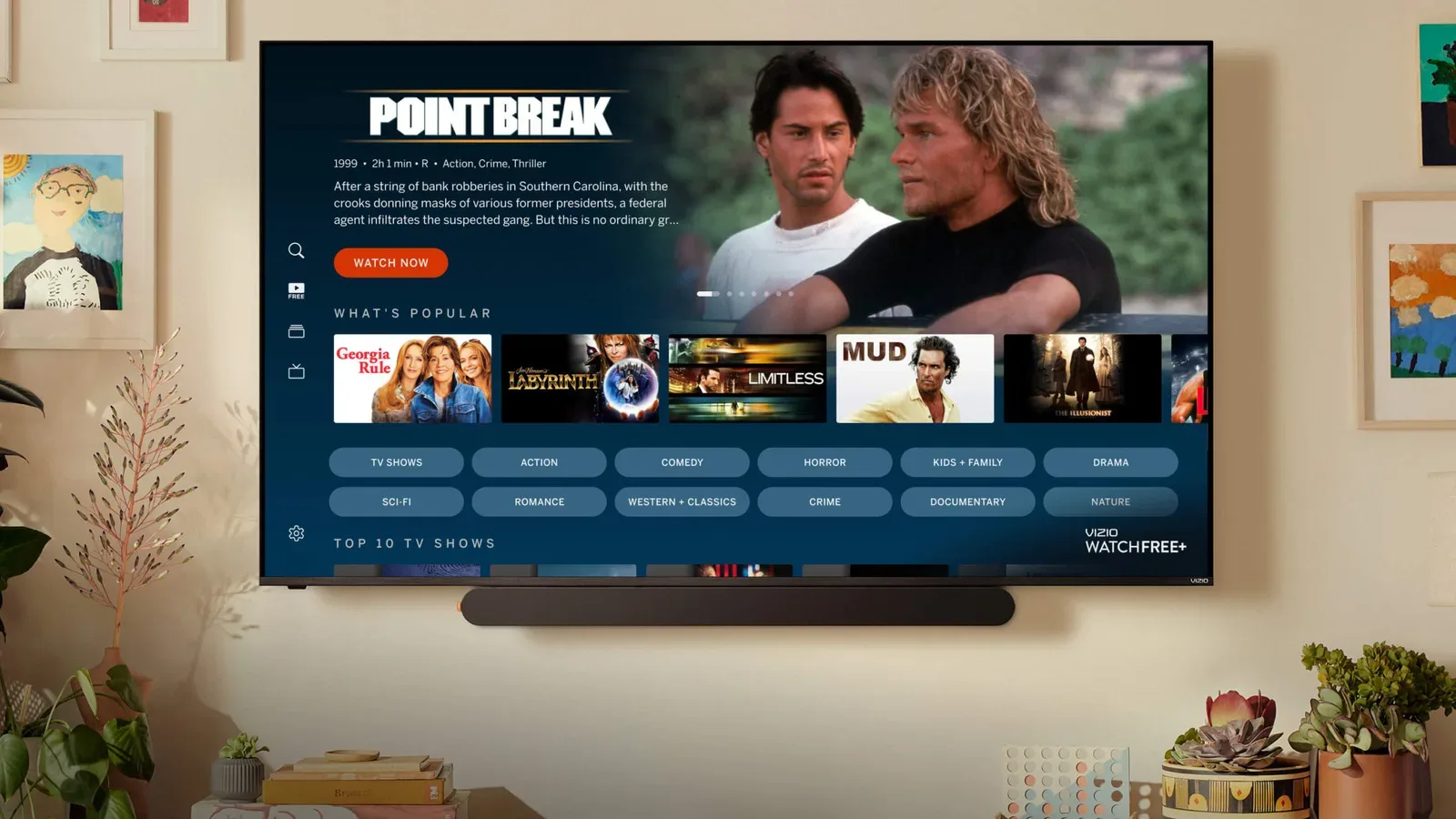
Vizio TVs use Vizio OS rather than the Roku OS, Fire TV or Google TV platforms common on many budget smart televisions. Any proprietary interface can require a little adjustment, particularly when menus change between models. That is why the reset route may begin in different top-level sections—Admin & Privacy, System, or All Settings—while still leading to the same factory-reset command.
For someone using the screen for both entertainment and games, the sensible escalation order is modest: preserve access to accounts, power-cycle first, isolate whether the problem affects the whole television or a single app/device, and reset only when the remaining evidence points toward the TV’s configuration or stored data.
That approach does not promise a repair. It does ensure the most disruptive step is reserved for the cases where it has a reasonable chance of helping. It also leaves room to make deliberate choices during setup, including whether Viewing Data belongs in the new configuration. For a broader look at display considerations around competitive play, see why tournament display standards are not simply a verdict on OLED.
Factory-reset checklist
- Save streaming and other account credentials before starting.
- Try turning the TV off, unplugging it for at least 30 seconds, then reconnecting it.
- Check whether the issue is system-wide or limited to a particular app or HDMI device.
- Navigate through Settings to Admin & Privacy > Reset to Factory Settings, using the model-specific menu path if necessary.
- Use PIN 0000 if a custom PIN was not set or cannot be recalled.
- Plan to restore apps, updates, channels, preferences, controls and integrations afterward.
- Review the Viewing Data prompt rather than automatically enabling it.