A console setup rarely stays tidy for long. The TV migrates to the other side of the room. A projector gets pressed into service for a backyard movie. A PC lives in an office while its display is somewhere much more comfortable. Suddenly, the ordinary HDMI lead that worked perfectly at a desk has to cross a room, pass through a wall, or somehow reach another floor.
That is where the familiar symptoms can start: sparkling pixels, intermittent black screens, picture flicker, vanished audio, or a display that refuses to find a signal at all. HDMI carries a digital signal, but it is not immune to the practical limits of a long cable path. Attenuation—the weakening of a signal over distance—can make a setup less dependable as the route gets longer. Trouble is commonly more noticeable once a conventional run moves beyond roughly 25 feet, though the real-world result depends on the cable, the equipment, resolution, bandwidth demands and every extra connection in the chain.
For a nearby console, streaming box, PC or receiver, a short, good-quality cable remains the cleanest answer. But a short cable cannot solve a living-room rearrangement or turn a garage into a second gaming station. The useful question is not simply, “How do I make HDMI longer?” It is, “What is the least complicated extension method that still meets the distance and performance my setup needs?”
Before buying anything, it is worth ruling out simpler issues. Reseat each HDMI plug, test the source and display with a known-good short cable, and verify that the selected input is correct. Device settings can also look like cable failures; our guide to Roku connection and settings checks covers the kind of basic troubleshooting that can save an unnecessary purchase.
Start small with an HDMI coupler
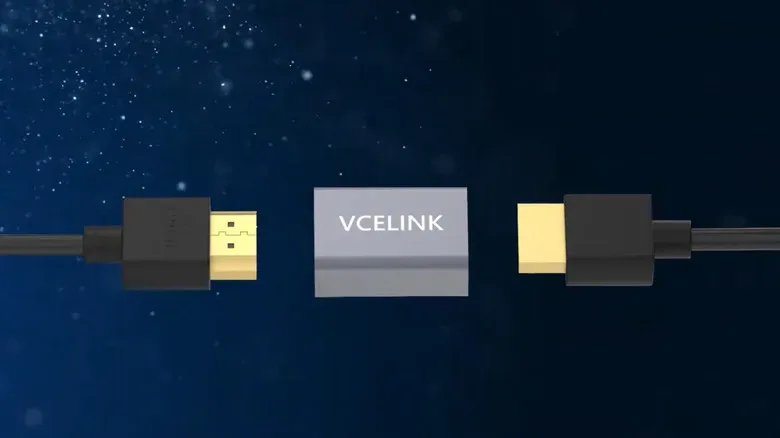
An HDMI coupler is the most straightforward physical extension. It is a compact adapter with two female HDMI sockets. Connect one cable from the source to one side, connect the second cable from the other side to the display, and the coupler bridges the two runs.
This is a sensible option when the cable is only just short of its destination. It can be cheaper than replacing an otherwise useful cable with a single longer one, and many couplers advertise support for 8K video and bandwidth up to 48 Gbps, figures associated with HDMI 2.1-class connections. Compatibility still matters: a coupler must support the capabilities the rest of the chain is expected to carry.
The catch is simple: a coupler does not restore a weakened signal. It only joins cables. Adding one to an already ambitious run can therefore preserve the underlying problem—or make it more apparent. Multiple joined cables also add more physical points that can be loose, strained, or incompatible.
Use a coupler for a modest extension, not as a magical cure for a cable route that has become an HDMI centipede. It is particularly worth being cautious when pushing high resolutions, fast refresh rates, or other high-bandwidth modes. Ultra High Speed cables and accessories should be selected as a compatible system rather than treated as interchangeable labels.
Repeaters refresh the signal for longer cable chains
An HDMI repeater resembles a coupler at first glance: it generally has an HDMI input and output, both female ports, with cables attached to either side. Its role is different. Rather than merely passing the feed onward, a repeater refreshes the signal before sending it down the next cable segment.
That makes a repeater a stronger candidate where a simple two-cable join is not enough. A typical unit may extend an HDMI connection to around 100 feet, and more than one repeater can be used for a longer route through a classroom, office, patio or sizable entertainment area. The approach can let someone use cable segments that are easier to route than one very long lead.
There are trade-offs. A single repeater can be priced as low as about $20, but several units add up. Every extra component also adds another compatibility question, another power consideration where applicable, and another point to troubleshoot if the display goes dark. The resulting cable chain is not always elegant, either.
Still, repeaters occupy a valuable middle ground. If the goal is a longer wired connection without leaping immediately to more specialized equipment, one or two signal-refreshing links may make more financial sense than a large multiroom installation. Check the supported resolution, refresh rate, bandwidth and cable lengths on both sides of the repeater; the box’s presence does not automatically guarantee every advanced video mode.
Active HDMI cables put the boost inside the line
Active HDMI cables build signal assistance into the cable itself. Small electronics in the wiring help carry the feed over a greater distance than a passive cable can reliably manage. This can reduce the visual clutter of separate repeaters and adapters, since the cable is effectively doing some of that work internally.
There are two broad varieties to consider. Active copper HDMI cables use embedded repeating hardware and can sometimes reach beyond 100 feet. Fiber-optic HDMI cables send data with light through thin glass fibers and are intended for much larger spaces; some are rated for runs over 300 feet. For a projector far from the source rack or a display located across a large property, fiber is the obvious category to investigate.
Neither type is a casual drop-in purchase. Passive HDMI cables can generally be used in either direction, while active cables are directional. Their ends are marked for the source and the display, and reversing them can leave a setup with no picture. Active models are not universally compatible with every device, either. Some Ultra High Speed designs use internal power arrangements, so confirming support for HDMI cable power and reading the manufacturer’s compatibility information are sensible steps.
Cost is another consideration. Active copper cables may range from around $35 to $80, while fiber-optic HDMI options may fall roughly between $40 and $120, depending on length and brand. That can look steep beside a basic cable, but one purpose-built long run may be simpler than buying a pile of couplers and repeaters. It is also often easier to conceal one properly planned cable than several linked sections.
Wireless HDMI trades cabling for latency concerns
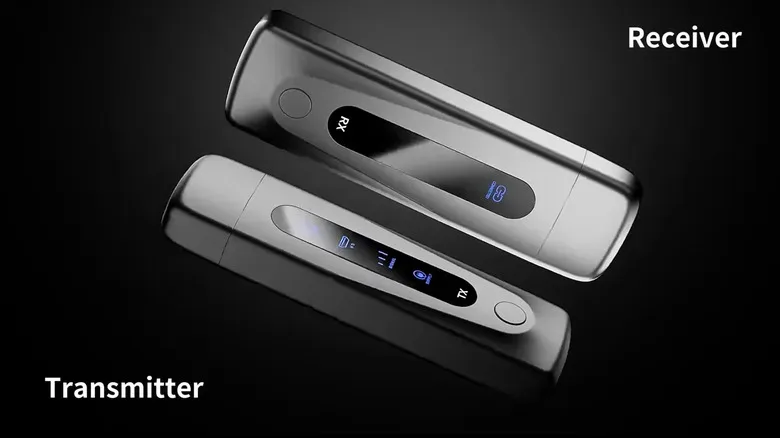
When the route between source and display crosses several rooms or floors, wireless HDMI extenders—also called video transmitters—remove the most obvious obstacle: running a long cable at all. These kits use a transmitter attached to the source and a receiver attached to the display. The transmitter turns the HDMI feed into a wireless signal, and the receiver turns it back into an HDMI output.
Ranges vary enormously. Some products are intended for short room-to-room hops, while others claim transmission distances of more than 1,300 feet. Certain receivers can accommodate multiple HDMI sources, which can be useful where several presenters need to use one screen.
Wireless convenience comes with performance limits. A small delay can be a poor fit for competitive PC games, twitchy action titles, and live sports where timing matters. Some units can send 4K, but high dynamic range video is not supported by these transmitters. Buyers should look closely at stated latency and refresh-rate specifications instead of relying on a broad “4K” label.
Pricing also spans a broad range, approximately $45 to $190 based on resolution, distance and brand. This is the route to choose when drilling, cable routing and long visible runs are bigger problems than a modest degree of delay—not when the priority is the most responsive possible game display.
HDMI over Ethernet is built for serious distance
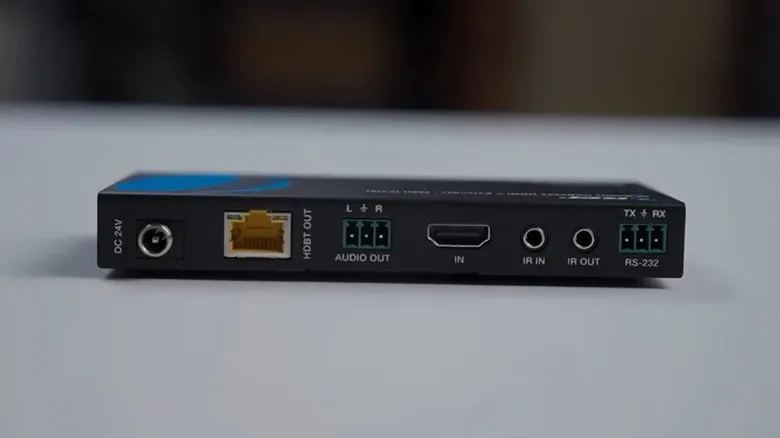
For a durable multiroom wired setup, HDMI-over-Ethernet extenders can carry a signal for hundreds of feet using compatible network cabling, commonly CAT5e, CAT6 or CAT6a. A typical kit again has two main pieces. The transmitter takes HDMI from the source and converts it for the cable run; the receiver sits at the display and returns it to HDMI.
There are two general approaches. A dedicated extender link carries the converted video signal over its own Ethernet cable. An IP-based extension converts the HDMI feed into Internet Protocol traffic for travel over the home or business network. The latter is the more sophisticated route and deserves planning, especially when a network already serves many devices.
Ethernet extension is well suited to home theaters, meeting spaces, several displays, and installations where the cable route is long but a wired path already exists. Some systems can also distribute one source to multiple receivers, functioning as an extender and splitter combination. That capability costs more, but it can be more efficient than assembling separate extensions for every screen.
Match the tool to the actual job
- Just a little short: Try a compatible HDMI coupler with two good cables.
- A longer cable route in one area: Consider a repeater, particularly if a simple join is unreliable.
- A clean, long source-to-display run: Compare active copper and fiber-optic HDMI cables, paying attention to direction and compatibility.
- Different rooms with no practical cable path: A wireless kit can be convenient, provided latency and HDR limitations fit the content.
- Long wired distances or multiple displays: HDMI over Ethernet is the more installation-focused option.
The budget-friendly choice is not always the cheapest item on the shelf. It is the option that avoids buying several stopgaps, preserves the picture modes you care about, and leaves the setup reliable enough that nobody has to perform the ritual HDMI unplug-and-replug dance before game night.