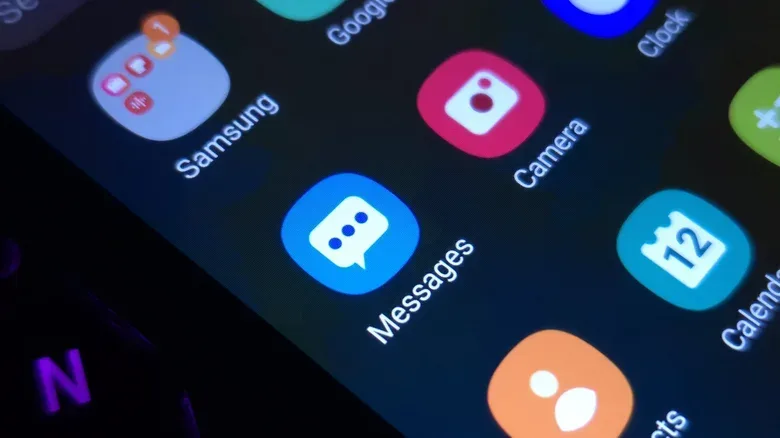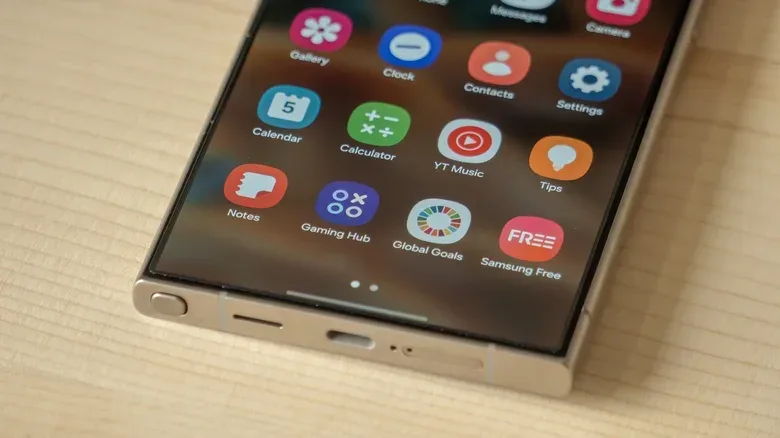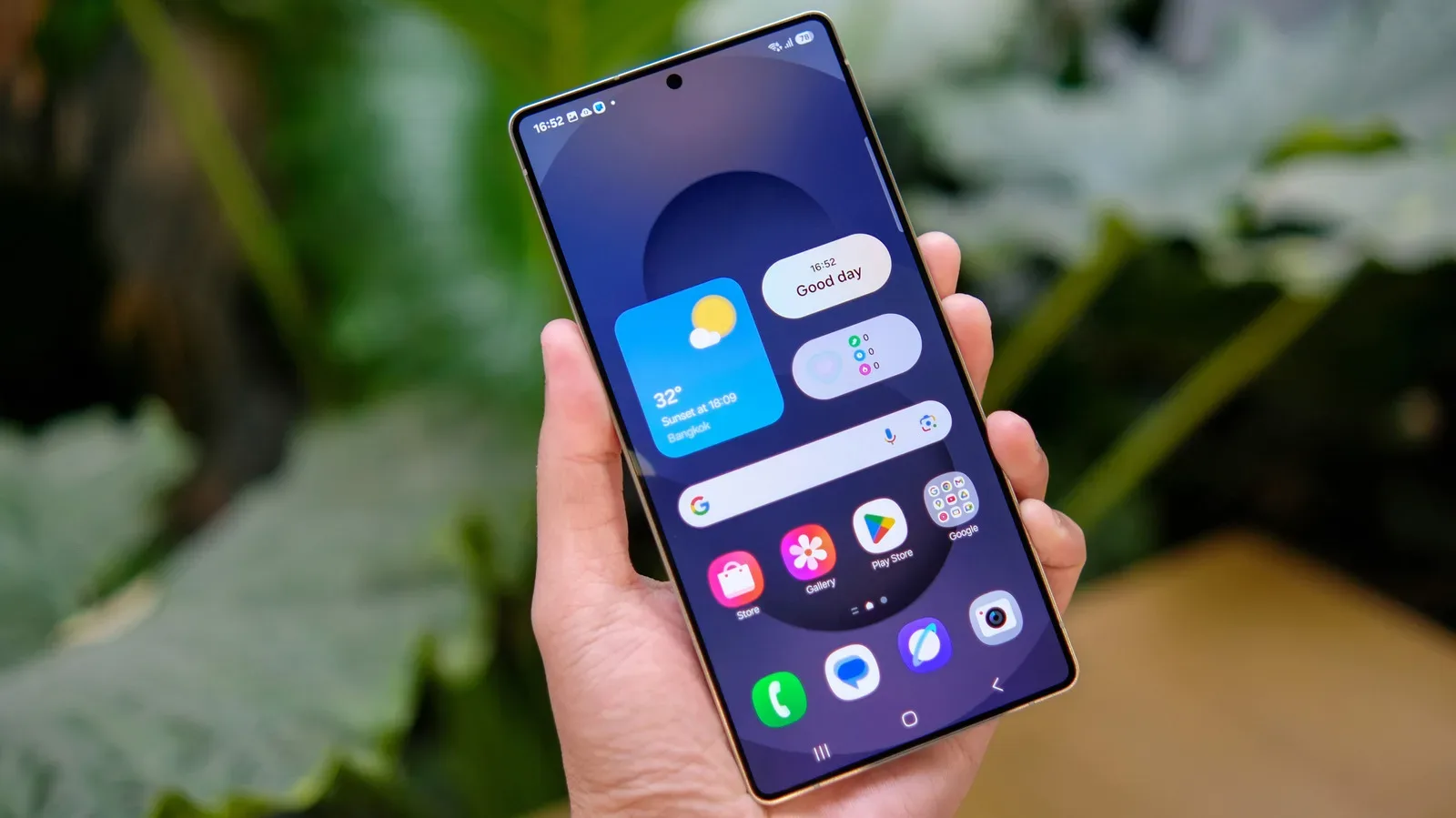
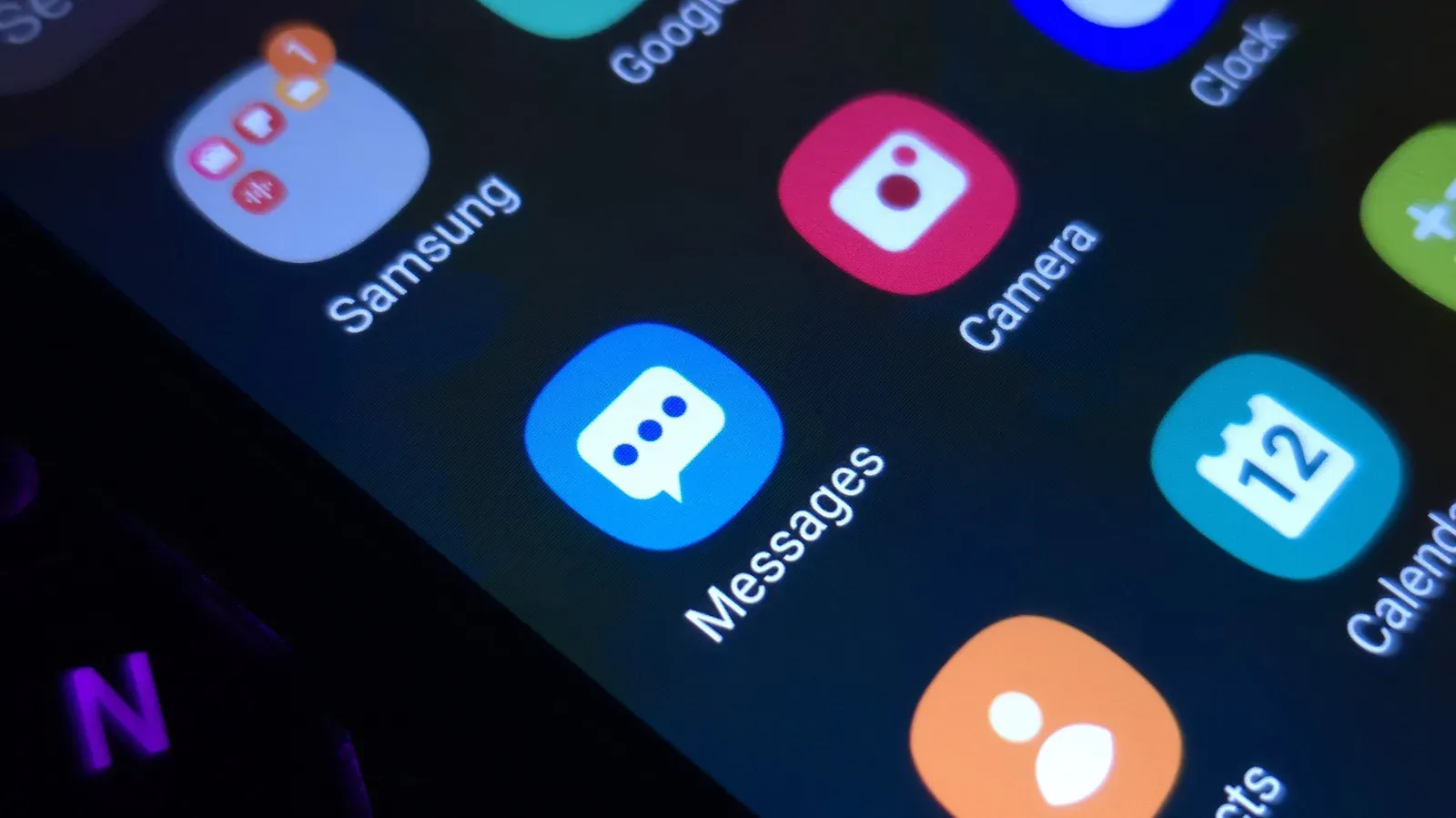
A Samsung Galaxy phone can be made to feel considerably less like the same rectangle everyone else carries. Samsung’s customization tools cover the obvious stuff—wallpaper, themes and app icons—but also reach into system colors, notification styling, Quick Panel controls, lock screens, widgets and gestures.
The useful distinction is that these options do not all do the same job. A full theme changes the broad visual treatment of the device. An icon pack changes the symbols used for apps. A color palette adjusts colors throughout portions of the interface. Good Lock and its add-ons go further, concentrating on layout, movement and interaction. Knowing which layer to change can save a lot of tapping through settings in pursuit of one specific look.
For another overview of the same Galaxy customization territory, see this guide to Samsung app icons and menus.
Start with Themes for a new icon style
The most direct route to a different app-icon appearance begins on the Home screen. After unlocking the phone, press and hold an empty part of the Home screen, then choose Themes. Browse the available options and download the themes or icon sets that appeal to you.
For more context, explore Sony Will Retire Support by Sony in 2027, Sending Device Owners to Separate Apps.
After downloading them, open Menu and go to My stuff. This is where the downloaded Icons and Themes can be selected and applied.
- Press and hold an empty space on the Home screen.
- Tap Themes.
- Browse and download a theme or icon option.
- Open Menu, then My stuff.
- Choose the item from the Icons or Themes area.
- Tap Apply.
An icon pack is simply a coordinated collection of replacement app symbols. Its purpose is visual consistency: perhaps softer colors, a more abstract style or a design that better suits the wallpaper. Samsung’s Themes app provides icons to download, but it does not let users turn their own images into app icons through this route. That limitation matters if the goal is a fully personal photo-based launcher; the built-in approach is geared toward downloadable icon designs rather than one-off image files.
What a theme changes beyond the Home screen
A theme is broader than an icon pack. Alongside the icons a person taps on the Home screen and in the app drawer, a theme can alter the color treatment of Samsung system apps including Contacts, Settings and Messages. The Quick Panel—the panel accessed by swiping down—can also pick up theme-related color.
This is why a theme is often the fastest choice for someone who wants a visibly different phone with minimal setup. Rather than adjusting each part independently, the theme establishes an overall visual language across several system areas. It is also why an icon-only change may be preferable for someone who likes their current menus and system colors but wants a different Home screen.
For a practical setup, decide what needs changing before applying anything:
- Want matching icons and system styling? Try a full theme.
- Want a lighter touch? Apply an icon option without making the rest of the interface the main focus.
- Want colors that follow the wallpaper? Use Color palette in Settings.
- Want the controls themselves rearranged? Look to the Quick Panel tools and Good Lock options.
Use Color palette to reshape menus and system apps
Samsung’s Color palette setting is the more focused option for changing interface color without necessarily downloading a new theme. Go to Settings, select Wallpaper and style, then choose Color palette. Turn the feature on, choose among Wallpaper colors or Basic colors, and press Apply once the preview looks right.
- Open Settings.
- Tap Wallpaper and style.
- Select Color palette.
- Enable the palette switch.
- Pick a Wallpaper color or Basic color.
- Check the on-screen preview, then tap Apply.
The previews are valuable because this is not only a background-color choice. The selected palette can appear in switches, buttons and other interface elements across system apps and menus. In other words, it is a system-level accent treatment, not merely a Home-screen decoration.
Color palette may also change the color of many app icons. It will not necessarily affect every icon, so it should not be treated as a guaranteed replacement for a dedicated icon pack. Still, it offers a quick alternative when the aim is to make the Home screen and app drawer look more unified rather than radically redesigned.
Wallpaper colors versus Basic colors
The two palette groups offer different starting points. Wallpaper colors are intended to coordinate the interface with the current wallpaper. Basic colors give the user a more direct range of color choices. The former is useful when the wallpaper is the center of the look; the latter is useful when the desired accent color matters more than matching a particular image.
The practical takeaway is simple: a theme can make a sweeping stylistic change, while Color palette can provide a cleaner, smaller adjustment to the system’s visual accents.
Customize the Quick Panel on One UI 9
Galaxy devices upgraded to One UI 9 have a redesigned Quick Panel, accessed by swiping down from the top-right corner. The Quick Panel is the collection of immediate controls and status shortcuts that appears over the current screen. It is the place where controls such as Airplane Mode may be toggled, so its arrangement affects everyday use as much as its appearance.
One UI 9 allows elements in this panel to be resized, moved or deleted. This makes the panel an interaction customization rather than merely a cosmetic one. A person who uses a specific control regularly can prioritize it; a person who wants a less crowded panel can remove unwanted elements. The best arrangement depends on the shortcuts a person actually reaches for, not on an abstract idea of what a standard phone layout should be.
The importance of this is easy to miss. Changing an icon can make the phone feel new, but changing the position and size of a frequently used control can make it feel more efficient. Those are separate benefits, and Samsung offers tools for both.
Good Lock adds deeper controls
Samsung’s official Good Lock suite is available through the Play Store and expands beyond the basic theme and palette settings. Its scope includes motion wallpapers, lock-screen design and Home-screen customization. It also provides add-ons for more targeted changes.
Theme Park is one such add-on. Alongside system-wide theme work, it can change colors for individual keys, notifications and Quick Panel switches, including controls such as Airplane Mode. That degree of separation is useful for anyone who does not want a single color decision to govern every visible element. A theme may establish the overall look, while Theme Park lets the user refine particular pieces that feel out of place.
This is a more granular form of customization. “Granular” here means changing smaller, individual interface elements instead of accepting one package-wide visual result. It can take longer than choosing a theme, but it offers more control over the end result.
Home Up and one-handed gesture controls
The Home Up application widens the customization options further. It supports stickers, more flexible placement of apps and widgets, and custom gesture animations. It also gives users control over animation speed and vibration.
Animation speed and vibration are small settings with an outsized effect on feel. Animation controls how quickly visual transitions occur as someone moves through the interface. Vibration is tactile feedback, the physical response the phone gives during certain interactions. Neither changes the phone’s core functions, but both can change how deliberate or responsive it feels in daily use.
Good Lock also includes one-handed operation options using diagonal swipes. Those diagonal gestures can be assigned to functions including opening Recent Apps or returning to the Home screen. A gesture in this context is a swipe pattern used as an input shortcut rather than a visible button. For people who prefer operating the phone with one hand, moving common actions to a diagonal swipe can reduce the need to stretch toward controls at the top or bottom of the display.
Don’t forget the connected Galaxy Watch
Customization is not limited to the phone itself. Samsung’s Galaxy Wearable app for the Galaxy Watch line can change watch faces using photos of an outfit. That creates a direct visual link between a watch face and whatever the wearer has chosen for the day.
It is a different kind of personalization from a static downloadable theme. Instead of selecting a prebuilt visual package, the user can build a watch-face look around a newly taken image. For someone already coordinating a phone wallpaper, color palette and icon style, the watch face is another part of the same visual setup.
A sensible order for building a consistent look
Because the tools overlap, the cleanest approach is to work from the broadest choice down to the smallest detail. Start with a wallpaper or a theme direction. Next, choose whether the icons should come from a theme or an Icons download. Then use Color palette to tune the system accents. Finally, use Good Lock, Theme Park or Home Up only where more exact visual or behavioral control is needed.
- Pick the main visual direction with wallpaper or a theme.
- Apply a downloadable icon style if the standard icons do not fit it.
- Set a Color palette for menus, switches and supported app icons.
- Arrange the One UI 9 Quick Panel around the controls you use.
- Use Good Lock add-ons for lock-screen, key, notification, widget, gesture and animation refinements.
- Optionally coordinate a Galaxy Watch face through Galaxy Wearable.
This layered method avoids treating every setting as a mandatory step. A wallpaper and Color palette may be enough for a subtle refresh. A full theme can deliver a bigger visual shift in one move. Good Lock is for the stage where default layout and behavior no longer match what the user wants. Samsung’s strength here is not one dramatic toggle; it is the number of separate controls available to shape the device into something more personal.