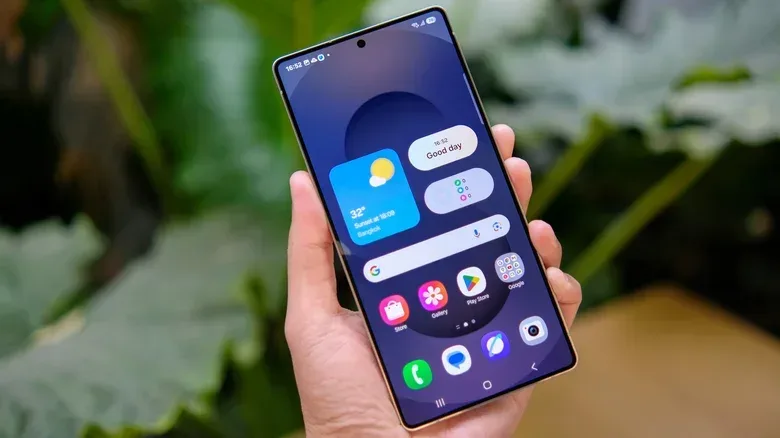
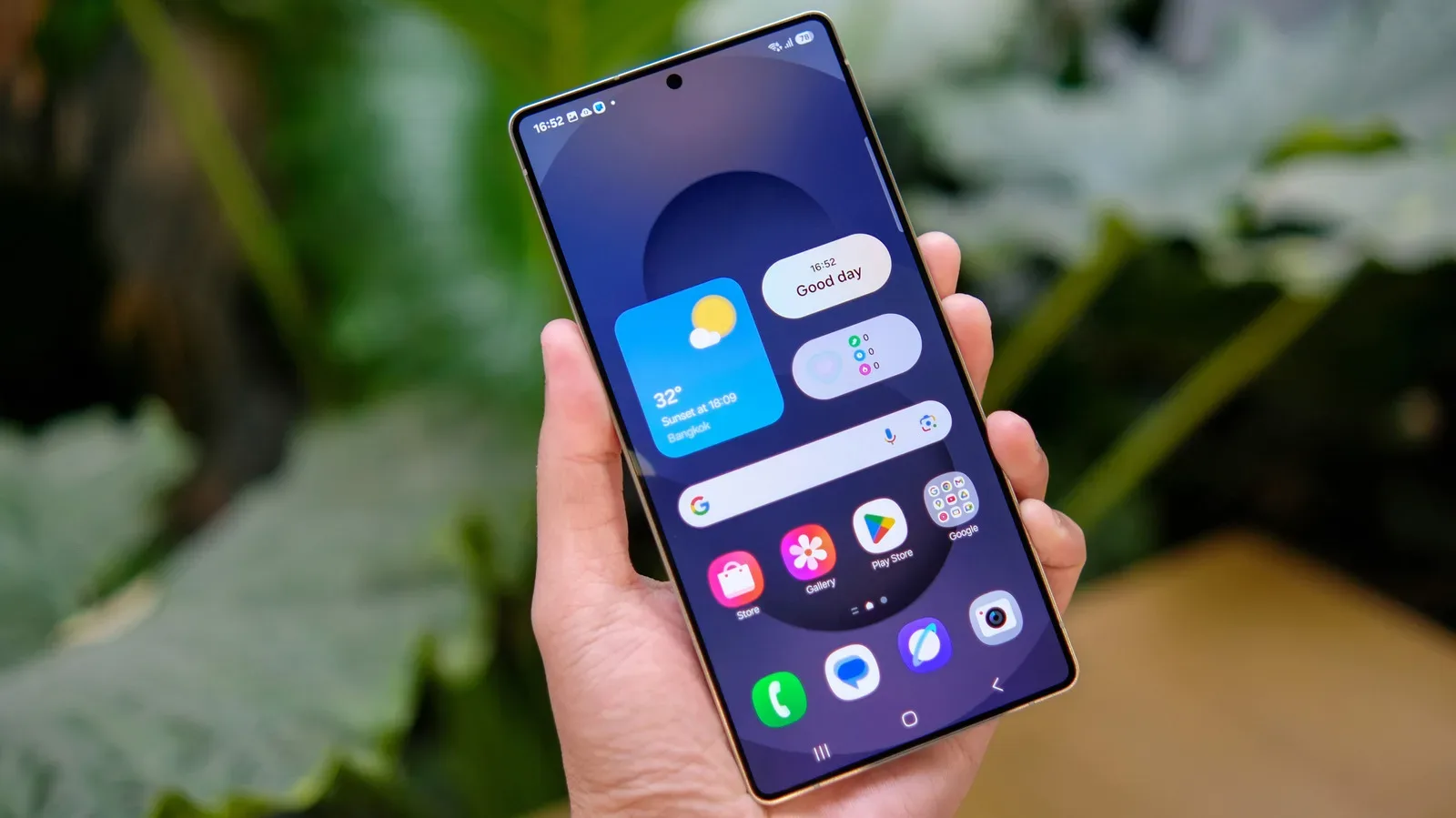
Samsung Galaxy owners who miss the old-school Apps button have not been abandoned in the app-drawer wilderness. While recent One UI versions favor a swipe up from the home screen to open the full app list, One UI 9 retains a setting that restores a dedicated Apps screen shortcut to the bottom dock.
It is a modest customization option, but it speaks to a larger truth about phones: familiar controls matter. A gesture may be fast once it becomes second nature, yet a visible button can be clearer, more discoverable and more comfortable for people who have used Android’s earlier navigation style for years.
What changed with the Apps button?
Android home screens commonly separate two jobs. The home screen is the customizable area where users can place preferred apps, folders and widgets. The app drawer, also called the Apps screen in Samsung’s interface, is the complete list of installed apps.
That separation differs from the traditional iPhone approach of placing apps directly across home-screen pages by default. On Android, the drawer means a person can keep only their most-used tools in view rather than turning each home-screen page into an icon migration route.
For a long time, many Android implementations placed an All Apps button on the home screen. Tapping it opened the app drawer. Modern Android software generally treats an upward swipe on the home screen as the quicker replacement, and Samsung no longer shows the Apps button by default in recent One UI updates.
The swipe method is not difficult: from the home screen, swipe upward to open the app drawer. But phone interfaces are learned routines, not merely lists of technically possible actions. Someone moving from an older Galaxy phone may look for the familiar button. Another person may simply prefer an obvious target over a gesture that has to be remembered.
Samsung’s answer is not to force a choice between old and new behaviors. The swipe-up gesture remains available, while the button can be enabled for people who want it.
How to restore the Apps screen button in One UI 9
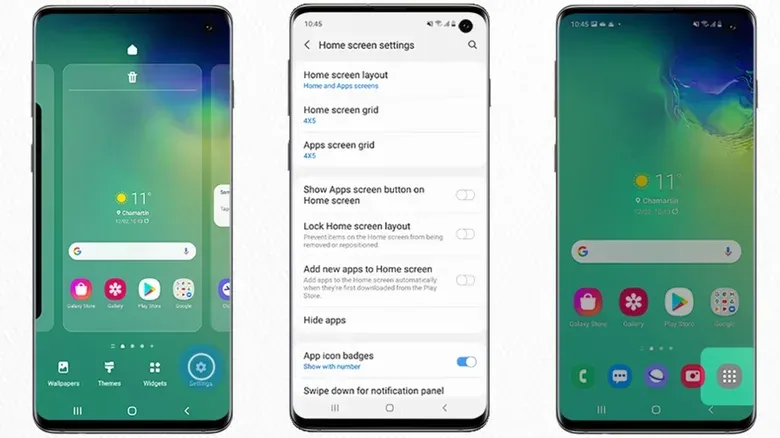
The setting is reached from the home-screen editing controls rather than the standard system Settings app. Follow these steps on a Samsung Galaxy device running One UI 9:
Related coverage includes How to Restore the Apps Button on a Samsung Galaxy Home Screen.
- Go to the home screen.
- Press and hold an empty area of the screen. Pinching inward, as though zooming out of a photo, can also open the same home-screen options.
- Select Settings, represented by the gear icon at the lower right.
- Scroll until you find Show Apps screen button on Home screen.
- Turn that option on.
After returning to the home screen, the Apps button should appear at the right side of the favorite-apps dock along the bottom. Tapping it opens the app drawer.
A small trade-off in the dock
The restored shortcut does take up one dock position. In practical terms, enabling it means giving up a slot that could otherwise hold a favorite app.
That trade-off will be insignificant for users who value a predictable way into the app drawer. For others, it may be unnecessary: the upward swipe is already present and preserves that additional dock space. The best setup is therefore less about whether one method is objectively superior and more about which interaction reduces friction for the person holding the phone.
If the new button makes the layout feel cramped, repeat the same process and switch off Show Apps screen button on Home screen. The phone will return to the swipe-first arrangement.
Why a visible control can still be useful
Touchscreen gestures are efficient partly because they keep the interface visually clean. There is no need to reserve permanent screen space for every command. The downside is discoverability: a new or returning user may not know that an action exists unless they have seen it demonstrated.
A button solves that particular problem by advertising its purpose. It offers a stable, visible place to tap. This can be useful for people accustomed to earlier Android layouts, users who prefer direct touch targets, or anyone setting up a Galaxy device for a relative who may find an explicit icon easier to recognize than a swipe gesture.
It is also an example of customization serving accessibility in the broadest everyday sense. Accessibility is not limited to a single setting or group of users. Allowing several routes to a common action can make an interface more approachable, because people vary in comfort, habits and motor interactions.
The approach has a familiar parallel in Samsung’s navigation choices. Android introduced gesture-based navigation with Android 9.0 Pie in 2018, but Samsung still uses the older three-button on-screen navigation arrangement by default. Users can change between button navigation and gesture navigation in Settings. The Apps-button option follows the same philosophy: a newer behavior can be the default without making the established alternative disappear.
Swipe navigation and app navigation are different choices
It is worth separating two settings that can sound similar. The restored Apps shortcut concerns how the app drawer opens: tap a button or swipe up on the home screen. Three-button versus gesture navigation concerns how the phone moves between apps, returns to the home screen and goes back.
They can be mixed. A person can keep Samsung’s three-button navigation and use the swipe-up app drawer. They can enable the Apps button while using system navigation gestures. One setting does not inherently require the other.
That flexibility helps avoid a common setup mistake: changing unrelated navigation controls while trying to solve one narrowly defined problem. If the aim is simply to restore the app-drawer button, the home-screen setting is the only change needed.
Practical setup advice for a less cluttered Galaxy home screen
The app drawer exists so that a home screen does not need to duplicate every installed app. Whether the Apps button is enabled or not, it can be useful to treat the home screen as a short list of frequently used destinations rather than an exhaustive directory.
- Keep the dock for repeat-use apps. Phone, messages, camera, browser and an app-drawer shortcut are common candidates, but the exact choice should reflect daily habits.
- Use folders sparingly. A few clearly named groups can help, while deeply nested organization can make common apps slower to find.
- Leave the rest in the app drawer. Installed apps remain reachable without demanding a permanent home-screen icon.
- Choose consistency over novelty. If tapping the Apps button is the method a user remembers, reclaiming it may be more valuable than one extra dock slot.
That last point is especially relevant for devices shared within a household or configured for someone else. A tidy screen is useful only if its owner can confidently reach the apps they need. The most elegant layout on paper is not necessarily the most practical one in use.
What this means for Galaxy users
Samsung’s decision to hide the Apps shortcut by default does not mean it has removed the feature. In One UI 9, it remains available through home-screen settings. The default favors the contemporary Android convention of swiping upward, while the optional button supports users who would rather tap.
For gaming and entertainment apps in particular, the difference is less about performance than routine. Whether a player is opening a game, a chat app or a streaming service, a familiar path can be faster in the real-world sense that it requires less thought. That kind of personal preference is worth preserving alongside newer interface conventions.
Samsung Galaxy setup decisions can be as individual as how a player organizes a digital game library. For a different kind of practical tech housekeeping, see our guide to why backups matter more than brand loyalty for game libraries.