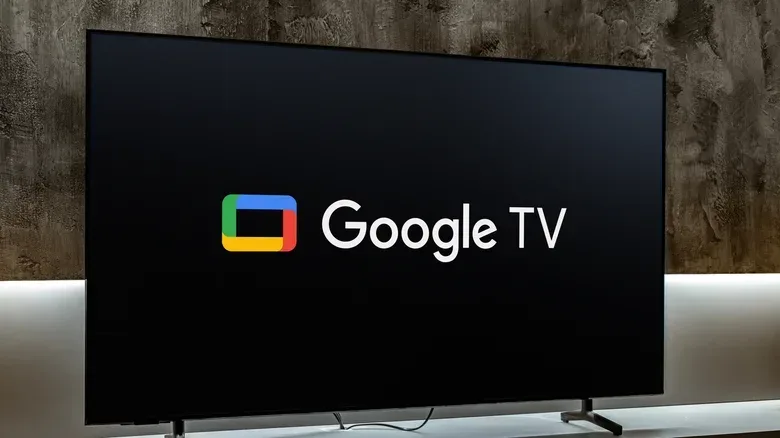
A Google TV that has started taking its sweet time opening apps, loading artwork, or returning to the home screen does not necessarily need a dramatic factory-reset finale. One sensible early troubleshooting move is clearing its cache: temporary files retained by apps and the system to make commonly used material quicker to retrieve.
Cache is meant to be helpful. A streaming interface may retain items such as show thumbnails so it does not have to fetch or recreate them every time they appear on screen. But Google TV devices can have limited internal storage, and accumulated temporary data can become oversized or corrupted. That can contribute to sluggish performance, crashes, and other awkward system behavior.
The key is to match the fix to the problem. If one streaming app has begun freezing or closing, clear that app’s cache first. If the entire interface is slow or several apps are acting up, clearing cached data across the device is the broader option. Neither route is a permanent substitute for having enough free storage, but both are useful tools in a sensible troubleshooting order.
What clearing cache actually does
A cache is not the same thing as an app’s account, settings, or downloads in the broadest sense. It is a collection of temporary data an app can use to operate more efficiently. Clearing it removes that temporary material, after which the app can rebuild what it needs during normal use.
That distinction matters because Google TV also offers a far more consequential option: Clear data. Clearing data returns an app to its default state and erases everything kept by that app. It is therefore a last-resort measure, not the first button to press when a service has one bad afternoon.
In practical terms, clearing cache is a lower-risk cleanup step. It can help when an app’s stored temporary files have become problematic, without immediately wiping the app’s entire local setup. It is also not a promise that every performance issue will vanish. A cache cleanup can remove one possible cause; it cannot create additional storage capacity or fix every problem that affects an app or the operating system.
Before clearing anything: identify the scope of the problem
Start by noticing where the issue occurs. This keeps the troubleshooting focused and prevents an unnecessary device-wide cleanup.
- One app is slow, crashes, or refuses to behave: use the per-app cache option.
- The home screen, menus, and multiple apps are all slow or glitchy: consider clearing cached data system-wide.
- The device remains troublesome after cache cleanup: reboot it, then reassess available storage and, only if needed, consider clearing data for the specific problematic app.
This is not just tidiness for its own sake. Cache exists for a reason, so wiping every app’s temporary files when only one app is affected may be more disruption than is needed. A targeted fix gives the misbehaving app a clean slate for temporary files while leaving the rest alone.
Related coverage includes How to Clear Cache on Google TV.
How to clear cached data across Google TV
Use this method when symptoms are spread across the Google TV experience rather than isolated to one app.
- From the Google TV home screen, open Settings. You can do this by holding the Home button on the remote, or by selecting the profile icon and then the gear icon in the quick-settings panel.
- Select System.
- Open Storage.
- Select Internal shared storage.
- Choose Cached data.
- Select OK to clear cached data for all apps on the device.
Think of this as clearing the temporary-file clutter across the system. It may make the device feel more responsive in the short term, particularly where caches have become unusually large or damaged. But it should not be treated as a magic storage upgrade. Apps will build new cache files as they are used, because that is part of how they keep routine tasks moving along.
How to clear cache for one Google TV app
When a single app is the culprit, start here. This approach is more precise and is usually the better first choice for a one-app problem.
- Open Settings from the home screen using the remote’s Home button or the profile icon and gear shortcut.
- Select Apps.
- Choose See all apps.
- Scroll to and select the app that is causing trouble.
- Select Force Stop, then confirm with OK.
- Select Clear Cache, then confirm with OK.
Force Stop ends the app’s current activity. It is a useful companion to cache clearing when an app has locked up or is otherwise refusing to cooperate. Once it has been stopped and its cache cleared, open it again and see whether the original issue remains.
If that does not solve it, system-wide cache clearing is a reasonable next step. If the device still has problems after that, reboot the Google TV. Only after these less destructive options have failed should you return to the app’s settings and choose Clear data.
Why Clear Data comes last
Clear Data is not simply a stronger version of Clear Cache. It erases the app’s stored information and restores the app to its default state. That may be appropriate if an individual app remains broken after being force-stopped, having its cache cleared, and after a reboot. It is a bigger reset, however, so it should be used deliberately.
If the issue is really a device-wide lack of space, wiping one app’s data may not address the root cause. In that situation, managing storage is the more durable move.
Storage is the real long-game fix
Google TV cache maintenance matters partly because storage can be tight. The Google TV Streamer, which replaced Chromecast, has 32GB of storage—the minimum for an Android device. With a substantial app library or large video files on the TV or streaming box, that space can disappear faster than the runtime of a movie you installed an app to watch once.
A useful rule of thumb for Android devices is to keep around 10% of storage free. That breathing room supports regular system operations and gives apps room to maintain useful caches. When roughly 90% or more of the drive is in use, a cache purge may offer temporary relief but is less likely to fully resolve ongoing slowdowns.
To inspect the storage breakdown after clearing cache, go to:
Settings > System > Storage > Internal Shared Storage
The remaining free space appears at the bottom, while the menu also shows how much room apps, movies, photos, and other files are using. This is the point where the mystery often becomes much less mysterious.
What to remove when free space is running low
Delete based on what is actually taking space, rather than guessing. If large media files are responsible, back them up and remove them from the device. If apps are the main storage users, begin with services you no longer use.
- Remove streaming apps installed for a single film, event, or short-lived subscription.
- Look for apps that have not been used in a long time.
- Pay attention to apps using an outsized portion of the storage total.
- Back up personal media before deleting it from the Google TV device.
This is more sustainable than repeatedly clearing cache whenever the interface gets slow. Cache will naturally return as apps are used; unused apps and unneeded files will continue consuming storage until they are removed.
A practical troubleshooting ladder
For a single troublesome app, use the lightest effective intervention first: force-stop the app, clear its cache, then reopen it. If trouble continues, clear cached data across the device. Reboot if the system remains uncooperative. Clear the specific app’s data only as a final app-level reset.
For broad slowdowns, check storage alongside system-wide cache clearing. A device close to full capacity is telling you that cleanup needs to extend beyond temporary files. Clearing cache can make the immediate situation less annoying, but reclaiming space from unused apps or backed-up media addresses the pressure that keeps returning.
It is the same basic maintenance mindset that applies to other home tech: begin with the reversible, targeted fix; verify the underlying resource constraint; and reserve the heavier reset for when simpler options have not worked. For another example of taking a careful, methodical approach to device upkeep, see our guide on cleaning a PC GPU safely.
On Google TV, cache clearing is not glamorous, and it is not a permanent expansion pack for internal storage. It is, however, a fast and appropriately cautious step when a formerly dependable entertainment box begins acting like it has too many side quests running at once.