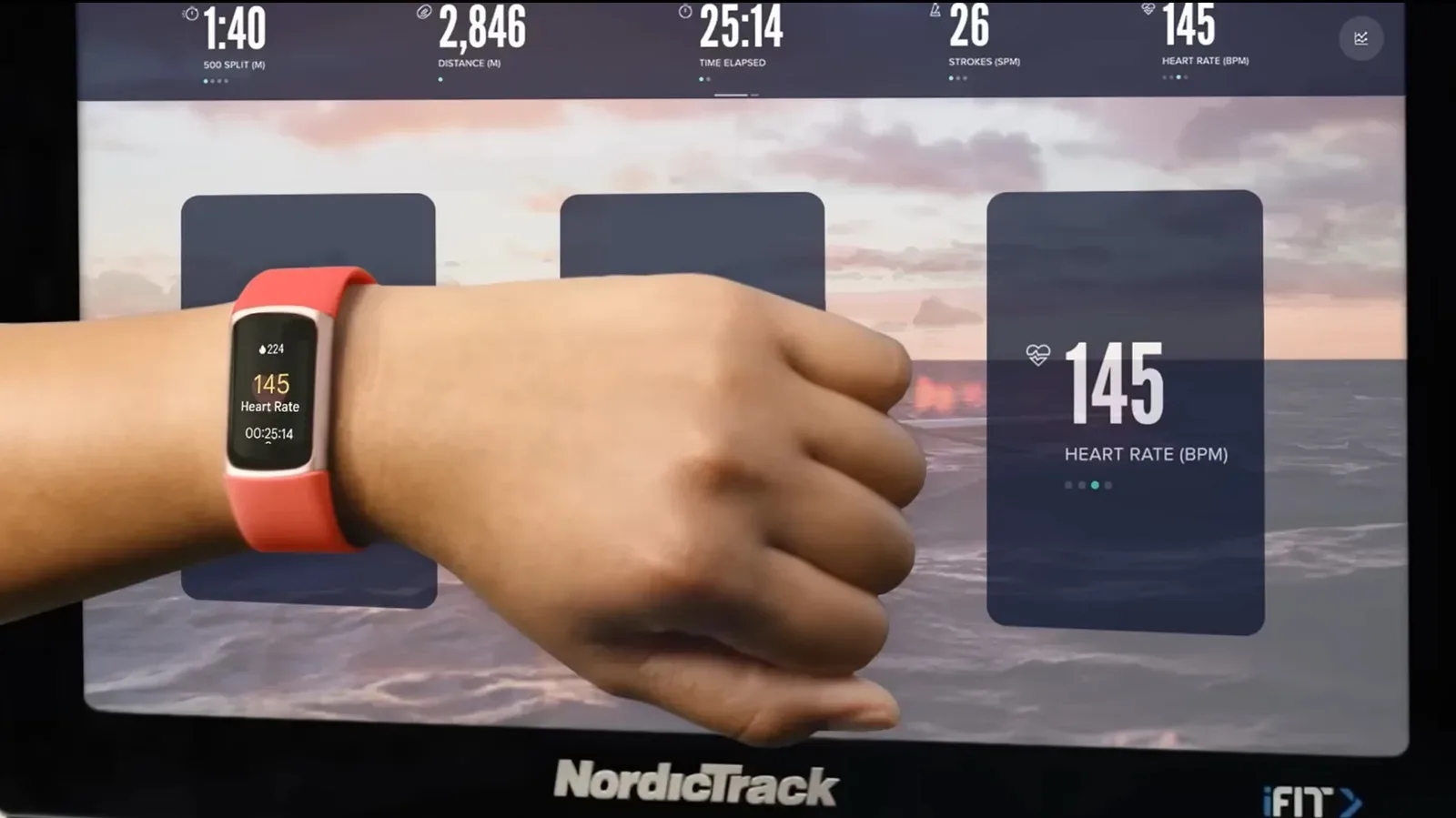
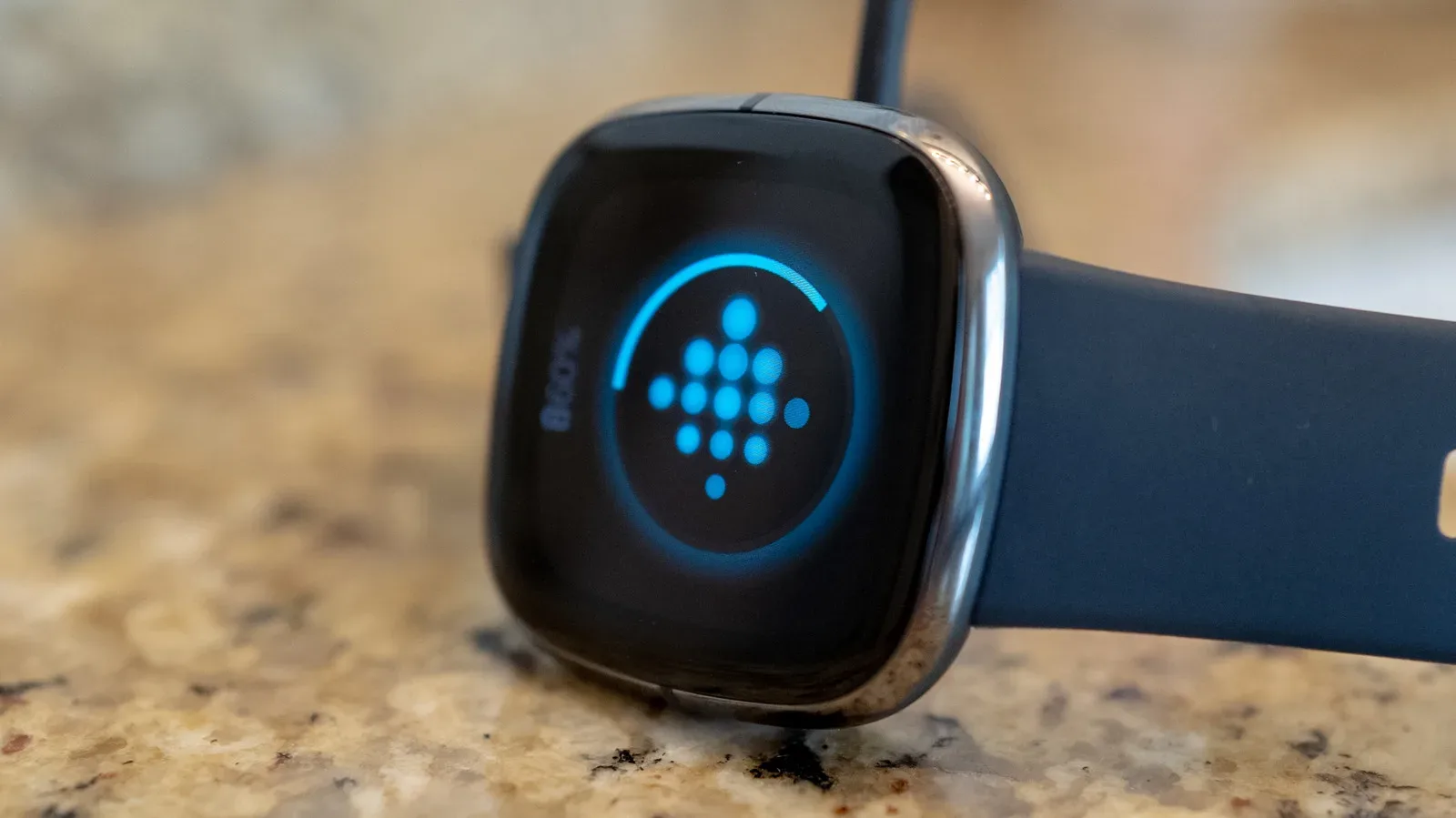
When a Fitbit starts behaving like it has entered an unwinnable loading screen—missed swipes, a frozen display, absent notifications, stubborn syncing, or fitness data that looks plainly wrong—a restart is usually the sensible first move. It is a troubleshooting tool, not a maintenance ritual. You do not need to restart a Fitbit on a schedule, but doing so when it is malfunctioning should not harm the device.
The distinction matters because wearables are often expected to run quietly for days at a time. A small problem can feel more serious than it is when it interrupts step counts, sleep records, reminders, or the link between the tracker and its companion app. Restarting gives the device a fresh start without deliberately removing the information it has stored. That makes it a much safer initial response than jumping straight to a reset.
The short answer: restart when there is a problem, not because the calendar says so
There is no stated limit on how often a Fitbit can be restarted, and a restart is not inherently damaging. Still, “safe to do” and “worth doing constantly” are different things. If the tracker is functioning normally, restarting it repeatedly offers no clear benefit. Think of it as the wearable equivalent of closing and reopening a lagging application: useful when something is wrong, unnecessary when everything is already working.
A restart is particularly appropriate when a Fitbit:
- will not sync with the Google Health app;
- fails to register steps, sleep, or other tracked information;
- does not show notifications or reminders;
- has a blank, delayed, or frozen screen;
- does not react properly to taps or swipes;
- appears stuck in a continuous reboot cycle; or
- seems generally unresponsive.
None of those symptoms proves that a restart will solve the underlying cause. It is simply the least destructive first step in the supplied troubleshooting path. If the issue is a temporary software hiccup or lost connection, a reboot may clear it. If it returns frequently, that recurring pattern is the more important clue.
Restart versus reset: the menu choice that changes the stakes
It is easy to use the words interchangeably, but they serve different purposes. A restart, also called a reboot on some Fitbit menus, turns the device’s operating process off and back on without intentionally deleting user data. A reset is the more severe option: it removes data. That is why a reset should not be the default answer to a frozen screen or a sync problem.
For most ordinary faults, restart first. Reserve a reset for situations such as passing the device to another person, selling it, or dealing with a serious ongoing issue that restart attempts have not resolved. The practical takeaway is simple: select the option whose wording says restart, reboot, or shutdown when troubleshooting; do not assume a reset is merely a stronger version of the same thing.
That caution also applies to the tracker’s physical design. Some Fitbit models have tiny openings associated with components such as a microphone or altimeter. They are not paperclip reset holes. Do not insert pins, clips, or other objects into them. A device may resemble another gadget with a recessed reset switch, but that does not mean it has one.
Related coverage includes How Often Should You Restart a Fitbit?.
Why a reboot can help a stubborn wearable
A restart is not magic, and it does not repair a damaged sensor or guarantee that every missing data point will suddenly appear. Its value is more basic. The device gets a clean chance to resume normal operation after a connection failure, an interface stall, or a process that has stopped responding.
For a Fitbit, the visible symptom could be a screen that will not wake correctly, a touch interaction that does not register, or a delayed response that makes the tracker feel broken. The invisible side can be just as frustrating: the device may not be sharing information with the companion app, may appear not to track activity or sleep correctly, or may stop delivering notifications. Restarting is designed to address that class of temporary malfunction without requiring the owner to erase their setup and data.
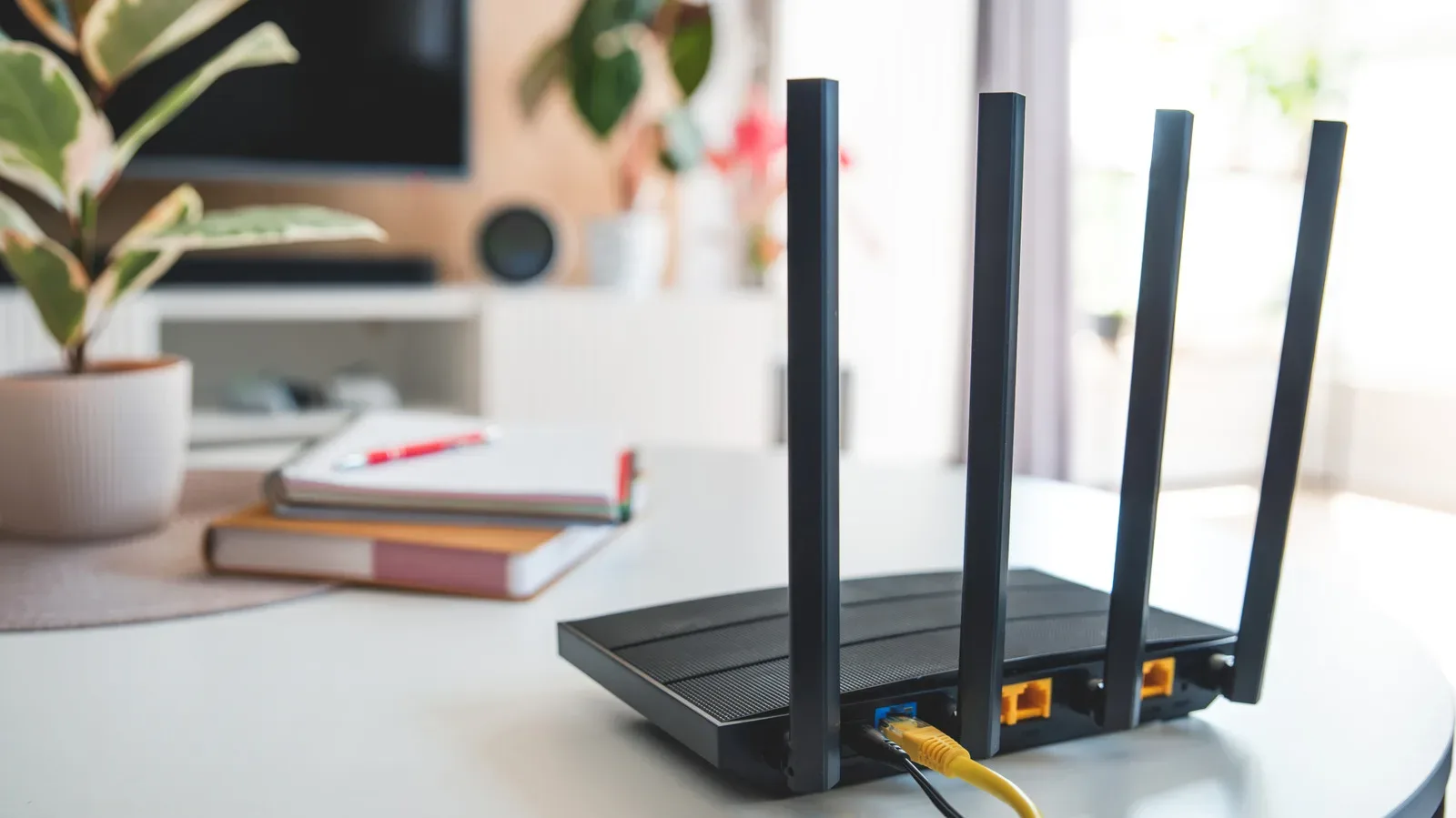
The same principle is familiar elsewhere in a gaming and connected-home setup. A router that loses a reliable connection may need a restart before the next session, though a repeated failure deserves more investigation than another button press. For a broader connection checklist, see this practical guide to diagnosing an overheating router. A Fitbit is not a router, of course, but the troubleshooting mindset is alike: start with the least invasive recovery step, then pay attention if the failure keeps coming back.
Normal restart steps by Fitbit model
The exact route depends on the Fitbit. When the screen responds normally, use the device’s settings rather than attempting a forced action.
Versa 4 and Sense 2
On Versa 4 and Sense 2, open Settings, choose About, select Shutdown, and confirm with Yes.
Charge and Inspire trackers
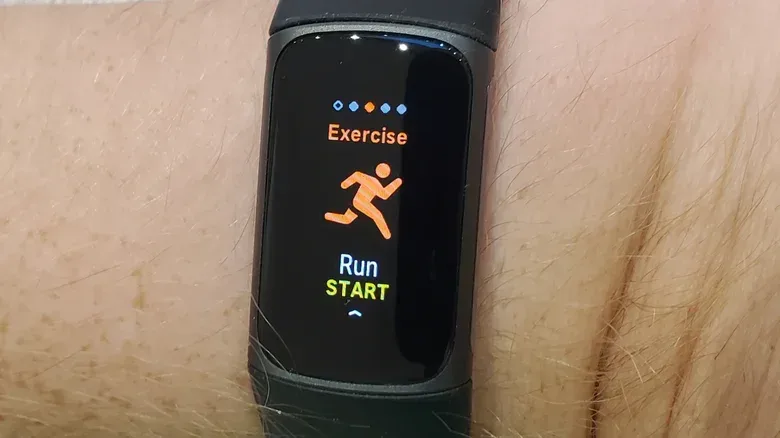
- Charge 5, Charge 6, and Inspire 3: Go to Settings > Restart Device > Restart.
- Charge 3 and Charge 4: Go to Settings > About > Reboot Device.
- Inspire 2: Go to Settings > Reboot Device.
The change in wording is worth noting: Fitbit may call the same basic recovery action either “Restart” or “Reboot.” In this context, both refer to the data-preserving troubleshooting step rather than a data-clearing reset.
Fitbit Edge and Fitbit Air
For Fitbit Edge, press and hold the side button for up to 10 seconds, then navigate to Settings > System > Restart.
Fitbit Air uses a different process because it has no screen. Connect it to its charging cable, with that cable connected to a power outlet. Then press and hold the back button for roughly 10 seconds. When the side light flashes white, release the button; the restart has completed.
What to do when the display will not cooperate
The settings route is great only when the interface works. A frozen or blank display creates the exact problem that a settings menu cannot solve, so certain models have alternate restart procedures. These are intended for an unresponsive tracker, not as an everyday shortcut.
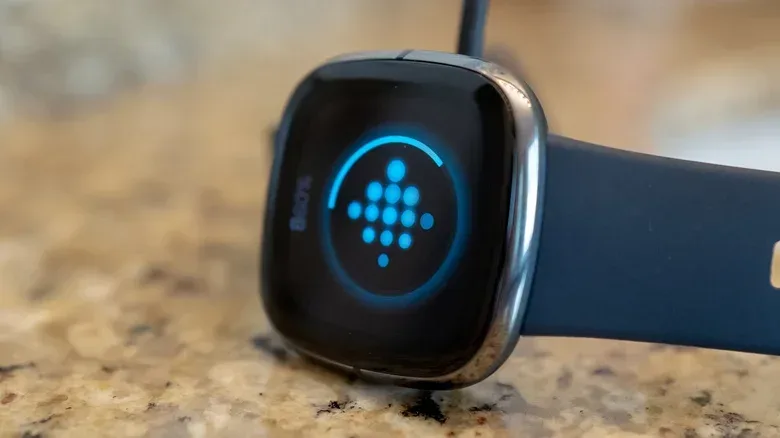
- Charge 5 and Charge 6: Connect the tracker to its charging cable. Press the button on the cable’s flat end three times quickly, then wait 10 seconds for the Fitbit logo to appear on the screen.
- Inspire 3: Plug in the tracker, press and hold its buttons for 10 seconds, then release. Wait for a vibration and the Fitbit logo.
- Fitbit smartwatches: Press and hold the button for 10 seconds.
These instructions are deliberately model-specific. If your model is older or does not appear above, do not improvise based on another Fitbit’s controls. Check the appropriate Google support information for that device’s procedure. The location and meaning of a button can vary, and the wrong physical action is not a substitute for knowing the model’s supported method.
When a restart is no longer the whole answer
A one-off sync hiccup, lockup, or missing notification is a good fit for restart-first troubleshooting. Repeated symptoms are different. If the Fitbit frequently fails to track steps or sleep, regularly becomes unresponsive, repeatedly loops through reboots, or continually refuses to sync after restarts, the underlying problem may require investigation beyond another reboot.
That does not automatically identify the precise fault. It does mean that repeated restarts should not become a way to ignore a worsening pattern. A device that only works after frequent intervention is no longer behaving normally, and it may be approaching the end of its usable life.
The same holds for an issue that follows a particular event. A blank screen or reboot loop could be temporary, but a persistent fault after exposure or another incident is a reason to look deeper rather than repeatedly forcing a restart. The important dividing line is reliability: a restart should return the Fitbit to normal operation, not become part of the daily charging routine.
A low-drama troubleshooting order
- Identify the symptom: sync, tracking, notifications, display, touch response, or reboot loop.
- Use the standard on-device restart path if the screen and controls are responsive.
- Use the relevant alternate method only if the model is unresponsive and the listed procedure supports it.
- Wait for the expected sign of recovery, such as the Fitbit logo, a vibration, or the specified light signal.
- Check whether the original problem is gone.
- If it returns regularly or restart does not help, investigate further rather than escalating immediately to a reset.
The best Fitbit restart policy is therefore pleasantly boring: do it when the tracker needs it, avoid treating it as routine upkeep, and keep reset as the much more consequential last-resort option. When a wearable starts acting as though it has rage-quit its own menu, a restart is a sensible way to invite it back into the match—without wiping its record in the process.