The iPad-versus-laptop debate has survived long enough to become a small piece of consumer-tech folklore. The answer is no longer a simple “yes, for light use” or “no, never.” Modern iPads have fast Apple silicon, sharp displays, strong battery-conscious portability and a deeper collection of tablet apps than the category had in its early years. Pair one with a keyboard, trackpad and, where useful, Apple Pencil, and it can credibly perform much of the daily work normally assigned to a notebook.
But a machine can be capable of a task without being the most comfortable machine for that task. That distinction is the heart of the decision. An iPad can serve as a laptop replacement for people whose computing mostly happens in a browser or in a focused set of apps. For users who live among sprawling folders, desktop-only programs, keyboard-driven automation and complex multitasking, it can still feel like an impressively powerful tablet trying to wear a laptop costume.
The practical question is not whether an iPad reaches laptop territory at all. It does. The question is whether the parts it does less elegantly represent five minutes of inconvenience each week or a daily pileup of tiny compromises.
The iPad’s strongest case: one device, several roles
Used alone, an iPad is a slim touchscreen device for video, reading, games, browsing and communication. That is already a meaningful advantage over a conventional laptop. A permanent keyboard is excellent when typing, but it is also permanently attached when someone wants to hold a screen closer, read in bed, draw, watch a show or flip through photos on the sofa. The iPad changes posture easily because it was built around touch first.
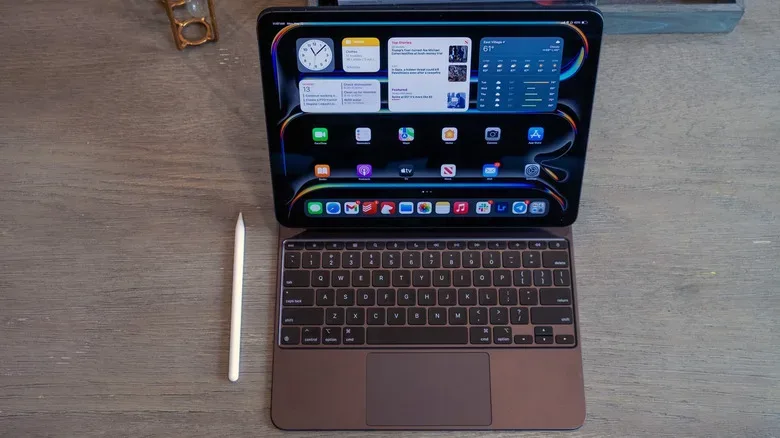
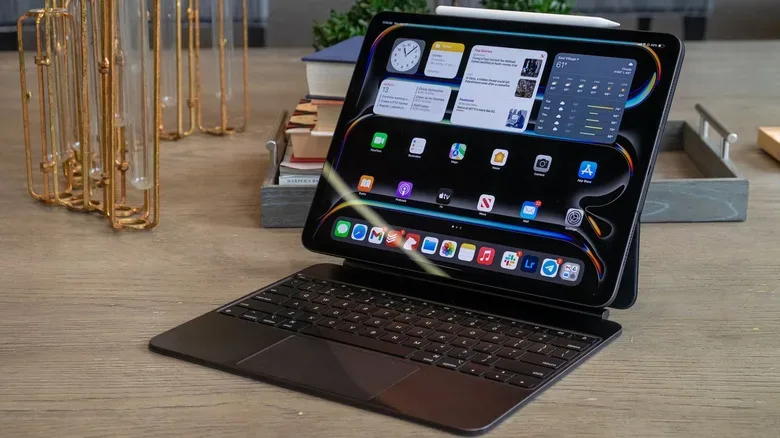
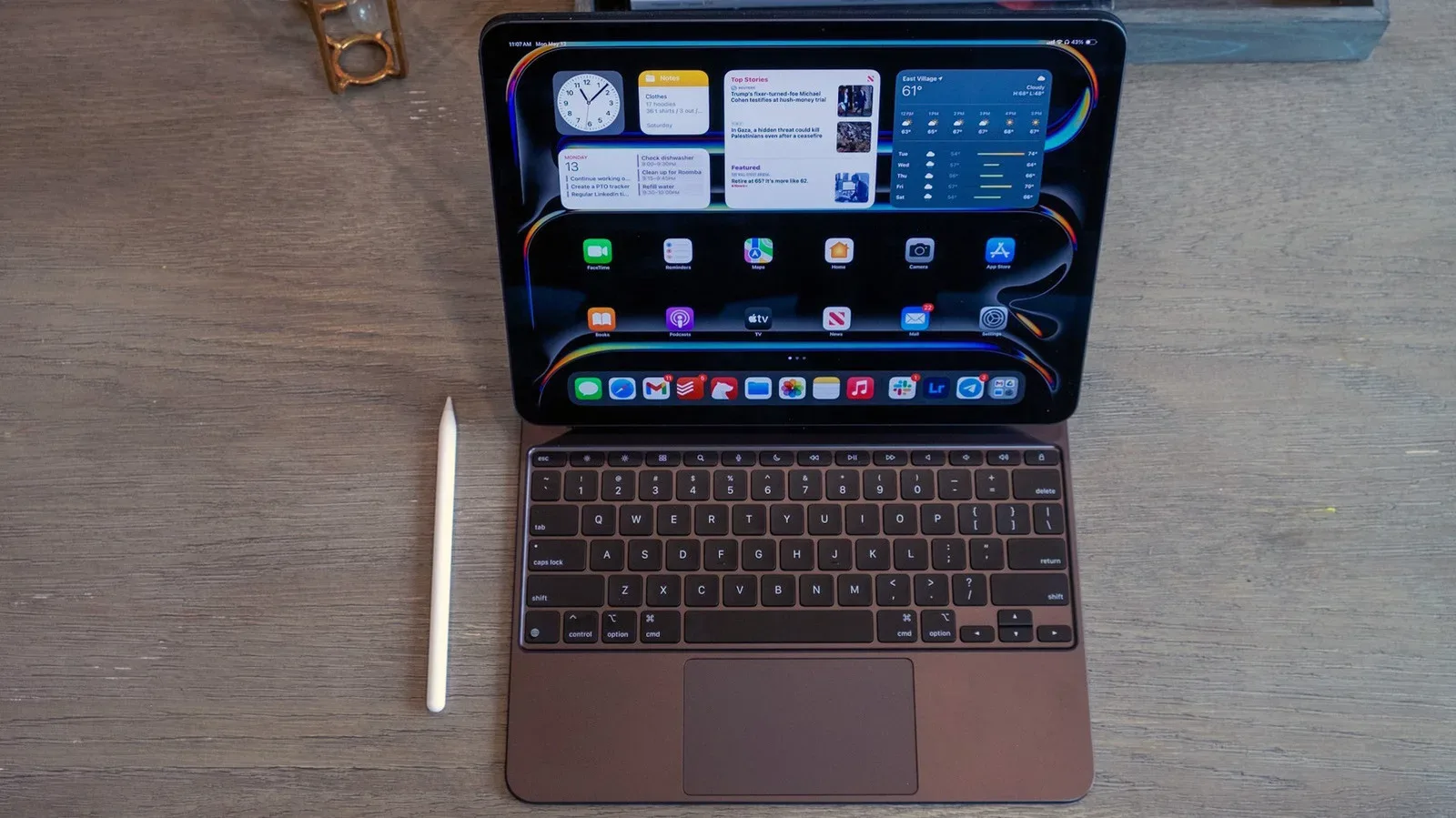
Add a Magic Keyboard or a comparable third-party keyboard case, and the same device takes on a more laptop-like identity. The addition of a trackpad matters: it makes selecting text, navigating dense web pages and operating multiple windows less reliant on tapping glass. An Apple Pencil broadens the deal again, enabling handwriting, annotation and digital art in ways standard laptops cannot replicate without additional hardware.
This versatility is particularly compelling for students, artists and people whose day switches between typing and direct interaction. Marking up a PDF, sketching concepts, signing documents, taking handwritten notes and editing an image all feel natural on a tablet surface. Apps including Procreate, Photoshop, Lightroom and DaVinci Resolve mean creative tasks are possible on iPadOS, even if a particular iPad version does not always match every desktop feature.
Portability is another win. An iPad is easy to carry and easy to use in spaces where opening a laptop feels excessive. For streaming, ebooks, articles and photo browsing, its detached-screen design is more comfortable than a clamshell computer. Models with cellular capability can also stay connected away from Wi-Fi without requiring a phone hotspot. For travelers and commuters, that can be more consequential than another benchmark result.
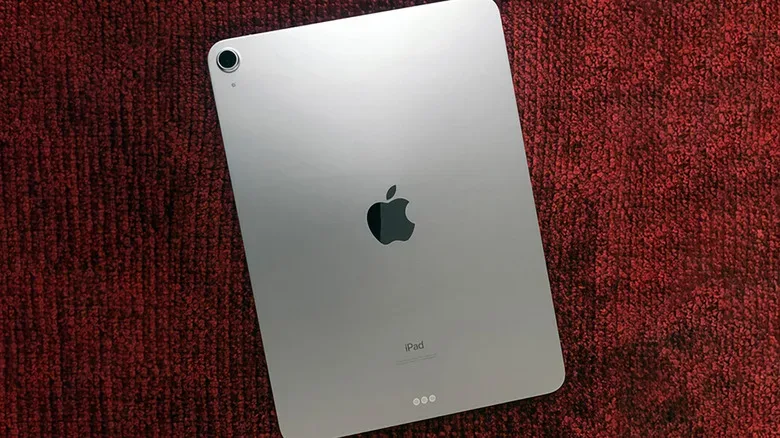
There is also little reason to worry that current M-class iPads lack raw power for mainstream tablet work. The M4 iPad Air and M5 iPad Pro have processing headroom for demanding creative software and substantial multitasking. In many real situations, the limit is not processor performance. It is what iPadOS permits, and whether the app being used was designed with an ambitious professional workflow in mind.
Related coverage includes Can an iPad Replace Your Laptop? The Workflows That Decide It.
iPadOS 26 makes the argument more credible
Software has traditionally been the largest obstacle between the iPad and a laptop-sized role. iPadOS 26 narrows that gap with a more flexible windowing system. Apps can be moved and resized rather than being confined entirely to a single full-screen presentation. The older full-screen approach remains available, but people who want a conventional workspace now have more room to arrange one.
A Mac-like menu bar, improvements to Files and the arrival of Preview further push the operating system toward familiar desktop behaviors. These changes help with the moments that once made using an iPad with a keyboard feel strangely constrained: locating documents, working across apps and treating the display as a workspace rather than as one giant app at a time.
That progress should not be minimized. For email, web research, video meetings, documents, messaging and everyday administration, a keyboard-equipped iPad can now be a highly capable primary computer. Someone who works mainly from cloud storage and web services may find that it covers nearly everything needed.
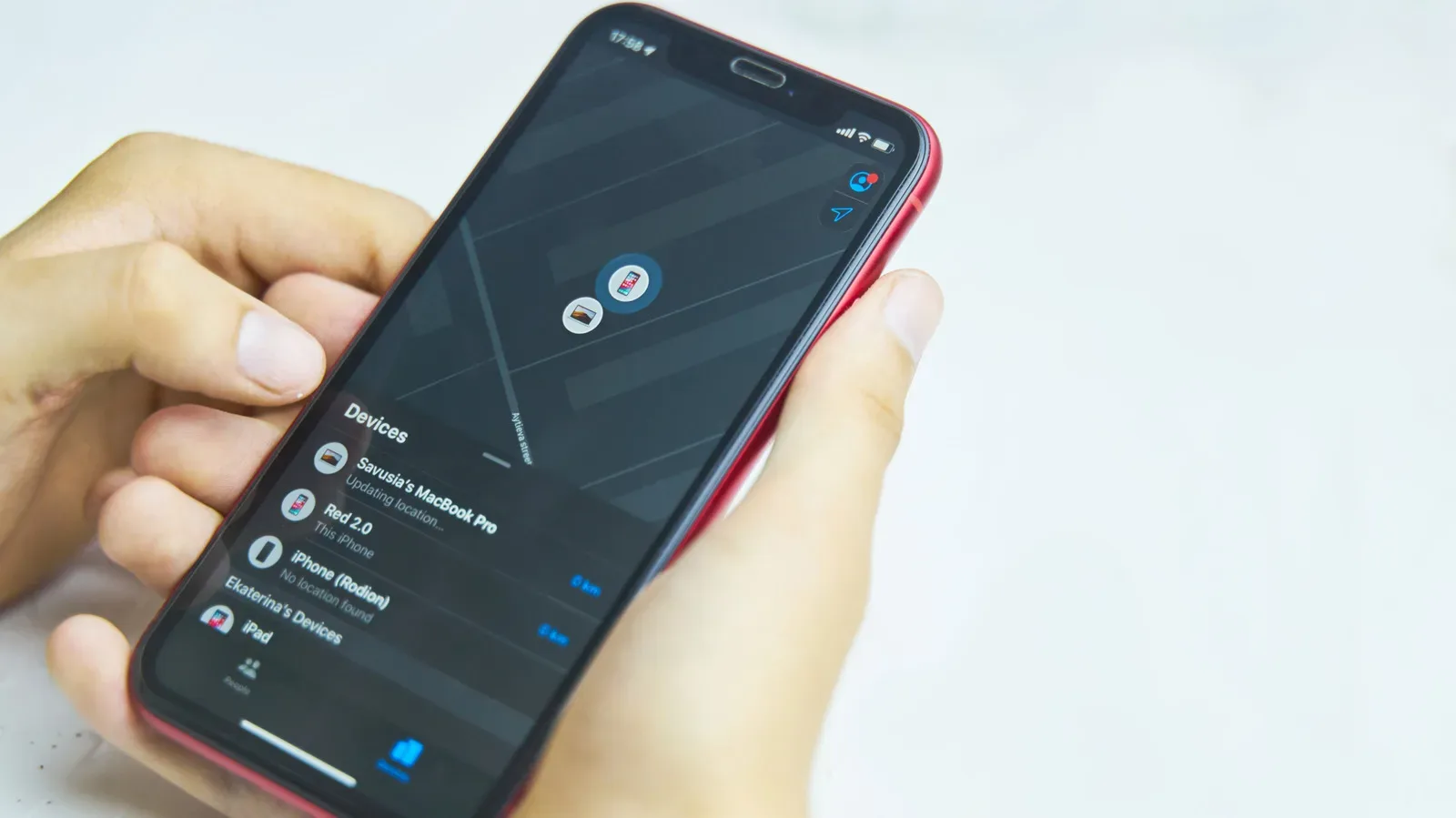
It also works neatly as a mobile companion to an existing Apple setup. For iPhone owners who prioritize portable access to their files and services, device continuity may be a point in its favor. Practical iPhone housekeeping, such as making a powered-off handset easier to locate through Find My, can be part of that wider ecosystem routine; our guide explains how to make a powered-off iPhone easier to find with Find My Network.
Why a powerful iPad can still create desktop-sized friction
The difficult part is that computer workflows are made from dozens of small actions. Desktop systems such as macOS and Windows have spent decades accumulating flexible file handling, broad peripheral compatibility, deep keyboard shortcuts and tools for tailoring behavior. Many people never need those extras. Others depend on them without realizing how much invisible time they save.
Consider a research-and-writing session that requires several browser windows, notes, source documents, an image folder and a draft to stay visible and easy to switch among. iPadOS 26 provides a more workable answer than prior versions, but it does not erase the difference between an iPad workflow and a mature desktop environment. Copying material between multiple apps, organizing a large file archive or executing a multi-step keyboard routine can remain more cumbersome than on a Mac or PC.
Apps determine a great deal here. Some are polished iPad-native experiences that use touch and Pencil input brilliantly. Others are trimmed adaptations of desktop software, offering a reduced toolset or different interface assumptions. Before purchasing an iPad as a replacement, the smart move is to inventory the exact applications used for work, study and personal projects—not merely broad labels such as “photo editing” or “writing.”
Developers face perhaps the clearest line. There is no Xcode for iPad, no local terminal comparable to a Mac or PC environment, and fewer locally available development tools. Remote desktops and cloud-based services may cover portions of that gap, but they change the claim. Accessing another computer from an iPad is useful; it is not necessarily the same thing as the iPad independently replacing that computer.
Apple’s controlled platform model is relevant as well. iPadOS does not offer Mac-like freedom to customize the system or install software from wherever a user chooses. Alternative app stores are allowed in the European Union, but the broader platform remains more tightly managed than traditional desktop operating systems. That restraint can make the tablet feel approachable and consistent. It can also frustrate anyone who expects extensive control over tools and workflow.
Accessories change both the experience and the math
An iPad by itself is exceptionally light and compact. A laptop-replacement setup is a different object. At minimum, serious writing work typically calls for a keyboard case. A trackpad or mouse makes desktop-like navigation more practical. Artists and handwritten-note fans may also need an Apple Pencil. Each component has a purpose, but together they add bulk, pieces to charge and a cost that should be included in the comparison.
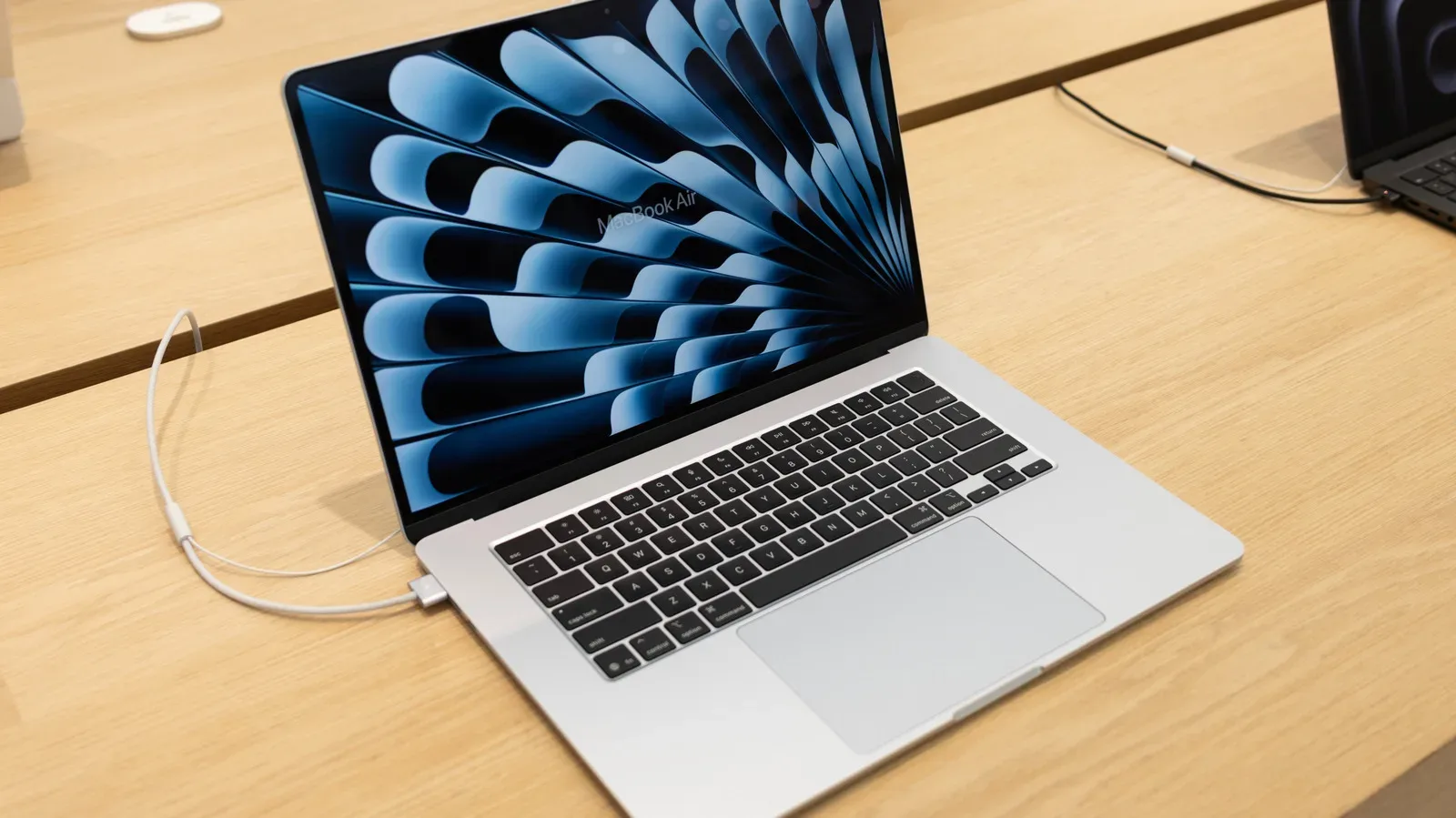
At the premium end, an iPad Pro combined with a Magic Keyboard and Apple Pencil can reach or exceed the cost of a MacBook Air, and can even approach a more expensive MacBook Pro configuration. Paying that total can make sense for buyers who genuinely value tablet ergonomics, touch interaction, stylus input or cellular connectivity. It makes less sense for a person whose real goal is simply to type, manage files and run desktop software with minimum fuss.
This is why the iPad is often best understood as its own category rather than as a laptop that happens to have a detachable keyboard. Its appeal is not that it wins every traditional computing comparison. It is that it combines capabilities that laptops generally separate: a comfortable media screen, a touch device, a note pad, a drawing surface and a portable keyboard computer.
Who can confidently make the switch?
- Strong candidates: people whose work centers on browser tabs, email, documents, video calls and a handful of iPad-friendly apps.
- Especially well served: students, illustrators, photographers with compatible app needs, frequent travelers and readers who want a keyboard only some of the time.
- Proceed carefully: users managing substantial file libraries, relying on niche professional applications or frequently juggling many documents and windows.
- Likely to need a desktop too: programmers and power users dependent on Xcode, local terminals, deep customization, automation or desktop-only software.
For many households, the most sensible arrangement is an iPad as the everyday portable machine and a Mac or PC for specialized, heavyweight work at home. That is not a failure of the tablet. It is an acknowledgment that a device can be exceptionally good at 90 percent of a person’s computing while the remaining 10 percent still decides whether it feels liberating or limiting.