Passwords are not glamorous technology. They are the inventory management screen nobody wants to open—until an old login stops working, a passkey lands in the wrong vault, or a fresh device asks where every account went. On an iPhone, Apple Passwords and Google Password Manager can both handle that work for free. They can save credentials, fill them into websites and apps, store notes, export entries, and flag risky passwords. The choice is less about a knockout feature and more about which ecosystem already owns the most of your digital life.
For players who jump among a phone, a console-adjacent PC, a Mac, a work laptop, and perhaps an Android tablet, that distinction can matter more than the look of either interface. A game account, storefront login, email address, subscription service and social account are only useful when the sign-in process is painless—and only safe when a weak or reused password is caught before it becomes a bigger problem.
The short version: Apple is device-native; Google is browser-led and cross-platform
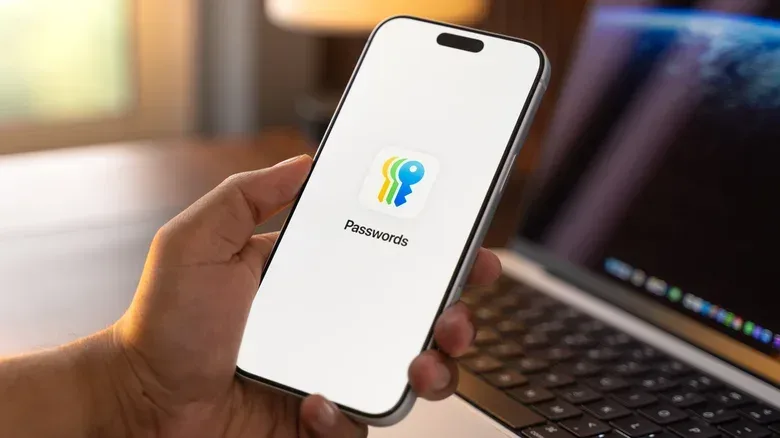
Apple Passwords is a dedicated app on iPhone, iPad and Mac. Its biggest convenience is that it is immediately part of the Apple-device experience: set up the device, sign in with the relevant account, and Apple’s password tools are ready to use. Entries appear in a scrollable list associated with sites and apps. Opening one reveals the stored username and password, along with tools to edit it, copy the password, add a note, and inspect password-related information.
Google Password Manager is tied to a Google account and is available through Chrome or at passwords.google.com. On iOS, Chrome contains the manager; on a Mac, it can be reached regardless of which browser someone normally uses by visiting Google’s password-management area. That account-based approach is its central advantage: the password library travels between platforms as long as Chrome is part of the setup.
Put plainly, Apple Passwords is built around Apple hardware, while Google Password Manager is built around continuing access to a Google account and Chrome. Neither approach is inherently superior. The better fit depends on where the password collection needs to go next.
What both managers actually do
The overlap is substantial. When a person creates an account, each manager can prompt them to save the new login. After that, both can retain the username and password, fill credentials into sign-in forms, and let the user update or remove an entry. Both also support notes attached to a login, which can be handy for non-password context such as a reminder about which email address is attached to an account.
They also offer export options. This is important for anyone moving from Android to iPhone, Windows to Mac, or one browser habit to another. A password manager should not turn a hardware switch into a manual transcription project. Google’s setup can carry a library along when the user knows their Google sign-in details, while iPhone users can export saved Safari passwords and then import them into the manager they decide to make primary.
Both services provide password-health help. They flag weak passwords, identify reused passwords, and alert users to leaked passwords. These warnings are especially useful when the same short password has quietly spread across a stack of game services, retail accounts and forums over time. A reused password is one used at more than one site; when one service is compromised, the same credentials may be attempted elsewhere. A leaked password alert is a warning that stored credentials have appeared in a breach-related context. Neither warning is a reason to panic, but both are a prompt to change the relevant password rather than postpone it indefinitely.
Related coverage includes Apple Passwords vs. Google Password Manager on iPhone.
Where the iPhone experience separates
Apple’s standalone app is the more direct place to inspect a saved entry on an iPhone. Tap a password row and a Copy Password control appears. The entry can also show when the password was last changed and whether it is judged strong or weak. With iOS 26, Apple added version history, letting users look back at earlier passwords after changing one. That can be useful in the awkward period after an update, when a service has not yet accepted a new credential as expected or when a user needs to check what was previously saved.
Google presents separate copy controls for fields and an eye icon for revealing the password. It also supports notes, editing and deletion. The practical catch on iPhone is access: to work with Google Password Manager directly, users need Chrome or the web interface. Apple’s manager lives in its own app; Google’s is closer to a browser and account utility.
This is a workflow distinction, not a claim that one vault is more capable at the basics. Someone who spends most of their phone time in Safari and Apple apps may value the native Apple route. Someone already living in Chrome, or someone who routinely signs in from machines with different operating systems, may find Google’s route less fragmented.
AutoFill: the setting that decides whether either option feels convenient
AutoFill is the system feature that offers a saved username, password or passkey at the moment a sign-in form appears. It is the part users notice most, because it turns a stored password from a record in a vault into something that can be used without copying and pasting.
To use Google Password Manager fully as an AutoFill provider on iPhone, Chrome must be enabled in Settings: Settings > General > AutoFill & Passwords, then turn on Chrome. This is a small setup task, but it is a decisive one. Without it, a Google-stored credential can feel like it is present but inconveniently tucked away.
Apple Passwords has a home-field advantage here because Apple’s tools are ready alongside the rest of iOS and macOS setup. Google asks for a little more configuration, then rewards people who need their logins to follow them beyond one manufacturer’s devices.
Passkeys make the platform decision more visible
Passkeys are login credentials designed to replace the familiar typed password flow. In the context here, the important practical point is not their underlying cryptography but where they are saved and which provider will offer them during sign-in. A password library split between two services is manageable; passkeys can make that split more confusing because they are also tied to the device and AutoFill setup in use.
iOS saves passkeys to Apple Passwords by default. However, Chrome on iOS 17 or later can save them to Google Password Manager if Chrome is selected as the AutoFill provider and a Google Password Manager PIN has been created. That means users do have a choice, but it is a choice best made deliberately before passkeys begin accumulating in different locations.
Apple’s passkey and password syncing is limited to Apple devices, plus Windows PCs using iCloud for Windows. Google’s password manager is positioned for broader platform movement when Chrome is used. For someone with an iPhone and a Mac, Apple Passwords offers the cleaner default. For someone with an iPhone but also Android hardware, or a mix of PC and Mac, Google Password Manager is likely to create fewer cross-platform dead ends.
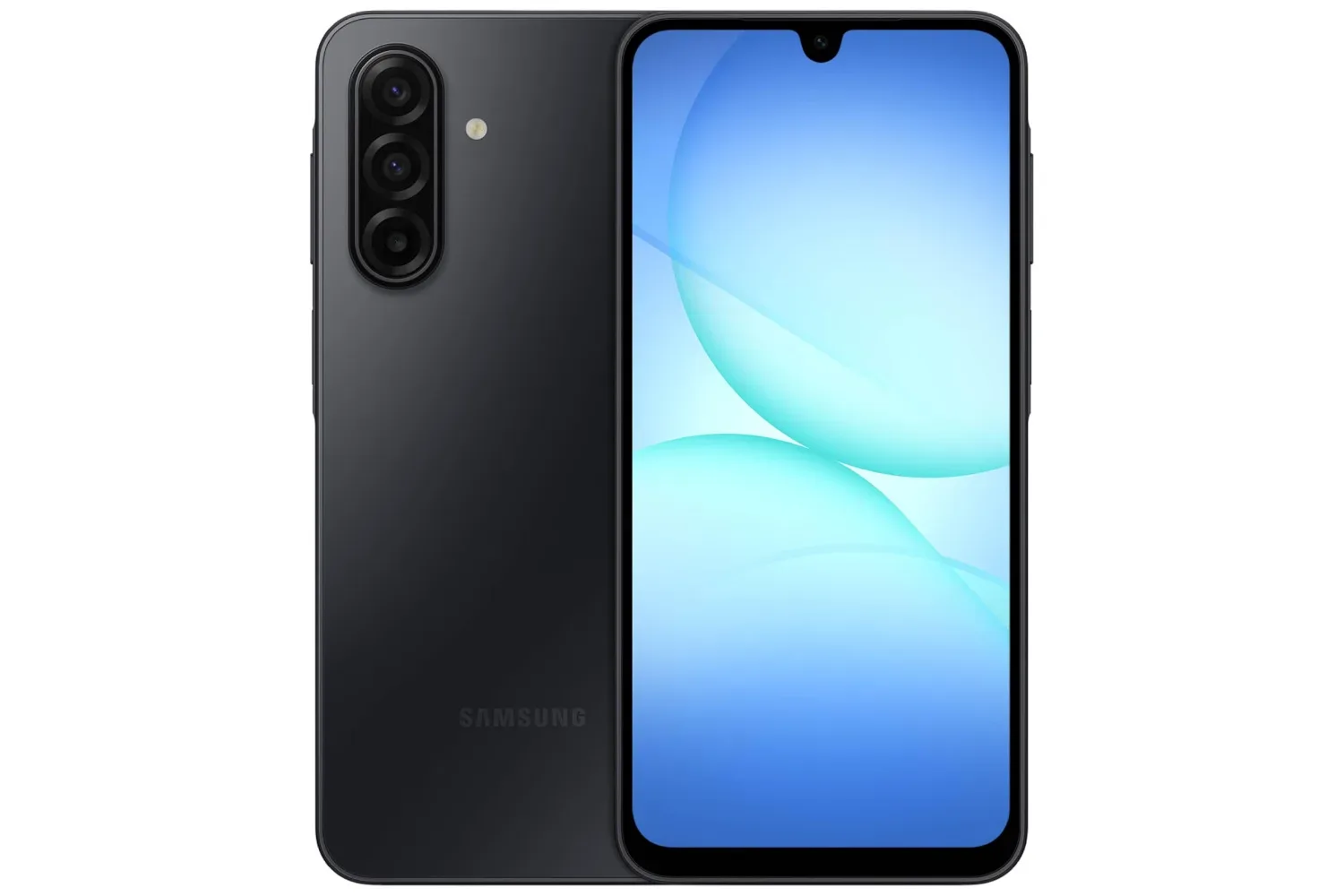
This matters for gaming accounts as much as everyday accounts. A player may redeem something on a phone, adjust account settings on a Windows PC, then attempt to sign in on a different device later. Keeping the sign-in method in a manager that appears consistently on those devices is less exciting than new hardware, but it prevents a surprising amount of account friction. Hardware choices such as a phone upgrade can shape that decision too, as with this Samsung Galaxy A17 coverage: adding or changing an Android device is precisely the kind of moment when cross-platform password access becomes relevant.
Can both run on the same iPhone?
Yes. It is possible to retain an existing Google password collection while beginning to save newer credentials in Apple Passwords. That can be a sensible temporary arrangement during a move from Android to iOS or Windows to Mac. It avoids the immediate pressure of reorganizing every login on day one.
But temporary is the key word. Two password managers introduce a basic administrative problem: when a password changes, which vault received the update? When a passkey is created, which provider holds it? When AutoFill offers an unexpected account, is it old data or the correct login stored elsewhere? The more entries held in both systems, the more likely those questions become.
For most people, one primary manager is simpler. That does not mean every legacy entry must be moved instantly. Instead, choose the manager that best matches the devices and browser habits used most often, make it the AutoFill provider, and move toward it as passwords are updated. The goal is not loyalty to a brand. It is knowing where the current credential lives.
A practical selection guide
- Choose Apple Passwords first if the regular device lineup is iPhone, iPad and Mac, and the appeal of an immediately available Apple-native tool outweighs broader Android compatibility.
- Choose Google Password Manager first if Chrome is already a core browser and passwords need to work across iOS, Android, Windows PCs and Macs.
- Use Google on iPhone deliberately by enabling Chrome under AutoFill & Passwords, rather than assuming saved Google entries will appear everywhere automatically.
- Keep an eye on passkey location before creating them across many services. Apple saves them to Apple Passwords by default, while Chrome on iOS 17 or later can use Google Password Manager after the required AutoFill and PIN setup.
- Do not let two vaults become permanent clutter unless there is a clear reason. One manager as the source of truth makes future password changes and recovery work easier to track.
Moving passwords from iPhone to another manager
Users who decide Google is the better long-term fit can export their iOS or macOS password collection without manually recreating every entry. On iPhone, the route is Settings > Apps > Safari > Export, select Passwords, then choose Save to Downloads and confirm. The exported data can then be imported into the chosen password manager.
Exporting is a transition tool, not a reason to leave password files lying around. The exported file contains highly sensitive account information. Once the import is complete, users should be careful about where that file remains stored and avoid treating it like an ordinary download.
Apple Passwords and Google Password Manager ultimately solve the same daily problem: remembering unique, secure account credentials so the user does not have to. Apple makes the path smooth inside its own device family. Google makes the library easier to carry across operating systems through Chrome and a Google account. Pick the route that matches the devices you actually use, set AutoFill accordingly, and keep the collection concentrated enough that the next login does not turn into a side quest.