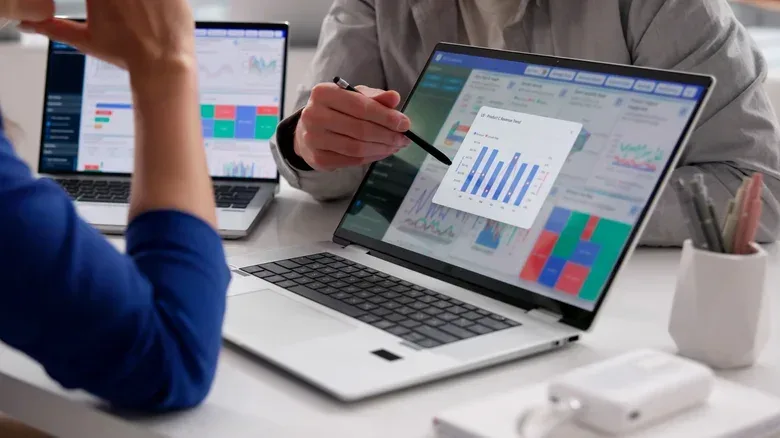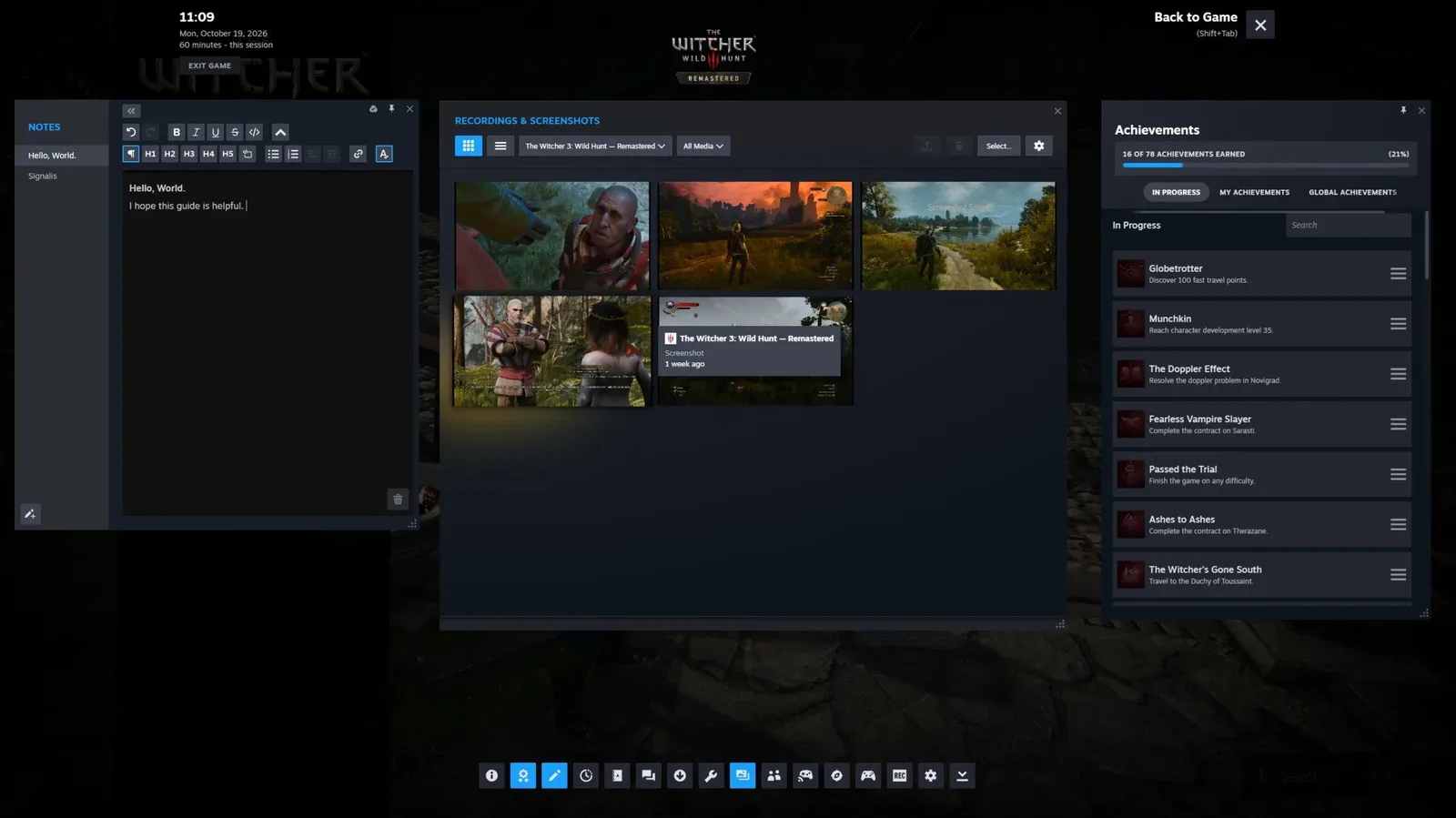
A second display can make a gaming desk, a work setup or a busy browser session feel far less cramped. One screen can hold a game, stream controls or a video feed while the other keeps chat, guides, a map, music controls or a crowded stack of tabs visible. The good news is that an unused laptop may be able to fill that role without a dedicated monitor.
The important catch is that a laptop is not automatically a monitor just because it has an HDMI port. In the usual case, that port is video-out: it sends the laptop’s image to another display. Connecting an HDMI cable between two laptops therefore does not make one receive the other’s picture. The practical route depends on the computers involved: built-in wireless display features are available for certain Windows and Mac pairings, third-party software can bridge operating systems, and a capture card can show an HDMI feed on the spare laptop.
Before starting, decide what job the second screen needs to do. That determines which compromises are acceptable.
- Mirroring, also called duplicating, shows the same desktop on both displays. It is useful when both people need to see the same presentation or when a second laptop is simply displaying the main system’s output.
- Extending creates one larger desktop spread across two screens. Windows and apps can be moved onto the laptop display, giving genuinely separate space for tabs, chat or other supporting material.
- Latency is the delay between an action or a changed frame on the main device and its appearance on the other screen. A small delay may be harmless for documents or reference material, but it matters far more for fast games and competitive play.
Start with the least complicated option
If both machines run Windows 10 or Windows 11, the operating system’s wireless casting tools can handle the connection through Miracast. Miracast is a Wi-Fi-based method for connecting compatible devices, so no display cable is required between the laptops. It is a particularly sensible place to begin if the spare machine will be used for a static dashboard, a presentation, web browsing, Discord, a pile of open tabs or another task where the image does not need to react instantly.
The setup begins on the spare Windows laptop—the one that will become the display. Open Settings, then System, then Projecting to this PC. Choose Optional features, select View features, and add Wireless Display. Once that has installed, return to the Projecting page, set the device to Available everywhere, and open the Wireless Display app.
On the primary Windows computer, press Windows key + K and select the spare laptop from the available displays. Enter the PIN when prompted and allow keyboard and mouse input. From there, choose whether the connection should duplicate the main display or extend it. Windows key + P provides a quick way to switch between duplicate and extend modes later.
This approach requires Wi-Fi on both laptops, and that dependency is the central trade-off. Wireless transmission may introduce lag. That makes it a poor candidate for putting the game itself on the spare display when timing is important. It can still be quite useful alongside a game: the primary display can remain focused on play while the secondary laptop carries slower-moving or non-critical information. For a presentation or a workspace overwhelmed by windows, the slight delay is likely to be much easier to tolerate.
Windows setup: what “extended” changes
It is worth choosing deliberately between the two display modes rather than treating them as interchangeable. Duplication gives the laptop the same image as the primary screen. That is straightforward, but it does not create additional workspace. An open browser, game or application remains the same size and occupies the same visual arrangement on both screens.
Extension is what turns the spare laptop into a more useful second workspace. Rather than repeating the first display, it adds another area of desktop for moving windows around. In practical terms, a player could keep the game on the main display while moving a browser, notes or a chat client to the laptop. For non-gaming tasks, it means a document can stay open on one display while reference pages or communications live on the other.
The value is not that a wireless laptop replacement becomes equivalent to a purpose-built, low-latency gaming monitor. It is that a device which may otherwise sit unused can take on the background work that makes a single-screen setup feel crowded. That distinction also helps set reasonable expectations: more space is the benefit; absolute responsiveness is not.
Using one MacBook as another MacBook’s display
A Mac-to-Mac arrangement can use AirPlay, provided the MacBook intended to act as the second screen is from 2018 or later. As with the Windows method, this is a wireless connection and can have a slight delay. It is best approached as a convenient display extension or mirroring solution rather than a guarantee of the lowest-lag gaming image.
On the MacBook that will receive the display, open System Settings, select General, then AirDrop & Continuity. Turn on AirPlay Receiver. Under Allow AirPlay for, select Current User. The two MacBooks should be signed in with the same Apple ID for the connection to work smoothly.
On the primary Mac, open System Settings, select Displays, and use the plus sign in the dropdown menu to find the other MacBook. Select it, then choose whether the image should be mirrored or used as an extended display.
The compatibility check matters here. A spare MacBook that is older than the stated 2018 threshold is not covered by this AirPlay route. Checking that limitation before working through the settings avoids mistaking an unavailable device for a failed connection. Once compatible, the choice is again about purpose: use mirroring when the same content should appear on both machines; use extension when the goal is to divide tasks between screens.
Mixed operating systems and Linux: Deskreen’s role
Built-in options are most convenient when both devices live in the same ecosystem. A Windows PC paired with a MacBook, or a setup involving Linux, needs software capable of working across those boundaries. Deskreen is a free, open-source option that runs over Wi-Fi.
Both computers need to be on the same Wi-Fi network. Install Deskreen on the main device. It provides a QR code and a URL; open that URL in the spare laptop’s web browser to connect. This makes the browser-equipped laptop the display endpoint, which is why the approach can be useful when the devices do not share an operating system.
There is one meaningful limitation to plan around: Deskreen mirrors the display by default. Mirroring may be enough for a shared view, a stream output or a straightforward reference screen. If the aim is a true extended desktop, the main computer needs a virtual display adaptor, sometimes called a dummy plug, connected to its HDMI port. That adaptor gives the main machine an additional display output to work with, allowing the spare laptop to serve as a separate display area through the software workflow.
Deskreen does not remove the fundamental characteristics of a Wi-Fi connection. Lag can still occur, so it is better suited to uses where responsiveness is secondary. The software route is valuable because it broadens compatibility, not because it magically converts wireless video into a no-compromise competitive-gaming connection.
Why an HDMI cable alone usually fails
The most common false start is also the most intuitive one: plug an HDMI cable into each laptop and expect the spare machine to show the primary machine’s image. Most laptop HDMI ports output video rather than accept it. They are designed to send a laptop’s display to a monitor or television, not to take in video from another computer.
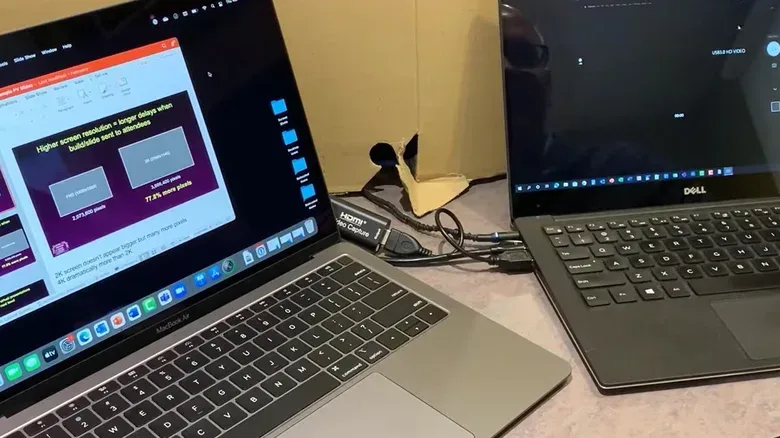
That is why a capture device is needed for a physical HDMI-based setup. An HDMI-to-USB video capture card sits between the two laptops. Connect the main computer’s HDMI cable to the capture card, then connect the card’s USB end to the spare laptop. The receiving laptop treats the capture device as a webcam, letting its video feed appear in a camera application or in OBS Studio, a free app available on Windows, Mac and Linux.
This distinction is crucial. A capture card provides a view of an HDMI feed inside an app; it is not the same thing as using the spare laptop as an ordinary operating-system-level extended desktop. It is an effective answer when the objective is to watch an input, but it is a different workflow from dragging desktop windows onto a second display.
For gaming, the capture method can be relevant when a television is unavailable. A PlayStation or Nintendo Switch can connect to the laptop through the same capture-card arrangement. There may still be some lag, although it is generally lower than with Wi-Fi-based approaches. For many casual situations, that delay may be manageable. Competitive players, however, should take the possibility of delay seriously before relying on the laptop screen for games where rapid reactions matter.
Choose the setup by the task, not the cable you already own
The practical decision tree is fairly clear. Two Windows 10 or 11 systems can try the built-in Miracast-based method. Two compatible MacBooks can use AirPlay, with the secondary MacBook needing to be from 2018 or later and both systems signed into the same Apple ID. A mixed Windows, Mac or Linux arrangement can use Deskreen on a shared Wi-Fi network, with a dummy plug required if an extended rather than mirrored display is the goal.
When the need is to see an HDMI signal—including a console without a TV—an HDMI-to-USB capture card is the appropriate hardware path. It should not be mistaken for an HDMI cable solving the problem by itself, or for a conventional second desktop monitor.
That framing prevents both wasted troubleshooting and mismatched expectations. Use wireless display options to gain convenient extra space for less time-sensitive tasks. Use a capture card to display an HDMI feed. Keep the main display reserved for the action when latency could undermine play. In a setup built from hardware already at home, assigning each screen the right job is often more valuable than trying to force every screen into the same role.
Repurposing a laptop is also a useful reminder that the best hardware setup is not always the one with the most new equipment. That broader question of matching technology to priorities appears in our look at the very different priorities behind two screenless fitness bands. With a spare laptop, the priority is simpler: identify whether you need extra desktop room, a duplicate image, or a video input, then use the method built for that purpose.