Steam’s overlay is easy to treat as a quick route to a friends list, chat window, or an accidental Shift+Tab press at precisely the wrong moment. But Valve’s redesigned in-game interface, introduced as part of a wider Steam update in 2023, includes a surprisingly capable collection of tools for solo play and group sessions alike.
The practical appeal is straightforward: rather than repeatedly leaving a game to look something up, jot down a puzzle clue, check the clock, retrieve a screenshot, or organize a local co-op game online, players can bring those functions into the same interface. That does not make every tool essential for every game. It does mean the overlay can be configured as a useful companion rather than visual clutter.
Steam opens the overlay with Shift+Tab by default. The shortcut can be changed through Steam > Settings > In-Game, which is also where players can turn the overlay off entirely. That choice matters: an overlay is optional, and anyone who finds it disruptive can disable it rather than work around it.
One especially useful detail is that Steam remembers overlay configuration on a per-game basis. In practical terms, a player can arrange, resize, activate, or pin tools for one game without having to rebuild that layout whenever they return to it. A timer might make sense for a lengthy RPG session, while a notes panel may be more valuable in a puzzle game.
1. Use the built-in browser and community guides without fully stepping away
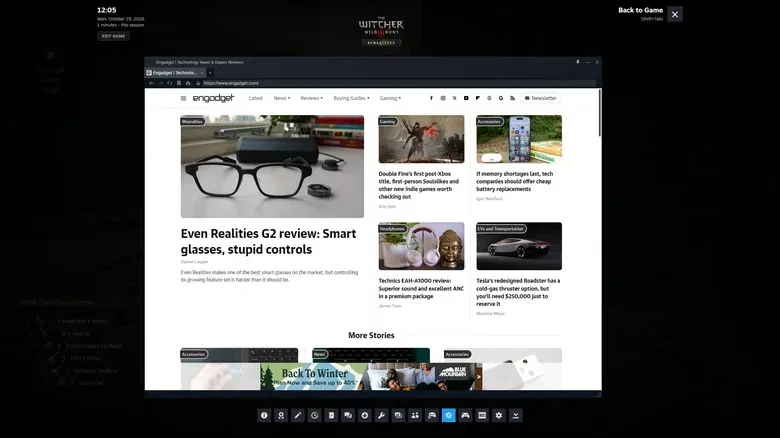
Alt-Tab remains the familiar PC shortcut for moving to a browser, and it is a perfectly valid approach. Steam’s integrated browser offers a different workflow: it keeps web pages inside the Steam client and accessible from the in-game overlay.
That is particularly helpful when a player wants a narrow piece of information rather than a full break from play. A difficult quest step, a control reminder, or a clue interpretation can be checked without closing the game view in favor of a separate desktop window. The overlay can also provide access to Steam community guides, and favoriting a useful guide makes it easier to revisit during play.
There is a worthwhile distinction here. A browser is not a walkthrough by itself, and it does not guarantee that a guide is accurate, current, or spoiler-free. It is simply a way to keep reference material close at hand. Players who want to preserve discovery can use it sparingly: check a mechanical clarification or an objective they have already reached, then return to the game before reading further.
For games built around dense systems, the browser can also reduce the inconvenience of leaving a full-screen game repeatedly. For players relying on an internet connection for multiplayer or Remote Play, keeping that connection dependable is still the larger priority; see our guide to keeping home internet alive during a power outage for the broader connectivity considerations.
Related coverage includes 5 Useful Things Steam’s In-Game Overlay Can Do.
2. Keep game-specific notes in Steam’s text editor
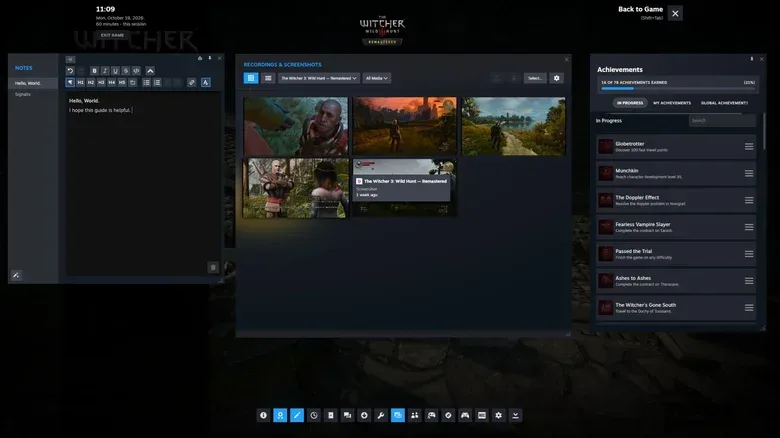
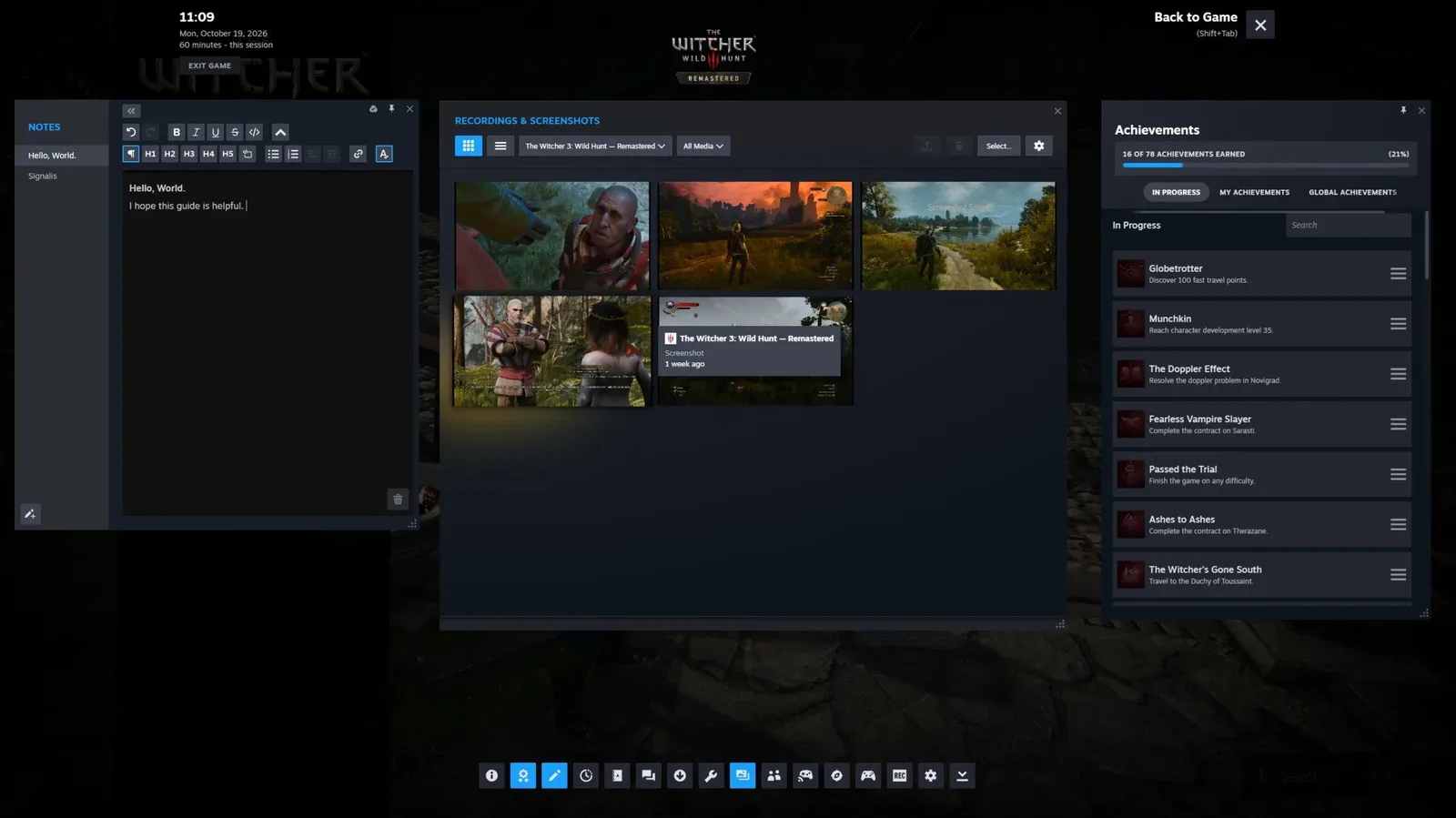
The overlay includes a note-taking tool with more capability than a blank scratchpad. Players can format text and include code blocks, allowing notes to be organized rather than becoming an unreadable stream of fragments.
This is a natural fit for puzzle-focused games such as Blue Prince and Tunic, where players may want to record symbols, sequences, theories, locations, or partially solved clues. It can also be useful for any game that asks the player to remember information across a long session: a short list of next objectives, names, resource priorities, or a reminder to revisit a particular area.
The value is not that notes solve the puzzle. They preserve the player’s own observations. That can be a better middle ground than consulting a complete solution, especially when the enjoyment comes from assembling the answer personally.
Because Steam retains overlay setup for individual games, notes can be treated as part of a game’s own workspace. A player does not need to recreate the panel arrangement each time they launch that title. Keeping the notes scoped to the relevant game also avoids hunting through unrelated desktop documents while trying to resume a train of thought.
3. Set a timer, then pin it over the game
Steam’s overlay can track time and set timers. It is a modest feature with a strong practical use: gaming sessions often happen in the space before another commitment, whether that is 45 minutes, an hour, or less.
A phone can obviously do the same job, but an overlay timer eliminates the need to pick up or check another device. It also keeps the reminder in the same environment as the game. For someone trying to stop at a reasonable time, reducing those little points of friction can be more helpful than another promise to “just remember.”
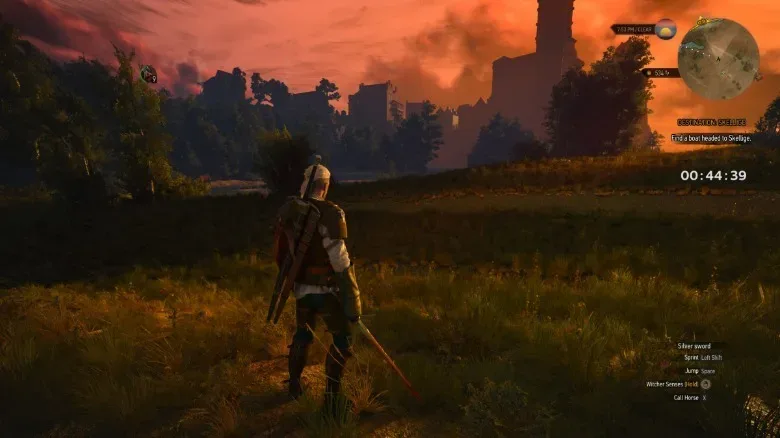
The key companion feature is pinning. Steam lets players pin overlay elements so they remain visible while the game is running. A timer is an especially logical candidate, since it only works as a reminder if it is easy to see. Pinning should be used selectively: a screen already crowded with HUD elements does not need an entire dashboard layered on top of it.
Steam’s own screenshot capture excludes pinned overlay items. That means a visible timer or other pinned panel will not intrude on screenshots taken directly through Steam. It is a small but important design choice, since players should not have to choose between a practical on-screen reminder and a clean capture of a memorable game moment.
4. Review and send screenshots or recordings from the overlay
The overlay is also a library for Steam captures. Players can browse screenshots and recordings they have made, including captures from other games, without navigating away from the active session.
Selecting a screenshot and using the Share option provides several routes for moving it elsewhere. A capture can be saved to a folder on the PC, sent through Steam chat to a Steam friend, or transferred to a phone through the Steam Mobile app on Android or iOS. From there, it can be posted to social media if the player chooses.
The practical implication is that capture, review, and sharing are connected rather than separate chores. A funny visual bug, a hard-earned boss win, a striking landscape, or a useful visual reference can be checked and delivered without digging through folders first.
It is worth separating the feature from the creative decision. The overlay makes sharing convenient; it does not make every image worth sending. For multiplayer groups, the most useful use may be direct chat, where a capture can answer a question or preserve a shared moment without being broadcast more widely.
5. Start Remote Play Together for supported local co-op games
The most social tool in this set is Remote Play Together. It is Valve’s protocol for playing supported local cooperative games with friends over the internet. “Local co-op” normally means multiple people play on one system in the same room. Remote Play Together extends that setup online for compatible games.
As long as a game supports the feature, the invited friend does not need to own a copy of the game. With most connections, up to four people can take part. Steam also allows keyboard controls to be shared, which can help when an invited player does not have a controller available.
Remote Play Together does not hand a friend broad access to the host computer. During an active Remote Play session, the guest cannot access other areas of the host’s PC. That limitation is central to understanding the feature: it is built to share the game session and its controls, not the desktop.
To begin from the overlay, select the Remote Play option and invite friends. The important qualification is compatibility. The game must support the protocol, so players should not assume every title in their library can use it. Connection quality also remains relevant; Remote Play Together is designed to make a local-style game easier to share across distance, not to remove the realities of internet performance.
Build an overlay around the game, not around every available widget
The best use of Steam’s overlay is likely a restrained one. A player wrestling with an opaque puzzle may want notes and a community guide. Someone fitting a game into a short evening may only need a pinned timer. A co-op group may have no reason to open the browser, but will care about Remote Play Together and easy screenshot sharing.
Steam puts shortcuts to these tools along the bottom of the overlay interface, so the first step is simply to open it and identify the functions that match the session at hand. From there, per-game saved layouts make the setup more durable.
Shift+Tab is therefore not merely a detour to chat. Used thoughtfully, it is a compact set of reference, organization, capture, and co-op tools that can keep the administrative parts of PC gaming from pulling players entirely out of the game.