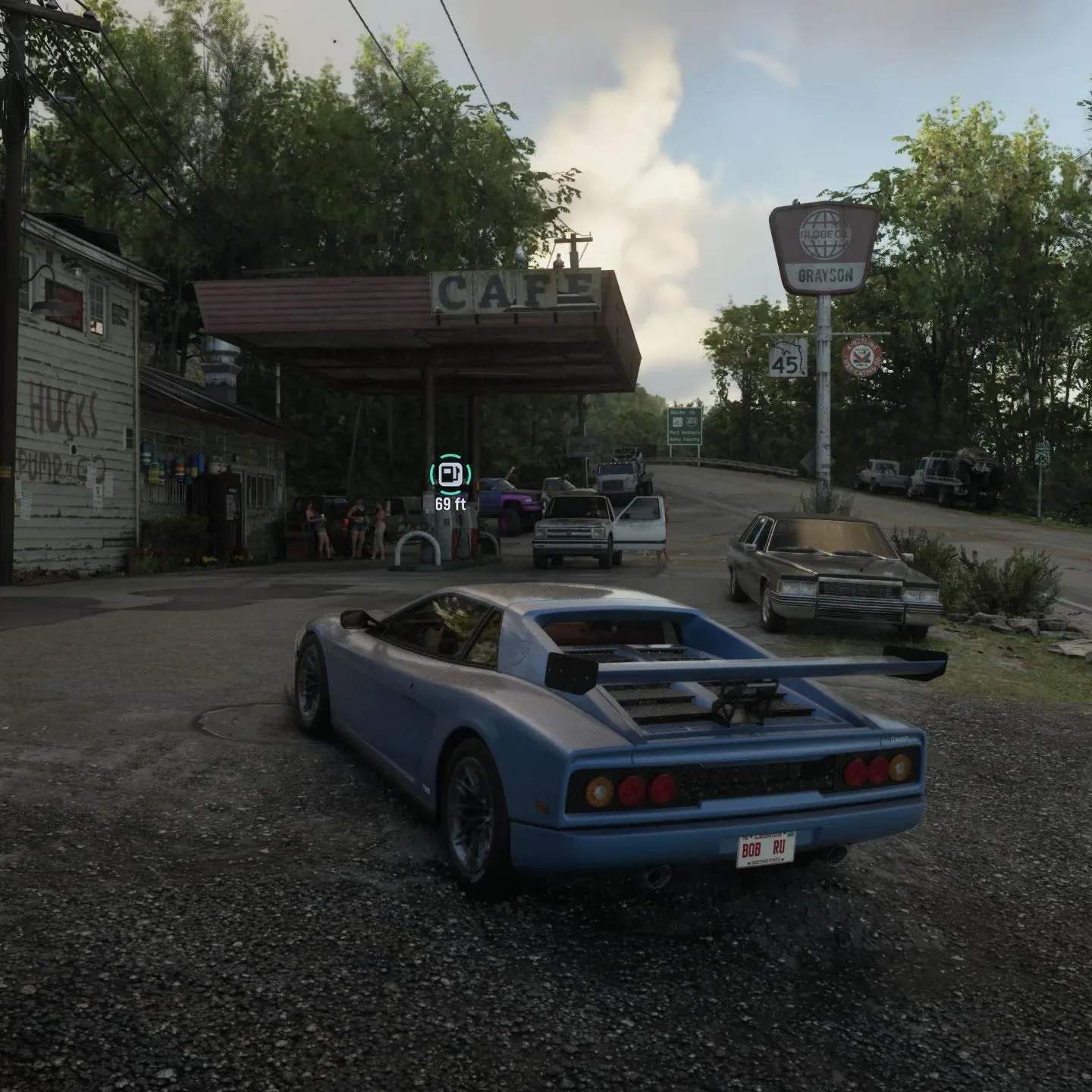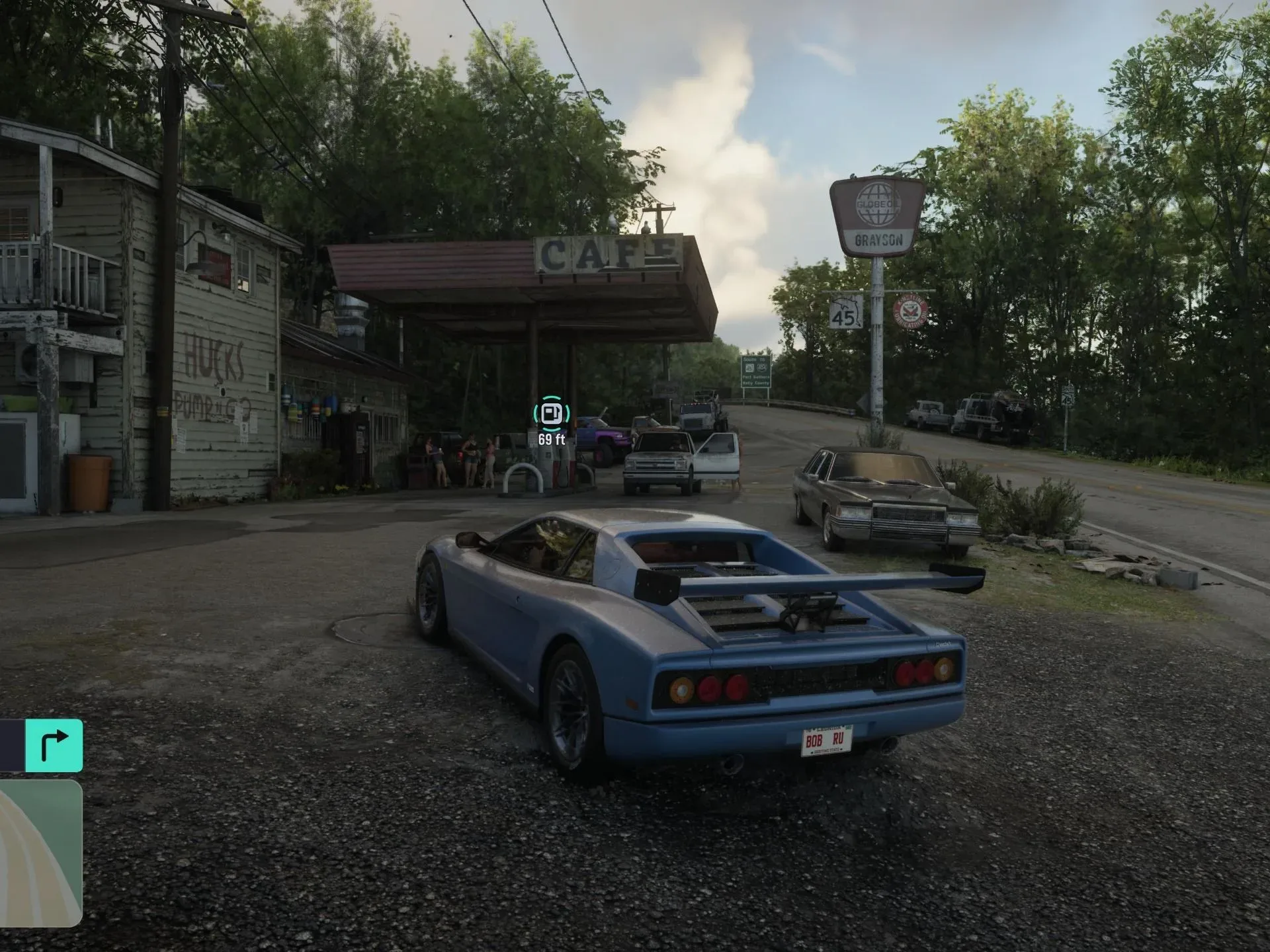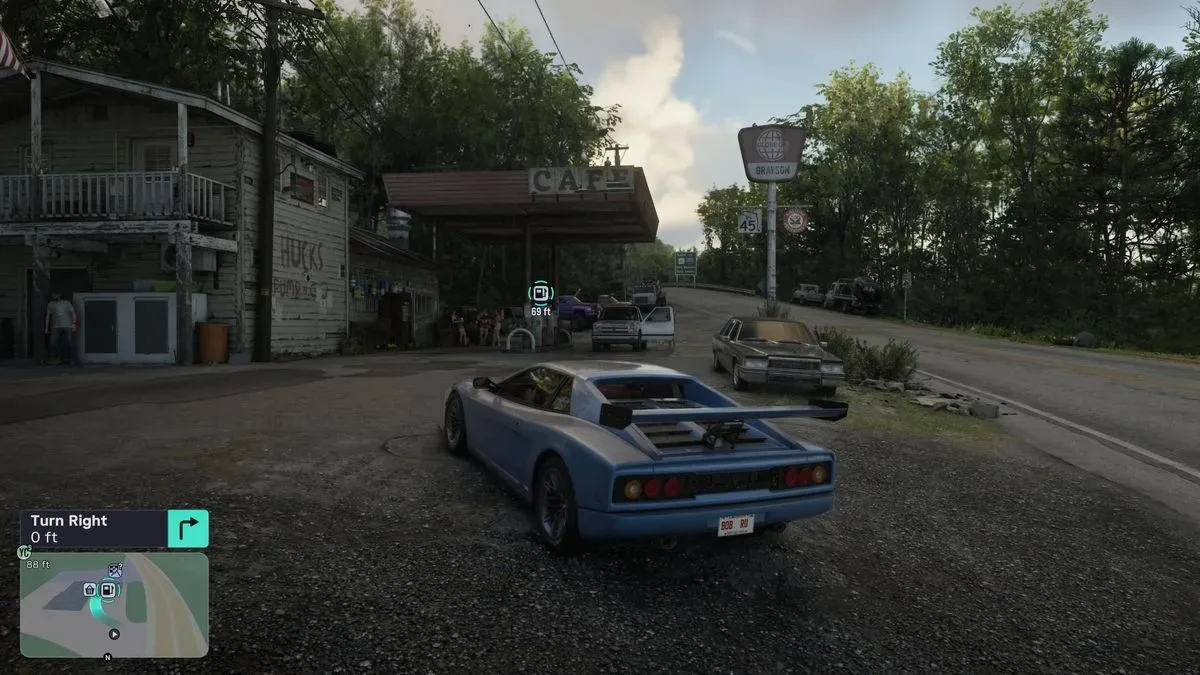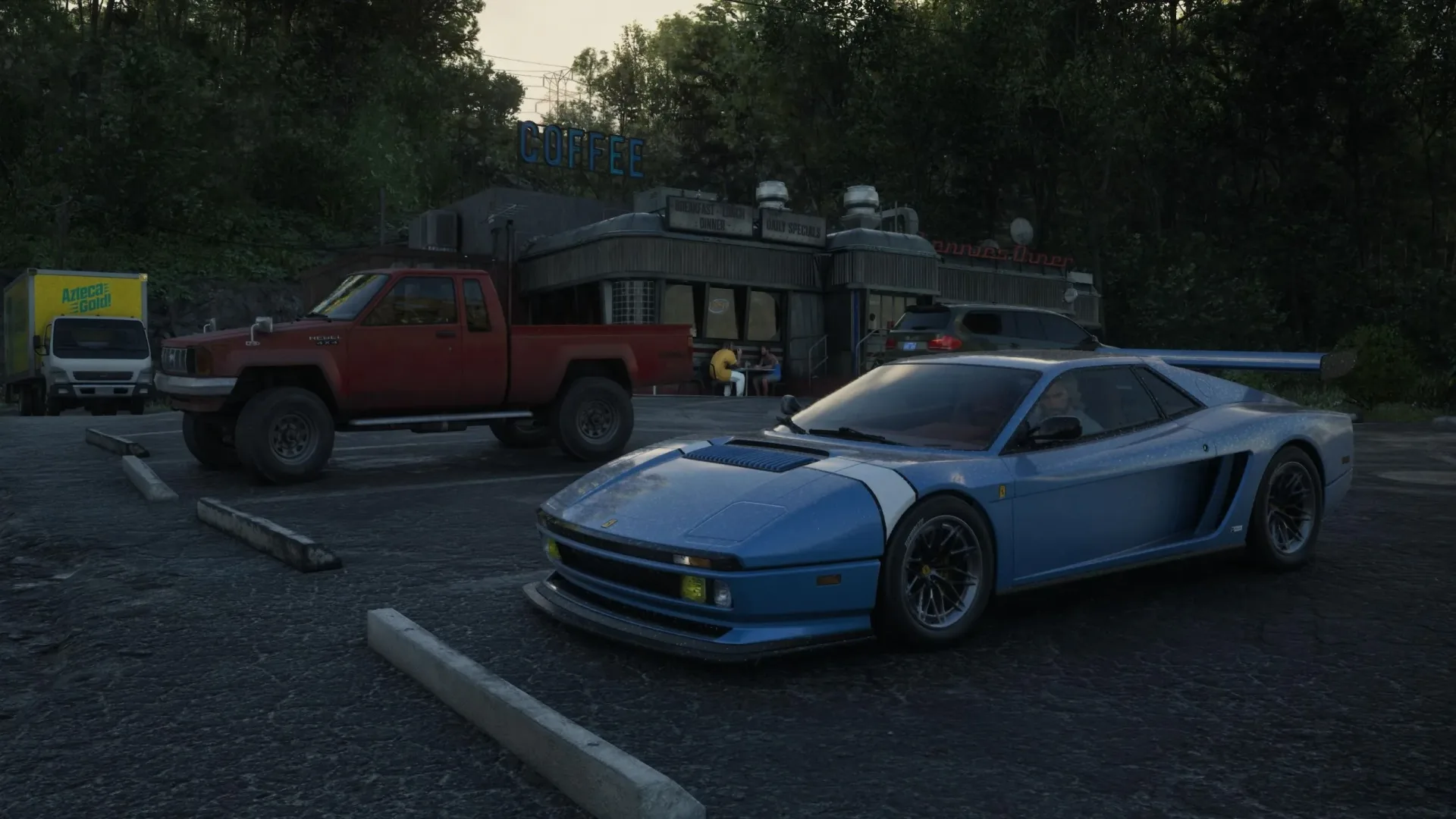
Running out of gas is no longer just a real-world inconvenience in GTA 6. Vehicles now have a fuel level to manage, meaning the car that gets you across Vice City may eventually become an immobile piece of roadside scenery if you ignore its dashboard warning.
The system applies whether you are using a preferred vehicle or something acquired while exploring. The practical lesson is simple: check the fuel state before committing to a long drive, an escape, or any situation where stopping unexpectedly would be especially inconvenient.
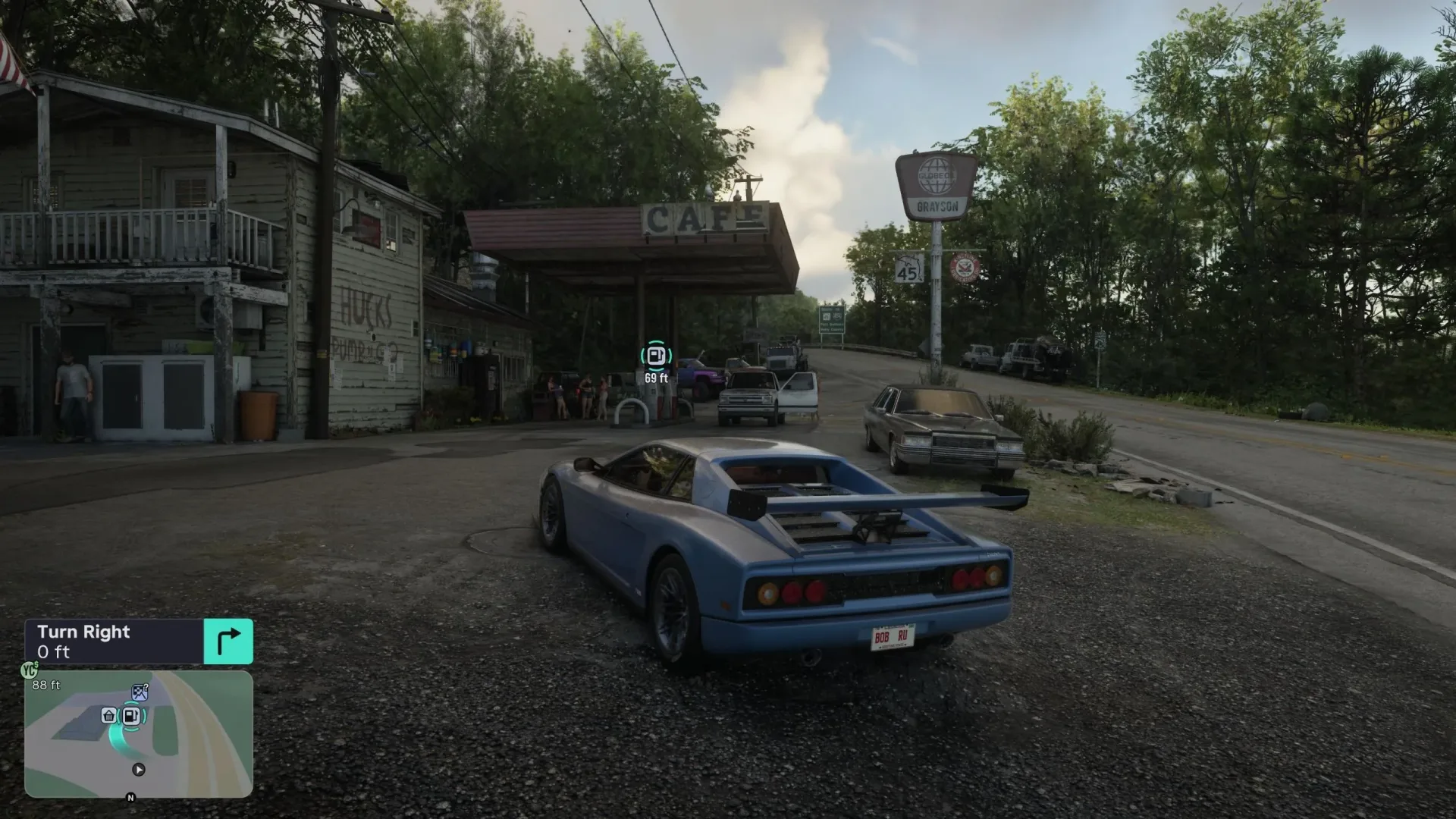
Fuel status is communicated through GTA 6’s dynamic HUD, while discovered stations can be found through the in-game Index. Conventional cars use gas stations; electric vehicles need dedicated Electric Vehicle Chargers. At a compatible station, pulling up to a pump or charger opens a prompt that leads to a service menu, where refueling is available for a small fee and vehicle repairs may also be offered.
How to check a car’s fuel level
While driving, press Down on the D-pad to display the dynamic HUD. Look between the vehicle name and the minimap for the circular gas-pump symbol. Its color and surrounding circle show the condition of the tank.
- Green: Fuel is high. You can continue driving without an immediate stop.
- Yellow: Fuel is low. Start planning a visit to a gas station rather than waiting until the next emergency.
- Red: The tank is empty or effectively depleted, and the vehicle is about to shut down.
This is an intentionally quick-read indicator rather than a complicated dashboard. The important difference between the states is urgency. Green means there is no current fuel problem; yellow is the warning to route toward a station; red means a breakdown is imminent.
It is worth making the HUD check part of a routine whenever you switch cars. A vehicle found out in the world may not have enough fuel for the drive you had in mind. Checking before heading away from a dense area can prevent a much less convenient search after the warning has turned yellow or red.
How to find gas stations in GTA 6
Gas stations only appear in the relevant Index list after you have discovered them. To see the stations currently known to your character, follow these steps:
- Open the GTA 6 Index.
- Go to the Vehicles tab.
- Scroll to Gas Stations.
- Press Right on the D-pad.
The game will list each discovered gas station and display them on the map. The list is ordered by proximity to your current location, so the entry at the top is the nearest discovered option.
Related coverage includes GTA 6 Fuel Guide: How to Refuel Cars, Find Gas Stations and Charge EVs.
The Index is the game’s directory-style navigation tool, and its station list is more useful than driving around in hope when fuel is low. It turns a broad map problem into a short decision: pick a known station, set off, and leave enough fuel to reach it. For a wider breakdown of what this menu can track, see our GTA 6 Index guide.
What “discovered” means for station searches
The Gas Stations category does not promise a complete list of every fuel stop in the game world. It specifically surfaces locations you have already uncovered. That distinction matters when you are operating on low fuel: the Index can direct you to a known location, but it cannot substitute for exploration in an area where you have not found a station yet.
As a practical habit, note stations during ordinary travel, not only when a yellow warning appears. The mechanic is less stressful when you already have a few familiar refueling points in different areas rather than needing to make a last-second decision with a nearly empty tank.
How to refuel at a gas station
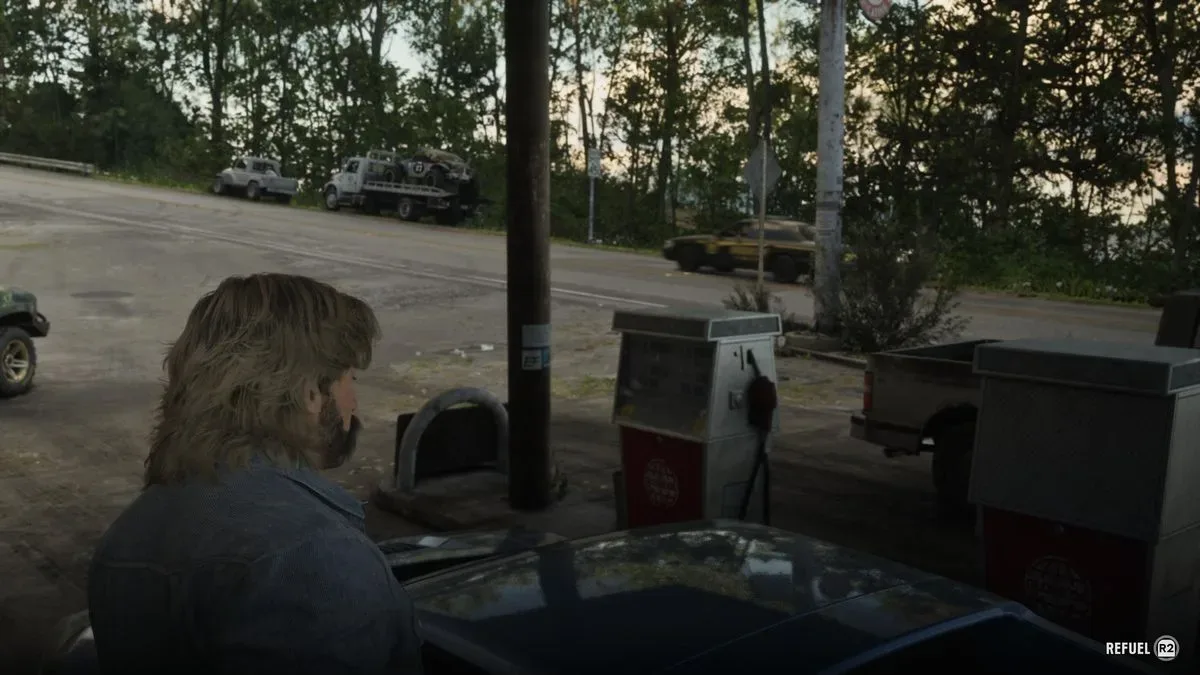
After reaching a gas station, drive the vehicle up to one of the pumps. When the interaction prompt appears, press X on PlayStation or A on Xbox.
This opens the station’s service menu. Refueling is one of the available services and costs a small fee. The same menu can also include an option to repair the vehicle, making a fuel stop potentially useful after a rough drive as well as after normal mileage.
The key requirement is positioning: arriving at the station is not enough on its own. Bring the vehicle alongside a pump and wait for the interaction prompt before pressing the indicated button. From there, choose the desired service in the menu.
Electric vehicles need Electric Vehicle Chargers
Electric vehicles follow a parallel process, but they do not use ordinary gas pumps. If the vehicle is electric, find an Electric Vehicle Charger instead.
Chargers are located through the same area of the Index:
- Open the Index.
- Select the Vehicles tab.
- Scroll to Electric Chargers.
- Use the resulting list and map display to choose a discovered charger.
In other words, the game separates the destinations based on the vehicle’s power source. Gas Stations are for fuel-powered cars; Electric Chargers are for EVs. Before beginning a low-fuel journey, confirm what sort of vehicle you are driving so that you do not navigate toward a standard station in an electric car.
Why fuel changes how you plan a drive
Fuel management introduces a new constraint to vehicle use. In a game built around movement, a car is no longer defined only by how fast it is, how it handles, or whether it happens to be nearby. Its remaining fuel can determine whether it is a sensible choice for the next trip.
That has particularly obvious consequences during pursuits. A red fuel symbol means a vehicle can stop operating at any moment, so it is not a dependable choice for an extended escape. Yellow does not mean the car has already failed, but it does mean a gas-station route should become a priority rather than an optional detour.
The repair option at the pump also adds a useful bit of decision-making. If a vehicle needs both fuel and repairs, addressing both services during one stop is more efficient than treating them as separate errands. Conversely, if all you need is a top-up, the interaction menu makes clear that refueling is a chosen service rather than an automatic result of passing through a station.
Quick fuel-management checklist
- Press Down on the D-pad while driving to bring up the dynamic HUD.
- Read the circular pump icon: green is high, yellow is low, and red means shutdown is near.
- For regular vehicles, open Index > Vehicles > Gas Stations, then press Right on the D-pad.
- For EVs, use Index > Vehicles > Electric Chargers.
- Remember that the Index lists stations and chargers you have discovered.
- Drive up beside a compatible pump or charger and press X/A when prompted.
- Use the service menu to refuel for a small fee; repairs may be available there too.
The safest response to the fuel mechanic is not to wait for red. Use the yellow state as the signal to make a planned stop, especially before entering a situation where abandoning a vehicle would cause bigger problems. With the Index’s nearest-location ordering and the HUD’s clear color code, GTA 6 provides the information needed to keep a car moving—as long as you check it before the tank gives up.