
Leonida is built to pull attention in several directions at once. A nearby mission may be waiting, a robbery lead may have appeared, a newly discovered shop might be useful, and free-roam activities can quickly fill the map. The GTA 6 Index is the menu tool for sorting that clutter into categories, helping players identify a useful next stop without trying to decode every icon at once.
The key idea is simple: the map shows places and opportunities that have already been discovered, while the Index provides a more structured directory of them. It is therefore useful both for pursuing the next story mission and for returning to a service, activity, or opportunity encountered earlier in the game.
This guide explains the GTA 6 Index categories, the controls for choosing a destination, and the difference between an active destination and a map marker. The controls described here use the touchpad, D-pad, face buttons and R3 inputs shown in the game’s interface.
Open the map, then open the Index
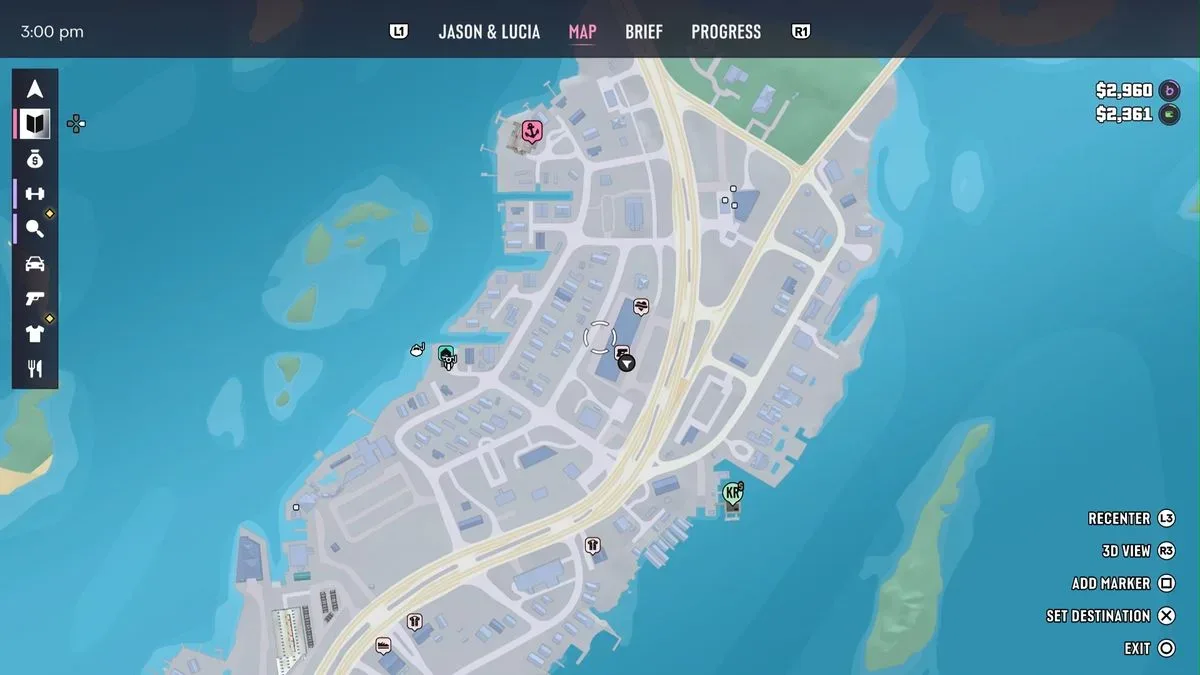
Press the touchpad to open the GTA 6 map from anywhere in the world. The main map displays local missions, stores, activities and other opportunities that Jason and Lucia have discovered.
To bring up the Index, press Right on the D-pad. The Index appears as a bar along the side of the map screen and groups discovered locations and objectives by purpose. In practice, this makes it easier to answer a basic question: are you looking for something to advance the story, make money, customize a vehicle, buy equipment, or simply explore?
It is important not to treat the Index as a complete list of everything in Leonida. It records what has been discovered. If a particular shop, race, robbery, or point of interest is not listed, that does not establish that it is unavailable; it may simply not have been found yet.
Every GTA 6 Index category explained
Personal: vehicles, property and cash deposits
The Personal category is identified by an arrow symbol. It tracks player-linked practical locations: personal vehicles, the residence, owned garages and ATMs used for cash deposits.
This is the section to check when the objective is logistical rather than mission-based. Need to locate a vehicle, find an owned garage, return home, or make a deposit? Start here instead of scanning the full map for a familiar icon.
Related coverage includes GTA 6 Index Guide: Find Missions, Robberies, Activities and More.
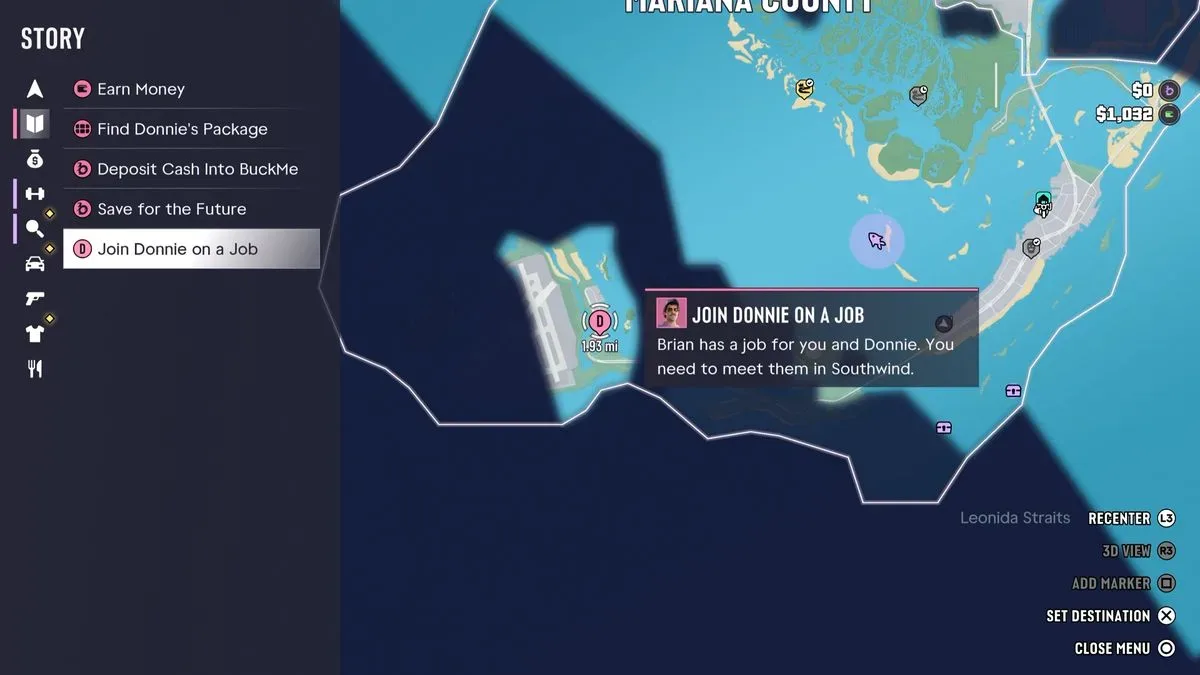
Story: main missions and optional missions
The diary icon opens Story, the most direct route to the game’s missions. Missions that move the story forward appear first. A separate Optional group contains missions that can be completed at any time.
The split matters for players deciding how to spend a session. Choose a main story entry when the goal is progression. Choose an Optional entry when you want a mission without immediately advancing the central thread. Both remain mission targets, but the labels tell you how they fit into the broader structure.
Robberies: active criminal opportunities
The sack-of-cash icon marks the Robberies category. It lists active opportunities such as discovered banks, vehicle drop-offs, stick-up opportunities, gang hideouts and related targets.
“Active” is the operative word. This tab is not a general map of every possible money-making route; it is a directory of robbery opportunities currently available after discovery. Check it when you want to pursue the criminal side of free roam without waiting to stumble onto a lead again.
Activities: recreation and skill-based stops
The weights symbol opens Activities. This category includes discovered races, shooting ranges, golf courses, hunting and fishing spots, gyms, and clubs.
Activities serve as a useful alternative to following the story or taking on a robbery. If the intention is to race, practise at a range, visit a club, or locate an outdoor pursuit, the Index narrows the map to that kind of destination. It also gives discovered leisure locations a permanent organizational home rather than leaving them mixed among mission icons.
Exploration: points of interest, optional quests and jumps
The magnifying-glass icon represents Exploration. It contains points of interest, optional quests, stunt jump locations, base jump locations and pawn shop collectors that have been discovered.
This is the best category to inspect after a period of free roaming. Optional quests and points of interest can be easy to lose track of when the map is crowded, while stunt and base jumps are inherently location-specific. The Exploration list makes discovered opportunities easier to revisit deliberately.
Pawn shop collectors are also listed here. Despite the collectible-style wording, this is an in-game exploration function, not a real-world collecting feature: use the Exploration Index category to locate those discovered destinations.
Vehicles: repairs, customization, travel and garages
The car icon opens Vehicles. This directory covers Mod Shops, Pay ’n’ Sprays, Gas Stations, local transportation hubs, ferry terminals and unlocked Garage locations.
It is the practical vehicle-support tab. A player who has decided to modify a car, find a garage, use local transit, or locate a ferry terminal can select the relevant discovered destination here. The inclusion of transportation hubs and terminals also means this tab is not limited to driving-related services.
Weapons: discovered Ammu-Nation stores
The gun icon leads to Weapons, a directory for discovered Ammu-Nation locations. These stores are organized by four specialities: Everyday, Premium, Hunting, and Pawn.
That speciality grouping is worth paying attention to when choosing where to travel. Rather than setting a route to the closest remembered weapon-store icon, use the Index to identify the type of discovered Ammu-Nation location that best matches the category you want to visit.
Style: clothing, tattoos, hair and makeup
The shirt icon denotes Style. It tracks shopping destinations for clothing as well as places for tattoos, hair, and makeup refreshes for both Jason and Lucia.
This is the straightforward destination list for cosmetic and wardrobe-focused errands. It brings several kinds of appearance-related services together, so a player does not need to remember whether a specific destination was a clothing retailer, tattoo location, or personal grooming stop.
Food: places to eat and drink
The knife-and-fork symbol opens Food. This category covers discovered Food & Drink locations, including bars, cafes, convenience stores, fast-food spots and liquor stores.
Like the Style and Vehicles sections, Food converts a broad set of ordinary locations into a single useful directory. If a player remembers finding a place but not exactly where it was, the Index is a faster starting point than manually searching the map.
How to set an active destination
Once the desired mission, task, location, or opportunity is visible on either the map or the Index, hover over it to read more about it. Press X to make it the active destination.
An active destination is the game’s currently selected navigation target. GTA 6 permits one active destination at a time. Selecting another objective replaces the previous active target, so it is best to choose the place you genuinely intend to visit next rather than continually switching between possibilities.
A simple routine can keep navigation focused:
- Open the map with the touchpad.
- Press Right on the D-pad to access the Index when a category would narrow the search.
- Choose the appropriate section, such as Story, Robberies, Exploration, or Vehicles.
- Hover over a discovered entry to check its details.
- Press X to set it as the active destination.
For story-focused play, begin with Story and decide between the progression entries and Optional missions. For free-roam planning, start with the desired purpose: Robberies for active criminal opportunities, Activities for recreation, Exploration for side content and points of interest, or a service category such as Vehicles, Weapons, Style, or Food.
Use Quick Navigation while in free roam
There is another route for setting a destination without relying solely on the full map workflow. In free roam, Quick Navigation is activated by holding Down on the D-pad and pressing R3 on an in-world marker.
This is especially handy when a marker is already visible in the world and the player does not need to compare multiple categories. The map and Index remain the better tools for planning from a full list of discovered destinations; Quick Navigation is the direct option for committing to a visible marker while moving around Leonida.
Active destinations and map markers are not the same thing
The one-destination rule does not mean only one location can be remembered. GTA 6 also allows players to place multiple markers on the map. Open the map with the touchpad, move to a useful location, and press Square to drop a marker.
This distinction is practical:
- Active destination: the single location currently selected for navigation.
- Map marker: a saved point placed on the map; multiple markers can be left.
Use the active destination for the immediate plan and markers for everything worth revisiting later. For example, a player might place markers on several discovered locations while deciding what to do, then set one mission or activity as the active destination. That approach preserves leads without sacrificing a clear next objective.
Watch for the orange diamond
Newly discovered opportunities receive an orange diamond in the Index. Check the map and Index regularly after exploring, especially after passing through a new area or encountering an unfamiliar activity. The orange diamond is the clearest cue that the directory has gained something worth reviewing.
That small visual signal changes the Index from a passive reference menu into a useful discovery log. Rather than relying on memory after a long detour, a player can inspect the marked entry, learn what category it belongs to, and decide whether it deserves the one active destination slot now or a map marker for later.
For more GTA VI coverage, including discussion of the game’s enormous production scale, read Warren Spector’s view on why GTA 6-scale budgets should not become the standard.