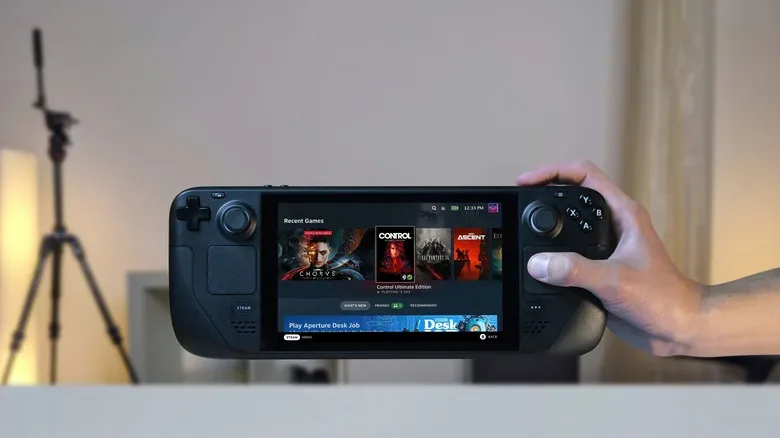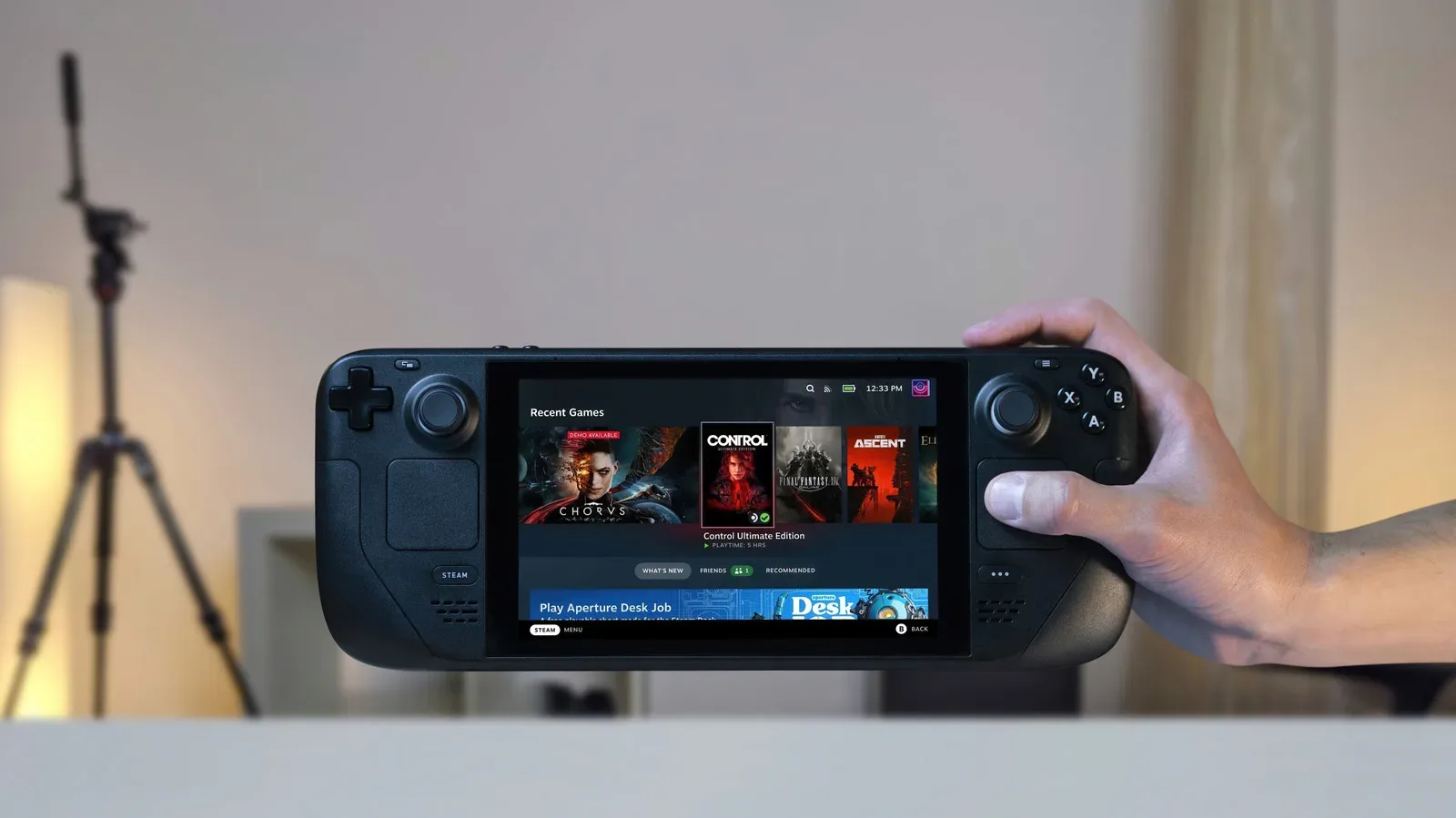
A factory reset is one of the most decisive troubleshooting tools available on a Steam Deck. It can be useful when the handheld has persistent performance problems, corrupted files or a bug that has resisted simpler fixes. It is also the practical final step before handing the device to a new owner. But it is a destructive option: data stored on the Deck’s internal storage can be removed, including locally installed games, save data and user settings.
That makes the order of operations important. A reset should generally follow less disruptive checks, such as restarting the handheld, looking for a pending software update, or using the temporary SteamOS rollback option when an update appears to be the source of the trouble. If a reset is still necessary, protect the data that is not guaranteed to be in Steam Cloud before pressing confirm.
What a Steam Deck factory reset removes
A reset returns the Steam Deck’s internal storage to an out-of-box state. In practical terms, that means local content is at risk: games installed to the device, local save data, user settings and controller layouts should all be treated as data that needs protection beforehand.
Steam Cloud is not a universal backup. It can preserve supported cloud-synced data, but it is not a reason to assume every save, preference or controller layout will return automatically. Before resetting, back up anything important that lives outside Steam Cloud’s reach. The most valuable items to check are:
- Save files for games that may not be cloud-synced.
- Custom controller layouts and personal configuration.
- Any other data kept on the Deck’s internal storage that would be difficult to recreate.
There is a separate storage consideration, too. A factory reset should not affect an inserted microSD card, but removing that card before beginning is still the safer precaution. It keeps removable storage physically separate from a process designed to erase the handheld’s internal data and prevents an avoidable mix-up during troubleshooting or a sale.
Try the lower-risk fixes first
“Factory reset” is sometimes used as a catch-all answer to a device acting strangely, but it is best treated as escalation rather than a first response. A normal restart may be enough to clear a transient issue. If the problem began after software changed, checking for an available SteamOS update is sensible; so is considering a rollback when a particular update is suspected.
This approach matters because a reset solves problems by removing personal data and restoring a clean starting point. It may be effective for corrupted files or stubborn software behavior, but it also creates recovery work afterward. Restarting, updating and rolling back aim to preserve the owner’s data while testing narrower explanations.
For a useful general framework around reversing a suspect software change before pursuing larger interventions, see this rollback-first troubleshooting order for emulator audio problems. The specific software and symptoms differ, but the principle is the same: when a new version looks connected to a problem, test the reversible path before erasing local information.
Related coverage includes How to Factory Reset a Steam Deck Safely.
Factory-reset a Steam Deck from Settings
If the Steam Deck boots and its interface remains usable, the standard reset is available directly on the device. No computer or USB drive is required for this route.
- Press the Steam button to open the main menu.
- Select Settings.
- Open System.
- Scroll down to the Advanced section near the bottom.
- Select Reset to Factory State.
- Choose whether to enable Reinstall SteamOS, based on why the reset is being performed.
- Confirm the action.
The Deck prepares for the reset and then wipes the device. The stated process is roughly 10 to 15 minutes, with the amount of stored data affecting the time needed. Plan for the handheld to be unavailable while it completes rather than interrupting it partway through.
When to select “Reinstall SteamOS”
SteamOS is the operating system running on the Steam Deck. The Reinstall SteamOS toggle therefore has a different purpose from merely clearing a departing owner’s personal data.
If the reset is meant to address a malfunction, selecting Reinstall SteamOS is the appropriate troubleshooting-oriented choice. An internet connection is needed afterward to reinstall SteamOS. This is the more thorough route when the goal is to eliminate an operating-system-side problem alongside the user’s local content.
If the Deck is being prepared for a new owner rather than repaired, leave Reinstall SteamOS off. This is faster and wipes personal data without taking the extra operating-system reinstall step. In either case, do not treat the option as a substitute for making a backup: the reset still concerns data on internal storage.
How to reset from recovery mode when the Deck will not boot normally
Recovery mode is the fallback route for a Steam Deck that cannot reach the usual interface reliably. It starts from a powered-off system and opens a SteamOS menu instead of requiring access to Settings.
- Ensure the Steam Deck is fully powered off by holding the power button for 10 seconds.
- Hold the Power button and the ... button together.
- When the boot sound plays, continue holding the ... button.
- Once the SteamOS menu appears, scroll to ERASE USER DATA FROM DECK.
- Press A to select it.
The display may show command lines while the process runs. That is part of the recovery workflow. The resulting erase removes user data, including user settings, local games and local save data. In other words, recovery mode is not a data-preserving repair option simply because it is used to reach a non-booting Deck; it is another route to an erase.
The button timing is worth following closely. The important distinction is that the Deck must be fully off first, both Power and the three-dot button are held to initiate the process, and the three-dot button remains held after the boot sound. If the SteamOS menu does not appear, power down fully and repeat the sequence rather than assuming the reset has begun.
Use recovery mode to roll back SteamOS instead
The same SteamOS recovery menu also offers a less destructive alternative if the issue seems connected to the current operating-system version. Enter recovery mode using the button sequence above, then select the entry labeled Previous SteamOS- followed by its listed build number.
A build number is the identifying version string attached to a particular SteamOS build. Selecting the previous entry starts the Deck on that earlier version while retaining user data. That distinction is significant: unlike erasing user data, this rollback is intended to keep local information in place.
There is a limitation to understand before relying on it as a permanent fix. The rollback lasts only until the next restart. Think of it as a diagnostic and short-term recovery tool: it can help determine whether the earlier SteamOS version avoids the issue, but it will not remain in effect through a later reboot.
A practical decision order
The safest route depends on what the Deck can do and what the reset is supposed to achieve:
- The Deck works, but has a minor or new problem: restart first, check for an update, and consider the temporary rollback if an update seems responsible.
- The Deck works, but has persistent corruption or severe performance issues: back up important local data, remove the microSD card as a precaution, then use Reset to Factory State. Enable Reinstall SteamOS when troubleshooting calls for it.
- The Deck is being sold or transferred: use the Settings reset and leave Reinstall SteamOS off for the faster personal-data wipe.
- The Deck cannot boot normally: use recovery mode and choose ERASE USER DATA FROM DECK only after accepting that local games, saves and settings will be removed.
- The problem appears after a SteamOS update: use the recovery menu’s Previous SteamOS entry before escalating to an erase, while remembering that the rollback ends after the next restart.
The key is to match the tool to the problem. Recovery mode is valuable because it remains available when normal booting fails, while a full reset can make an unstable device usable again or ready for someone else. Neither removes the need for a backup. Once the erase begins, the local data that was not preserved elsewhere is exactly what the process is designed to remove.