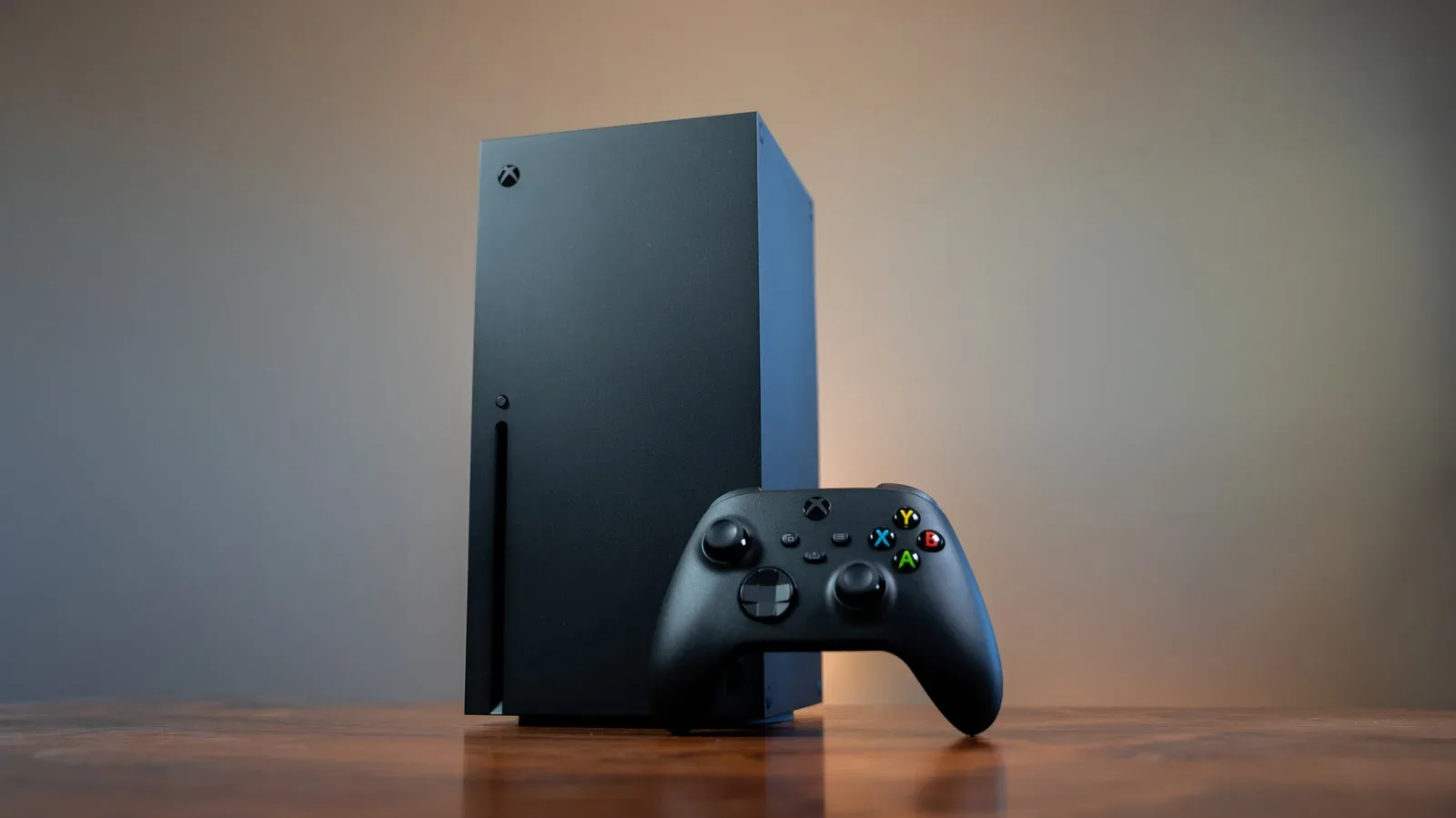
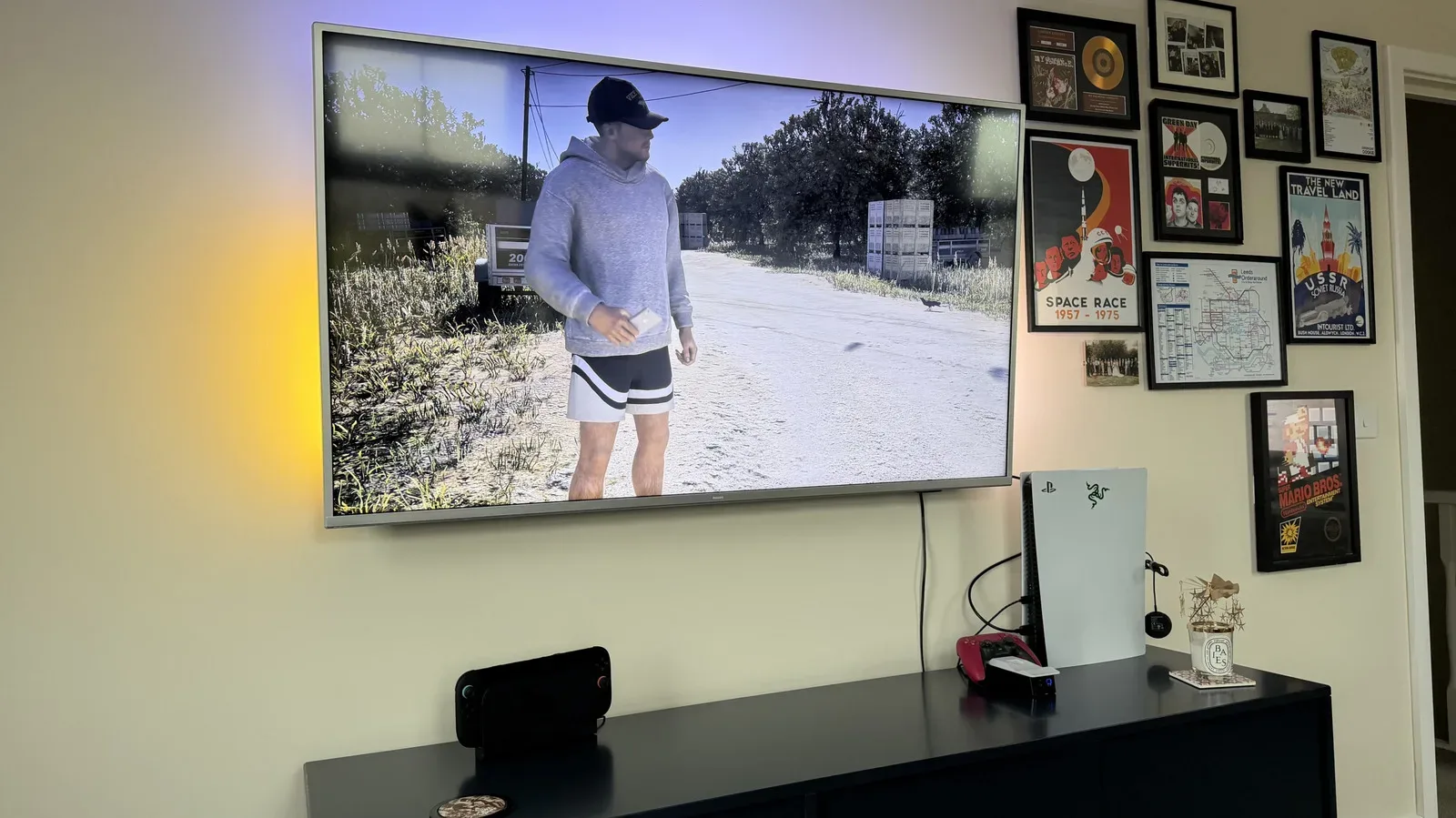
Grand Theft Auto VI is demanding enough that even healthy current-generation consoles can lose smoothness when Leonida turns into a fireworks factory. A 30 frames-per-second target is the intended baseline on PS5, PS5 Pro, Xbox Series X and Xbox Series S—not a setting players can realistically transform into a stable 60 fps experience through a menu tweak or a console trick.
That distinction matters. A brief drop during an enormous pile-up, a police chase or several explosions is not automatically evidence of a faulty console. Persistent hitching while simply walking, driving through ordinary traffic, or watching a cutscene is more suspicious. In those cases, the sensible job is not trying to force the game beyond its design limits. It is making sure the console, installation and session are not creating extra problems on top of a very heavy game.
There are five useful checks: establish what “normal” performance looks like for the machine, install available updates, fully close the game rather than relying on a suspended session, rule out heat and ventilation trouble, and check the drive from which the game is running. None is a magic route to a native 60 fps mode. Together, though, they can help separate expected pressure from a correctable issue.
First, understand the target—and the limits
Frames per second, or fps, measures how many complete images a game produces every second. A 30 fps cap means the game aims to deliver 30 images each second. If performance falls below that target, motion can feel less even or “stuttery,” particularly during fast driving, camera movement and combat. Console players do not normally have a built-in fps counter, so the practical signal is what appears on screen: uneven motion, pauses or choppiness under load.
GTA VI’s 30 fps limit is tied chiefly to processor capacity, not a simple graphics setting. The processor, or CPU, handles workloads including simulation, AI and the broader work of keeping a densely populated world moving. Rockstar technology production director Marc Chambers has said that even PS5 Pro processing power is not sufficient for native 40 or 60 fps modes.
That context is important when assessing performance. On a standard PS5, ordinary play broadly targets 30 fps, although stress-heavy situations can push it lower. PS5 Pro holds 30 fps more consistently in testing, but can still drop into the mid-20s when many vehicles are destroyed at once. Xbox Series X is generally in the same 30 fps neighborhood, with busy action and explosions capable of causing dips.
Series S makes larger compromises. Its internal rendering resolution is 720p, yet it has been observed operating around 25 to 30 fps through much of the game and can fall closer to 20 fps in crowded spaces or vehicle explosions. A particularly explosive scene has briefly reached roughly 18 or 19 fps in testing. Those figures illustrate the difference between an occasional stress-test dip and a system-wide issue.
The practical expectation is straightforward:
- Choppiness during sprawling fights, explosive mayhem and dense traffic can be normal on all current systems.
- Series S has the least headroom, so its dips can be more visible.
- Repeated stutter in cutscenes, on foot, or during normal driving is not something to simply dismiss as “that is 30 fps.”
There is one tempting Xbox workaround to avoid. A Quick Resume sequence involving changing output between 60Hz and 120Hz can remove the Series X frame-rate cap. Uncapped does not mean improved. Testing found an average of about 36 fps over an hour, while cars and animations could run noticeably too fast—sometimes near double speed. The console reached 60 fps only in an unusually light scenario with a plane and mostly sky on screen; busy streets were barely above 30. Crashes and bugs are also a risk. A higher number with broken game timing is not better performance.
VRR, or variable refresh rate, is a display feature that can make fluctuating frame delivery appear smoother on compatible hardware. It does not give the console additional CPU power, however. A theoretical 40 fps mode with VRR might be viable in some circumstances on Series X, but it would not necessarily be a clear upgrade over a stable 30 fps cap, and it is not an available native GTA VI mode described here.
1. Check for the game update, then verify system software
The first post-launch GTA VI update arrived on November 23 and addressed several crashes plus progression-stopping problems, including broken autosaves and story phone calls that failed to arrive. Its notes did not promise a frame-rate or stutter fix, so it should not be treated as a performance patch. But keeping the game current remains essential, especially if instability rather than only lower fps is the concern.
On PS5, highlight GTA VI on the home screen, press the controller’s Options button, then choose Check for Update. On Xbox, open My games & apps, choose Manage, and look in Updates for titles with newer versions.
Before assuming an update failed, look at available space. GTA VI needs up to 212GB, and installing data may require considerably more working room than the finished installed size. Sony advises that installation can require about twice the install size in free space. A nearly full PS5 can therefore prevent an update from completing even if the game itself already appears to be installed.
Crashes need their own troubleshooting path. Error CE-108255-1 on PS5 is described as an error with a game or application. If it persists after the game is updated, sensible escalation is to install the latest console system software, try a new save, and then consider deleting and reinstalling GTA VI as a final measure. A reinstall is inconvenient with a game of this size, so it is best saved for a recurring issue rather than a single isolated crash.
It is also wise to distinguish a confirmed patch from chatter about one. No promised frame-rate repair should be assumed merely because a date circulates online. The only reliable check is whether the game’s update screen actually presents a new version.
2. Start a fresh game session instead of trusting suspension
Quick Resume on Xbox Series X and Series S stores a game’s current state when another game is launched, then restores that state when the player returns. It is convenient, but suspended states are not always ideal—particularly if a game has been inactive for a long time. The unusual GTA VI uncapping glitch itself depends on Quick Resume, which is reason enough not to use it as a performance experiment.
For a clean Xbox start, press the Xbox button, highlight GTA VI, press the Menu button and select Quit. This closes the application rather than restoring its stored session next time. Players can also manage Quick Resume behavior per game through Manage game and add-ons, then Quick Resume settings on the game tile.
PS5 approaches the same convenience differently through rest mode, which can leave a game suspended. To eliminate that variable, highlight GTA VI on the main menu, press Options, and select Close Game. Turning the console fully off also ends the session. Save regularly before doing this: closing or powering down removes the sleep-mode fallback.
A fresh launch will not overcome CPU limits or turn ordinary 30 fps into 60 fps. What it can do is remove a stale application state from the diagnosis. If hitching or crashes improve only after a full quit and relaunch, that is useful information. It suggests keeping GTA VI out of long-running suspended sessions until a more permanent change is available.
Players troubleshooting launch-day sound issues can also consult our GTA VI PS5 and Xbox audio desync guide; audio synchronization and frame pacing are separate problems, so a fix for one should not be expected to solve the other.
3. Treat ventilation as reliability maintenance, not an fps upgrade
Dust and cramped placement deserve attention, but expectations should be realistic. Neither console maker says that a hot console automatically reduces GTA VI’s frame rate. Cleaning a machine will not manufacture the processing capacity needed for a 60 fps mode. It may, however, reduce the likelihood of heat-related instability, shutdowns and interruptions.
Sony advises keeping PS5 about four inches from walls, out of enclosed cabinets and other cramped spaces, and away from long-pile carpets. Its vents should remain free of dust. Xbox guidance similarly calls for a cool, well-ventilated location away from heat sources, with nothing placed on, under or immediately beside the console.
If a PS5 displays an overheating warning, shut it down and allow it to cool before continuing. Xbox identifies poor ventilation or overheating as one possible cause when a console turns itself off unexpectedly. Those are reliability alarms, not routine performance behavior. They should be addressed before returning to a demanding open-world game.
For basic PS5 cleaning, unplug the console first and wipe its exterior using a soft, dry cloth. The side covers can be removed to access the dust catchers more easily. Avoid turning speculative hardware explanations into a diagnosis: there has been discussion around heat and potential degradation of the liquid metal interface between a processor and its cooler, but a clean exterior and proper airflow do not prove that such a fault exists. They simply remove avoidable heat buildup from the list of suspects.
4. Put the installation location under the microscope
GTA VI’s size creates a storage dilemma. Up to 212GB is required, while an 825GB PS5 provides roughly 667GB of usable capacity. That makes an added M.2 SSD an understandable choice. But compatibility is not exactly the same thing as identical behavior to the internal drive in every game.
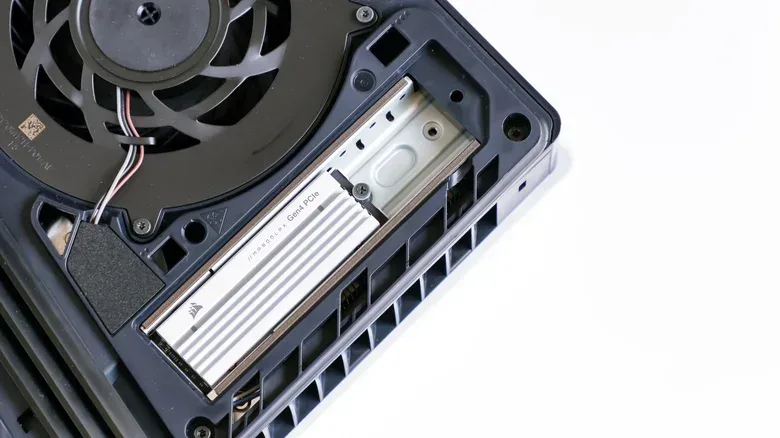
An M.2 SSD is a compact solid-state storage drive installed in the PS5 expansion slot. Sony supports many PCIe Gen4 models and recommends sequential read speeds of 5,500 MB/s or faster, along with a heatsink or comparable cooling. Sequential read speed is a measure of how quickly the drive can read a continuous stream of data; it is relevant because modern open-world games continually bring in new assets as the player travels.
GTA VI is constantly pulling data while the player moves through Leonida. Testing on Series S indicates that scenes stressing AI or world streaming can correspond with larger frame-rate drops. Streaming in this context means loading world data while play continues, rather than stopping for a traditional loading screen.
There are no identified examples here of GTA VI specifically malfunctioning from a compatible PS5 M.2 drive. Still, if unexplained stutter is happening during regular play and the game is installed on expansion storage, moving it to the internal SSD is a sensible controlled test. On PS5, go to Settings > Storage > M.2 SSD Storage > Move Games and Apps.
Xbox storage is more restrictive for Series X|S software: these games run only from the internal SSD or the Xbox Storage Expansion Card. Microsoft says the expansion card performs identically to internal storage, so there is no equivalent “move it from a generic external drive” step for a Series X|S version of GTA VI.
5. Use a sensible troubleshooting order
The most efficient approach is to change one variable at a time rather than cleaning, reinstalling and moving the game all at once. That way, a player can tell what actually helped.
- Check whether the choppiness occurs only during explosions, chases and extreme crowding, or also during routine play and cutscenes.
- Install any available GTA VI update and confirm adequate free storage.
- Fully quit the game, then relaunch it instead of resuming a suspended session.
- Check for console system updates if crashes persist.
- Ensure open airflow, remove surface dust safely and respond to any heat warning or unexpected shutdown.
- On PS5, test the internal SSD if the game is presently on an M.2 expansion drive and normal-play stutter continues.
- Only then consider the heavier response of reinstalling the game for persistent crash problems.
The key is not to mistake expected limits for a broken setup. GTA VI currently asks a lot of every current console, and spectacular chaos can still make performance dip on the best of them. Yet that does not mean players should accept every hitch as inevitable. Current software, a clean start, sufficient space, reasonable cooling and the appropriate storage location are all basic checks that help the hardware deliver the 30 fps experience it is designed to target.