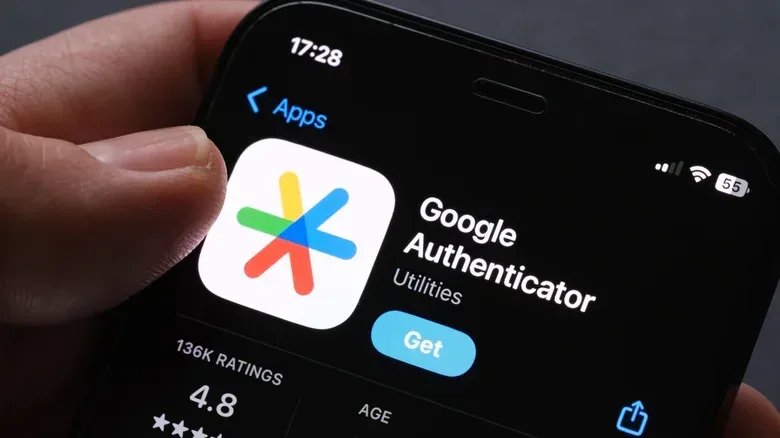
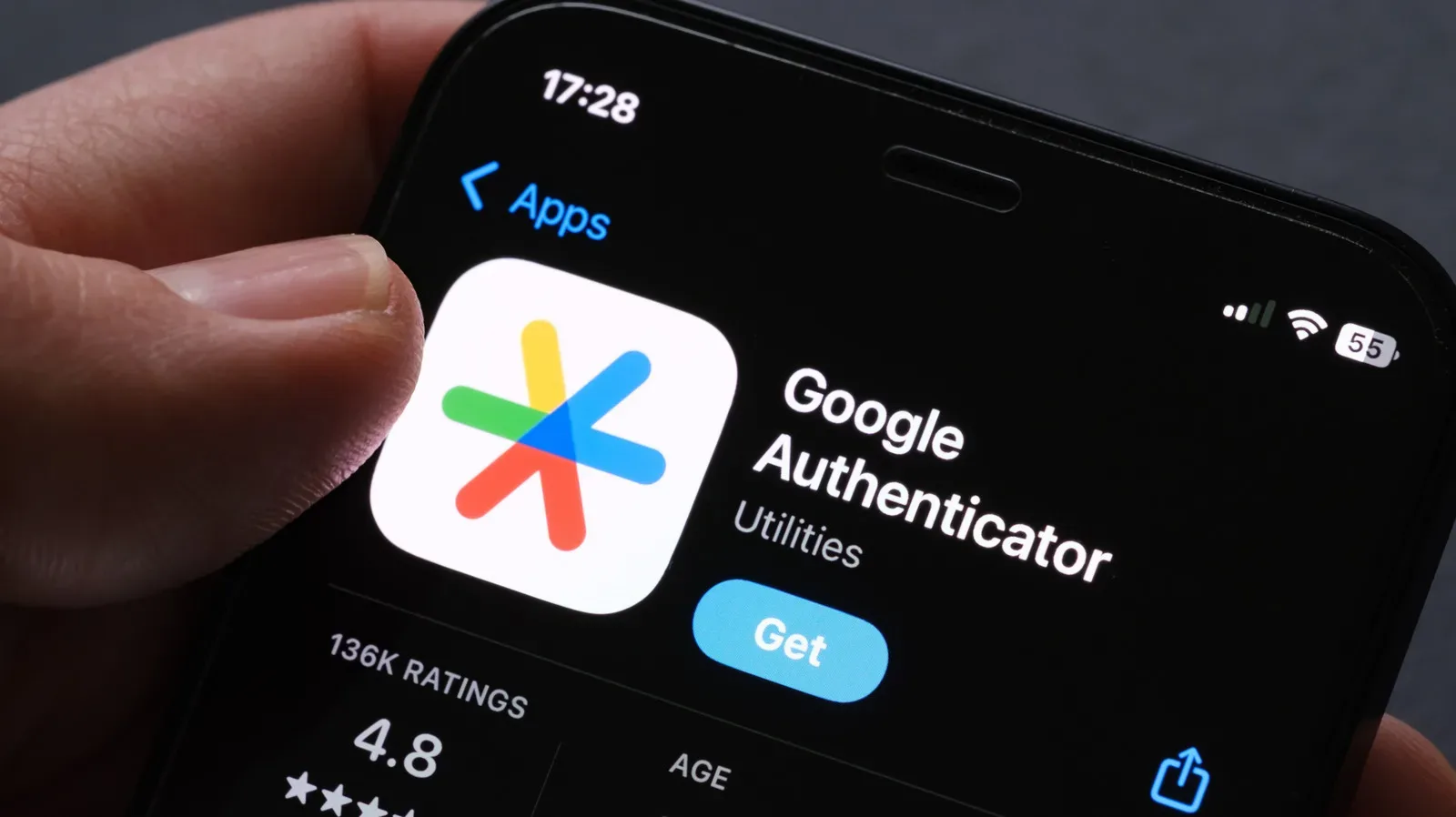
A new phone is exciting right up until it asks for a login code generated by the authenticator app still sitting on the old handset. For anyone who uses Google Authenticator for two-factor authentication, that can turn a routine setup job into an account-recovery problem very quickly.
The good news is that Google Authenticator now has two distinct ways to move codes between phones. The simplest uses cloud sync through a Google account. The alternative is a direct QR-code transfer between the old and new devices. Which route applies depends chiefly on whether codes were synced and whether the previous phone is still available.
That distinction matters. An authenticator app is not merely another app full of preferences that can always be restored later. It generates one-time codes needed to sign in to accounts that have been linked to it. A careful move is therefore worth doing before wiping, selling, trading in, or recycling an old phone.
What Google Authenticator is actually protecting
Google Authenticator is a form of two-factor authentication, usually shortened to 2FA. Two-factor authentication adds a second requirement after a password: in this case, a temporary code shown inside the app. That extra step means a password alone is not enough to enter an account protected by Authenticator.
The practical downside is that the app becomes part of the sign-in path. If a person changes phones without moving the relevant codes or retaining another recovery option, they may be unable to finish a login even when they know their password.
Authenticator codes were historically tied more closely to one device and one app installation. Cloud syncing, available in Google Authenticator since 2023, changes the migration picture for people who choose to use it. With the correct app version and the same Google account, the new phone can retrieve the stored codes after Authenticator is installed.
Option one: restore codes with cloud sync
Cloud sync is the most convenient path when it was already enabled before the move. On Android, Google Authenticator version 6.0 or later is required; on iOS, version 4.0 or later is required. When the app is used with a Google account on those versions, its one-time codes can be sent to the cloud.
Before relying on this method, check the Authenticator app on the current phone. The cloud icon beside the account icon indicates whether the codes are saved to the cloud. That small check is valuable because it answers the central question before the old device is retired: are the codes available beyond this phone?
Cloud-sync migration steps
- On the old phone, open Google Authenticator and confirm that the cloud icon indicates codes are saved.
- Install Google Authenticator on the new phone.
- Open the app and continue with the same Google account used on the previous phone.
- Allow the app to load the synced codes, then confirm the accounts you expect are present.
This approach is especially useful when the old device is lost or damaged, because the transfer does not require scanning anything from that device. It is also a sensible part of a broader new-device checklist. A phone migration often overlaps with other technology upkeep, such as the periodic maintenance covered in our guide to when to replace PC liquid coolant; in both cases, a little preparation is far easier than a fix after something has failed.
Convenience involves a personal security choice, though. Some users may not want their Authenticator codes synced through their Google account. Those users can keep Authenticator separate from a Google account, but the tradeoff is that moving codes requires access to the old device.
Option two: transfer accounts directly by QR code
A direct transfer is the route for people who prefer not to use a Google account to sync their Authenticator codes. It is also the method that makes the handoff explicit: the old phone exports selected entries, displays a QR code, and the new phone scans it.
Because the QR code is created on the outgoing phone, this method depends on having that handset available and usable. Do the transfer before the old phone is erased, reset, or handed over. If its screen is broken, it will be far harder to complete the scan-based process.
Direct-transfer steps
- Open Google Authenticator on the old phone.
- Open the app menu and choose Transfer Accounts, then Export Accounts.
- Select the codes to be moved. The old phone will generate a QR code.
- On the new phone, open Google Authenticator and go to Transfer Accounts.
- Choose Import Accounts and scan the QR code shown on the old device.
- Check that the chosen accounts appear on the new phone before making any irreversible change to the old one.
QR codes are a machine-readable way of passing information from one screen to another. In this instance, the scan saves users from individually re-enrolling every account. It is a transfer process, not a reason to treat the displayed code casually: complete it privately and only with the intended new device.
What to do before removing Authenticator from the old phone
Seeing account names on the new phone is important, but a thoughtful migration does not end there. The key operational question is whether the new phone can provide a working code when a service requests one. Where practical, verify access while the old phone remains intact.
Do not reset, wipe, sell, or trade in the former device until the new app has been checked. A delayed check can leave a user in the worst possible position: the old device no longer contains the codes, while the new one has not been confirmed as ready for sign-in.
This is also a good moment to review every recovery path tied to important accounts. An authenticator code is one layer of protection, but recovery can depend on other details, including a linked email address, a linked phone number, backup codes, or an existing signed-in session on another device.
If the old phone is lost, broken, or unavailable
The recovery options become narrower when cloud sync was not enabled and the old device cannot be used for a QR transfer. There is no single replacement procedure that applies to every protected account. Each service may handle access recovery differently.
First, check whether the account is still open on another phone, tablet, computer, or browser session. An active session may let the account holder temporarily disable 2FA, adjust its settings, or establish a new sign-in method. This can be a useful escape hatch, but it should be used deliberately: turn protection back on once the new authenticator setup is complete.
Next, look for linked email or phone recovery options. Those details can help prove ownership and may lead to restored access. If automated recovery cannot resolve the issue, contacting the relevant account provider may be necessary.
It is worth keeping expectations realistic here. Cloud backups are helpful for current Authenticator users, but they were not available until 2023. Manual Authenticator transfers on Android were not possible until 2020. People who configured 2FA before those changes, then lost access to a device without backup arrangements, may face more account-by-account recovery work.
Backup codes are the recovery tool to create now
The most useful preventative step is to create backup codes as soon as 2FA is enabled. These are recovery codes intended for situations where the usual authenticator code cannot be obtained. They are not a substitute for careful phone migration, but they are a practical fallback when hardware is lost, damaged, or unavailable.
For a Google account, backup codes can be created by opening the Google account settings and following Security & Sign-in > 2-Step Verification > Backup codes. Keep them somewhere secure and accessible when the phone itself is not. Their purpose is recovery, so storing them only in the same app or on the same device that might be lost defeats much of their value.
The practical choice: sync, transfer, or recover
- Use cloud sync when Authenticator is linked to a Google account, the cloud icon confirms saved codes, and the new phone will use that same account.
- Use a QR transfer when you do not want to sync codes through a Google account but still have the old phone in working order.
- Use recovery options when the old phone is unavailable and there is no synced copy to restore. Look for an active logged-in device, linked email or phone methods, backup codes, and provider support.
The broader lesson is simple: two-factor authentication is most effective when recovery is planned at the same time it is enabled. Confirm cloud status if that fits your security preference, generate backup codes, and complete a phone-to-phone move before retiring old hardware. That makes a new handset a normal upgrade instead of a sudden obstacle between you and the accounts you need.