The physical wallet has endured every supposed replacement: contactless payments, airline apps, QR-code menus, and enough loyalty cards to make a keychain look like a medieval weapon. A driver’s license may be the next item that some people can leave at home sometimes, provided their state or territory supports Apple Wallet’s digital ID feature.
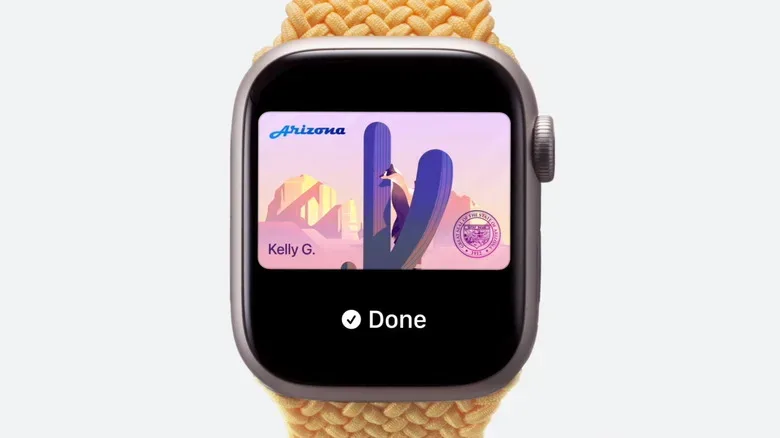
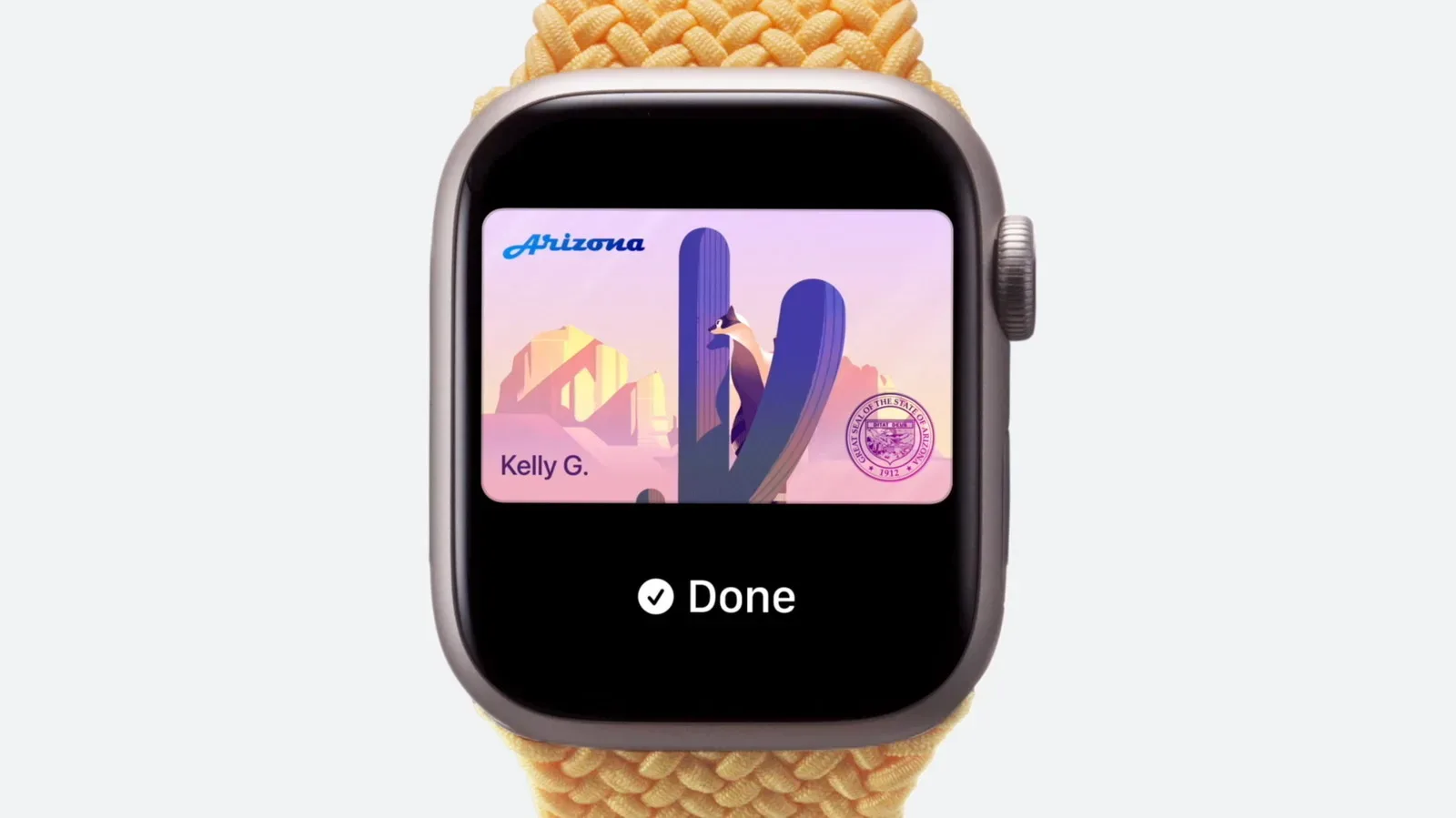
Apple Wallet can store an eligible driver’s license or state ID on an iPhone, with the option to add it to an Apple Watch as well. The feature is intended to make identity and age checks more convenient in participating settings, including some airport security checkpoints and certain businesses or venues. It is not, however, a universal substitute for the plastic card. Support depends on both the issuer and the location asking for ID, which means the old-fashioned physical license remains an essential backup.
That distinction matters. A digital credential can be useful when an accepted reader is in front of you, but it cannot compel every bartender, venue, government office, rental counter, or other ID-checking situation to accept a phone or watch. Availability is still limited, and acceptance is inconsistent even in regions that can issue IDs for Apple Wallet.
What Apple Wallet’s digital license is designed to do
At its simplest, a digital driver’s license lets a participating issuer provide a version of a person’s license in Apple Wallet. Rather than handing a card across a counter, the user can present the credential from their device when the receiving organization supports it.
The intended convenience is obvious: no digging through pockets or bags just to establish identity or prove legal age. It can also reduce the amount of information exposed in a transaction. Before confirming a share, the iPhone should show what information the requester wants to receive. In an age-verification example, a business may need confirmation that someone is over 21 along with a matching photograph, rather than every printed detail normally visible on a physical license.
That is a more deliberate exchange than simply passing over a card. The user reviews the requested data and then approves the action with Face ID or Touch ID. People who rely on iPhone accessibility features can choose passcode authentication instead.
Apple describes the digital license as encrypted and securely stored on the device. It also says that neither Apple nor the issuing authority can view where or when someone shares their digital ID. Those privacy characteristics are meaningful, but they do not change the basic practical rule: a digital ID only helps at an accepting location, and an establishment may still request physical identification where its policies or local requirements call for it.
Before starting: check the two kinds of eligibility
There are two separate questions to answer before opening Wallet. First, does your state or territory issue driver’s licenses or IDs through Apple Wallet? Second, does the place where you expect to use the credential accept it? A “yes” to the first question does not automatically answer the second.
The feature is limited to the United States outside of Japan’s separate My Number Card support. As of the currently listed availability, eligible driver’s licenses can be added from:
- Arizona
- Arkansas
- California
- Colorado
- Georgia
- Hawaii
- Illinois
- Iowa
- Maryland
- Montana
- New Mexico
- North Dakota
- Ohio
- Oklahoma
- Puerto Rico
- Virginia
- West Virginia
North Carolina’s DMV plans to begin supporting digital IDs in Apple Wallet, Google Wallet, and Samsung Wallet in early 2027. Utah has also been reported as likely to join the supported list soon, though “soon” is not a substitute for confirmed availability on a particular day.
Even if your jurisdiction appears above, it is sensible to verify the option in Wallet before assuming you can enroll. Issuer availability can change, and the issuance process ultimately depends on approval by the relevant authority.
How to add a driver’s license or ID to Apple Wallet
The enrollment flow happens in the Wallet app on iPhone. Have the physical license available, choose a space with good light, and give yourself a few uninterrupted minutes. This is a real identity credential rather than another coupon pass, so the setup includes document capture and identity verification.
- Open Wallet on your iPhone.
- Tap the Plus (+) button.
- Select Driver’s License and ID Cards.
- Choose the available state, territory, or region that issued your credential.
- Decide whether to add the ID to your iPhone only or to iPhone and Apple Watch. If you skip the watch initially, it can be added later.
- Use the iPhone’s camera to scan the front and back of the physical license.
- Complete the requested identity check, which can include a selfie or Live Photo and simple prompts such as turning your head or smiling.
- Authenticate with Face ID or Touch ID, or use a passcode where the accessibility option applies.
- Wait for the issuing authority to approve the request.
Lighting is not a minor detail in this process. The document scan is best done in a well-lit setting against a neutral background. For the selfie or Live Photo step, use bright, even illumination and a plain background. Remove sunglasses and other head accessories so the identity check can capture your face clearly. A failure at this stage is less a high-stakes technological betrayal than a signal to improve the environment and follow the on-screen instructions carefully.
Approval is not necessarily immediate. The issuing authority needs to review and authorize the digital license before it becomes usable. If more information is required, iPhone will send a notification. Opening it directs the user to the appropriate authority website for additional instructions. Until that approval occurs, the Wallet entry should not be treated as an active replacement for identification.
How sharing information works at an accepted location
A key part of the experience is that the user is meant to see what an organization requests before data is released. This creates a chance to check whether the request makes sense for the transaction. An age-gated purchase should not necessarily require the same information as an identity check, and a compatible system can request only the relevant data.
Approval still requires authentication. Face ID or Touch ID confirms that the person presenting the credential authorizes the share; users with the applicable accessibility configuration can authenticate with their passcode. This helps distinguish presenting a device from merely having access to an unlocked screen.
It is worth approaching the feature as a privacy-conscious option, not a magic invisibility cloak. The receiver gets the information approved for that transaction, and businesses may have their own processes for handling an ID check. Users should read the request on screen rather than reflexively confirming it. The extra second is the digital equivalent of checking that a clerk is looking at the right card—not an exciting side quest, but a useful one.
Important limitations: keep the physical card with you when needed
Digital driver’s license acceptance is not widespread or uniform. Some bars, restaurants, and venues support it, but many do not. Airport use can be helpful at participating security checkpoints, yet travelers should not assume every checkpoint, airport, airline-related interaction, or destination will accept a Wallet ID in place of a physical document.
A digital driver’s license is also not automatically the same thing as every travel or identity document a person might need. The appropriate form of identification depends on the situation. When in doubt—especially for travel, official business, or any setting where being unable to prove identity creates a serious problem—carry the physical license.
This is similar to keeping a practical fallback for any mobile-first routine. The phone may be the center of a person’s calendar, tickets, payments, and gaming news feed—perhaps while catching up on what is happening next in World of Warcraft—but batteries drain, systems differ, and not every counter has joined the same technological party.
Moving a digital license to a new iPhone
An eligible license can be active on only one iPhone or Apple Watch at a time. That is an important limitation to remember during an upgrade, especially for anyone who is accustomed to leaving an old phone powered on as a backup device.
During the migration to a new iPhone, select Wallet, choose the digital ID, and follow the provided transfer directions. Do not assume that restoring the rest of a phone automatically makes the credential usable on the replacement handset. Because the ID is connected to device security and issuer approval, the transfer process is designed to keep control of the credential tied to the correct device.
A quick checklist for a smoother setup
- Confirm that your issuing state or territory is supported.
- Keep the physical driver’s license nearby for front-and-back scanning.
- Use a neutral background and solid lighting for document capture.
- Use even, bright lighting for the selfie or Live Photo verification.
- Remove sunglasses and head accessories before the face check.
- Review requested information before authorizing a share.
- Wait for issuer approval and respond to any request for more information.
- Carry the physical card for situations where digital ID is not accepted.
- Use the Wallet transfer flow when moving to a new iPhone.
For eligible residents, the feature offers a carefully controlled way to carry an important credential on devices already used throughout the day. Its best use is as an additional option: convenient at compatible checkpoints and businesses, privacy-aware in its data-sharing design, and backed up by the physical license for the many places where plastic is still the only universally understood format.