Your iPhone may be carrying a barometer in its pocket-sized bundle of cameras, radios and motion sensors. It is not presented as a headline feature, and Apple does not provide a dedicated first-party dashboard for it. But on most iPhones dating back to the iPhone 6 and iPhone 6 Plus, the sensor can measure changes in air pressure that software can use as a clue about elevation.
That makes it quietly useful for movement tracking, fitness tools and outdoor-oriented apps. It also makes it easy to misunderstand. A barometer is not a magic weather oracle, an exact mountain surveyor, or an infallible way to determine which floor someone occupies. It detects pressure. Interpreting what that pressure means requires context.
The basic idea is wonderfully simple: the higher someone travels, the less air is above them, so atmospheric pressure generally decreases. An iPhone can turn that shift into an approximate elevation change. The complications arrive because weather alters air pressure too. A pressure change can reflect climbing a staircase, but it can also reflect a passing weather system.
What the sensor is actually measuring
Barometric pressure is the force created by the weight of the air above a given point. Air is made of molecules with mass. A larger column of air overhead means more force; a smaller column means less. That relationship is why pressure measurements can help estimate changes in altitude or elevation.
On a compatible iPhone, the built-in barometer observes pressure changes around the device. If the pressure drops while the phone travels upward, software can interpret that as an elevation gain. If the pressure rises while the phone goes downward, it can interpret that as descent.
That does not mean a single number can cleanly explain the phone’s situation. Weather is a major variable. Air pressure can fall as stormy conditions approach or rise when the weather clears, even when the iPhone stays on the same table. A pressure sensor alone cannot know whether its latest change came from physical movement or changing conditions in the surrounding atmosphere.
That distinction is the practical rule worth remembering: pressure is a measurement; elevation is an interpretation. A capable app can improve the interpretation by using other information, including GPS altitude and nearby weather-station data.
Why Apple includes it without a Barometer app
The barometer’s role is primarily supportive. Rather than existing to provide a standalone pressure readout, it contributes a useful signal to other parts of the phone’s sensor toolkit. Motion activity and elevation information can support step and stair-climbing tracking in the Health app, for example.
Related coverage includes How to Use Your iPhone’s Built-In Barometer for Elevation Readings.
In that context, the sensor helps fill a gap that other data sources may not answer as directly. Location data can provide altitude information, while motion data can indicate that a person is moving. Pressure changes add another local signal that can be useful when software is trying to understand whether a user has actually changed elevation.
Developers can access pressure and altitude information through Core Motion, Apple’s framework for motion-related device data. That is why the barometer is often more visible in third-party fitness, hiking and altitude apps than it is in Apple’s own interface. An app can choose to display the live sensor reading, combine it with GPS, or use it quietly in the background as part of a broader activity calculation.
For people who enjoy knowing what their hardware can do, this is a good example of a phone feature whose value is mostly infrastructural. There may be no obvious icon labelled “barometer,” but its data can still inform software that is tracking vertical movement.
The Weather app’s pressure number is not your phone’s sensor
This is the most important distinction for anyone comparing apps. A barometric-pressure value shown in Apple’s Weather app does not come from the iPhone’s built-in barometer. Weather uses external weather-data sources instead.
Neither approach is automatically “better”; they answer different questions. A local, on-device sensor reports conditions where the phone is. A weather service presents data gathered from external sources for an area. The former can be relevant to immediate elevation changes. The latter is intended as weather information.
Confusing the two can make a perfectly normal reading look suspicious. If a weather app’s pressure trend changes while a person has not moved, that can be meaningful meteorological information. If an on-device barometer changes after walking up stairs, that can be useful evidence of a local elevation shift. Comparing them without noting their different sources is how a fun sensor check becomes a tiny atmospheric argument.
Which iPhones have a barometer?
Most iPhones introduced from the iPhone 6 and iPhone 6 Plus onward include a built-in barometer. Those two models brought the sensor to Apple’s phone lineup in 2014. The notable exception is the first-generation iPhone SE.
Compatibility still matters when choosing an app. An app may offer elevation or pressure information by relying on GPS or external data even on a device that lacks the relevant internal sensor. If the goal is specifically to see readings from the iPhone barometer, check the app’s description for explicit language saying it uses the built-in pressure sensor or on-device sensors.
That wording matters more than a general promise of “altitude” information. Altitude can be calculated or supplied in several ways. The question to ask is not merely whether an app displays a number, but where the number comes from.
How to view the iPhone barometer yourself
Because iOS has no dedicated first-party barometer utility, the straightforward route is installing an app that clearly identifies the iPhone sensor as one of its data sources.
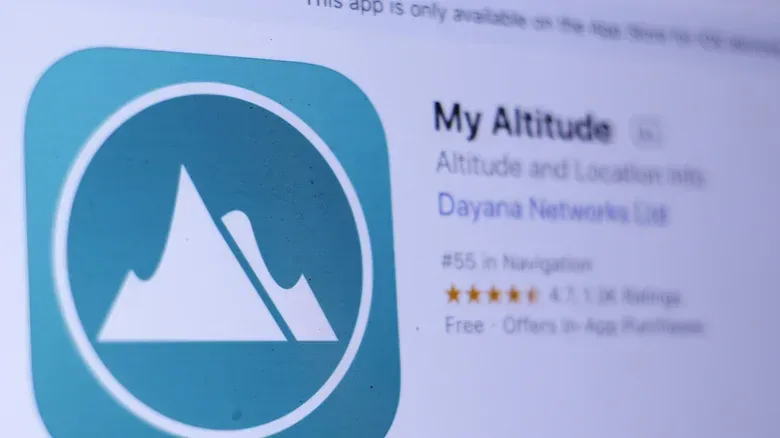
Two options listed as using on-device pressure data are Barometer & Altimeter & Thermo and My Altitude. The former says it uses the iPhone’s built-in barometer and also uses GPS and weather-station information for calibration. Its listing requires iOS 13 or later as of November 2026. My Altitude says it uses on-device sensors by default when they are available. Both offer free versions with advertising, while My Altitude also offers in-app purchases to remove adverts.
Before installing any app, read its listing carefully. Look for a direct statement about the built-in barometer rather than an ambiguous reference to altitude, local weather or GPS. If it says it combines several inputs, that is not necessarily a drawback. It can be a sensible way to account for the fact that pressure changes can have multiple causes.
- Install an app that explicitly supports the iPhone’s built-in pressure sensor.
- Open it in one location and note the reported pressure and elevation-related reading.
- Walk up or down a flight of stairs with the phone.
- Check the reading again and observe whether the app reports a corresponding change.
- Return to the original spot and compare later readings with the weather-related pressure information shown in a weather service.
This is best treated as a small experiment rather than a precision test. Conditions can change, and the app may be blending data sources. The useful observation is the relationship between a short, known movement—such as one flight of stairs—and the app’s reported pressure or elevation change.
What a good reading can and cannot tell you
A barometer is especially logical for relative movement: did the device go up or down from where it was? That is different from establishing an exact elevation above sea level. The latter is affected by atmospheric conditions and depends on how the app calibrates the sensor with additional information.
GPS altitude is altitude information derived from location signals. Calibration is the process of adjusting or checking a measurement against other data so the result is more useful. When an app combines the barometer with GPS and weather-station information, it is attempting to turn a raw pressure value into a more dependable elevation estimate.
For everyday use, that means the phone can be a neat tool for observing change: a hill, a staircase, a climb during a walk. It should not be treated as an explanation for every pressure fluctuation. A sudden change might be vertical movement; it might be a weather shift. The app’s additional data and the user’s real-world context are what make the reading meaningful.
The broader lesson applies to plenty of hidden phone features. Hardware capabilities are often most valuable when software combines them thoughtfully instead of presenting one isolated metric. The iPhone’s barometer is a tiny environmental sensor, not a weather station in miniature—but with the right app, it is a surprisingly tangible way to see the air respond as you move.
For another example of how devices can behave differently depending on which connection or measurement path is in use, see our practical checklist for diagnosing Ethernet that is slower than Wi-Fi.