A triangle-shaped status icon can be an alarming thing to find on a phone at a glance, particularly because Samsung Galaxy devices may show several similar-looking symbols for very different conditions. The broken triangle on a light background, containing small arrows pointing up and down, is generally a sign that Data Saver is switched on.
That is not an error message. It is a reminder that the phone is restricting how apps use mobile data in the background. For anyone nearing a monthly data limit or relying on cellular service while travelling, that restriction can be useful. But it also changes the behavior people often take for granted: messages and alerts may not arrive promptly, content may not refresh until an app is opened, and uploads or syncing jobs may wait.
The practical question is not whether Data Saver is universally good or bad. It is whether the reduced data activity is worth the missed background activity at that particular moment.
First, make sure it is the right triangle
Galaxy status icons can vary somewhat between phone models, software versions and carriers. Still, three triangle-related meanings are especially important to separate:
- Broken triangle with small up and down arrows: Data Saver is active.
- Solid dark triangle with an exclamation mark: an error warning, potentially related to a charging issue or software glitch.
- Plain triangle: cellular roaming is active.
Those distinctions matter because the responses are completely different. The Data Saver icon calls for a settings choice. A roaming icon is a prompt to be mindful of cellular charges. An exclamation-mark warning may point to a fault that needs investigation rather than a data-management preference.
In other words, do not treat every triangle as the same alert. Look for the arrows, the exclamation mark, and whether the triangle is plain or broken before changing anything.
What Data Saver actually does
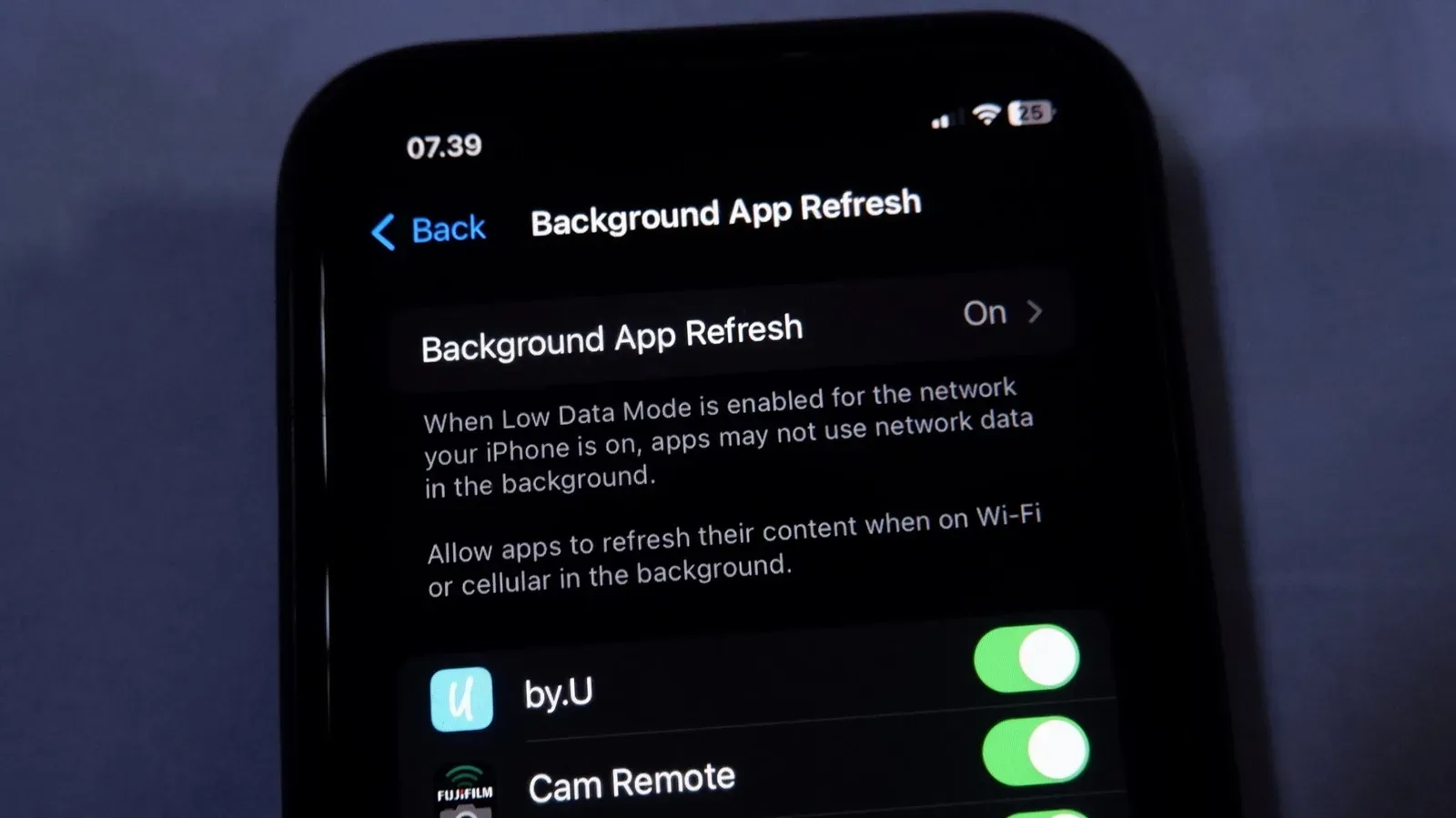
Data Saver is a mobile-data control. It is normally off by default, so many Galaxy owners may never see its icon. When it is enabled, apps are prevented from accessing the internet in the background. The app currently being used can connect, but when a person moves to another app, the previous app’s connection stops.
“Background” here means work performed by an app while it is not the app on screen. That can include retrieving new material, synchronizing information with an online service, downloading an update, or sending a file that was queued for upload. These actions can be helpful, but they can also consume a limited cellular data allowance without the user consciously opening an app.
Data Saver limits that silent usage. It is not designed as a general fix for every phone problem, and it does not imply that an app is unsafe or malfunctioning. Its purpose is more straightforward: make mobile-data consumption more deliberate by concentrating internet access in the app being actively used.
The trade-off: less data use, less automatic updating
The cost of that tighter control is that background apps may no longer be able to do several routine tasks:
- Download updates.
- Sync data.
- Fetch new content.
- Receive alerts and notifications.
That list explains why Data Saver can feel either invisible or disruptive depending on a person’s habits. Someone who opens a news, social, or media app whenever they want new material may barely notice a change. Someone who expects communication apps to update continuously may find delayed notifications much more consequential.
Uploads are another important example. If a video upload depends on background activity, it will not continue while Data Saver is restricting that app. The same principle applies to other processes that need a continuing connection after the app has been left.
There can be a battery-life benefit, too. Data Saver is not primarily a battery mode, but preventing background connections means fewer background networking tasks. That can reduce the power spent on those connections. It should be understood as a side effect of limiting network activity, rather than the central reason to enable the feature.
When it makes sense to turn Data Saver on
Data Saver is most useful when mobile data is limited, expensive, or temporarily more valuable than usual. A user nearing the end of a monthly allowance has a clear reason to reduce automatic app activity. Travelling is another common case: roaming charges can make unnecessary background connections an unwelcome surprise.
It can also be a sensible short-term setting for someone who knows they only need a few specific apps over cellular service. In that situation, allowing only those essential apps to keep using data in the background can offer a controlled middle ground instead of leaving every installed app free to connect.
By contrast, the setting is likely to accomplish little for a person who spends most of their time on Wi-Fi. The supplied guidance describes Data Saver in terms of mobile-data management, so a plentiful Wi-Fi connection removes much of the reason to impose those cellular restrictions. That does not make the icon a problem; it simply means the feature may not match the user’s usual connection pattern.
How to switch it on or off on a Galaxy phone
The main control is located in the Galaxy settings menu:
- Open Settings.
- Select Connections.
- Choose Data usage.
- Find the Data Saver control and toggle it on or off.
Once Data Saver is turned off, the broken-triangle indicator should no longer be present and background apps can resume their usual mobile-data behavior. Turning it on brings the indicator back and applies the background-data restriction.
Interface wording can differ by Galaxy model and software version, so a menu may not use precisely the same label on every device. The key path remains the Connections and Data usage area of Settings.
Allow essential apps to keep working
Data Saver does not have to be an all-or-nothing decision. Galaxy phones provide a way to grant particular apps permission to use data while Data Saver remains enabled. This is useful where the goal is to cut general background traffic without missing activity from a small number of important apps.
- Open Settings.
- Go to Connections, then Data usage.
- Tap Allowed to use data while Data Saver is on.
- Select the apps that should retain permission.
Communication apps are a logical starting point for many people because delayed alerts can defeat the point of having them installed. The permission list is not limited to those apps, however; any listed app can be selected. The best choice depends on what genuinely needs to update without being opened.
A restrained permissions list preserves the reason for enabling Data Saver in the first place. If every app is exempted, the feature will offer much less control over background data use. If no apps are exempted, the phone will be stricter but may be less convenient. Selecting only services that need timely background access is the practical compromise.
How to decide whether the icon should stay
Keep Data Saver enabled when managing mobile-data use is the priority: a monthly allowance is running low, cellular service is being used while travelling, or the phone should avoid broad background activity. In those situations, the broken triangle is a confirmation that the restriction is doing what it is meant to do.
Turn it off when delayed syncing, content refreshes, uploads, and notifications are more of a problem than mobile-data use. This can be particularly appropriate for people mostly connected to Wi-Fi, where the data-conservation benefit is less compelling.
If the answer changes from day to day, use the exception list rather than assuming the setting must always be fully on or fully off. That approach lets a Galaxy phone remain economical with mobile data while preserving background access for the few apps that matter most.
The icon’s meaning is ultimately reassuringly ordinary: it is a status notice, not a warning that the phone has failed. For another example of how a small software update can address a very specific device behavior, see our coverage of an update addressing unexpected restarts on certain watches. On a Galaxy phone, the broken triangle is simply the visual shorthand for an active data-saving choice—and it can be changed whenever that choice no longer fits.