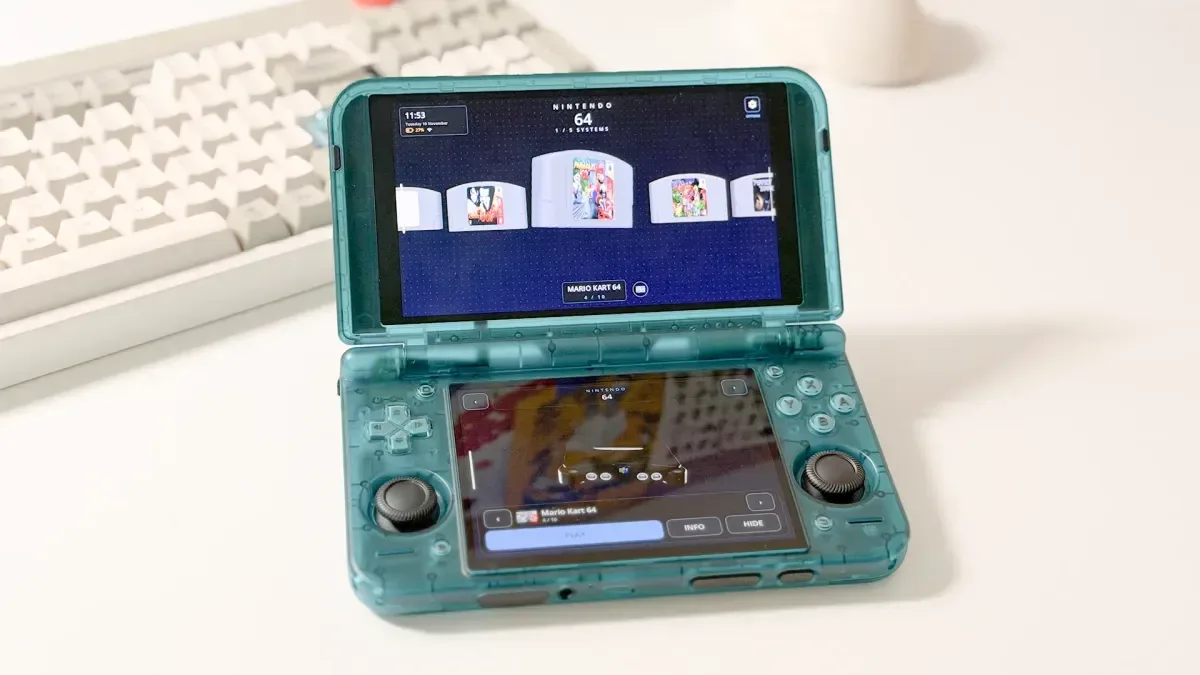
DigiBitPlay V6 has reached the free version of the Android and Windows frontend, and its most notable addition is proper dual-screen support for compatible handhelds. Rather than treating a two-panel device as one unusually tall display, the frontend can place different, coordinated views on each screen.
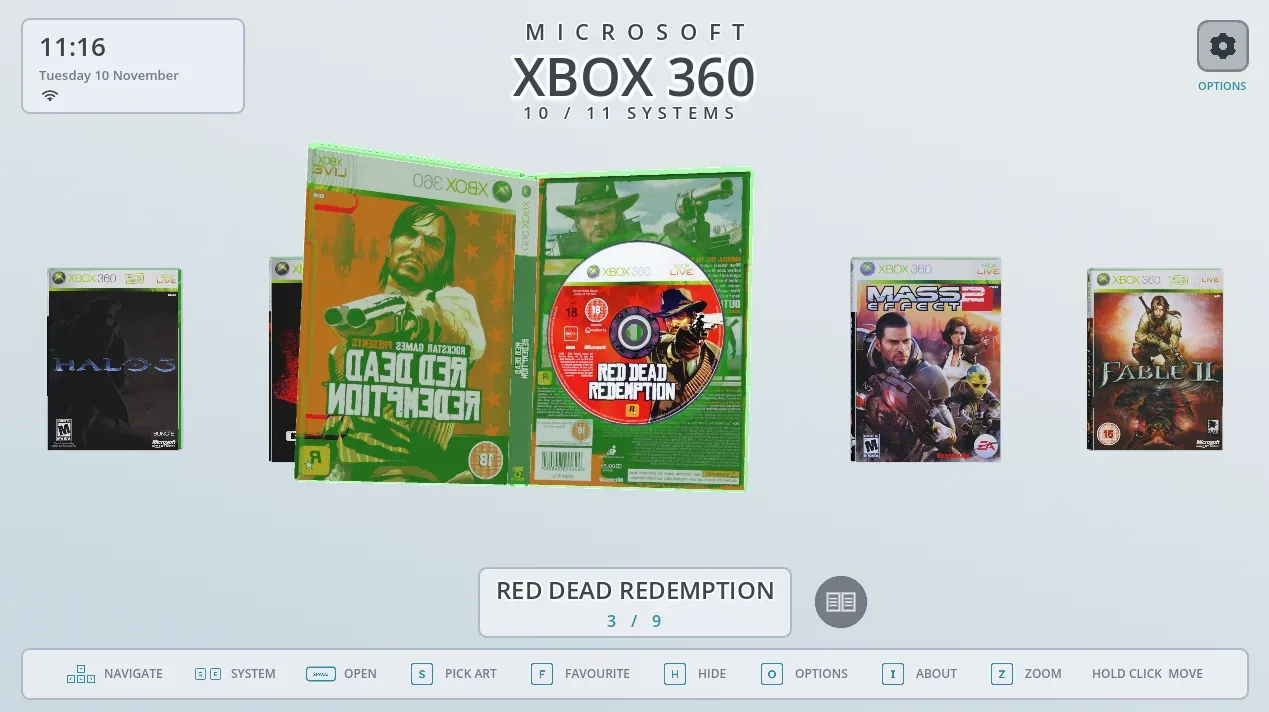
That distinction matters. A frontend is the library-facing application that sits between a player and their games, ROM folders, emulators, artwork and metadata. It is not itself the emulator doing the game emulation. Its job is to organise a collection, present it coherently and pass a selected game to the chosen emulator or launcher. DigiBitPlay’s approach is especially focused on physical-media presentation: console models, game cases, cartridges, discs, manuals and related imagery are a central part of the interface rather than an optional background detail.
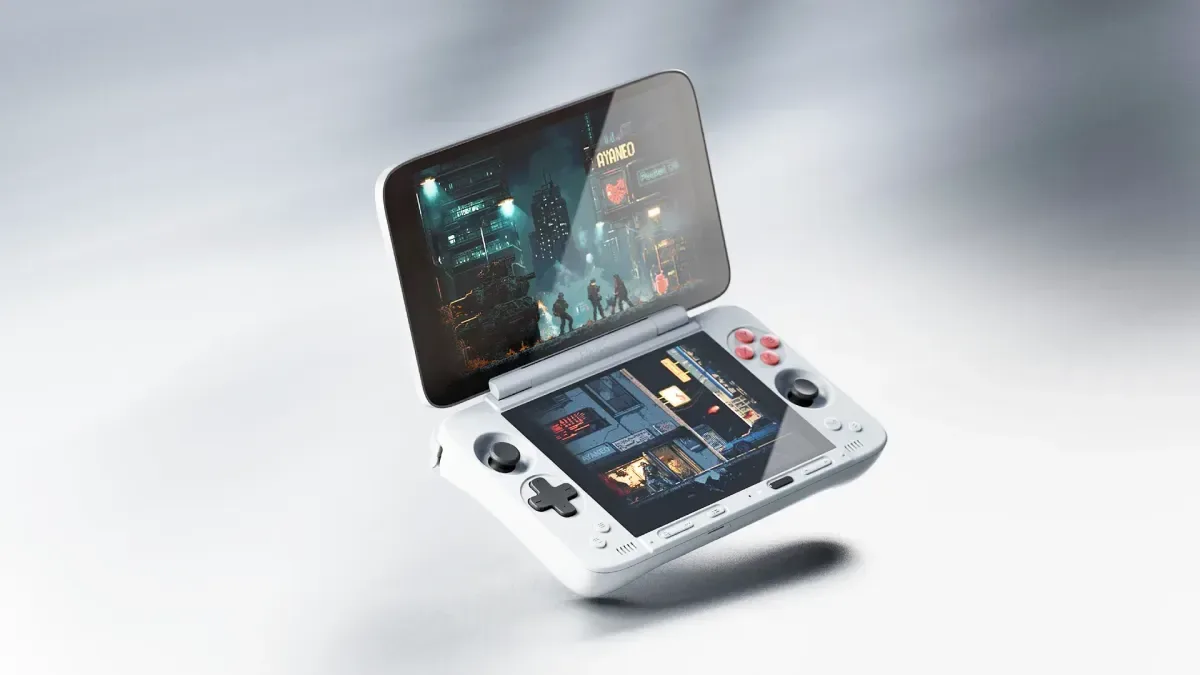
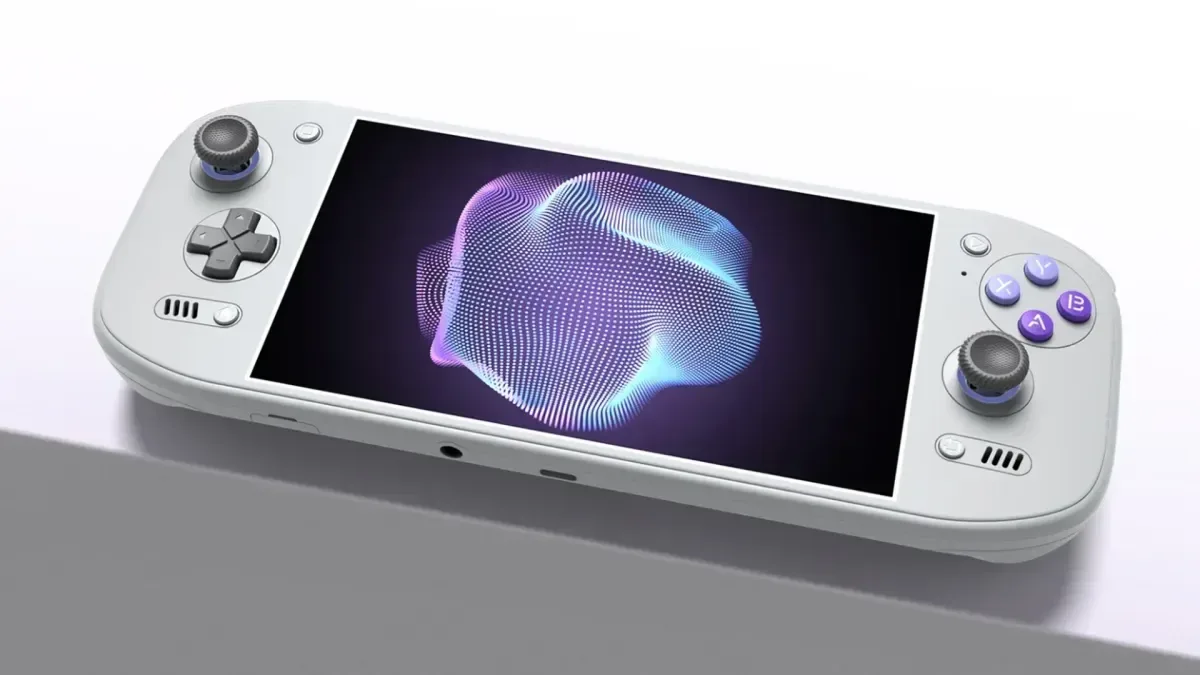
V6 extends that presentation philosophy across two built-in screens on hardware including the AYN Thor, AYANEO Pocket DS and Retroid Pocket Duo. The free edition now also runs on Windows PCs in addition to Android phones, tablets and handhelds, broadening its role from a portable-focused launcher into a cross-device library tool.
For a wider look at the release, see this overview of DigiBitPlay V6’s Android and Windows changes.
For more context, explore BIG3 Settlement Trades Ken Howery’s Fire NFTs for HoldCo Equity, With Public Shares Still Conditional.
What dual-screen mode changes
On a compatible dual-screen handheld, DigiBitPlay initially launches on one display. When it detects two built-in screens for the first time, it asks whether both should be used. The wording is important: connecting an external television or monitor does not trigger that prompt. This is designed around handhelds with integrated two-screen hardware, not a general desktop multi-monitor arrangement.
With dual-screen mode enabled, the top screen carries the frontend while the lower screen follows the current selection as a companion view. Users can reverse that arrangement if they prefer the main interface below. V6 also avoids an awkward mixed-style result when 2D mode is selected: both displays remain in 2D rather than combining a flat view on one screen with a 3D view on the other.
Available arrangements include the following, with 2D and 3D variants:
Related coverage includes DigiBitPlay V6 Adds Free Dual-Screen Frontend Support on Android and Windows.
- Cartridges and Console
- Console and Games
- Console and 3D Games
- Game Library and Information
- Game Library and Manual
Instead of asking players to decipher layout names alone, DigiBitPlay presents a visual grid of layout choices on both screens. Separate tabs cover 2D and 3D configurations, and a selection applies immediately. The same chooser remains available through Settings > Looks > Appearance > Dual Screen > Choose a layout with pictures.
That is a practical usability feature, not merely a cosmetic one. Dual-screen interfaces can make a library feel more spacious, but only if the second display is assigned an understandable job. A manual alongside the selected game has a different purpose from a decorative console display or an information pane. Showing preview images before committing to a setup should make it easier to find a layout that suits a player’s priorities.
Manuals, descriptions and cheat sheets can stay visible
The second screen becomes more useful once a game has started. V6 can keep a game manual, game description or cheat sheet visible while play continues. It can instead retain the console display or hand the panel over to the emulator. The available option will matter most for players who use a handheld’s two displays as a reference-and-play setup rather than as an elaborate browsing screen.
Cheat sheets are a new presentational option for PlayStation 2, GameCube and Xbox 360 cases. When enabled, a folded sheet appears beneath a case’s manual clip; on dual-screen systems, the companion display receives a dedicated CHEATS page. The feature is disabled by default and can be switched on at Settings > Looks > Shelf > What to show > Cheat sheet in the case.
V6 also adds an in-app route to game magazine pages associated with the currently selected title. Issues are organised by language and display cover previews. This is separate from manual handling, which has also been expanded: users can replace a game’s manual with a different PDF or image through Settings > Right now > This game > Manual > Replace manual file, with the booklet and its pages updating straight away.
These additions underscore the frontend’s archival-display ambitions. They do not change a game or its emulation, but they can change how supporting material is kept at hand. Players should still regard manuals, magazines and cheat material as library content they manage, rather than assuming every title will automatically have every kind of reference file available.
Navigation is built around a two-panel library
The game row on the bottom screen retains familiar touch controls: swipe through titles, hold and pinch to zoom. Pressing Options while the console sits on the top display opens settings for the game selected below. V6 also synchronises its visual flourishes between the panels, with cartridges and discs travelling from one screen to the other before entering the console on the lower display when a game is launched.
Those animations will appeal to users who value the physical-object illusion that DigiBitPlay is built around. More important is that the release includes a number of simpler navigational improvements. Console switching now brings in the game row with a slide rather than making it appear all at once. Recently used games are grouped in a Continue Playing case at the end of the console list. A dark edge vignette has been removed, bringing consoles and games to the same brightness across the scene.
There are also dual-screen-specific fixes: the App Drawer’s app menu should no longer appear simultaneously on both displays. The release notes mention broader small improvements to navigation, animation and interface behaviour as well.
Library additions: Android apps, PC games and multiple folders
The new Android Games console can inspect the apps installed on a device and add those Android identifies as games, without asking the user to create a dedicated game folder. Emulators are excluded from that automatic list. Newly installed games should appear on the next DigiBitPlay launch, or can be found immediately with Settings > Content > Library > Installed games. The scan can also be disabled from that location.
An App Drawer has been added for installed games and apps. It opens by pressing Down twice from the game row and can be adjusted under Settings > Looks > App Drawer. Separately, a game can be configured to launch through an app or program chosen by the user rather than its default emulator. Android opens the App Drawer for that selection; Windows offers a program picker.
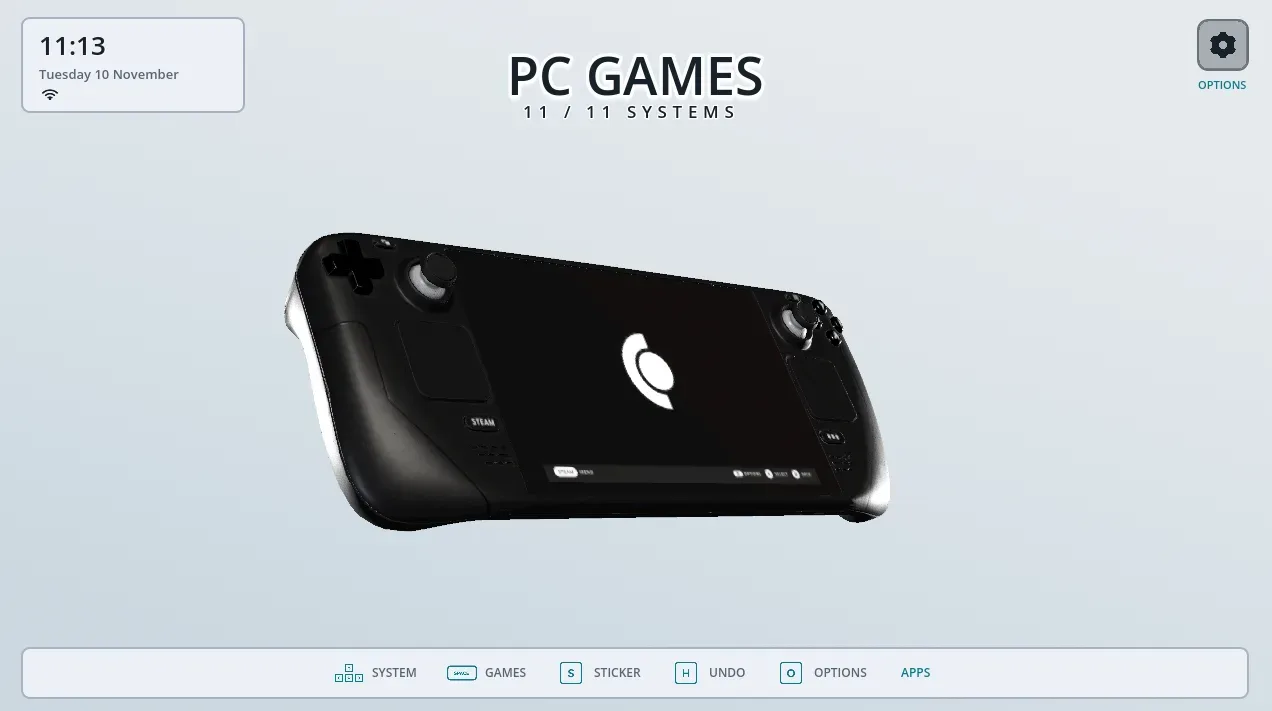
For PC games on Android, V6 introduces DroidDeck support. Steam titles managed through DroidDeck can appear in DigiBitPlay’s PC Games section and launch through Steam. The setup requires installing DroidDeck, adding Steam games there, syncing frontend files to a device folder, then adding that folder to DigiBitPlay’s PC Games library. If DroidDeck is chosen as the PC Games launcher—or no alternative app has been assigned—the frontend uses it for this workflow.
This is an integration rather than a claim that every Steam game will run natively on every Android device. The release notes describe how DigiBitPlay hands off to DroidDeck and Steam; suitability remains dependent on the user’s broader device and launcher setup.
Library management is also less restrictive. Several folders can now be assigned to a single console through Settings > Content > Library > Folders. That is useful for collections divided across internal storage, SD cards or separate directory structures without forcing those libraries into duplicate system entries.
Artwork, metadata and the presentation layer
DigiBitPlay V6 adds the LaunchBox Games Database as an artwork source. No account or API key is required for that source, and the listed assets include front and back covers, cartridge and disc art, spines, screenshots, backgrounds and game details. It can be selected at Settings > Looks > Artwork > Download art > Artwork source.
Automatic game descriptions are another library convenience. When a scraper account is not available, DigiBitPlay can fall back to Wikipedia. In this context, a scraper is a service or process used to retrieve game metadata and images for a local collection. The fallback may reduce the number of manual metadata tasks, though the release notes do not promise a description or artwork match for every possible entry.
The update’s listed free-platform support includes PlayStation 1, PlayStation 2, Game Boy, Game Boy Color, Nintendo 64, GameCube, Wii, Nintendo Switch, Xbox 360, Steam PC games and Android games. The V6 notes also identify SNES among systems newly added to the free version, alongside Nintendo 64, GameCube, Wii, Nintendo Switch, Xbox 360, Steam PC games and Android games. Each newly cited system receives its own 3D console model and 2D image.
There is a small discrepancy between the general supported-consoles list, which does not name SNES, and the separate newly-added list, which does. Players looking specifically for SNES support should therefore verify the current free build’s options during setup rather than relying on one line of the release notes in isolation.
Settings, backups and Android performance work
V6 includes several changes aimed at making a feature-rich frontend less intimidating on a small display. Settings text is larger and slightly bolder on phones and handhelds. The settings interface can now be displayed as a centred box with a sidebar instead of a side drawer, switched through Settings > Looks > Appearance > View > Settings layout. The initial setup wizard has been redesigned with full-screen pages, clearer chapters and image examples for artwork-style choices, while its opening screens now fit 4:3 displays correctly.
Users can also create a zip backup containing settings, covers, manuals and data, then restore it later or transfer it to another device. That option is located at Settings > App > Backup & restore. For anyone who has carefully matched artwork, replaced manuals and tuned multiple libraries, this is one of the least flashy but potentially most valuable V6 additions.
Android performance work includes lower stated memory use and faster loading. Manual covers are saved rather than rebuilt each time, while the number of cover images held in memory scales with available RAM. Several 3D console and case models have been made lighter to improve loading and smoothness. V6 also fixes an Android issue in which closed game cases could become stretched or otherwise visually corrupted.
Other refinements include scheduled light and dark themes, configurable controller vibration for fast scrolling, box opening and cartridge insertion, and a fix for a controller becoming trapped behind the Settings menu when the Quit dialog was open.
Why this release is significant
The headline feature is not simply that a second screen now lights up. DigiBitPlay V6 assigns the additional display a set of useful roles: browsing, contextual information, manuals, cheats and an emulator handoff. That makes the dual-screen implementation feel tailored to the hardware rather than an enlarged single-screen interface spread across two panels.
At the same time, V6 rounds out the less glamorous parts of frontend ownership: folder management, backup and restore, artwork retrieval, descriptions, larger text, performance tuning and launcher choices. Together, those features suggest an update aimed as much at maintaining a growing library as at making it look like a shelf full of miniature game boxes.
The result is a substantial free release for Android and Windows users, particularly those with compatible dual-screen handhelds and collections that benefit from manuals, cover art and per-system presentation. It does not eliminate the need to configure folders, emulators or third-party launchers where appropriate, but it gives those components a more integrated and visually deliberate place to live.