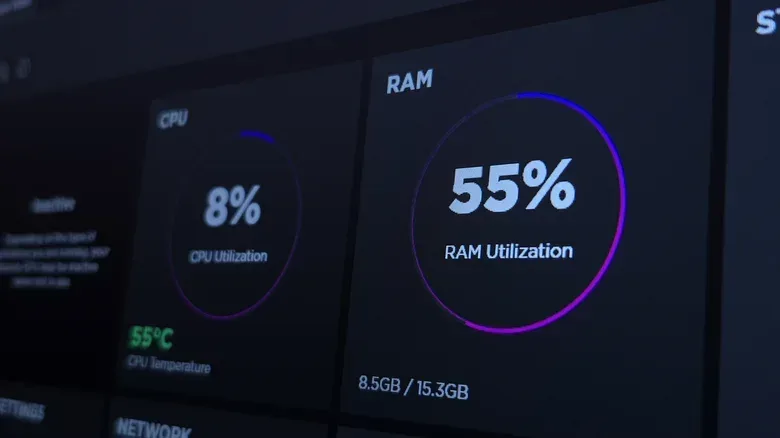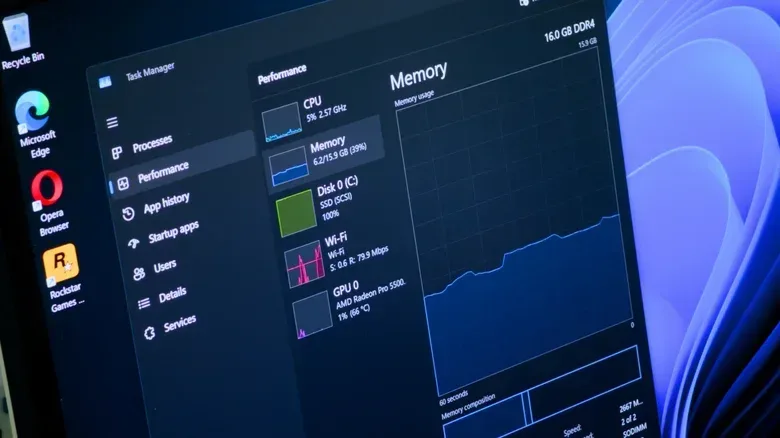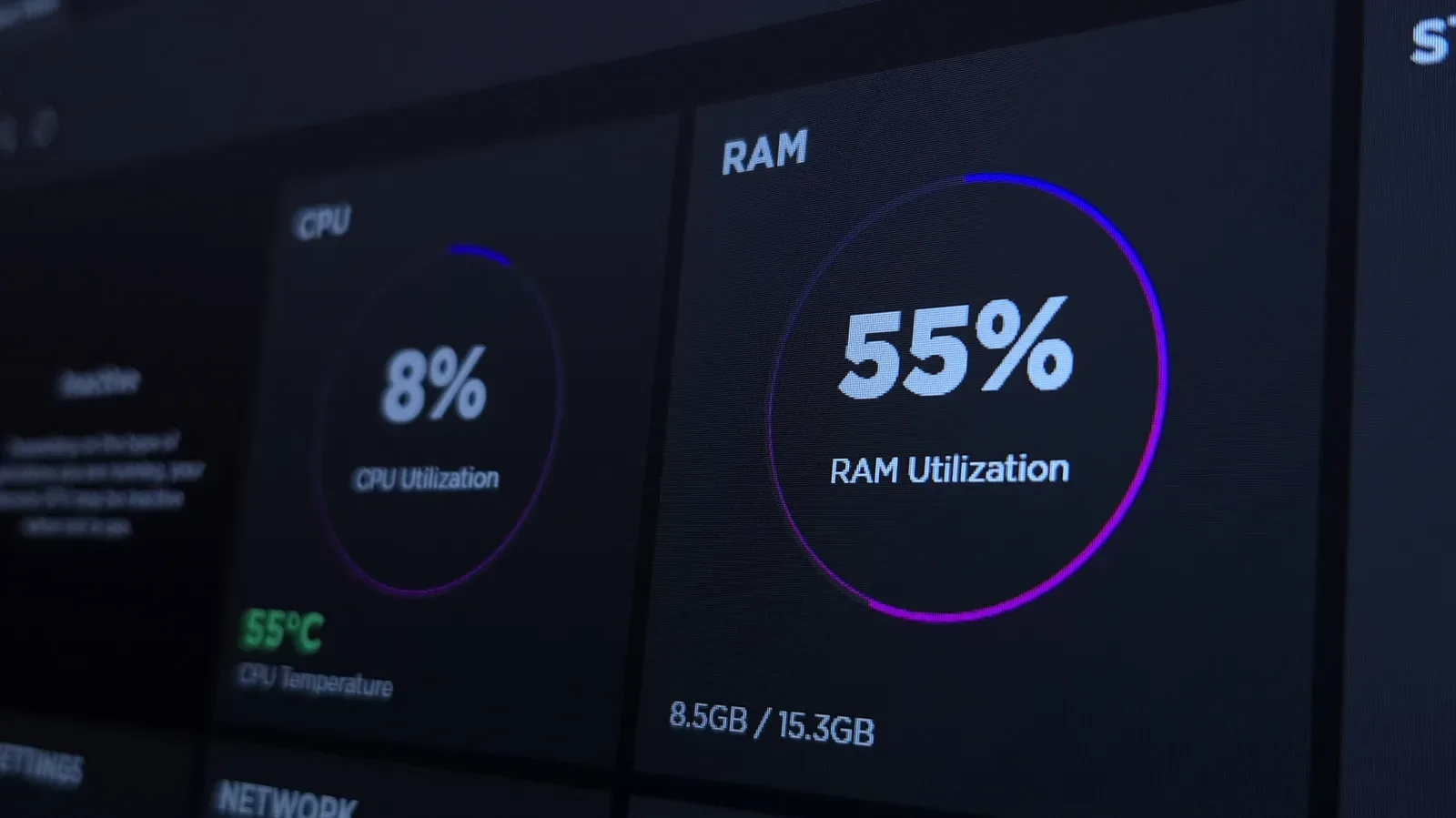
Windows 11’s memory figure can look alarming at a glance. Open Task Manager on an otherwise quiet PC and it may report that more than half of installed RAM is in use. On a machine with plentiful memory, it can get close to the ceiling. That number often inspires an immediate cleanup mission: close programs, hunt background tasks, or install a utility promising to “free” memory.
Usually, the better first move is to establish whether the computer is actually having a problem. A high percentage alone does not prove that it is. Windows is designed to use unused memory for work that can make the system feel more responsive. The meaningful distinction is between memory that is genuinely unavailable to the system and cached data that Windows can discard or reclaim immediately when an app needs room.
For PC players, creators and everyday Windows users alike, that distinction matters. A game launcher, browser, voice chat app and other familiar software can all benefit when data is already readily accessible rather than having to be fetched again from storage. Task Manager’s headline usage figure supplies context, but it is not a performance verdict on its own.
RAM is fast temporary workspace
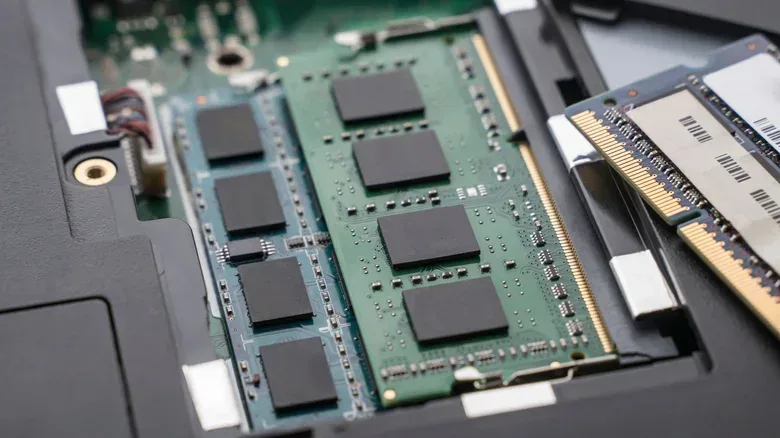
RAM, short for random access memory, is the computer’s short-term working space. It holds data the processor needs while applications run and files are in use. It is substantially faster to access than data sitting on an SSD or a traditional hard disk drive. More installed RAM therefore gives a computer more space to keep active work and frequently needed data close at hand, which helps with multitasking and switching between tasks.
It is tempting to treat empty RAM as inherently healthier RAM. Modern Windows takes the opposite practical view: memory sitting idle is capacity that is not helping the machine respond faster. Instead of reserving every unused gigabyte for an unspecified future task, Windows can fill some of it with data it expects may be useful soon.
This is not the same thing as permanently locking the memory away. The operating system can give that space back when an active application needs it. In other words, a machine can report substantial memory use while still having usable capacity available for the next game, browser tab or creative application.
SysMain and standby memory explain much of the mystery
A central part of this approach is SysMain, called SuperFetch on older versions of Windows. The service observes usage patterns and can preload commonly needed application or file data into memory. If someone regularly launches Chrome in the morning, for example, Windows may keep relevant data cached so launching it can require less waiting on the storage drive.
The technical term worth knowing here is standby memory. This is cached data retained in RAM because it may be useful, but it is not equivalent to memory that an actively running program has claimed and cannot relinquish. Windows can reclaim standby memory quickly when a new workload requires it.
Related coverage includes Why Windows 11 Can Use So Much RAM Without a Problem.
That is why the broad “In use” number in Task Manager can be misleading when viewed without context. Cached material may contribute to the impression that RAM is heavily occupied, even though the operating system can repurpose it. More installed memory also gives Windows more room to cache, so a computer with a larger RAM pool may appear surprisingly busy precisely because it has capacity worth putting to work.
What to check in Task Manager
Use Ctrl + Shift + Esc to open Task Manager. From there, select Performance and then Memory. The key figure in this situation is Available, rather than reacting solely to the overall memory-use percentage. Available memory includes capacity Windows can reclaim from its cache.
This gives the percentage a more useful interpretation. If the system remains responsive, programs open normally, and the available figure indicates Windows has room to work with, heavy RAM usage may simply be Windows making productive use of installed hardware. The cached data is there to speed access, not to deny programs the ability to run.
For PC hardware context, system memory is only one part of the performance picture. Graphics hardware, processor load and storage behavior can each create their own bottlenecks. Buyers weighing a major graphics upgrade may also want to consider the separate questions raised by a reported RTX 5090 buyer pledge, but a concerning RAM percentage does not by itself identify any of those other components as the culprit.
When a high RAM reading is a genuine warning
None of this means all memory pressure is harmless. The percentage becomes more meaningful when it arrives with specific symptoms. Sluggish performance, crashing applications and Windows warnings that the PC is low on memory all point to a situation that deserves investigation.
In that case, return to Task Manager and use the Processes tab. It shows which applications are consuming the most memory. Close work you do not need and look for a program whose usage is unexpectedly large. This approach is more useful than treating every cached megabyte as a defect: it targets actual demands on system resources.
A restart is also a sensible first troubleshooting step when the computer has been running for a long time. It can clear a memory leak. A leak occurs when software fails to return memory to the available pool after it has finished using it. Unlike purposeful caching, leaked memory is not efficiently reclaimed for future tasks, and it can accumulate until the machine becomes unstable or short on usable capacity.
Startup apps are another worthwhile place to inspect. Applications configured to launch with Windows can consume memory in the background whether or not they are useful for the current session. Disabling startup items that are not needed prevents them from claiming resources every time the PC boots. It does not require disabling core Windows memory management or attempting to keep RAM artificially empty.
Why “memory cleaner” apps are usually the wrong fix
Third-party memory cleaners often promise an immediate reduction in RAM usage. They may indeed make the number look smaller, but a lower number is not necessarily a faster system. Forcing data out of RAM can mean Windows has to retrieve it again later, undoing the benefit of caching.
That can push work toward the page file, an area of the storage drive Windows uses as backup, or virtual, memory. The page file is important when physical RAM is under pressure, but storage is slower than RAM. Moving application data out to the page file simply to make a percentage counter look friendlier can make applications less responsive. And because Windows is designed to cache useful data, the system may eventually reload much of what the cleaner removed.
The practical implication is straightforward: use a cleaner’s apparent result with caution. A momentary decline in memory use does not demonstrate that it solved a memory leak, improved an overloaded application, or added real capacity to the computer. Identifying a specific resource-heavy process, restarting, and managing unnecessary startup software are better aligned with the actual cause of a problem.
Should SysMain be disabled?
For most Windows 11 PCs, disabling SysMain is not the recommended response to a high RAM figure. Its preloading behavior is intended to make common tasks quicker, and cached standby memory can be reclaimed when needed. Turning the service off to achieve a smaller usage number risks giving up a responsiveness benefit without resolving a real issue.
There is a narrower exception for an older machine with a mechanical hard disk drive and limited RAM. On that type of system, repeated preloading can keep the disk active and contribute to a sluggish feel. Someone in that specific situation can test the change through Windows Services: press Win + R, enter services.msc, find SysMain, open Properties, choose Stop, and set the startup type to Disabled.
That should be treated as a targeted workaround for older HDD-based hardware, not a general Windows 11 optimization. It prevents Windows from preloading files and applications into memory, so it changes the operating system’s behavior rather than correcting a faulty percentage readout.
Capacity still matters when workloads outgrow the system
Windows can manage RAM efficiently, but it cannot create physical memory where there is not enough for the workload. Systems with 8GB or less may be more likely to encounter genuine pressure when multiple applications are open. In that circumstance, moving to 16GB or more is the more durable solution when an upgrade is possible, even as RAM costs remain high.
Sixteen gigabytes is a modern baseline, but even that capacity should not be judged by whether Task Manager shows it as mostly occupied. The better questions are whether the computer is responsive, whether applications remain stable, what the available-memory reading shows, and whether a particular process is consuming an unreasonable amount.
The short version: Windows 11 is built to put spare RAM to use. Standby cache and SysMain can make a system look memory-hungry while serving the opposite purpose—keeping frequently needed data ready. Investigate when performance symptoms, low-memory alerts or crashes appear. Otherwise, a full-looking memory meter may simply mean the PC is trying to make its RAM earn its keep.