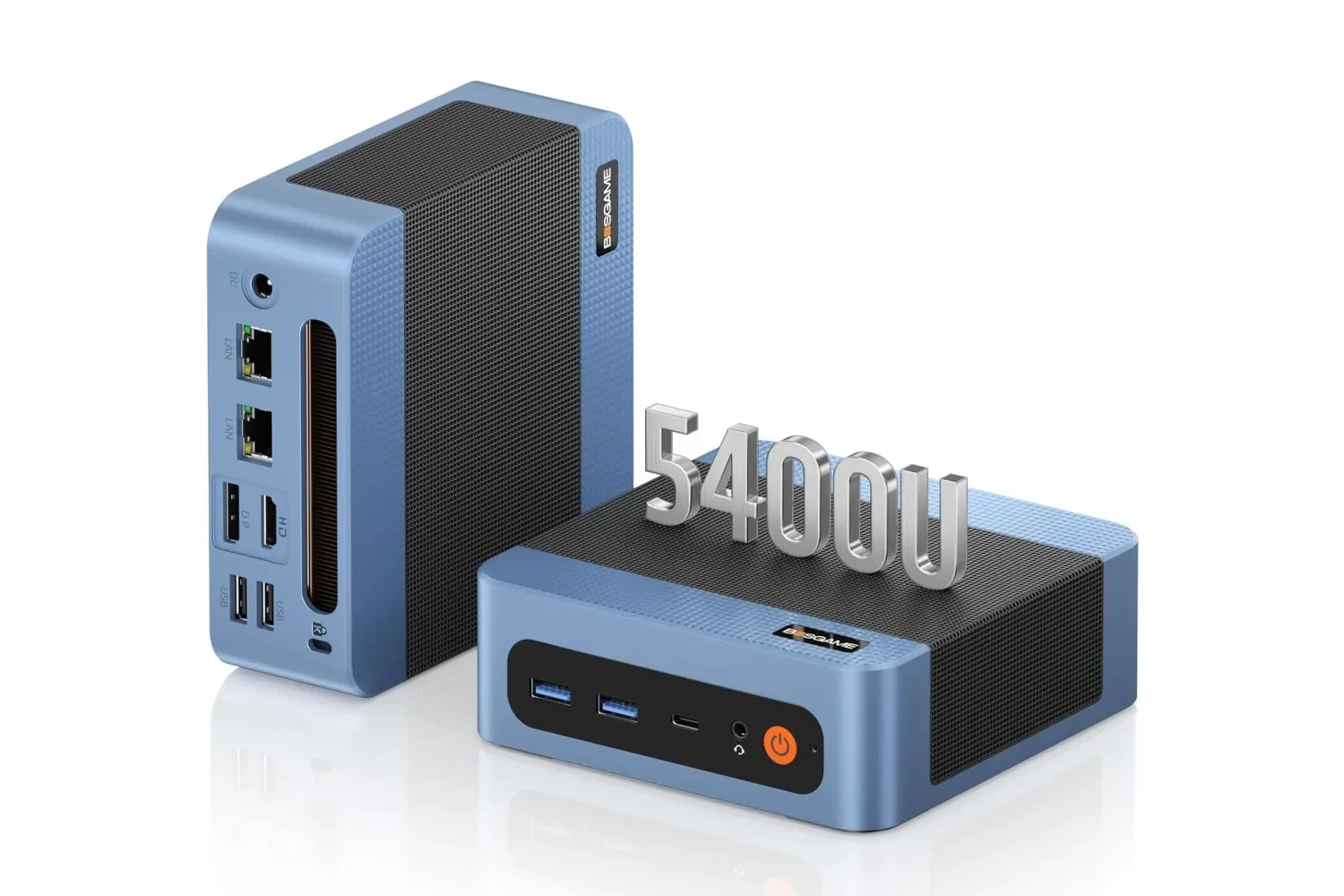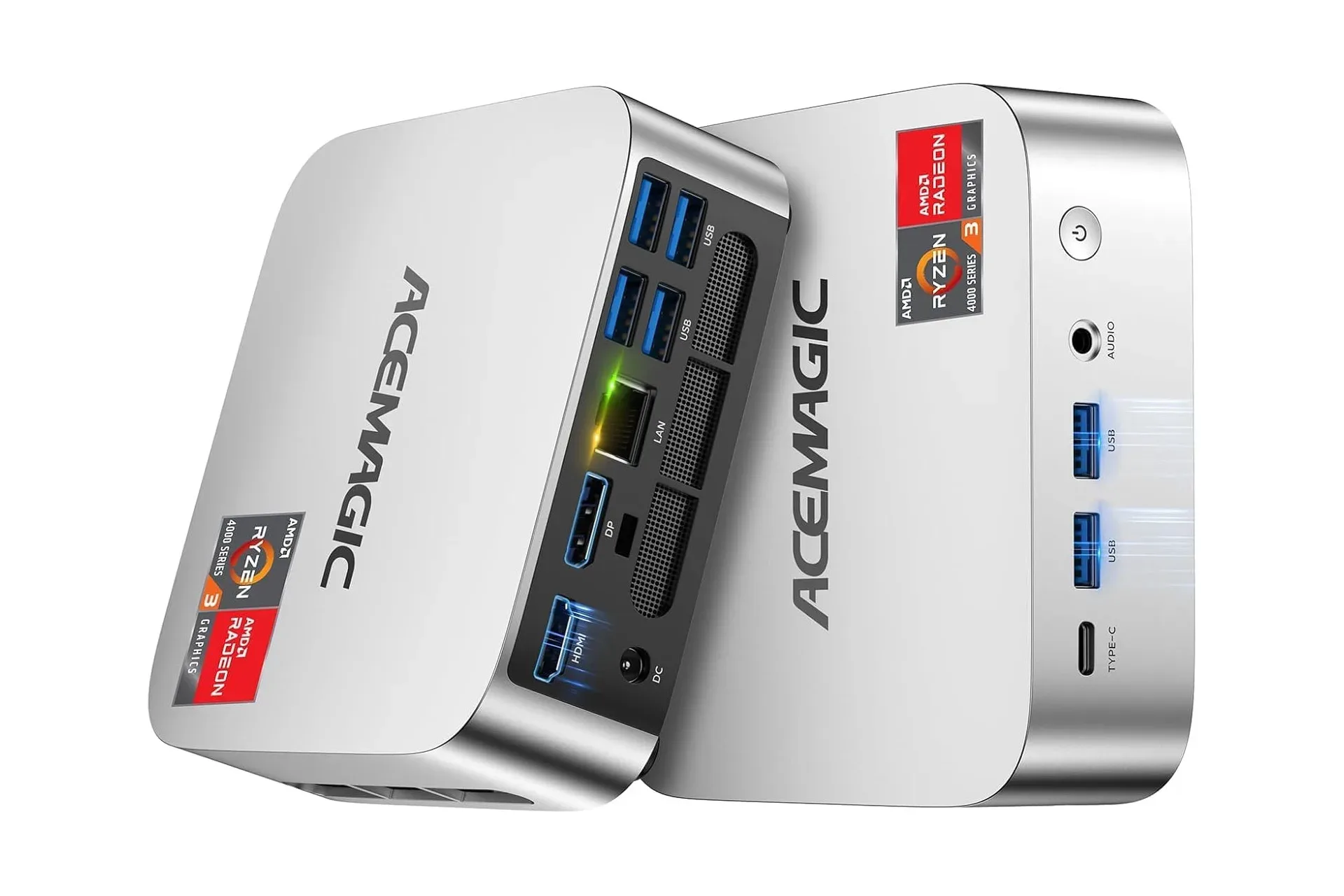
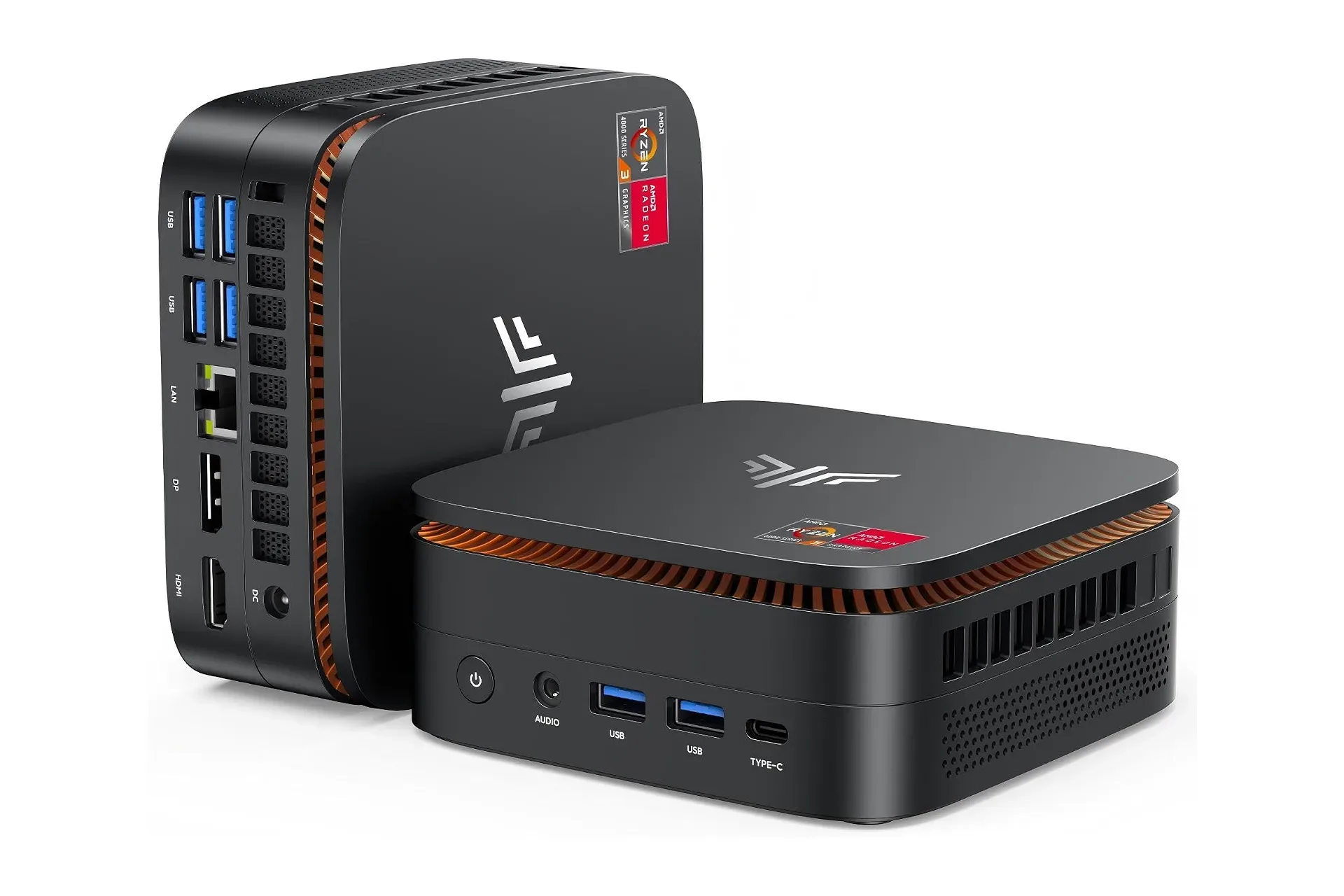
A small desktop can make a lot of sense when the job is ordinary computing rather than high-end game rendering: web browsing, email, office software, streaming video, and a workstation that does not monopolize a desk. The KAMRUI Pinova P1 was listed at $299 in the configuration outlined here, a $131 reduction from its stated $430 regular price. That is roughly 30% off, although a deal listing is inherently time-sensitive and prospective buyers should verify the current price, seller, configuration and terms before treating that figure as available.
At that listed price, the interesting part is not that the Pinova P1 is a tiny box with a great deal of swagger. It is that it includes the basic ingredients of a usable Windows desktop: an AMD Ryzen 3 Pro 7330U processor, 8GB of memory, a 256GB solid-state drive, and Windows 11 Pro preinstalled. The machine does not include the familiar all-in-one trappings of a laptop—display, keyboard, touchpad, battery, webcam or hinge—so those pieces must already be owned or added to the budget. For a buyer who has a monitor and peripherals, that trade-off is precisely the point.
What the Pinova P1 configuration includes
The specified processor is AMD’s Ryzen 3 Pro 7330U, a chip with four CPU cores and eight threads that can reach up to 4.3GHz. A core is an individual processing unit; four cores allow the system to divide work between multiple tasks. A thread is a logical work stream associated with those cores. The four-core, eight-thread layout is relevant for everyday multitasking: a browser with several tabs, a document editor, a communication app and background updates all competing for attention at once.
Clock speed, represented here by the up-to-4.3GHz figure, is only one part of performance, and “up to” should not be read as a promise that the processor sits at that speed continuously. Still, the supplied specifications position the system around general-purpose desktop work rather than as a blank, underpowered display box. It is built around laptop-class components, which is how a computer can be placed in a notably compact chassis.
The base configuration pairs that processor with 8GB of RAM and a 256GB SSD. RAM—random-access memory—is fast short-term workspace used by active programs and files. It differs from the SSD, which is persistent storage for Windows, applications and personal data. A solid-state drive has no moving parts and is the storage device supplied in this model.
Neither number should be interpreted in isolation. Eight gigabytes of memory and 256GB of storage can suit the light-to-moderate uses described for this system, including browsing, Office work, email and media playback. But the amount of free storage after Windows, installed applications and user files will be lower than the drive’s advertised capacity. Similarly, a person who keeps many large browser sessions, local files or numerous applications open may outgrow the baseline more quickly than somebody using a handful of simple tools.
The practical positive is that the Pinova P1 is described as expandable for both memory and storage. That does not establish which memory modules or drives it accepts, the capacity limits, the physical installation process, or whether every upgrade is convenient for every owner. Those are details worth confirming in the product documentation before purchase. But upgradeability matters because it gives the base model a path beyond its initial 8GB and 256GB allocation instead of treating those specifications as permanently fixed.
Windows 11 Pro is part of the package
The unit is supplied with Windows 11 Pro. That means an operating system is already included rather than being a separate cost and setup task. For someone assembling a desktop from individual pieces, this can simplify the math: connect display and input devices, complete the usual Windows setup, then install needed software.
“Pro” identifies the Windows edition named in the listing. It should not be confused with a guarantee that every component is high performance, nor does it automatically change the appropriate workload for a compact PC. The more immediately useful point for a value-focused buyer is straightforward: the supplied configuration is described as ready with Windows rather than requiring an additional operating-system purchase.
Three display outputs offer unusual setup flexibility
One of the stronger features listed for the Pinova P1 is its selection of display connections. It has DisplayPort 1.4, HDMI 2.0 and a USB 3.2 Type-C port that can carry video and audio. The machine is described as supporting up to three screens simultaneously, with up to 4K resolution at 60Hz through each output.
That language benefits from a little unpacking. DisplayPort and HDMI are common dedicated display interfaces. USB-C describes the connector shape and, in this case, the port is stated to transmit video and audio as well. The presence of three output types can be helpful in a desk setup where the available monitors do not all use the same connection.
4K refers to a high-resolution display format, while 60Hz means the screen can refresh up to 60 times per second. For documents, spreadsheets, video playback and general desktop work, 4K/60Hz capability can make the system a flexible monitor companion. It does not by itself establish gaming performance, graphics settings, frame rates in particular games, support for a specific monitor, or the behavior of every three-monitor arrangement. Those depend on the software, display hardware, cables and workload, among other factors.
Still, the multi-display option has clear practical uses. One monitor can hold a document or spreadsheet, another a browser or communication window, and a third a video or reference material. A less elaborate setup can simply use one display now and retain the option to add screens later. That makes the compact form factor potentially suitable for an uncluttered desk, provided the buyer plans for the monitor and cable side of the setup.
Ports are a major part of the desktop equation
A mini PC may be physically small, but it still has to connect to the items that make it a desktop. Alongside the video-capable USB-C port, the Pinova P1 has two USB-A ports on the front and four USB-A ports on the back. USB-A is the familiar rectangular USB connector used by many keyboards, mice, external drives and other accessories.
Six USB-A ports give a prospective owner room for common wired gear without immediately needing a hub. A basic arrangement could occupy two ports with a keyboard and mouse while leaving others open for external storage and peripherals. Front ports are generally useful for temporary connections; rear ports can keep permanent accessories and cables less visible. The supplied information does not identify every device type or throughput scenario, so it is best to verify compatibility if a specific accessory is essential.
External storage is particularly relevant to the 256GB internal SSD. Rather than assuming the included drive will hold every file indefinitely, buyers can consider how they already store larger libraries and backups. The available USB-A ports provide a direct connection route for supported external drives. The expansion claim also suggests an internal upgrade path, but that is a separate question from simply plugging in external storage.
Who this compact PC best fits—and who should pause
The stated components and use cases make the Pinova P1 easiest to recommend in principle for someone who needs a conventional Windows workspace without needing a laptop. A household PC near a monitor, a light office station, a compact browsing-and-streaming machine, or a multi-monitor productivity desk are all aligned with the functions described. The compact chassis is a particular advantage where desk footprint is more valuable than portability.
It is also a different purchase from a laptop. The lower-priced desktop approach works because the owner supplies the missing parts: at minimum, a display and input devices. Anyone starting from nothing should make a complete checklist before deciding that a mini PC is cheaper. Necessary or desirable extras can include a monitor, keyboard, mouse, appropriate display cable, speakers or headphones, external storage and any network accessories needed for a particular space. The listing provided here does not establish which of those items are bundled, so they should not be assumed.
Gaming buyers in particular should resist filling in unsupported specifications. The information available identifies the processor, memory, storage, operating system, outputs and USB connectivity, but does not identify a discrete graphics card, game benchmarks, target resolutions or tested titles. Being able to run three 4K displays at up to 60Hz is a display-output specification, not evidence that demanding games will run at 4K/60. It is more accurate to frame this as a general desktop first and investigate gaming needs separately.
For shoppers comparing several ways to spend about $299, the figure is also an example of how sharply product categories can differ at the same budget. A separate $299 streaming-device listing illustrates that equal prices do not mean equal roles: a Windows mini PC is intended to be a flexible computer, while a living-room media device serves a different purpose. The useful comparison is not just cost; it is whether the device provides the computing, display and peripheral connections a setup actually needs.
Purchase checklist for a deal-priced mini PC
- Confirm the exact configuration: Verify that the listing still specifies the Ryzen 3 Pro 7330U, 8GB RAM, 256GB SSD and Windows 11 Pro.
- Check the live price: The $299 figure and $131 claimed saving were tied to the cited listing and may change.
- Inventory what is already on hand: Account for a monitor, keyboard, mouse and suitable display cable rather than presuming they are included.
- Match monitor connections: Determine whether a display uses HDMI, DisplayPort or USB-C video, then plan cables accordingly.
- Plan storage realistically: Consider whether 256GB is sufficient after software and personal files, and whether external or internal expansion is preferred.
- Verify upgrade details: Confirm supported RAM and storage options before buying specifically for future upgrades.
- Separate work expectations from gaming expectations: The available specifications support a productivity-and-media case, but do not provide game-performance evidence.
The KAMRUI Pinova P1’s appeal rests on a clear combination: small physical footprint, a laptop-derived Ryzen processor, included Windows 11 Pro, expansion potential, six USB-A connections, USB-C video/audio, and the ability to connect up to three 4K/60Hz displays. At the stated $299 deal price, it is a potentially practical starting point for a budget Windows desktop—especially for someone who already owns the screen and accessories that turn a mini PC into a complete workstation.
Shop the products
Check current price, model and availability at the retailer.