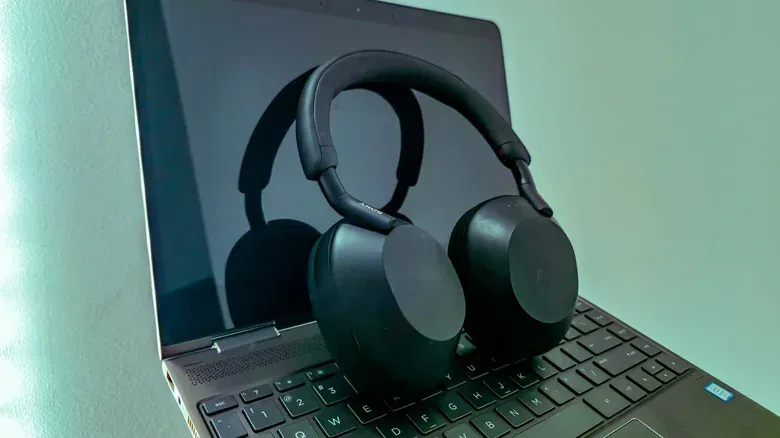
Wireless headphones are a straightforward upgrade for a Windows 11 setup—right up until the PC fails to see them, sees them but will not connect, or silently leaves them waiting in a Bluetooth list like a side quest with no quest marker. The basic process is short: turn on Bluetooth, put the headphones or earbuds into pairing mode, and choose them from the available-device list.
That is the ideal route, and it is worth starting there because Windows 11 offers more than one way to reach the same pairing controls. The important distinction is between Bluetooth being enabled on the PC and the headphones being in pairing mode. Both must happen at the same time for a first-time connection. A headset that is merely turned on may not be discoverable by the computer.
For players setting up a desktop, laptop, or a gaming machine such as the systems discussed in our Alienware 16 Aurora coverage, the process is identical: Windows handles the Bluetooth connection at the operating-system level, rather than through a game launcher or audio app.
The quickest route: use Windows 11 Quick Settings
The fastest method starts in the taskbar. Click the speaker icon at the bottom-right of the screen to open Quick Settings. Find the Bluetooth control, select the arrow beside the Bluetooth icon, and confirm the Bluetooth toggle is on.
Next, place the headphones or earbuds into pairing mode. This step varies by product, so the manufacturer’s documentation is the reliable place to check the exact button combination. On many products, it involves holding a button—often marked with the Bluetooth symbol—until the device is ready to pair.
- Open Quick Settings from the speaker icon in the bottom-right taskbar area.
- Select the arrow next to the Bluetooth icon.
- Make sure Bluetooth is switched on.
- Put the headphones or earbuds into pairing mode.
- Select the headphones when they appear in the Bluetooth-device list.
If the device appears and the connection completes, the pairing job is done. “Pairing” means Windows and the accessory have established a remembered connection. That remembered relationship is what allows a headset to reconnect later without repeating the full add-device process.
Use Settings when you want the full pairing path
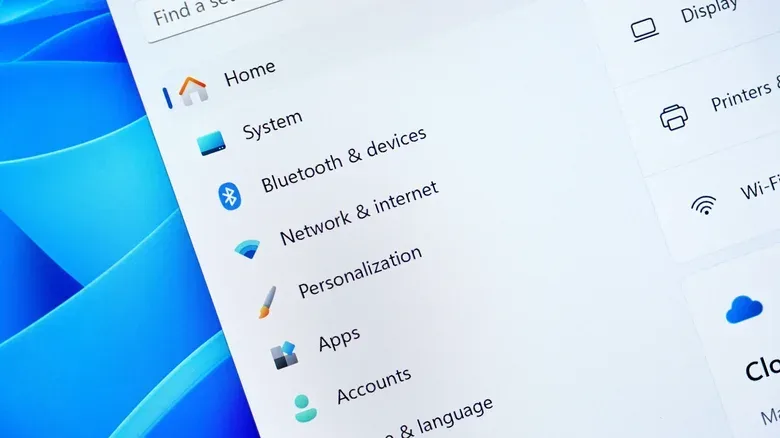
Quick Settings is convenient, but the main Settings app gives a more explicit route through the process. Press Win + I to open Settings, then choose Bluetooth & devices from the left-side menu.
Verify that the Bluetooth toggle is enabled. Windows also shows the name by which the PC is visible to other devices. That name matters chiefly when the item being paired has a screen and needs you to choose the computer from its own menu.
For a first-time headphone connection, select Add device, then choose Bluetooth. Windows begins looking for nearby Bluetooth accessories that are ready to be paired. With the headphones in pairing mode, wait for their name to appear in the dialog, then select it. Pairing should finish after a brief wait.
- Press Win + I.
- Open Bluetooth & devices.
- Turn Bluetooth on if it is off.
- Select Add device.
- Select Bluetooth.
- Put the headset or earbuds in pairing mode.
- Choose the device when Windows displays it.
This route is especially useful when the Quick Settings list is not enough, because it makes the discovery stage clear: Windows is scanning, and the accessory needs to be ready to be found. If nothing appears, it does not automatically mean the headphones are faulty. It may mean they are not in the specific pairing state Windows needs.
Pairing mode is the part that changes from one headset to another
Windows 11’s menus are consistent; headphone controls are not. Different earbuds and headphones can use different button holds or different indicators to enter pairing mode. The shared principle is simple: the accessory needs to advertise itself as available for a new Bluetooth connection.
That is why turning on the headphones is not necessarily enough. A product may power on and attempt to reconnect to a device it already knows, while never making itself available to a new PC. Consult the documentation supplied for the particular headset or earbuds to identify the correct pairing-mode action.
Once the product is discoverable, select the matching entry in Windows rather than assuming every similarly named Bluetooth item is the right one. The list can include other nearby accessories, previously visible devices, or entries whose names are not immediately obvious. Selecting the actual headphones is the final step that authorizes Windows to pair them.
Swift Pair can replace the device-list hunt
Some Bluetooth accessories support Swift Pair, a Windows feature designed to make discovery more proactive. Rather than requiring you to work through the available-device list, Windows can show a pop-up asking whether to connect when it detects a supported product in pairing mode.
The setup is still based on the same essentials: Bluetooth must be enabled on the PC, and the headphones must be powered on and put into pairing mode. If the pop-up appears, select Connect.
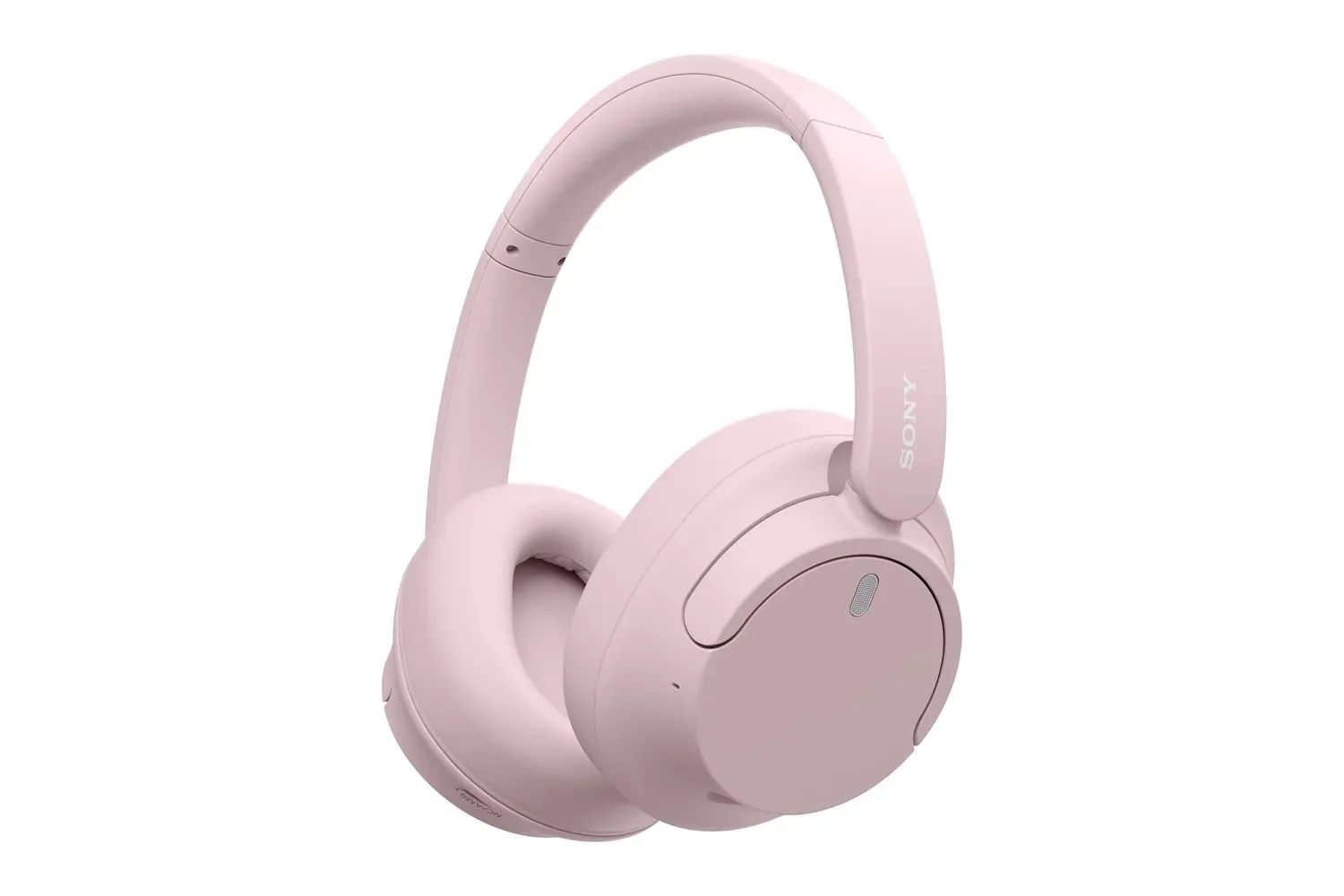
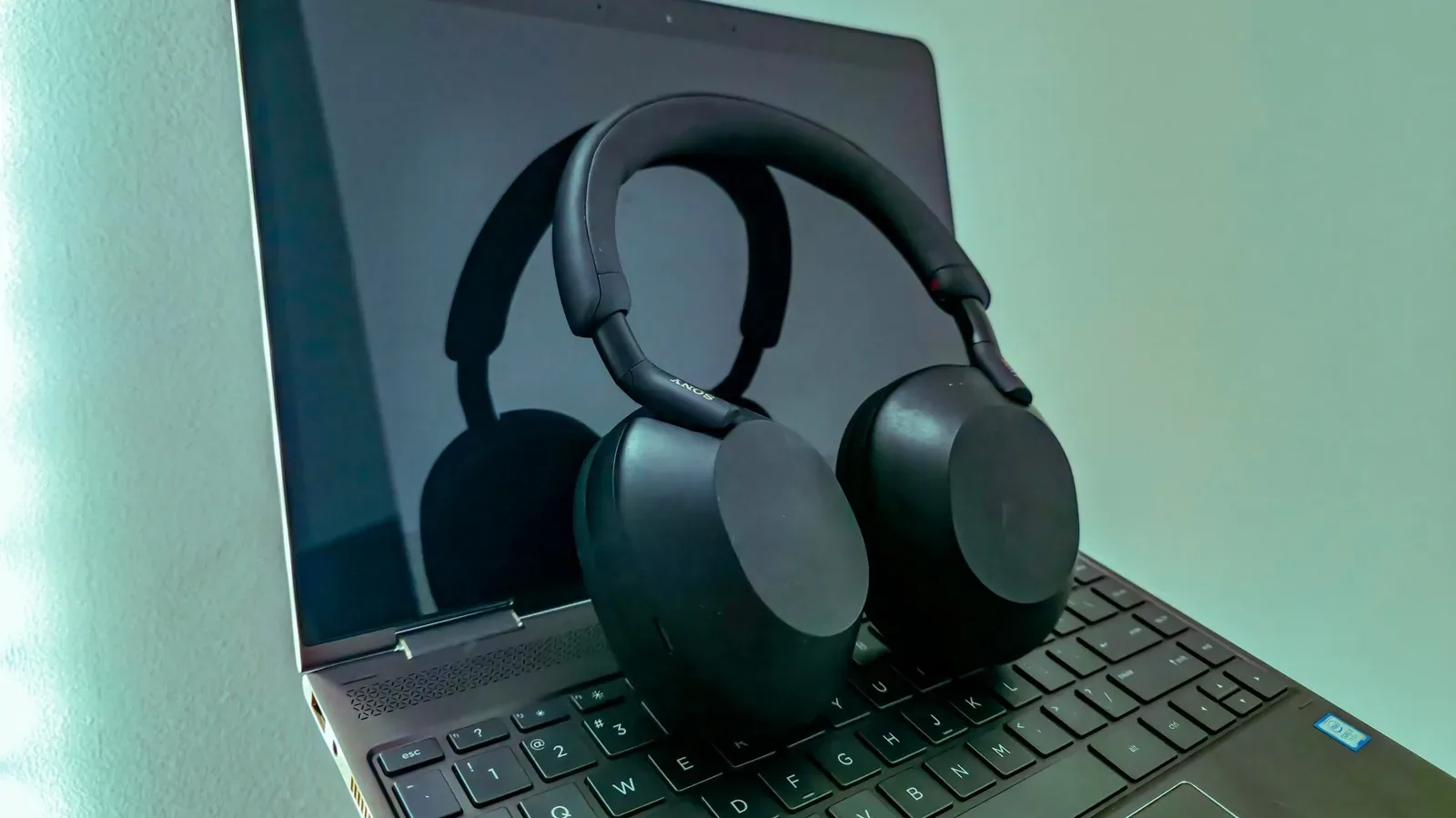
Headphones named among the products supporting this feature include the Sony WH-1000XM6 and Samsung Galaxy Buds 4 Pro, as well as earlier models in those respective lines. Swift Pair is a convenience path, not a separate kind of Bluetooth connection. Once paired through it, the devices are set to reconnect automatically to the PC.
What automatic connection means in practice
Automatic reconnection is useful because it reduces the routine friction of using wireless headphones at a PC. After the initial pairing, the saved relationship means you should not need to use Add device every time. The first successful pairing is the key setup step; subsequent use is intended to be much simpler.
It is still useful to keep the ordinary Settings route in mind. Swift Pair depends on Windows presenting the connection prompt, while the Settings app provides a direct, visible way to initiate a scan and select a device if that prompt does not appear.
When Windows 11 Bluetooth does not behave as expected
Bluetooth problems on Windows 11 are not necessarily user error. Bluetooth stability has been a persistent weak point for the operating system, and efforts to improve it were still continuing as of September 2026. So if a headset will not show up or a pairing attempt fails, repeating the same clicks indefinitely is unlikely to be the most productive next move.
The practical first responses supported here are uncomplicated:
- Confirm Bluetooth is switched on in Windows 11.
- Confirm the headphones are truly in pairing mode, using their product documentation.
- Update the PC’s wireless drivers.
- Restart the PC, then try the pairing process again.
Wireless drivers are the software components that allow Windows to communicate with wireless hardware. Updating them is a reasonable troubleshooting step when the operating system is struggling to discover or reliably connect to Bluetooth accessories. Restarting is similarly basic, but it can be worthwhile when a connection process has stalled or Windows is behaving inconsistently.
There is a useful order to this: check the two visible requirements first—Bluetooth on, headset in pairing mode—before moving to driver updates or a reboot. Those checks address the immediate pairing conditions. The later steps address the PC side when those conditions are already correct and Windows 11 still does not cooperate.
A compact checklist for first-time pairing
If you want the minimum version without digging through every menu, use this sequence:
- Enable Bluetooth on the Windows 11 PC.
- Put the headphones or earbuds into pairing mode as directed by their documentation.
- Open Quick Settings via the taskbar speaker icon and select the device, or go to Settings > Bluetooth & devices > Add device > Bluetooth.
- Select the headphones when Windows finds them.
- If they support Swift Pair, select Connect on the Windows pop-up instead.
- If the process fails, update wireless drivers or restart the PC before trying again.
The core lesson is less mysterious than Bluetooth’s reputation suggests: Windows must be ready to search, and the headphones must be ready to be discovered. When those two states overlap, pairing is usually a short task. When they do not—or when Windows 11’s Bluetooth stability gets in the way—the Settings path, driver update, and reboot are sensible places to start rather than assuming the accessory has gone rogue.