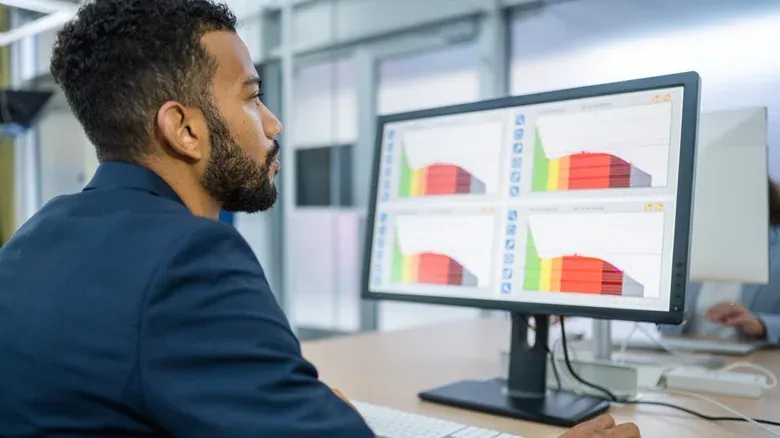
A powerful PC, a sharp monitor and an excellent game do not do much for comfort if the display is parked in the wrong place. Screen distance is an easy detail to overlook because people tend to set a monitor wherever the desk happens to have room. But a few inches can determine whether a player is calmly focused on the action or repeatedly leaning forward, squinting, craning their neck and wondering why a session feels more tiring than it should.
The simplest starting point is pleasingly low-tech: extend an arm toward the display. The monitor should sit roughly an arm’s length from the body, where the fingertips can reach the screen. This is not an exact prescription for every person and every setup, but it is a fast way to catch an obviously too-close display before discomfort becomes a habit.
For most monitor arrangements, the broader target is about 20 to 28 inches from the eyes. That range is especially relevant to a typical 24-inch screen. Larger displays generally call for a little more space, while laptops create a separate challenge because their compact display and attached keyboard make it difficult to keep both the screen and hands in ideal positions at once.
Distance is only one part of the desk equation. The center of the display, its height, its backward tilt, the room’s lighting, font scaling and the user’s vision all matter. The goal is not to chase a single perfect measurement; it is to arrange a display so it can be read and used without constant extra effort.
Start with arm’s length, then account for screen size
The arm’s-length guideline works because average adult arm length is roughly 28 to 31 inches, broadly aligning with the upper end of the recommended viewing range. It gives a workable baseline without requiring a tape measure: sit normally in the chair, extend an arm, and place the monitor near the point at which the fingers can touch its surface.
For a 24-inch monitor, a range of approximately 20 to 28 inches is recommended. For a 27-inch monitor, moving it somewhat farther back—around 24 to 32 inches—can make sense. The larger panel occupies more of the viewer’s field of view, so added room helps keep its full image comfortably visible.
At 32 inches and above, the display needs more consideration than simply “bigger is better.” If it is too near, looking from one edge to another can mean regularly moving the neck rather than just the eyes. A comfortable range for these larger screens is approximately 34 to 38 inches. Desk depth becomes important here: a large monitor may technically fit on a desktop while still sitting too close to its user.
For PC gaming, this has a practical implication. A larger monitor may offer a more expansive image, but it should not force the player to scan the screen with their head during a long match. Positioning it farther away is part of making the screen’s size useful rather than overwhelming. That concern applies just as much to a two-screen setup, where an awkwardly arranged second panel can turn frequent glances into repeated neck movement.
Resolution changes how close a large screen can feel
Resolution refers to the number of pixels used to form the picture. Higher-resolution displays can support closer viewing because individual pixels are less likely to be noticeable at the same distance. That is why many 32-inch monitors use at least 1440p resolution: it provides more detail than a lower-resolution panel of the same size.
Resolution does not erase the value of proper screen placement. A high-resolution monitor may make a closer position visually viable, but the screen still needs to sit far enough away that its edges remain easy to take in without unnecessary neck movement. Think of resolution as one variable in the setup, rather than a license to push a large panel as close as possible.
The same principle matters when choosing text size or operating-system scaling. If text feels too small at a sensible distance, the answer is not automatically to lean closer. Increasing font size or display scaling can make interface text easier to read while allowing the monitor to remain in a posture-friendly position.
Why sitting too close—or too far—can become a problem
A display positioned too far away can lead to squinting and visual fatigue. A display positioned too close can encourage its own set of problems, particularly leaning forward. That forward posture can aggravate the neck and back, and it can become the default position over time.
In other words, the question is not merely whether an image looks clear. It is whether the display lets the user stay seated naturally. If someone has to keep moving toward the screen to read chat, menus, work documents or small interface elements, it is worth checking scaling, text size, brightness and distance rather than accepting the lean as inevitable.
This is particularly relevant to PC players who switch between games, browsers, voice chat and desktop apps. A setup that seems fine for a brightly colored full-screen game may expose its weaknesses when smaller text-heavy windows appear. Adjusting software scaling can be a more useful fix than compromising posture.
For further PC-focused coverage, including developments around major platform teams and games, see our report on Gears of War: E-Day’s story director following a reported Xbox-team layoff.
Height matters as much as distance
Once the monitor is at a sensible distance, center it directly in front of the user. That simple placement helps ensure the body and face can remain pointed forward while viewing the display. A screen positioned off to one side may be workable for occasional use, but a primary display should not require a constant twist.
The top edge of the screen should be at or slightly below eye level. The center of the screen should land roughly 15 to 20 degrees below eye level. This downward viewing angle is significant because many laptop screens sit well below it when placed directly on a desk.
Changing monitor height can involve several parts of the workstation. A height-adjustable chair or desk can help, as can a monitor stand or laptop riser. Yet raising the chair to reach the right screen height should not leave the feet dangling. Keep the feet flat on the floor while making adjustments. A display position that helps the neck but makes the seated position unstable is not a complete solution.
Laptops deserve special attention. Their small screens might appear easier to accommodate, but the attached keyboard means users often choose between bringing the screen close enough to see easily and keeping the keyboard in a comfortable location. Using a separate keyboard and mouse allows the laptop to be moved toward arm’s length and raised to a more appropriate viewing height, without pushing the input devices too far away.
Tilt, brightness and glare are part of the comfort check
A monitor should generally tilt backward by about 10 to 20 degrees. This can help establish a more natural viewing angle once the display has been positioned around eye level. It is a small adjustment, but it should be made after setting basic height and distance rather than used to compensate for a fundamentally misplaced screen.
Bifocal wearers may need a different arrangement. Because close work is viewed through the lower portion of bifocal lenses, the monitor may need to sit lower. A greater backward tilt—around 30 to 45 degrees—may also be appropriate in that case. This is a useful reminder that ergonomic measurements are guidance, not a demand that every user fit the same geometry.
Brightness should also be adjusted so the screen is not overly intense. Excessive brightness can be hard on the eyes, even if the monitor is correctly positioned. If glare is an issue and a display does not include its own anti-glare treatment, an anti-glare filter is another option. The surrounding room and lighting setup matter here: reflections can make a properly placed monitor feel difficult to use.
A practical monitor-placement checklist
Before settling in for work or a long PC session, use this quick sequence:
- Set the distance: Begin at arm’s length. Use roughly 20 to 28 inches for a 24-inch monitor, 24 to 32 inches for a 27-inch model, and around 34 to 38 inches for a 32-inch or larger display.
- Center the screen: Put the primary monitor directly in front of you so viewing it does not require a continual head turn.
- Set the height: Place the top of the screen at or just below eye level, with the screen’s center 15 to 20 degrees below the eyes.
- Check the chair: If chair height changes, make sure both feet remain flat on the floor.
- Adjust tilt: Aim for a 10- to 20-degree backward tilt, or consider a lower screen and 30- to 45-degree tilt when using bifocals.
- Make text readable: Increase font size or screen scaling if necessary instead of routinely leaning in.
- Manage the picture: Reduce excessive brightness and address glare with available anti-glare options.
Multi-monitor users can apply the same basics to every display, with the main screen taking the centered position. The right setup will vary with monitor size, resolution, desk depth, eyesight and glasses, but the underlying test remains straightforward: the display should be clear and comfortably visible while the user sits upright, faces forward and keeps their body in a sustainable position.