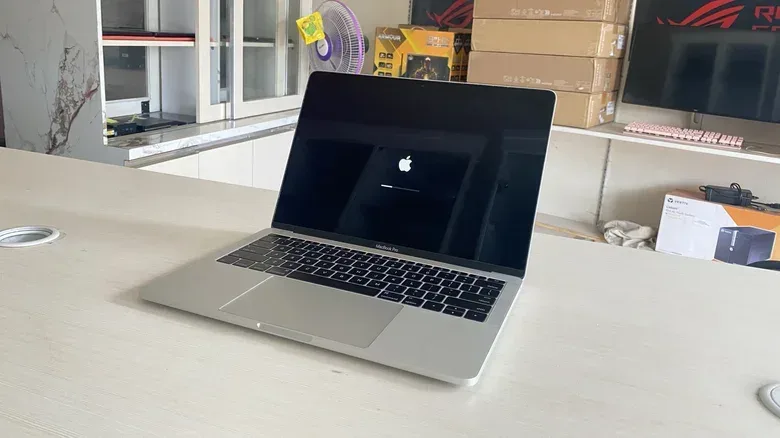
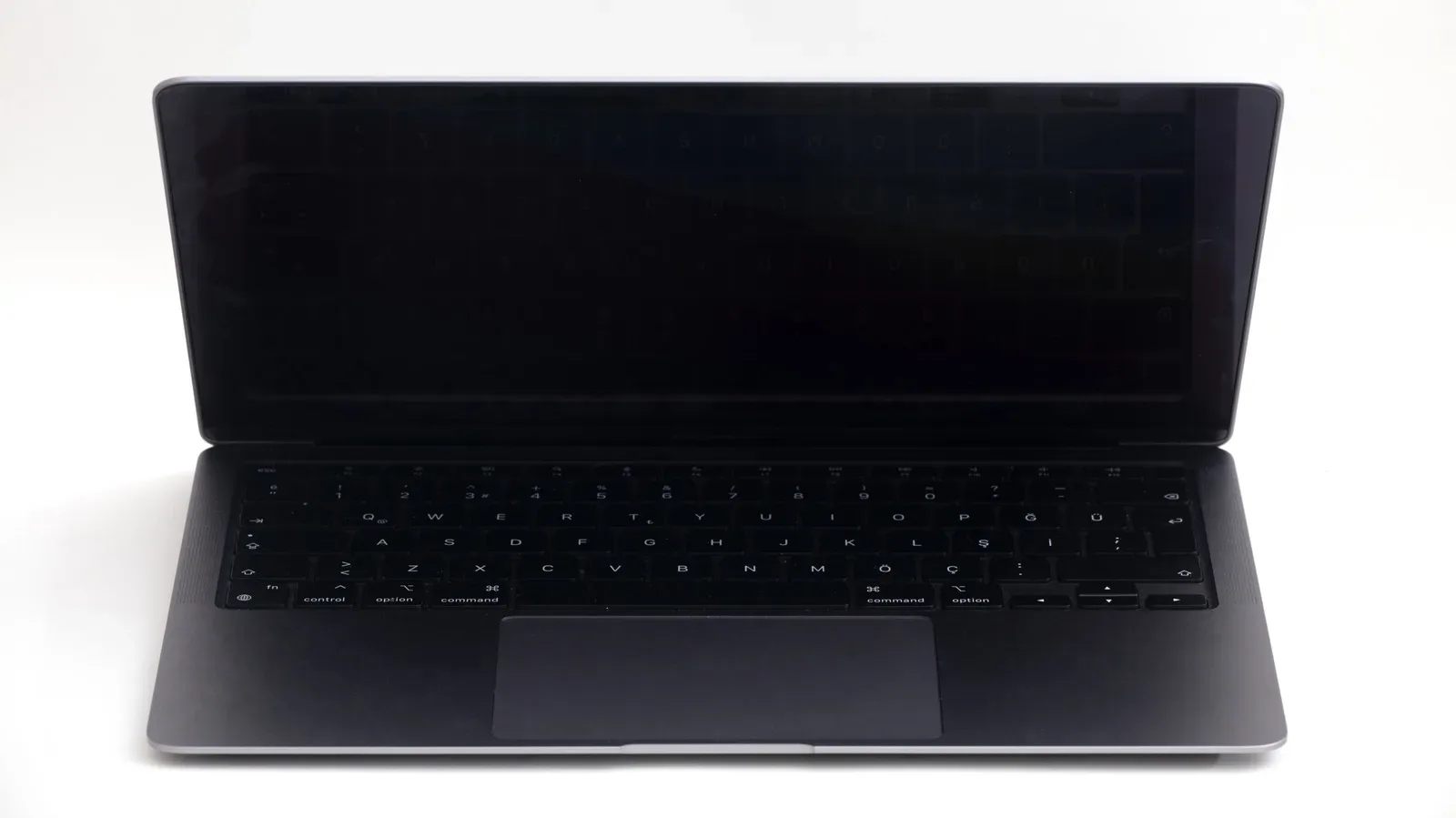
A MacBook with a black screen can make a routine boot feel like a total system failure. But a dark display is a symptom, not a diagnosis. The laptop may simply be out of charge, may not be receiving power through its adapter or cable, or may have encountered a software problem that a forced restart clears. In other cases, the computer itself may be starting normally while its built-in display is not.
The useful approach is to move from simple, low-risk checks to tests that help separate a charging, software or display problem. That avoids jumping straight to a repair appointment when a reboot may resolve the issue, while also giving a clearer reason to seek professional help when the evidence points to hardware.
Start with power and the charging path
Power is the first variable to eliminate. A MacBook left unplugged for an extended period may have insufficient battery charge even to show its low-battery indicator. Connect it to power and allow it a few minutes before deciding that it is unresponsive.
Do not treat the laptop and charger as one indivisible unit. Check the full charging path:
- Confirm the power adapter is connected to power.
- Inspect the USB-C or MagSafe cable connection at the MacBook and the adapter.
- Consider whether the adapter and cable are functioning, rather than assuming the MacBook is charging.
- Leave the machine connected briefly and look for any sign that it is waking or starting.
This check matters because a black screen can be the visible result of a MacBook that has not charged, not necessarily one with a failed screen or logic board. A low battery may not immediately produce a familiar icon after the machine has been unplugged for days.
Listen for signs that the MacBook is alive
Next, distinguish between a Mac that does not appear to start and one that seems to be running without showing an image. System sounds and spinning fans are meaningful clues: they suggest that at least part of the startup process is occurring even if the internal panel remains black.
In that situation, force a restart by holding the Power button until the startup chime is heard. If the Apple logo appears afterward and the computer returns to normal operation, a temporary software bug was the likely cause of the black screen.
A forced restart is not an explanation in itself; it is a practical reset step. Its value is that it can clear a condition in which the machine has become stuck while starting or waking. If the screen remains black after the restart, the result does not prove a single specific failure, but it makes a hardware problem—including a faulty display—more plausible.
Related coverage includes How to Troubleshoot a MacBook Black Screen Before Seeking Repair.
Use an external display as a diagnostic split
One of the clearest tests is to connect the MacBook to an external monitor or television. Depending on the equipment, that may require an HDMI cable and a USB-C-to-HDMI adapter. The goal is not merely to regain a picture temporarily. It is to find out whether the Mac is producing video at all.
If video displays normally on the external screen while the MacBook’s own panel stays dark, that strongly indicates a display-hardware issue with the laptop. The machine can evidently output a picture, but its integrated screen is not presenting it.
That is a more actionable finding than “the screen is black.” It helps separate a likely built-in display fault from the broader question of whether the entire MacBook is starting. It also can help a user preserve access to the computer long enough to address important files, provided the external display works and the Mac otherwise remains usable.
The same general troubleshooting principle applies to desktop setups: an apparent screen failure can sometimes be traced to the connection route rather than the computer’s core hardware. For a related PC-focused example, see why a monitor cable connected to the wrong graphics hardware can cause confusing display behavior.
Intel MacBooks: what an SMC reset is for
If the MacBook uses an Intel processor, resetting the System Management Controller, or SMC, is another step to consider when it will not turn on or will not display video. The SMC is a subsystem responsible for low-level hardware functions. Resetting it can therefore be relevant to problems involving power and video behavior.
For an Intel MacBook that is shut down, one reset method is:
- Hold Control + Option + Right Shift for about seven seconds.
- While holding those keys, press and hold the Power button as well.
- Continue holding all four keys for another seven seconds.
- Release the keys, wait a few seconds, then attempt to turn on the MacBook.
Older Intel Macs may use a different sequence. With the laptop shut down, hold Shift + Control + Option on the left side of the keyboard and the Power button together for roughly 10 seconds. Release the keys, then try starting the Mac again.
These are model-dependent procedures, so the distinction between the two sequences matters. It is also important not to apply the SMC-reset framing indiscriminately to every MacBook. Apple Silicon models do not use this manual reset process: their SMC resets automatically whenever the Mac is rebooted.
Apple Silicon and Intel are not interchangeable troubleshooting categories
“MacBook” describes a product family, not one identical set of internal behaviors. The supplied reset steps specifically distinguish Intel systems from MacBooks powered by Apple Silicon. Before trying keyboard combinations, identify which type of Mac you have if possible. That keeps the process focused and prevents time spent repeating a procedure that does not apply to the machine.
For Apple Silicon Macs, the practical reboot step remains relevant, but there is no separate manual SMC key sequence to perform. For Intel models, an SMC reset may be worth attempting after the simpler charging and restart checks have not restored video.
When the evidence points to repair
There is a reasonable endpoint to home troubleshooting. If the MacBook remains black after charging checks, a forced reboot and the applicable Intel-only reset attempt—and especially if an external monitor works while the laptop panel does not—the problem is likely hardware-related. A faulty built-in display is one possibility.
At that stage, arranging an Apple Support appointment is the sensible next move so the MacBook can be diagnosed and repaired. Repeatedly forcing restarts is unlikely to turn a persistent hardware fault into a durable fix, and an external-monitor result gives support staff a useful symptom to investigate.
Protect data before a future failure
A black-screen incident is also a prompt to consider backup habits while a MacBook is still functioning. The immediate issue may be temporary and recoverable, but the source of anxiety is often the data that becomes difficult to reach if a display or other component later fails. Backing up important files ahead of a problem reduces the stakes of a repair situation.
The key takeaway is measured triage: charge the machine and inspect its power accessories; force a restart if it appears to be running without a picture; use an external display to isolate the built-in panel; and reserve Intel SMC reset steps for Intel MacBooks. If none of those checks restore the display, stop treating the issue as a simple glitch and seek a professional diagnosis.