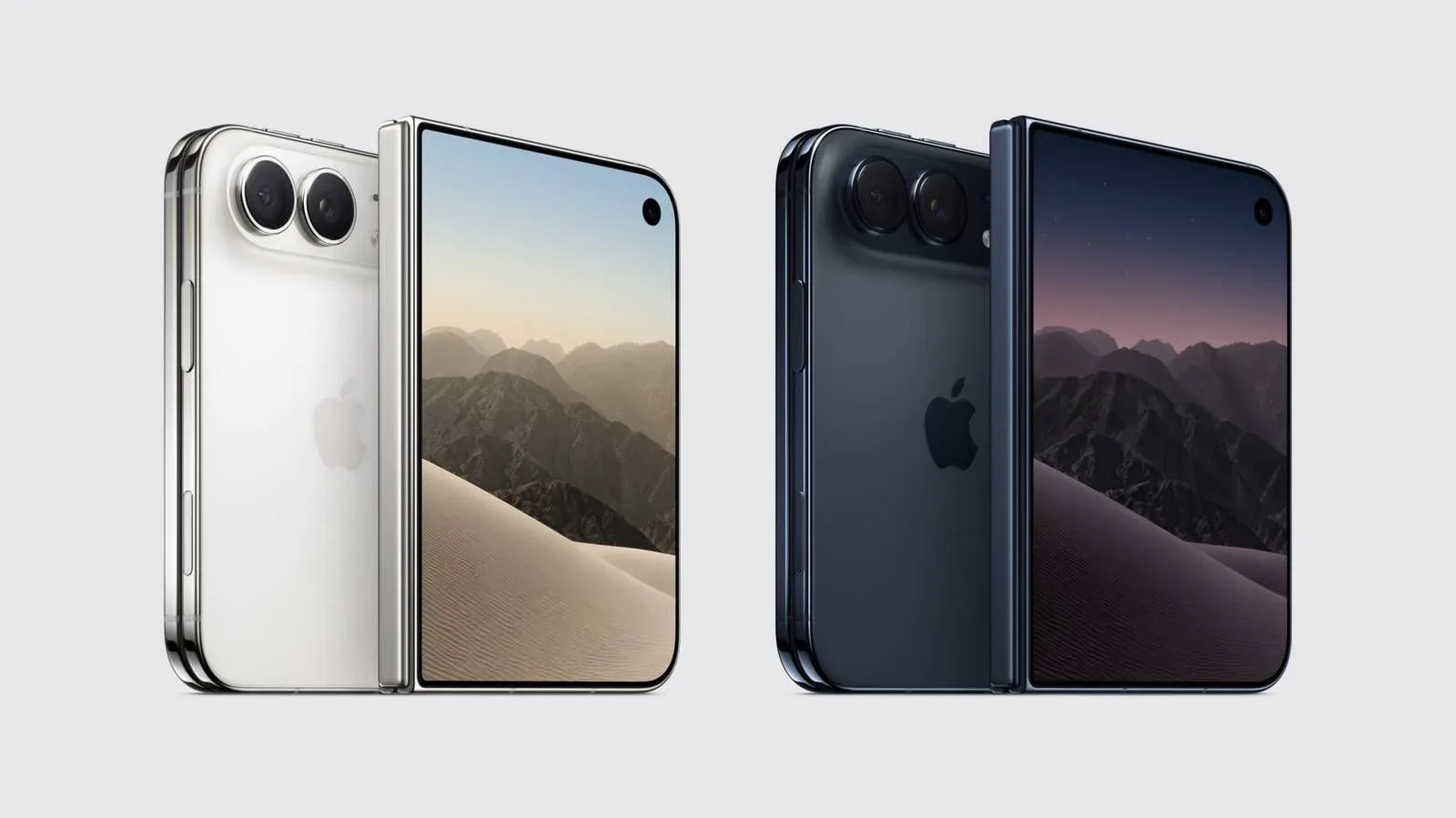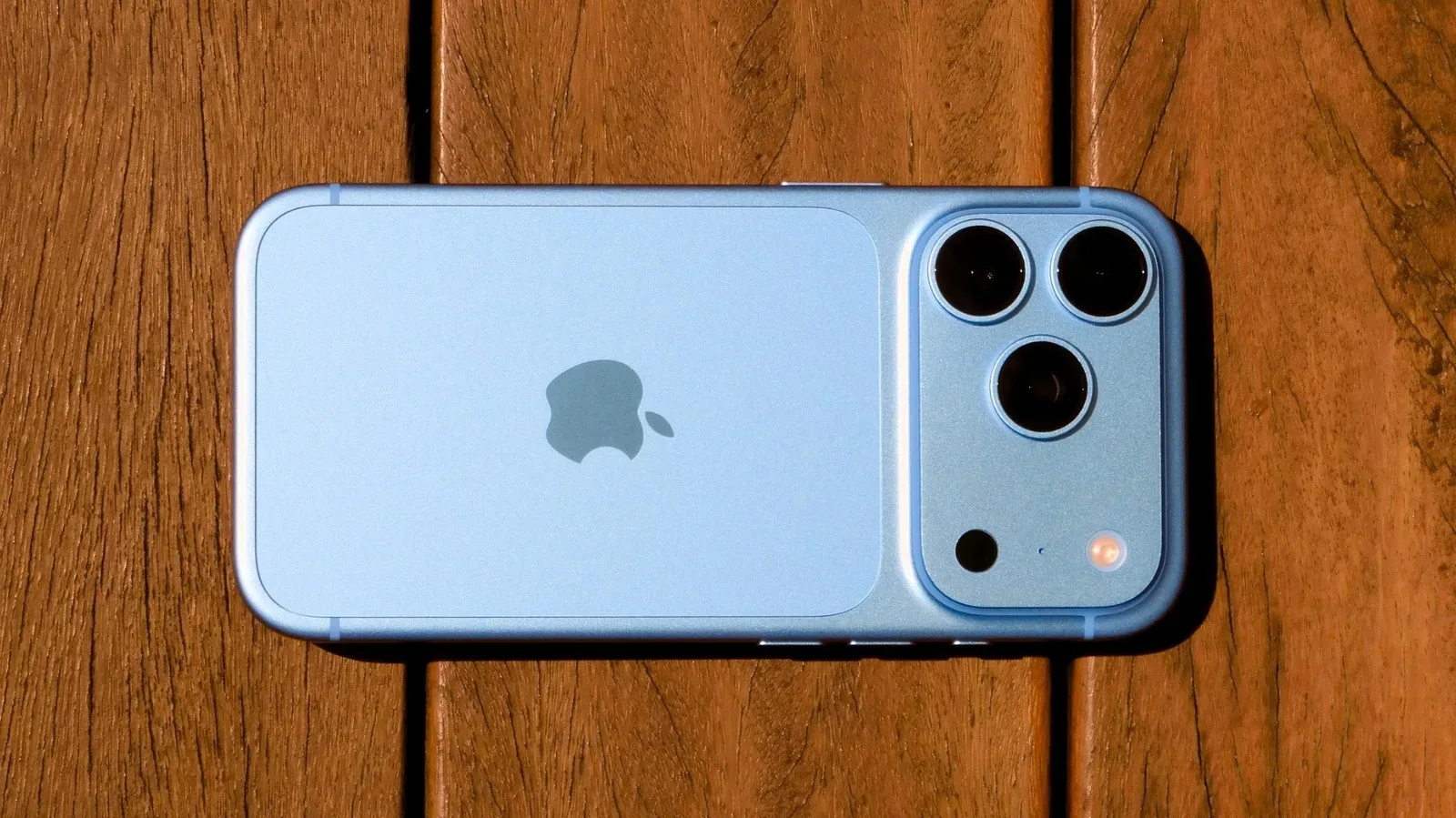
The iPhone 18 Pro’s headline changes are less about adding another mysterious button to accidentally press and more about letting people take control of the hardware already in front of them. Its most interesting additions sit in three very different places: the main camera’s physical aperture, a deeper set of manual camera controls, and a smaller Dynamic Island that can surface three Live Activities at once. Add a much faster claimed charge to 50%, and there is plenty to investigate before the home-screen rearranging begins.
The useful way to approach these features is not to turn every photo into a technical exam or treat a charging percentage as a competitive speedrun. Instead, try one setting at a time, compare results under the same conditions, and learn where the limits are. In particular, several of the camera options are tied to the main camera, while the top charging claim depends on a very specific USB power setup.
The main camera gets a real, adjustable aperture
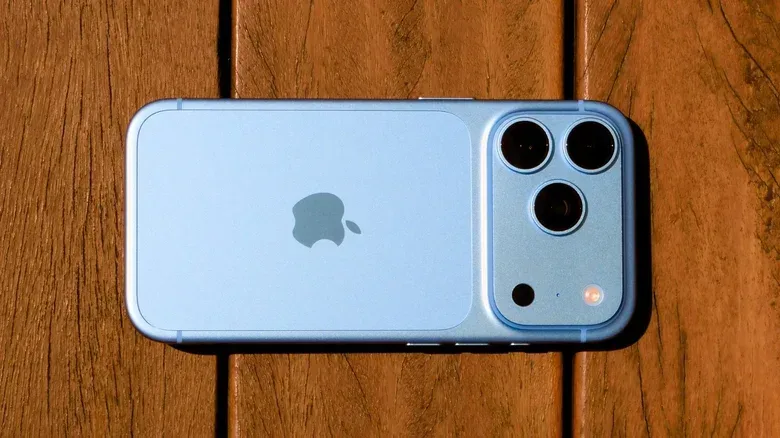
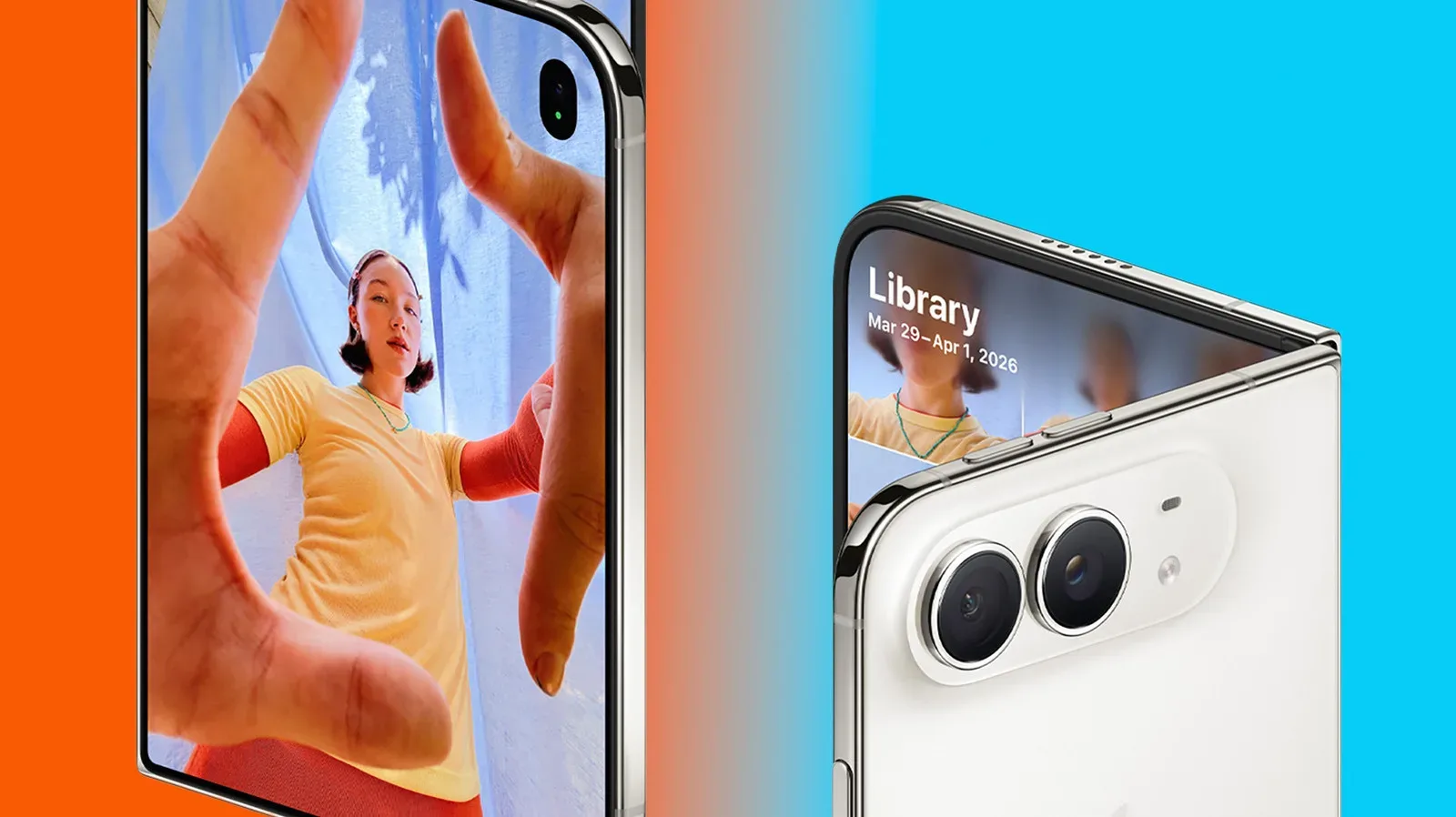
The iPhone 18 Pro’s 48-megapixel main camera is the first iPhone camera with a variable aperture. In plain language, aperture is the adjustable opening in a lens that controls how much light reaches the sensor. This lens uses six blades which physically open and close, much like the mechanism in a DSLR lens.
That physical change matters because aperture affects two familiar photographic qualities at once: exposure and depth of field. A wider opening lets in more light. It can also make the background look more blurred relative to the subject. A narrower opening admits less light and keeps more of the scene appearing sharp. Neither is automatically the “professional” choice; they are tools for different jobs.
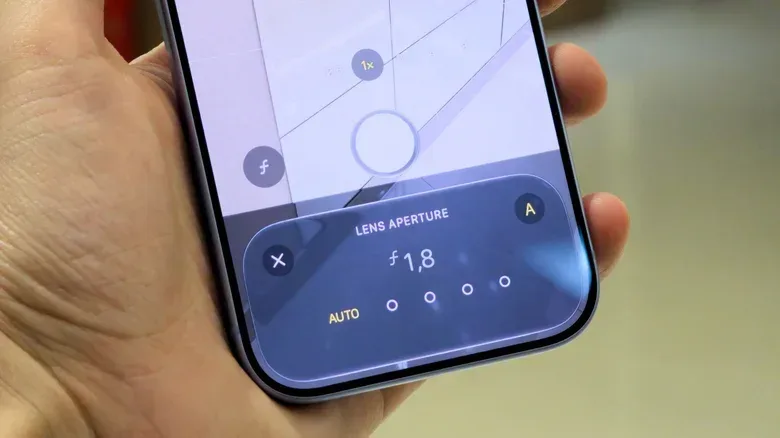
The available aperture settings are f/1.48, f/1.8, f/2.8 and f/4. The slightly backwards-looking numbering is normal photography notation: a smaller f-number means a wider opening. So f/1.48 is the widest option listed here, while f/4 is the narrowest.
A simple first test that actually reveals the difference
Photograph the same stationary subject at every aperture setting. Keep the framing and available light as consistent as possible. A person sitting a short distance in front of a background, or an object on a table with lights behind it, should make the trade-offs easier to see. Compare background blur, brightness and visible noise rather than declaring a winner after one frame.
- f/1.48: The sensor receives more light and the background can blur more. This is particularly useful for a subject in a dim restaurant or another low-light setting.
- f/4: Less light reaches the sensor, but more people or details across a scene can look sharp. It is a sensible setting to try for group photographs and landscapes.
- Narrower aperture look: Bright lights may produce a starburst effect at the smaller aperture, offering a visual effect that is worth testing deliberately rather than treating as an accident.
The control is found by tapping the six-dot button in the Camera app. There is one major boundary to remember: aperture adjustment works only with the main lens in 1x and 2x modes. The other lenses retain fixed apertures. That means a comparison is most meaningful when it stays in those supported modes; switching lenses changes more than one variable at once, which is a classic way to turn a quick photo experiment into an argument with oneself.
Manual controls move into the standard Camera app
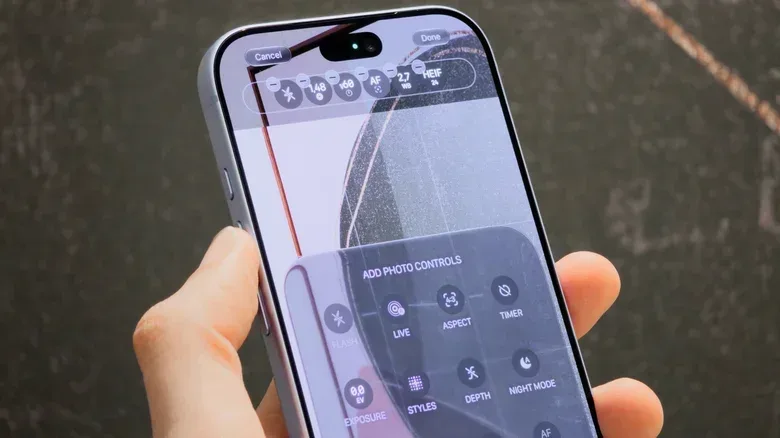
Variable aperture is only part of the iPhone 18 Pro’s more hands-on camera approach. The Camera app also adds manual adjustment for shutter speed, focus and white balance—controls that were previously more associated with third-party camera apps.
Related coverage includes 5 iPhone 18 Pro Features to Explore First.
Each name describes a different decision the camera usually makes automatically. Shutter speed is how long the camera captures light for an image. Slower shutter speeds can render moving car headlights as streaks. It is an effect with an immediately recognizable payoff, although it relies on the camera and scene staying steady enough for the intended result.
Focus determines what distance in the scene appears sharp. Giving the user direct control means they can choose the priority point rather than leaving every decision to automatic detection. White balance, meanwhile, governs how the camera interprets the color of the light around it. Locking it can prevent skin tones from shifting while moving between rooms illuminated by different kinds of light.
These manual options live behind the same six-dot control as aperture. The app can also be customized: press and hold the controls at the top of the Camera app, then drag frequently used ones into that area. That is a practical detail, not just a cosmetic flourish. Manual tools are most helpful when they are available before the fleeting moment has wandered away to become somebody else’s blurry photo.
Use manual settings with a purpose
The best first use of these controls is to isolate a single visual problem. Want headlights to streak? Explore shutter speed. Want consistent color while walking through differently lit spaces? Lock white balance. Want the camera to prioritize a specific plane in a scene? Adjust focus. Changing shutter speed, aperture, focus and white balance all at once can create dramatic results, but it also makes it difficult to know which setting caused what.
For everyday shooting, automatic behavior still has value. The point of new manual access is not that every photo now requires a pre-flight checklist. It is that users have a direct option when an automatic decision produces an unwanted result—or when the desired image depends on a particular look.
Photographic Styles gains grain and texture controls
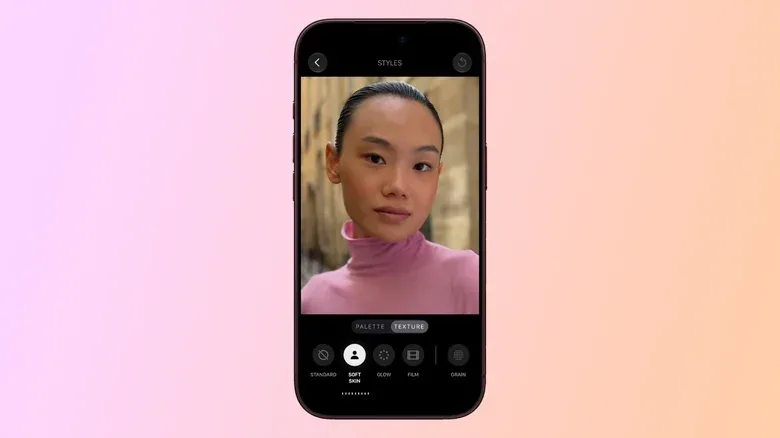
Photographic Styles, introduced with the iPhone 13, returns in an expanded form on the iPhone 18 Pro. Styles adjust targeted parts of an image, including contrast, shadows and colors, instead of applying a simple blanket filter across the entire photo. The new additions are grain and texture.
Grain describes a deliberately rougher, film-like visual character. Texture is a broader control for the surface detail and treatment of the picture. The options are available after taking a photo with any camera: open the editing menu, select Styles, choose Customize, then visit the Texture tab.
From there, the tools can soften skin tones without changing the rest of the image, add glow, apply a film effect to highlights, or introduce that old-school grainy appearance. Because these are edits applied after capture, a useful workflow is to keep an initial version close to natural, then create a more stylized variation after deciding whether the photo benefits from it. A little grain can feel intentional; a lot of grain can make a perfectly ordinary sandwich look like it survived an archaeological dig.
The larger implication is creative consistency. A user who prefers gentler skin rendering, particular highlight behavior or a visible grain treatment can explore the same direction across images from any of the phone’s cameras. The effects should still suit the subject: a texture adjustment that flatters a portrait may not be the choice for a crisp, detail-focused scene.
A smaller Dynamic Island, with room for three activities
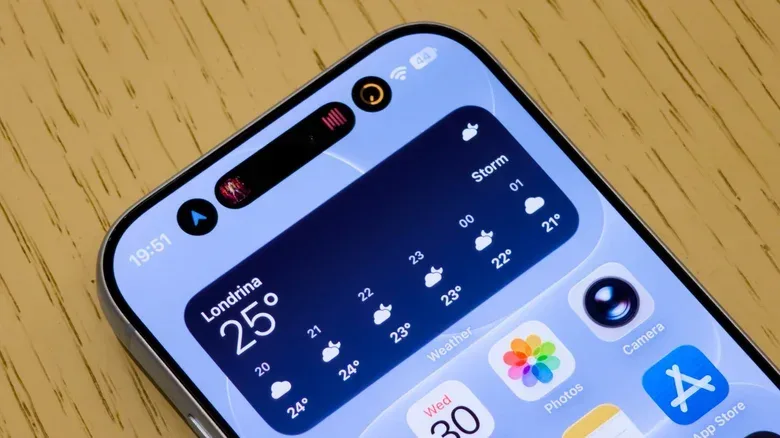
The Dynamic Island is the area surrounding the front-facing camera cutout that displays timely information. On the iPhone 18 Pro, it is smaller when inactive, leaving more room for content. When it is active, it can display up to three Live Activities simultaneously.
Live Activities are at-a-glance, ongoing app updates. The practical example is easy to understand: music controls, a running timer and a sports score can all remain visible at the same time. Press and hold an individual Live Activity in the Dynamic Island to expand it, as on earlier models.
This change is primarily about reducing the need to jump repeatedly among apps for short updates. It does not mean every app suddenly has a new interface to learn: apps that already work with Dynamic Island can use the added capability. For anyone who uses a timer while listening to audio and following a live event, the three-way view is likely to be the quickest feature to appreciate because it asks for no photography vocabulary and no ideal lighting conditions.
The smaller inactive footprint has a quieter benefit too. It leaves more screen area unobstructed until there is something worth showing. That is a sensible balance for a feature born around a hardware cutout: be discreet when nothing is happening, then become useful when several things are.
Fast charging is impressive, but the adapter details are not optional
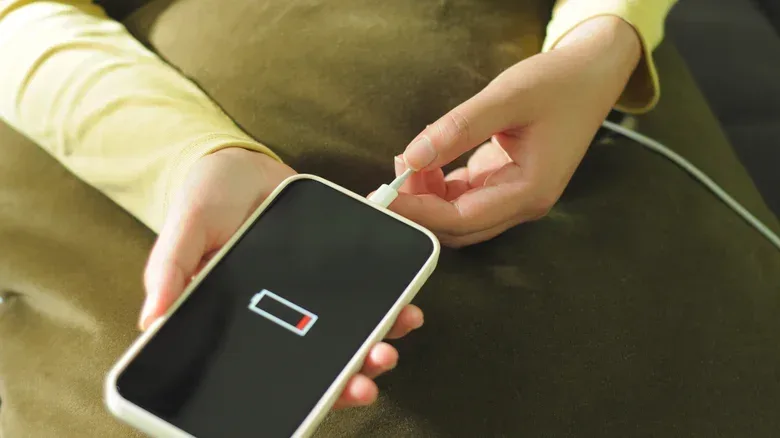
The iPhone 18 Pro is claimed to charge from 0% to 50% in about 15 minutes with the fastest wired setup. The equivalent first-half charge is listed at about 30 minutes with MagSafe. That makes the feature especially relevant for a brief stop before leaving home, rather than merely another battery statistic to admire from across the room.
There is an important compatibility requirement for the top wired figure. It needs a USB PD 3.1 adapter with Adjustable Voltage Supply, rated at 60W or higher. USB PD stands for USB Power Delivery, a charging standard. Adjustable Voltage Supply is part of the specified power setup that enables the phone to draw charging power in the needed way. Apple’s cited testing used its 40W Dynamic Power Adapter, which can peak at 60W.
In other words, “fast charging” is not a universal spell that activates whenever a cable is nearby. Check the adapter specification before expecting the fastest wired result. MagSafe has its own stated 30-minute route to 50%, offering a less rapid but still notable option.
Also note the scope of the estimate: it covers the first half of the battery. Charging slows later in the process to help preserve battery health. That behavior is not a broken promise at 51%; it is part of the stated charging approach. Planning around the early boost is more useful than assuming the entire battery will refill at the same pace.
For people building an Apple setup around the phone, accessories may be part of the broader upgrade conversation too. Joking Joystick has also covered a tracked low price for AirPods Pro 3, though headphones and a USB PD 3.1 power adapter solve very different problems. One handles audio; the other determines whether that 15-minute battery rescue is even on the menu.
The best first-hour order
- Open the six-dot Camera control and photograph one subject at all four main-lens aperture settings.
- Place aperture, shutter speed, focus or white balance where they are easiest to reach based on what you actually shoot.
- Edit a photo in Styles and try grain and texture on a duplicate or alternate version.
- Let a few compatible Live Activities run together and test press-and-hold expansion in Dynamic Island.
- Verify the specs of the wired power adapter before treating the 0%–50% charging estimate as your expected result.
The iPhone 18 Pro’s additions reward small, repeatable experiments. The variable aperture and manual controls give the standard camera app more direct creative control; Styles provides a separate lane for post-capture character; Dynamic Island handles concurrent, fleeting information; and the charging upgrade could matter enormously when time is short. Just do not judge a narrow aperture by a dark restaurant shot, judge a three-activity Island by a blank screen, or judge peak charging from an adapter that was never built for it.