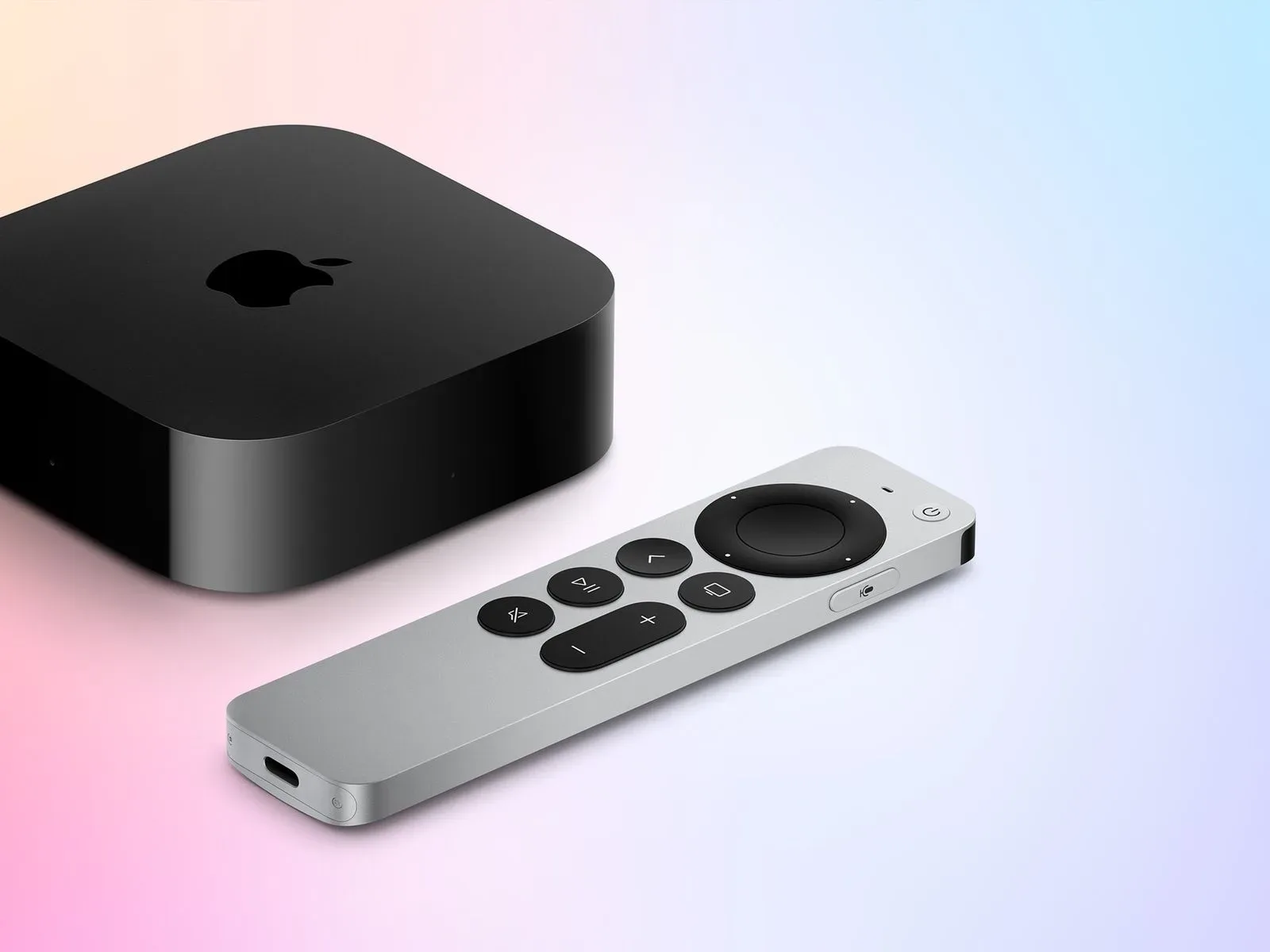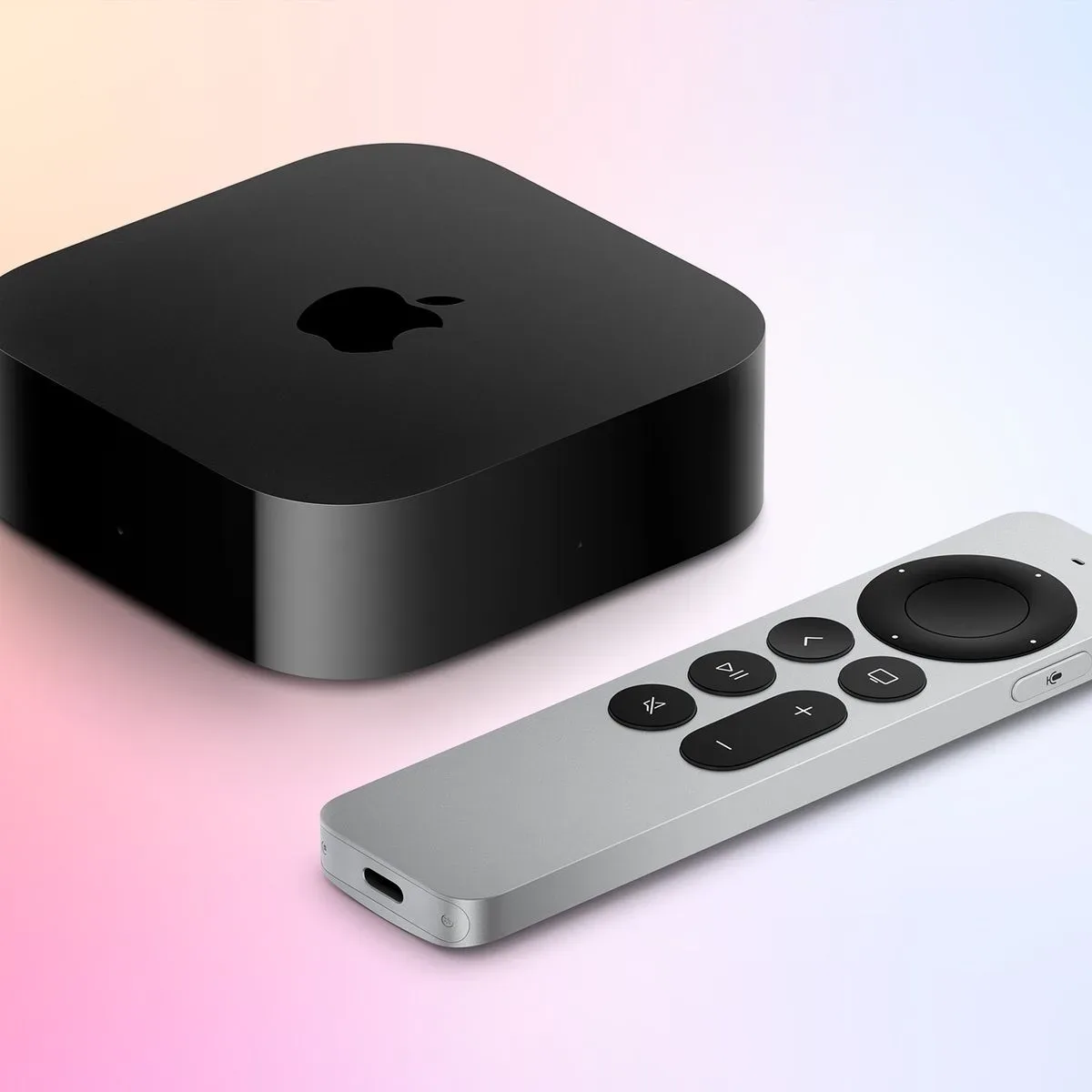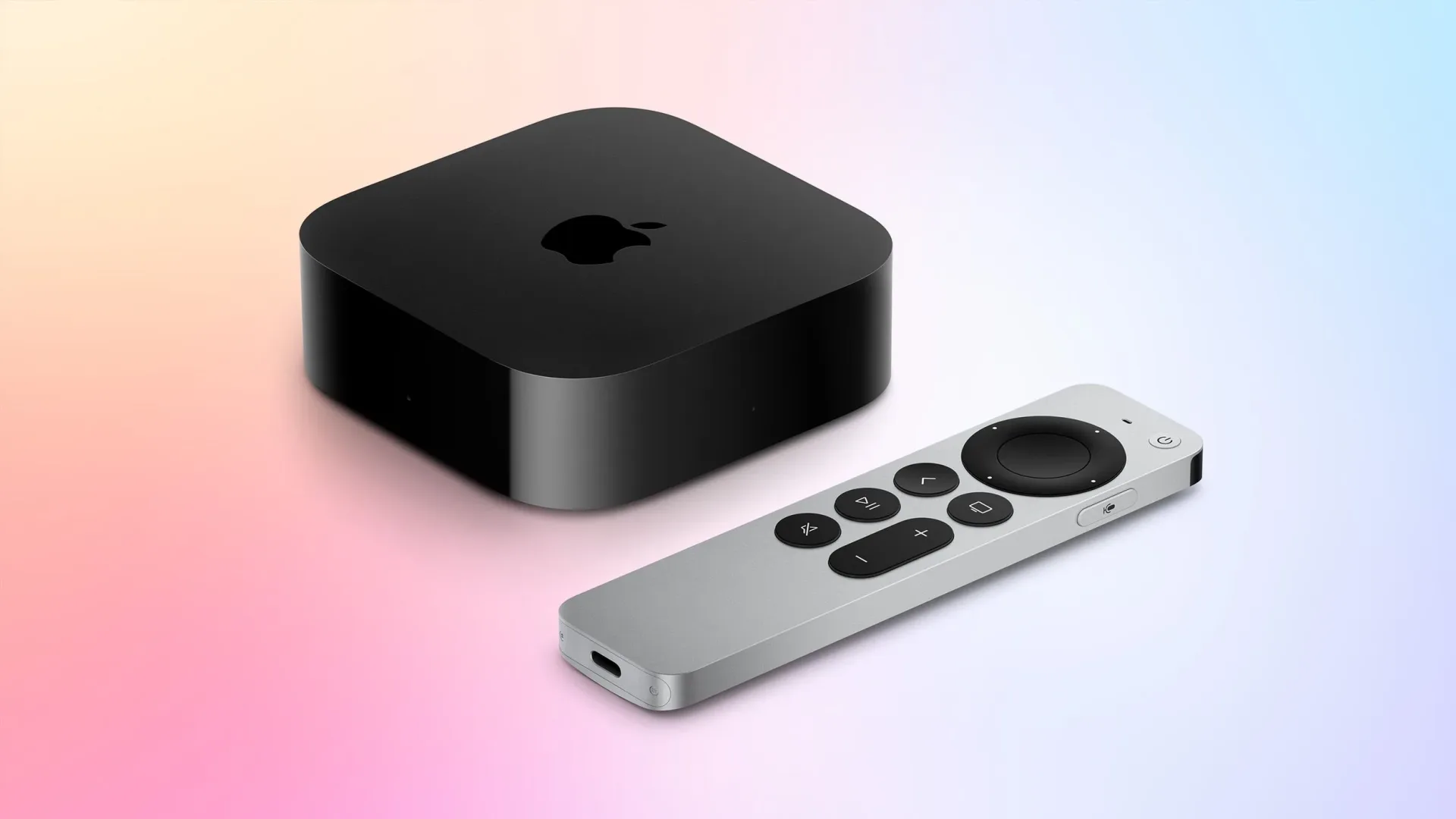
Some owners receiving the fourth-generation Apple TV 4K have run into an immediately annoying snag: the YouTube app may not work correctly out of the box. When a brand-new streaming device stumbles on one of its most commonly used apps, it can feel like a major hardware problem. The available troubleshooting path, however, is focused on software maintenance rather than a confirmed fault with the Apple TV 4K itself.
The recommended order is straightforward: first confirm that tvOS 27.2 is installed; if it is already present, restart the Apple TV; and, if YouTube still will not work, remove and reinstall the YouTube app. That escalation order matters. It starts with the system-level component most likely to affect app compatibility, moves to a clean restart of the device, and only then refreshes the individual application.
Start by checking for tvOS 27.2
On Apple TV, open Settings, then go to System, followed by Software Updates. Check whether tvOS 27.2 is installed, and install it if it is not.
tvOS is the operating system that runs Apple TV. It sits underneath individual apps, handling the device’s core software environment. An app such as YouTube may be installed separately, but it still depends on the operating system to launch and operate properly. That is why the system update comes before deleting anything from the app library.
This is particularly relevant on newly received hardware. A device can arrive with software that is older than the version currently needed to resolve a compatibility issue. Updating first also avoids treating the YouTube app as the sole point of failure when the fix may be broader than the app itself.
Why the update should be the first move
The practical goal is not simply to have “an update” installed. It is to make sure the Apple TV is specifically on tvOS 27.2, the version identified for this problem. If the version is missing, updating provides the first and least disruptive remedy.
Users should resist the urge to jump straight to uninstalling applications or changing unrelated settings. Neither action is part of the initial recommended sequence. Keeping the process narrow makes it easier to understand what resolved the issue and prevents unnecessary changes while a system update is still pending.
If tvOS 27.2 is already installed, restart the Apple TV
If the Apple TV already shows tvOS 27.2, the next step is a restart. Navigate to Settings → System → Restart.
A restart is different from merely leaving an app and returning to the home screen. It restarts the Apple TV itself, giving its operating environment a fresh start. In this situation, it is the appropriate second step because the current tvOS version may be installed but the YouTube app may still not be operating as expected in the device’s present session.
The important detail is the menu path: use the built-in restart command at Settings → System → Restart. Once the Apple TV has restarted, open YouTube again and see whether it now works. If it does, there is no reason to proceed to the final step.
Still broken? Delete and reinstall YouTube
If YouTube remains unavailable after confirming tvOS 27.2 and restarting the Apple TV, uninstall the YouTube app and install it again.
Reinstalling is a more targeted reset than restarting the whole device. It replaces the copy of the application on the Apple TV rather than altering the operating system. It is therefore best treated as the final action in this short sequence, not the starting point.
For affected owners, the full troubleshooting checklist is:
- Open Settings → System → Software Updates.
- Confirm tvOS 27.2 is installed; install it if needed.
- If tvOS 27.2 is already installed, go to Settings → System → Restart.
- Try YouTube again after the Apple TV restarts.
- If the problem continues, uninstall YouTube and reinstall it.
What this does—and does not—establish
The reported issue concerns some users of the newly arriving fourth-generation Apple TV 4K and the YouTube app. The supplied information does not establish that every new Apple TV 4K is affected, nor does it identify a single universal symptom such as a particular error message, sign-in failure, or playback behavior. Owners should therefore avoid assuming that every YouTube issue has the same cause.
What is clear is the intended recovery path: update the Apple TV software, restart if the stated version is already in place, and reinstall the app only if necessary. That is useful because it gives owners a defined sequence instead of a grab bag of speculative fixes.
It also means that this is not a reason, on the available information, to infer a confirmed hardware defect. The listed remedies are all software-side steps: an operating-system update, a device restart, and an application reinstall. Those measures are designed to address the relationship between the device software and the app, not to diagnose physical components.
Keep the troubleshooting focused
When a marquee app fails on day one, it is easy to start experimenting with every available setting. In this case, the most sensible approach is more disciplined. Check the exact tvOS version first. If it is already correct, use the Apple TV restart command. Only after those two steps should the YouTube installation itself be replaced.
That approach has a few practical advantages. It preserves a clear record of what was tried, minimizes unnecessary disruption, and follows the supplied fix order. It also distinguishes two separate layers of software: tvOS, which runs the Apple TV, and YouTube, which runs within that environment.
Owners interested in the wider early experience around the hardware can also read our look at Apple HomeView and Apple TV 4K first impressions. For the YouTube issue itself, though, the relevant action remains the compact three-stage process above.
A quick decision guide
- You have not checked software yet: Go directly to Settings, System, and Software Updates, then verify tvOS 27.2.
- tvOS 27.2 is not installed: Install it before attempting other remedies.
- tvOS 27.2 is already installed: Restart through Settings, System, and Restart.
- YouTube still does not work after the restart: Uninstall YouTube and reinstall it.
The sequence is intentionally brief. There is no supplied basis for promising a particular result in every case, but these are the identified steps for Apple TV 4K owners encountering the YouTube problem. Start at the system level, refresh the device if needed, then refresh the app as the final measure.