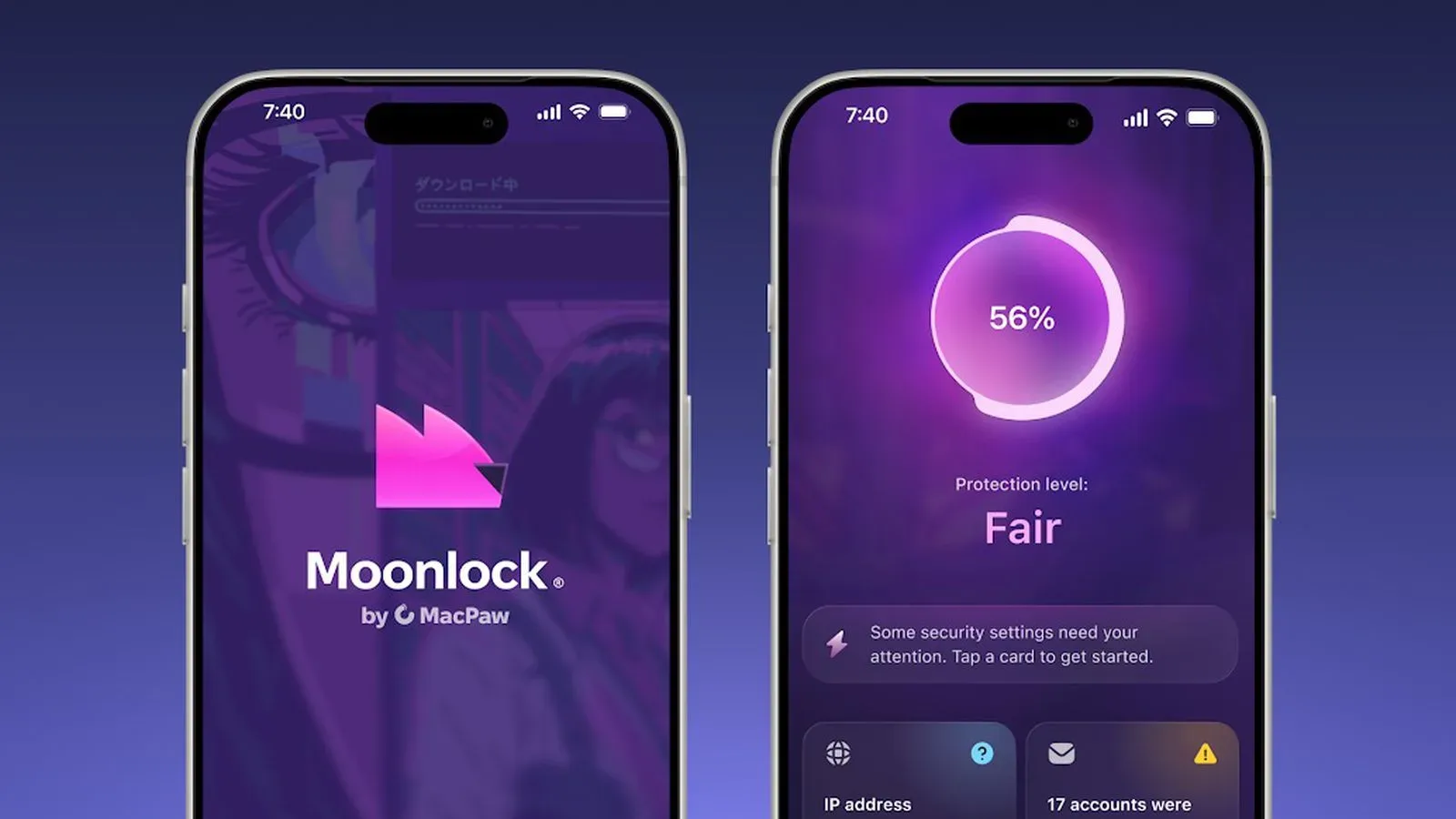
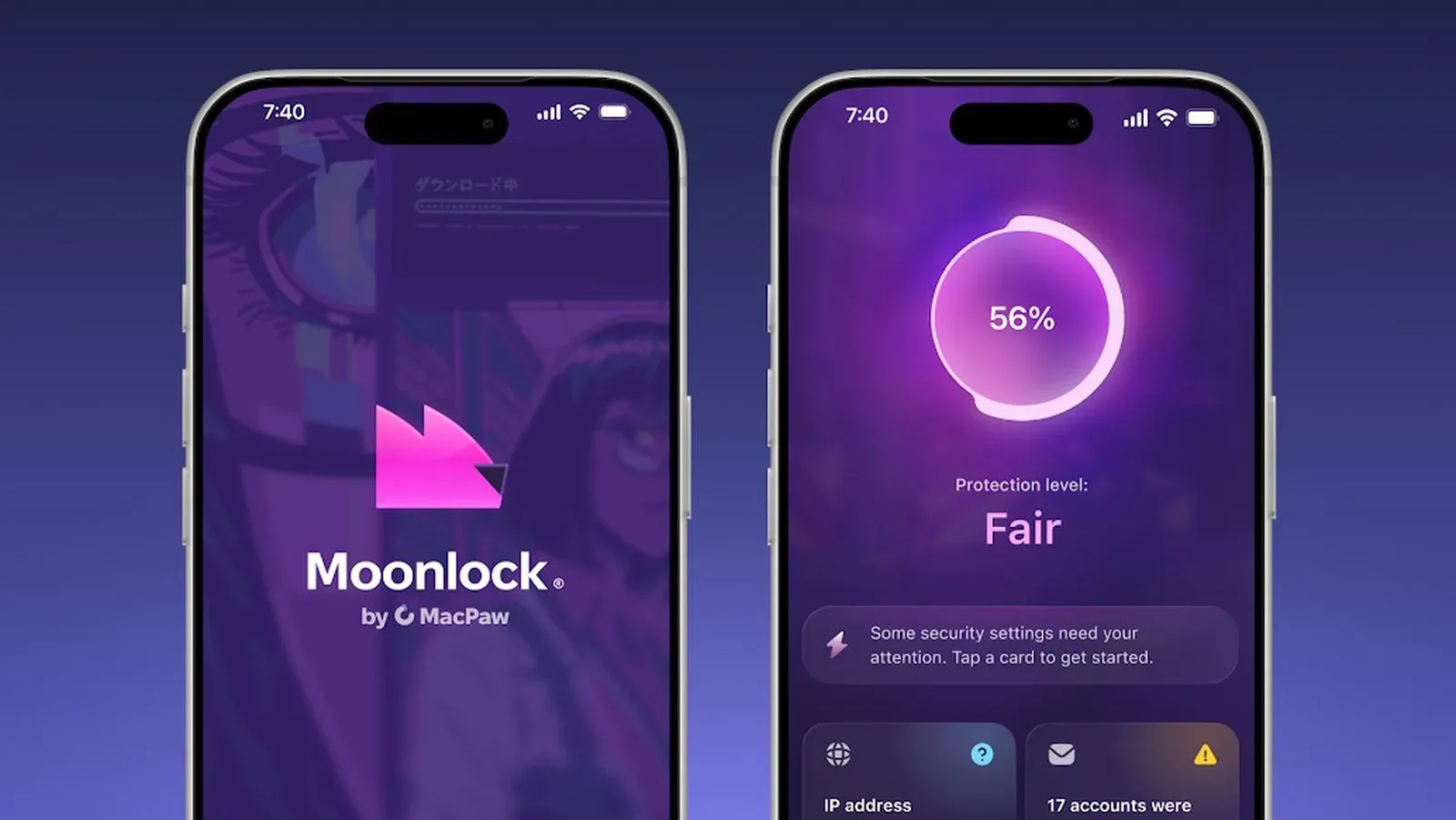
MacPaw has launched Moonlock for iPhone, extending its consumer-focused cybersecurity app to Apple’s phone platform. The mobile release centers on a fairly practical problem: much of the information people are asked to trust or act on now arrives on a small screen, often as a hurried text, a link, an image, or a QR code.
Moonlock’s iPhone version is intended to help users identify phishing attempts and other online threats, while also turning broader device-security checks into recommendations and step-by-step tasks. Its core tools include Scam Detect, Safe SMS, Security Score, Email Breach History, and checks covering areas such as Wi-Fi, passcode protection, and iOS updates.
The app is available through the App Store and through Setapp, MacPaw’s third-party app marketplace. It is a paid product offered through customizable plans based on the number of covered devices, with subscription and one-time-purchase options.
A security app focused on the moment before a tap
The most immediately recognizable feature is Scam Detect. It can examine suspicious material including messages, screenshots, links, and QR codes for signs associated with phishing. A user can paste, scan, or share the material to the feature, which then returns an assessment explaining why the content may be suspicious.
Phishing is the attempt to persuade someone to hand over information, open something harmful, or take an action by presenting a message as trustworthy. It can arrive through apparently routine channels: a delivery notice, account warning, banking prompt, work request, or message that seems to come from a friend or family member. The important part of Moonlock’s proposed approach is not just flagging content, but giving a reason for its assessment. A warning that explains its concern can be more useful to a person deciding whether a link, QR code, or screenshot deserves a second look.
The format matters on iPhone. A suspicious item may not be plain text that can be comfortably inspected in a browser; it might be embedded in an image, forwarded through a conversation, or presented as a QR code. Moonlock is built around the ability to submit those different forms directly to Scam Detect rather than requiring the user to manually translate every detail first.
That does not turn any automated assessment into a guarantee. The practical use of a feature like this is as a pause point before acting, especially when a message requests credentials, payment, personal information, or an urgent response. Users should treat an assessment as guidance for making a safer decision, rather than as permission to ignore ordinary caution.
Safe SMS adds an opt-in filtering layer
Moonlock also includes Safe SMS, an opt-in feature designed to filter scam texts automatically. It keeps a record of messages it catches and explains why they were flagged. The opt-in status is significant: the feature is not described as an unavoidable part of using the app, and users can choose whether SMS filtering fits their needs.
For day-to-day use, the record could be as important as the filtering itself. A security filter that silently moves messages away may reduce interruptions, but a log gives the owner a way to understand what happened and review the reasoning. That is especially helpful when people are concerned that a legitimate text could look unusual or when they simply want visibility into the kinds of messages reaching their number.
There is a broader difference between filtering and checking. Safe SMS is intended to operate on incoming scam texts, while Scam Detect is a user-initiated tool for material someone encounters and chooses to submit. Together, those features suggest two routes through the same problem: reduce obvious nuisance messages automatically, and provide a way to examine a questionable item that slips through or arrives somewhere else.
Security Score is a checklist, not a grade for life
Security Score gives an iPhone a rating from 0 to 100 based on its security setup and provides recommendations intended to improve that result. A single number can make device hygiene easier to approach, but its best use is as a map to specific actions rather than a permanent verdict on whether a phone is “safe.”
Moonlock pairs those recommendations with device and network checks. The app can help people review Wi-Fi security, passcode protection, iOS updates, and other settings, then offers checklists of suggested one-time actions with step-by-step instructions.
Device security hygiene refers to the routine configuration and maintenance choices that reduce avoidable exposure. In the context of Moonlock’s listed checks, that means looking at whether the phone has appropriate passcode protection, whether iOS is up to date, and whether the Wi-Fi environment merits attention. These can sound like basic items, but presenting them as a clear sequence may be more useful than expecting every person to know where every relevant setting lives or what they should review first.
There is also a practical reason to separate one-time setup tasks from ongoing vigilance. A passcode or update check may be a concrete task that can be completed and revisited periodically. Suspect messages, meanwhile, require judgement whenever they appear. Moonlock addresses both: configuration guidance for the former and content assessment for the latter.
What breach-history checks can help clarify
Email Breach History lets users check whether an email address has appeared in a data breach. Where an exposure is found, the feature can show the breach source, when it happened, and what was exposed. It then guides the user through the steps needed to secure each affected account.
A data breach, in this setting, is an incident in which account-related information or other data has been exposed from a service. Finding an address in a breach history does not by itself describe the current state of every account a person owns. Its value lies in identifying a situation that may call for attention and then connecting that finding to actions for the accounts involved.
The account-by-account guidance is the useful practical distinction here. An alert without next steps can be intimidating or easy to postpone. Moonlock’s stated goal is to reveal the context of an exposure and walk the user through securing the affected account. That makes the feature part of a response process, not merely a lookup result.
The iPhone release arrives as phone-based communication remains central to personal conversations, financial activity, and routine account management. Security tools that can fit into those everyday moments have a clearer role than products that only make sense at a desktop. That same mobile focus is relevant to broader private communications: encrypted chat backup work on iPhone is another example of how security and privacy questions increasingly meet users in the apps they use most often.
Pricing and access: what is stated
Moonlock can be downloaded from the App Store or accessed through Setapp. Pricing depends on the number of devices included in a customized plan. MacPaw gives the example of a single-device plan at $13.50 per month; when billed yearly, that example works out to $4.50 per month. Each plan also has a one-time purchase option.
For existing Setapp subscribers, Moonlock is included for both Mac and iPhone. The company says that arrangement does not require a separate purchase for iPhone or an additional account. People considering the app therefore have more than one access model to compare: a Moonlock plan tailored to their device count, a one-time option, or inclusion through a Setapp subscription.
Those choices matter because the app combines several functions that people may value differently. Someone primarily looking for support with suspicious texts may weigh the service differently from a person who also wants breach-history checks, security setup recommendations, and coverage across a Mac and iPhone. The available pricing structure provides alternatives, but the stated monthly and annual figures are specifically an example for one device rather than a universal price for every configuration.
How to use the tools with sensible expectations
Moonlock’s feature set is designed to make cybersecurity more understandable and actionable for ordinary users. Oleg Stukalenko, head of product management at Moonlock by MacPaw, described the iPhone release as an extension of the goal of helping people spot scams before they act, see their security standing, and know what to do next.
For users, the most reasonable workflow is straightforward:
- Pause on unexpected requests. Do not let urgency in a message decide the next action.
- Submit questionable material to Scam Detect. Use its paste, scan, or sharing options for a suspicious message, screenshot, link, or QR code.
- Review why content was considered suspicious. The explanation is part of making an informed choice, not just a label to dismiss.
- Consider enabling Safe SMS. Because it is opt-in, users can decide whether automatic scam-text filtering is appropriate for them.
- Use Security Score as a task list. Review its recommendations and the device and network checks, including passcode, Wi-Fi, and iOS update items.
- Check email exposure and follow through. If Email Breach History identifies an affected account, use the provided steps to secure that account.
The launch does not change the basic reality that online safety depends on both software assistance and user decisions. What it does offer is a consolidated iPhone toolkit for the points where confusion is common: deciding whether an incoming item is suspicious, understanding which security settings deserve attention, and responding to a known email exposure with guided account-security steps.