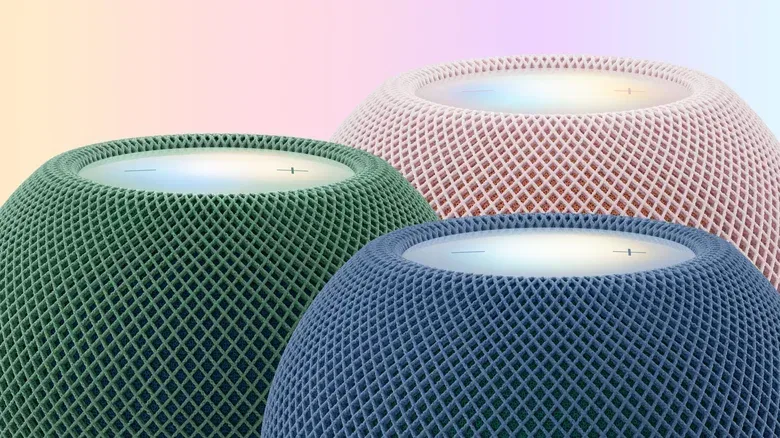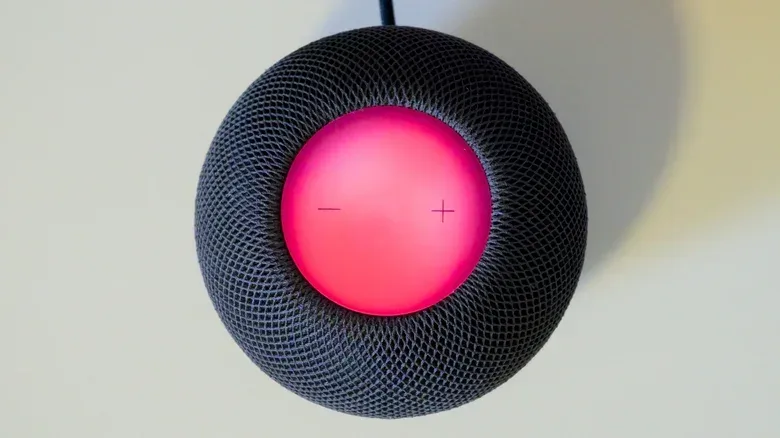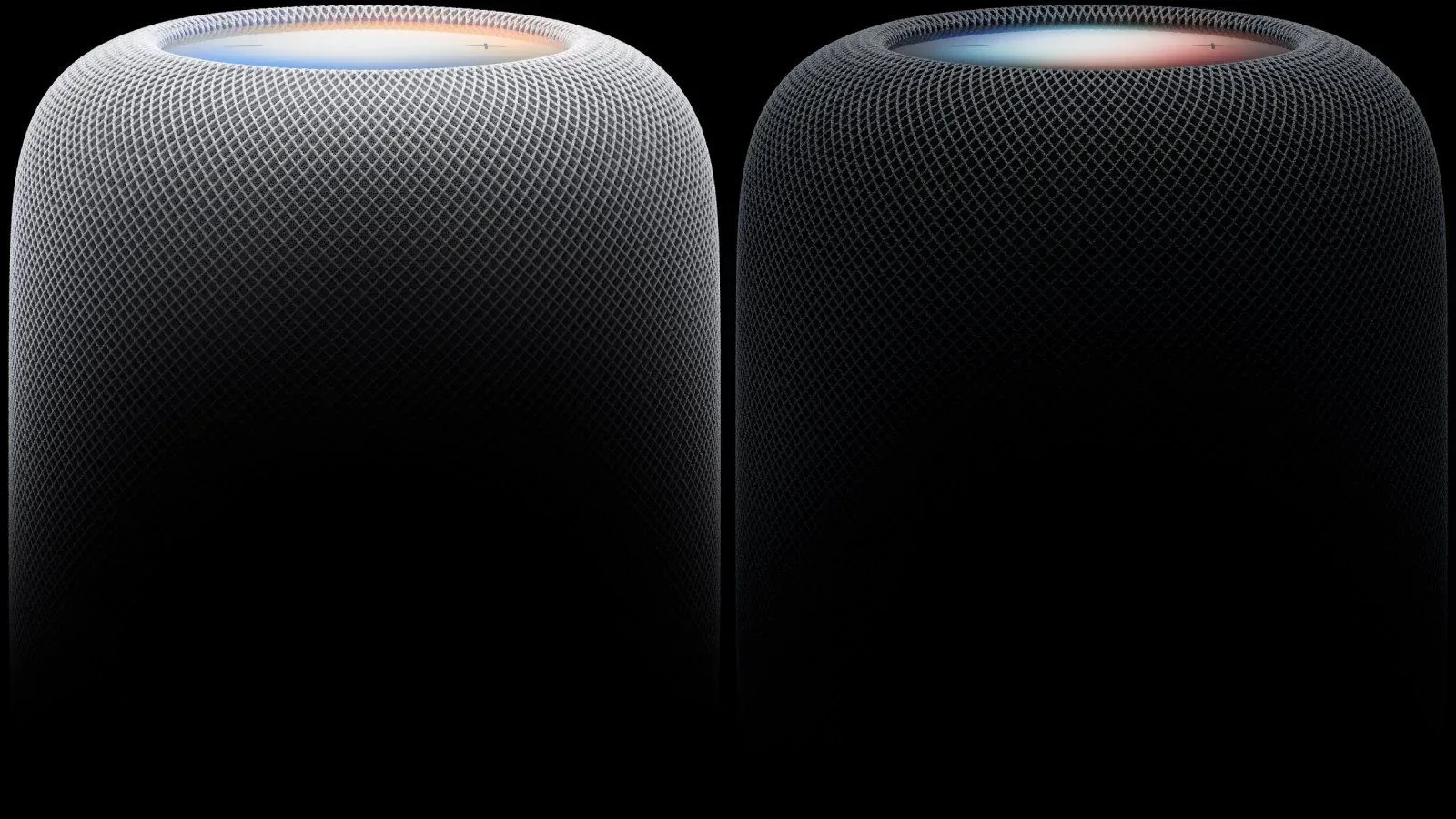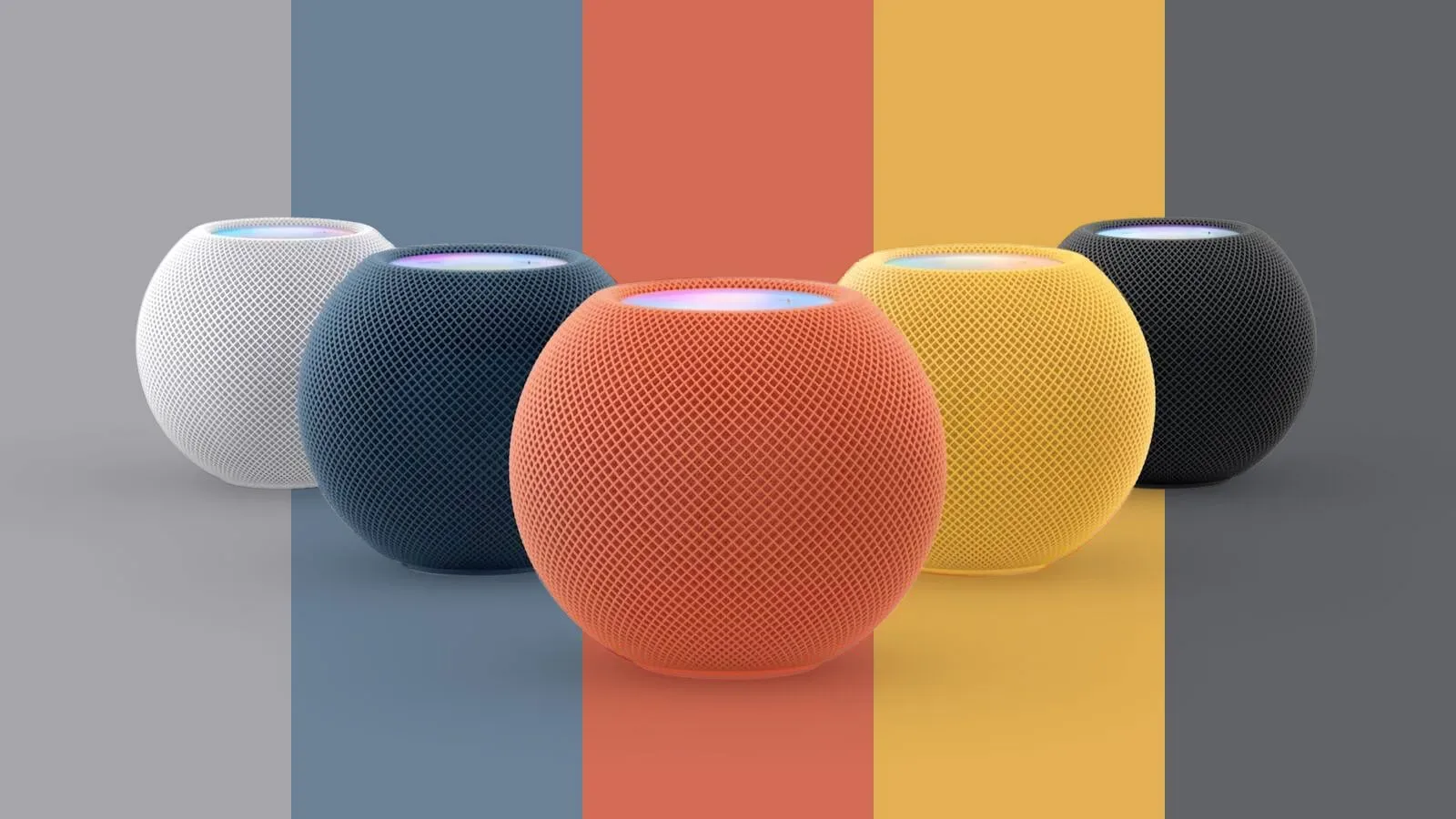
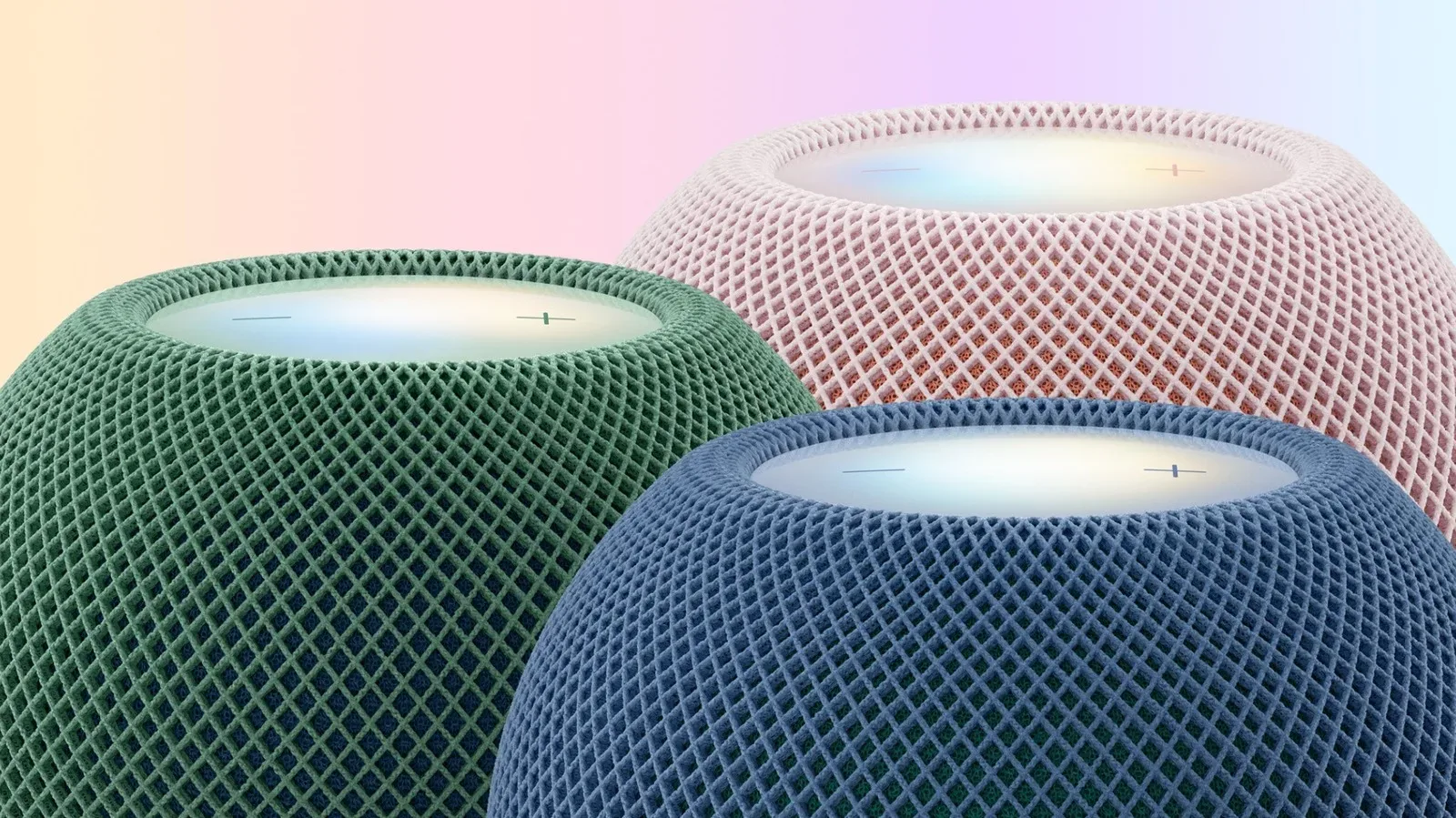
Apple’s HomePod speakers have long used the illuminated panel on top as a simple status signal: Siri is listening, audio is playing, or a touch control is waiting to be used. With Sound Glow, that LED surface takes on a more expressive job. The feature turns the top of a compatible HomePod into a compact, music-synced light animation whose colours are drawn from what is playing.
It is a cosmetic feature rather than a new audio mode, so it will not alter a song’s sound or turn a HomePod into room lighting. But for people who keep a speaker visible on a desk, shelf, bedside table or entertainment unit, it gives playback a clearer visual identity. A blue-heavy record may result in blue illumination; a different album with green and orange cover art may take the speaker in another direction.
The important detail for existing owners is that Sound Glow is not reserved for the newer HomePod mini 2. It is delivered through HomePod Software 27.2 and is supported on the original HomePod mini and the second-generation, full-size HomePod as well. The original 2018 HomePod is the notable exception.
What Sound Glow actually does
HomePods do not use a conventional screen for controls or artwork. Their top panel combines a touch-sensitive surface with an array of LEDs—light-emitting diodes, the small electronic lights that can be controlled for colour and brightness. Normally, that panel supplies straightforward feedback and touch access to functions including volume and play/pause.
With Sound Glow enabled, the same hardware is used for a reactive animation. The speaker takes colours from the album art associated with playback and pulses in rhythm with the audio. Apple says the response is calculated in real time from the song’s bass and treble. Bass refers to lower-frequency sound, often associated with kick drums and deep notes, while treble refers to higher-frequency detail such as cymbals and brighter vocal or instrumental elements.
That real-time response means the result is not simply one fixed colour loop assigned to an album. Two tracks on the same release can produce different patterns because their musical content differs, even when their artwork is identical. The artwork informs the palette; the audio influences the movement.
Examples illustrate the colour side of the effect. Taylor Swift’s The Life of a Showgirl produces predominantly green and orange lighting, while Miley Cyrus’s Endless Summer Vacation results in blue light. Those examples should be understood as an indication of how Sound Glow derives a visual mood from cover art, not as manually selected themes the listener needs to configure.
It is not only for music
Sound Glow also works with podcasts and Apple’s ambient sounds. That matters because the feature is tied to playback rather than limited to conventional songs. The Rain soundscape, for example, uses a gentle pitter-patter-style animation. In practical terms, the animation can accompany a spoken programme or a background soundscape as well as an album.
There is a fallback for material that does not supply suitable visual information. Songs without artwork, as well as videos, return the HomePod to its regular white lighting. That behavior helps explain why Sound Glow may appear less dramatic with some content: its most colourful presentation depends on the artwork associated with what is playing.
The feature is automatic after it is switched on. There is no separate step to choose a palette, match a room, or build an animation. Start compatible playback through Siri or AirPlay and the HomePod handles the visual response. AirPlay is Apple’s wireless streaming system, which allows audio to be sent from an iPhone to a compatible speaker.
Compatibility: the part worth checking first
Sound Glow has several requirements, and updating a HomePod alone is not enough. First, the speaker must be one of the supported models:
- HomePod mini, including the original model
- HomePod (2nd generation), the larger current model
The feature does not work on the original HomePod released in 2018, even if that speaker can install the latest HomePod software. That distinction is worth making before spending time looking for a toggle that will not appear.
A supported HomePod also needs HomePod Software 27.2 or later. If setup is being managed from an iPhone or iPad, that device needs iOS 27.2 or later. Even a newly purchased HomePod mini 2 may require an update because it can arrive with software older than version 27.2.
There is one further device requirement: Sound Glow needs a paired Apple Intelligence-capable device. The listed options are an iPhone 15 Pro or newer, an M1 Mac or newer, or one of the latest iPads. An Apple TV running tvOS 27 can also satisfy this requirement. That makes compatibility a little more involved than a typical visual preference: a current supported speaker, current software and a qualifying paired Apple device all matter.
Apple TV appears here in the hardware sense, rather than Apple’s television service. Readers following Apple’s wider screen ecosystem may also be interested in the planned Justin Timberlake documentary for Apple TV, though it is separate from the Apple TV device requirement for Sound Glow.
How to update a HomePod for Sound Glow
HomePods generally install updates automatically, but it is sensible to verify the version before troubleshooting the feature. Use the Home app on another Apple device and follow these steps:
- Open the Home app.
- Select the three-dot button.
- Choose Home Settings.
- Open Software Update.
- Confirm that the HomePod has HomePod Software 27.2 or a later version available or installed.
On the iPhone or iPad used for setup, confirm that iOS 27.2 or later is installed as well. If a HomePod has updated but the required companion device has not, Sound Glow may still not be ready to use. Likewise, an older phone that does not meet the Apple Intelligence requirement is not a substitute for an eligible paired device.
How to turn Sound Glow on or off
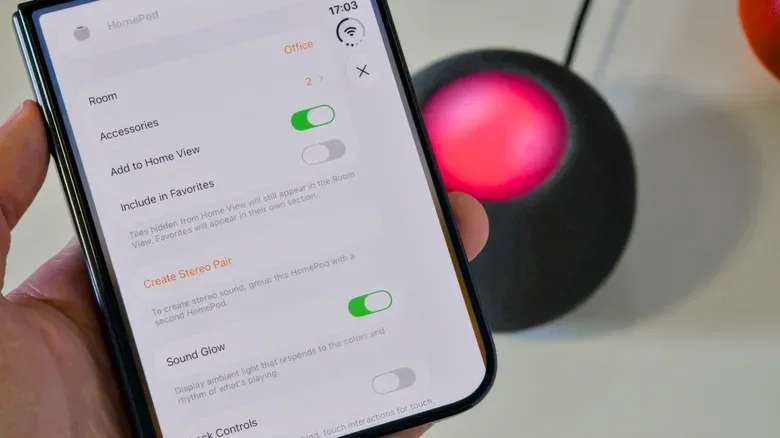
Once the hardware and software requirements are met, Sound Glow is enabled per speaker rather than as a single household-wide setting. That is useful for homes with multiple HomePods: a speaker in a living room can display the animation while another in a bedroom remains on its standard lighting.
- Open the Home app and select the individual HomePod.
- Enter Settings for that speaker.
- Scroll until the Sound Glow option appears.
- Switch the toggle on.
Repeat those steps for every compatible HomePod that should use the effect. To test it, ask Siri to play a song or send audio to the speaker with AirPlay from an iPhone. If the content has usable artwork, the top panel should move beyond its usual white state and use a colour animation that follows the track.
Disabling it is deliberately just as uncomplicated: return to that same HomePod’s settings and switch Sound Glow off. It is not an irreversible visual mode, nor does it require resetting the speaker.
What to expect from the lighting
The word “glow” is the key expectation-setter. Sound Glow is designed around the HomePod’s existing top-panel LEDs, so it is a small, local effect—not a replacement for lamps, smart bulbs or a full-scale music visualizer. The lights are not expected to illuminate a room unless it is extremely dark.
That limitation is not necessarily a downside. The light is likely to work best as peripheral feedback: a glanceable indication that the speaker is active, with a little character tied to the current programme. It can make a speaker feel more alive without asking users to manage another elaborate lighting system.
For listeners who prefer the understated status light they already know, Apple has kept the opt-out direct and speaker-specific. For everyone else with a HomePod mini or second-generation HomePod, the update offers a new use for hardware that was already sitting at the top of the speaker—provided the rest of the compatibility checklist is in place.