AirDrop is one of those Apple features that feels invisible right up until it is not. A photo, link or file normally jumps from an iPhone to a Mac with a few taps; then, without much warning, the recipient simply vanishes from the share sheet. The useful news is that most failures have a small set of causes. AirDrop depends on nearby-device discovery, connection settings and receiving permissions all lining up at once.
The fastest way to troubleshoot it is to work from the physical basics outward. Check that both devices are awake, close together, and have Wi-Fi and Bluetooth enabled. Then inspect who is allowed to receive items, look for settings that may have expired or changed after an update, and only then move on to restarts or service.
This is especially worth knowing for anyone moving screenshots, game clips, save-adjacent files, reference images or other media between an iPhone, iPad and Mac. A failed transfer is often not a damaged device; it is usually a setting that makes a device undiscoverable by design.
Start with the conditions AirDrop needs
AirDrop works between Apple devices. A Windows PC will not appear as an AirDrop target. The devices also need to be within about 30 feet of one another, with Wi-Fi and Bluetooth switched on and providing a reliable connection. Bluetooth helps devices find each other nearby, while Wi-Fi is part of the transfer process. If either is off, or behaving unreliably, discovery can fail before a transfer even has the chance to begin.
Open Control Center on the relevant Apple devices and confirm that Wi-Fi and Bluetooth are active. If they already appear enabled but AirDrop is stuck, toggle each one off and back on. This simple reset can clear a flaky connection state without changing broader device settings.
Both devices also need to be awake. In particular, a locked iPhone or iPad will not appear as a potential recipient. Wake and unlock it before searching from the sending device. This is an easy detail to miss when a phone is sitting beside a laptop with its display off.
Cellular data can help in situations where Wi-Fi is unavailable. On iPhone or iPad, check Settings > General > AirDrop and enable Use Cellular Data if necessary. It is not a replacement for checking the nearby wireless basics, but it is a useful setting to verify when attempting a transfer away from Wi-Fi.
Make sure it is actually AirDrop
Apple uses similar names for different kinds of sharing. AirDrop sends files and other items between nearby devices. AirPlay is for sending a stream to another Apple device. If the goal is to play media on another screen or speaker, AirPlay—not AirDrop—is the feature to investigate. Identifying the correct tool early avoids chasing the wrong set of settings.
Related coverage includes AirDrop not working? How to fix it on iPhone, iPad and Mac.
Check receiving visibility before blaming the connection
Even when Wi-Fi and Bluetooth are working perfectly, an Apple device can intentionally refuse to appear. On iPhone and iPad, open the AirDrop controls in Control Center and inspect the receiving choice. The options are Receiving Off, Contacts Only and Everyone for 10 Minutes.
- Receiving Off blocks incoming AirDrop requests.
- Contacts Only limits incoming sharing to people recognized through contact information.
- Everyone for 10 Minutes temporarily makes the device available more broadly, which can be useful when sharing with somebody who is not in Contacts.
For a one-off transfer from a friend, colleague or family member, Everyone for 10 Minutes is the straightforward diagnostic option. It tells you whether the problem is the contact-matching rule rather than distance or wireless connectivity. For people you already know and have correctly configured in Contacts, Contacts Only is the narrower choice.
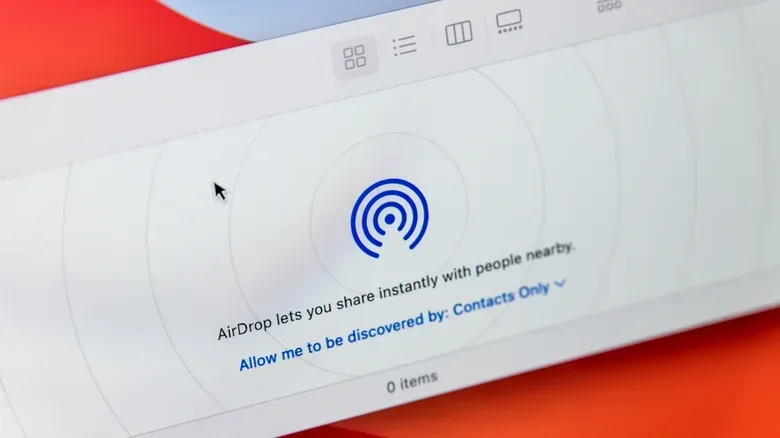
On a Mac, open Finder, select AirDrop in the sidebar, and look for the other device in the AirDrop window. The sharing visibility control appears at the bottom of that screen as a blue drop-down menu. Verify that its setting is not preventing the Mac from receiving the transfer.
If both of your own devices are signed in to the same Apple account, AirDrop transfers between them proceed automatically. That behavior is helpful because it removes the accept prompt, but it is also a clue: if the process is not automatic in that situation, return to the basic checks for awake devices, wireless connectivity and proximity.
Why Contacts Only causes so much confusion
Contacts Only is not just a question of whether the intended recipient is somewhere in your address book. For another person to send to a device set to Contacts Only, you need to be in their Contacts. Their contact card for you must include the Apple account email address or phone number tied to your device.
That distinction explains a familiar AirDrop puzzle: two people may each have a contact named for the other, yet neither device appears. A name and a number alone are not necessarily enough if the relevant Apple account email address or phone number is missing from the sender’s saved contact card.
On iPhone, open the Contacts app and tap My Card at the top to review your own listed details. Adding the appropriate email address or phone number there can resolve the mismatch. The practical test is simple: if a transfer works with Everyone for 10 Minutes but not Contacts Only, revisit contact data before doing anything more dramatic.
Understand the 10-minute timer and newer code flow
The word “10 Minutes” in Everyone for 10 Minutes is literal. That visibility window expires after 10 minutes. When the timer ends, a device signed in to an Apple account returns to Contacts Only; a device not signed in returns to Receiving Off. So an AirDrop setup that worked earlier in the day may fail later with no obvious change on the sender’s side.
That timer is one of the first settings to revisit when AirDrop stops working suddenly. It is easy to assume the feature is still in the same state as it was during the last transfer, especially when the devices remain physically close and connected to the same local network.
Software updates can also alter the rules around incoming transfers. Following iOS, iPadOS and macOS 26.2, a person who is not in the receiver’s contacts may need an AirDrop code to send an item. The receiver chooses Get AirDrop Code and gives that code to the sender. Once the code has been used, the two people can exchange AirDrop items for 30 days without adding one another as contacts, after which another code is required.
That system is best understood as a temporary trust relationship rather than a permanent contact change. It offers a middle ground: users can share with somebody outside their contacts without leaving their device broadly reachable indefinitely. The trade-off is an extra step that can look like a malfunction if neither person knows it is expected.
Try the proximity option on iPhone
iPhone users can also enable Bringing Devices Together under Settings > General > AirDrop. With that setting on, bringing one iPhone close to another can begin the transfer process. If browsing the usual target list is proving unreliable, it is a sensible fallback to try after verifying receiving permissions.
It does not remove the need for compatible Apple devices, active wireless settings or an allowed receiving mode. Think of it as another way to initiate the handoff, not a workaround for a device configured to reject incoming items.
Remove common interference: hotspots, VPNs and firewall blocks
Some network-related features can get in the way of AirDrop. Disconnect active Personal Hotspots and VPNs on both devices, then try again. A VPN, or virtual private network, routes network traffic through a different secured connection. It can be useful for privacy or work access, but it may interfere with the local connection behavior AirDrop needs. A Personal Hotspot similarly changes how a device handles its wireless connection.
On a Mac, check firewall settings as well. A firewall is a security control that can restrict incoming connections. If it is set to block all connections, it can prevent the communication needed for AirDrop. The goal is not to disable security settings blindly; it is to confirm that an all-connections block is not the reason another Apple device cannot find the Mac.
For wider Apple troubleshooting around device features after system changes, it can also be useful to keep an eye on related update guidance, such as how iPhone software updates can affect CarPlay and its troubleshooting steps. The larger lesson is consistent: after a major update, re-check the settings that govern the tools you use most.
A sensible order of operations
Instead of changing every setting at random, use a short sequence that narrows the problem:
- Place the Apple devices within 30 feet, wake them, and unlock iPhone or iPad devices.
- Confirm Wi-Fi and Bluetooth are on; toggle both off and back on if the connection seems unreliable.
- Check the receiver’s AirDrop mode. Use Everyone for 10 Minutes as a temporary test when the sender is not recognized as a contact.
- If Contacts Only is required, verify the sender has the receiver’s Apple account email address or phone number in Contacts.
- On iPhone or iPad, review Settings > General > AirDrop for Use Cellular Data and Bringing Devices Together.
- Turn off active Personal Hotspots and VPNs. On a Mac, make sure the firewall is not blocking all connections.
- After an update, check whether an AirDrop code is now required for a non-contact sender.
- Restart both devices and try the transfer again.
If the devices still cannot discover one another after those checks and a reboot, service may be the next appropriate step. Most of the time, though, AirDrop’s apparent mystery comes down to visibility, a timed receiving setting, contact details or a competing network configuration—not a lost file-sharing superpower.