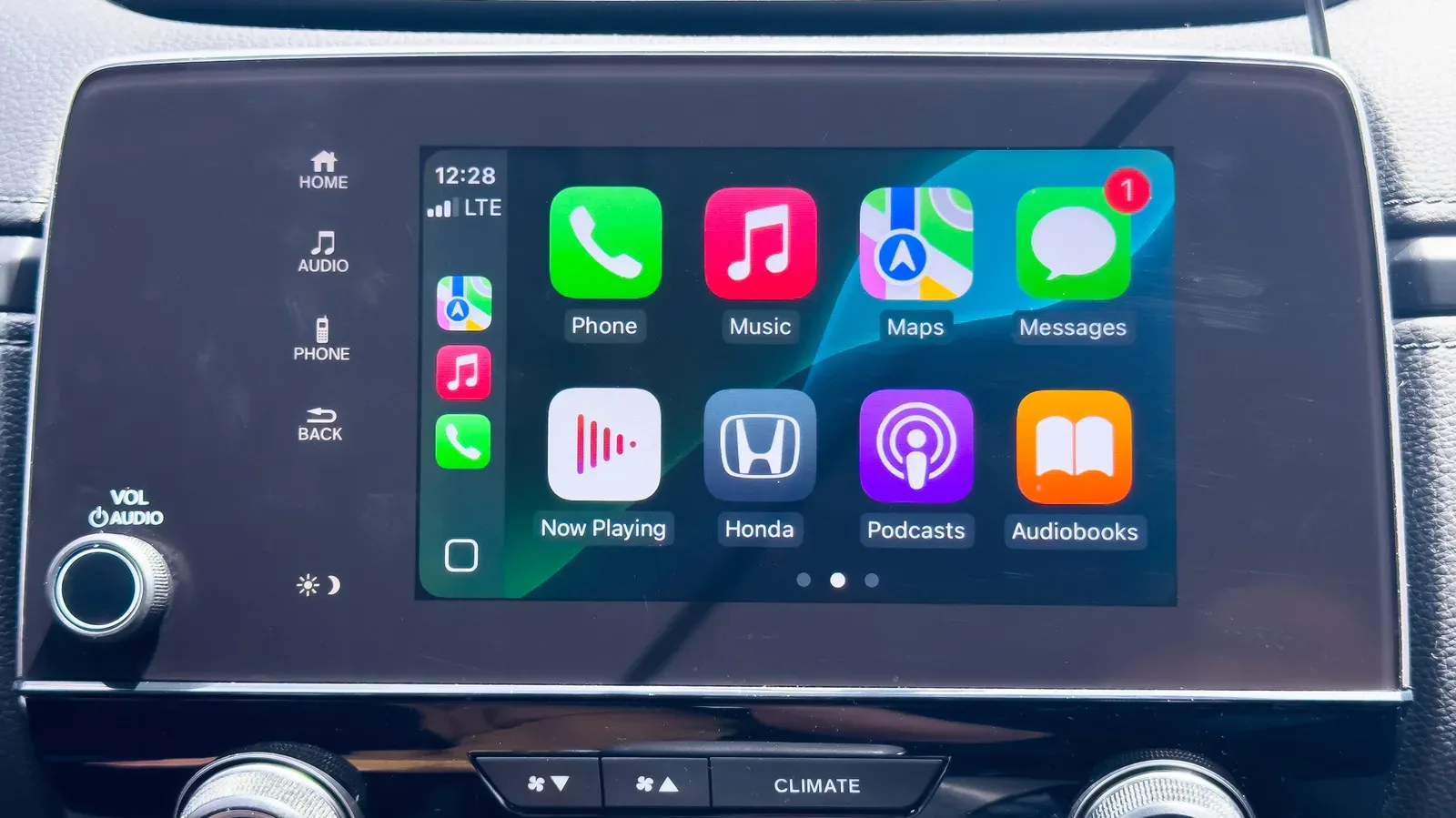
Apple CarPlay is designed to put a familiar, iPhone-based interface on a compatible vehicle’s dashboard display. The first connection is usually quick, but the right setup path depends on the car: some models use a USB cable, some use wireless pairing, and some support both. That distinction matters, because a cable connection can be nearly immediate while wireless CarPlay requires the phone and vehicle to establish a Bluetooth and Wi-Fi relationship first.
There are more than 800 vehicle models with built-in CarPlay compatibility. That is broad coverage, but it should not be treated as a guarantee for every vehicle or every dashboard configuration. Before troubleshooting a connection that never appears, confirm that the specific car supports CarPlay and check whether it supports wired CarPlay, wireless CarPlay, or both. A vehicle manual is particularly useful when the car needs to be placed in a manufacturer-specific pairing mode.
Start with the connection type your car supports
Wired CarPlay sends the connection through the car’s USB port. It is generally the simplest first-time setup: start the vehicle, connect the iPhone to the relevant USB port, then approve the request on the phone. The dashboard should then display the CarPlay interface. Ports intended for this purpose may be marked with a CarPlay icon or a phone symbol, though labeling varies.
Wireless CarPlay does not mean the phone is connecting through Bluetooth alone. Bluetooth is part of the initial pairing process, while Wi-Fi is also needed for the CarPlay connection. That is why a wireless setup can fail even when an iPhone can otherwise pair with the vehicle for ordinary Bluetooth functions.
The feature set is broadly the same whether CarPlay is used over a cable or wirelessly. The meaningful practical difference is in the connection routine. Wired CarPlay asks the driver to plug in; wireless CarPlay aims to reconnect when the car starts after the initial pairing is complete. For cars that offer both modes, connecting by cable for the first time can lead the iPhone to offer wireless connection on a later start. No separate trip through Settings should be necessary just to accept that later wireless prompt.
Set up CarPlay by cable
- Start the car.
- Plug the iPhone into the vehicle’s USB port, preferably one identified with a CarPlay or phone mark when such a label is present.
- Watch for the permission request on the iPhone.
- Tap Connect.
- Check the dashboard display for the CarPlay interface.
This method is the sensible baseline for a vehicle that supports a cable connection. It reduces the number of settings involved and helps narrow down faults. If CarPlay works directly through USB but not wirelessly, the phone, car and CarPlay capability are at least communicating correctly over the wired route; attention can then shift to wireless settings rather than compatibility.
Do not assume every USB port in a vehicle behaves identically. If the car has two or more ports, trying another one is a worthwhile early step when the interface does not appear. The cable itself is equally important: changing to another USB cable can resolve a connection problem. Adapters may also interfere, so a direct cable-to-car connection is preferable while setting up or diagnosing CarPlay.
Pair a wireless-only CarPlay system
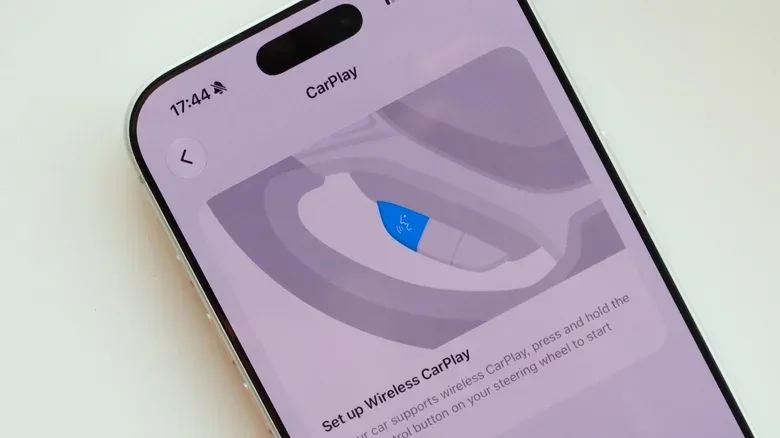
For a vehicle that only supports wireless CarPlay, begin with the car running. Hold the voice-command button on the steering wheel or dashboard to begin the vehicle-side pairing process, and make sure Bluetooth is enabled in the car. The exact control and timing can differ by brand, so the car manual is the best reference if holding that button does not trigger pairing as expected.
On the iPhone, open Settings, go to Wi-Fi, and join the CarPlay network. Then return to the main Settings page and open General > CarPlay. The vehicle should appear in the list. Tap its name to finish pairing.
That sequence clarifies a potentially confusing point: joining the vehicle’s CarPlay network is not the final step. It establishes the Wi-Fi portion of the connection, then the CarPlay menu is where the iPhone recognizes the car and completes the pairing. If the vehicle does not appear there, the issue may be the car’s pairing state, Wi-Fi or Bluetooth availability, or a compatibility mismatch—not merely the absence of an icon on the dashboard.
Wireless checklist before trying again
- Ensure the car is running.
- Confirm Bluetooth is enabled on the vehicle.
- Make sure Wi-Fi and Bluetooth are enabled on the iPhone.
- Connect the iPhone to the CarPlay network in Wi-Fi settings.
- Use Settings > General > CarPlay to select the car and complete pairing.
- Consult the vehicle manual if the car will not enter pairing mode.
After a successful wireless setup, check that Auto-Join is enabled for the CarPlay network in the iPhone’s Wi-Fi settings. Auto-Join allows the phone to reconnect to that network without requiring a manual selection on each drive. If it is off, a setup can seem to work once but behave unreliably later.
What to expect on the dashboard
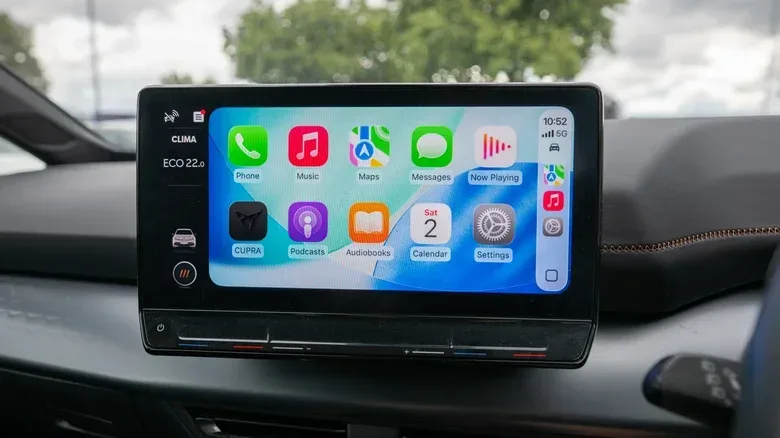
Some vehicles open CarPlay as soon as an iPhone connects. Others require the driver to press the CarPlay icon on the vehicle display each time. Neither behavior necessarily signals a problem; it is an implementation difference between car models.
By default, the CarPlay dashboard shows compatible apps from the iPhone. If an expected app is absent or the arrangement feels inconvenient, open Settings > General > CarPlay on the iPhone, select the vehicle, and choose Customize. This menu is where compatible apps can be added, removed, and reordered.
Customization is more than visual housekeeping. Reordering puts the functions a driver actually uses within easier reach on the dashboard interface, while removing unwanted entries can reduce clutter. The same car-specific CarPlay settings area also includes options such as Driving Focus and widgets. Driving Focus is a setting relevant to limiting distractions while driving; widgets are compact dashboard elements that can surface information in the CarPlay view. The appropriate choices depend on the driver, but the important setup lesson is that the connection screen is also the place to manage the interface after pairing.
A practical order for fixing CarPlay failures
When CarPlay does not work, it is tempting to change many settings at once. A more useful method is to start with the most likely connection issue and move from the physical link to wireless settings, permissions, and finally a reset of the existing pairing. This preserves useful clues about where the failure actually lies.
1. Rule out the cable, port, and adapter
For a wired connection, swap the USB cable first. If there are multiple ports, test another one. Remove any adapter and connect the cable directly to the car’s USB port. These are quick tests for the common scenario in which the phone charges or appears connected but CarPlay does not launch properly.
2. Verify wireless essentials
For wireless CarPlay, confirm that both Wi-Fi and Bluetooth are switched on at the iPhone. Check Auto-Join for the CarPlay network as well. If the car supports both connection types, try the cable route. That fallback is useful because it may restore access immediately and can help distinguish a wireless setup issue from a wider problem.
3. Check whether Screen Time has blocked CarPlay
CarPlay can be hidden by a Screen Time restriction. On the iPhone, go to Settings > Screen Time > Content & Privacy Restrictions > Allowed Apps and verify that CarPlay is enabled. This is easy to overlook because the fault is not a bad cable, an unavailable network, or a vehicle pairing error; the phone has simply been instructed not to allow the feature.
4. Restart the phone and dashboard system
If basic connection checks do not help, restart both the iPhone and the car’s dashboard system. This is a later troubleshooting step rather than the first one because it does not identify a specific cause, but it can clear a stalled connection state.
5. Forget the car and pair again
When the phone and vehicle retain an unsuccessful or outdated pairing, remove it and begin again. Navigate to Settings > General > CarPlay, select the vehicle, and choose Forget This Car. Then repeat the setup process appropriate to the vehicle’s wired or wireless support.
Re-pairing is especially logical after confirming that Bluetooth, Wi-Fi, Auto-Join, cables, and USB ports are not the immediate issue. It removes the existing CarPlay relationship rather than repeatedly attempting to use it.
Compatibility is the final reality check
If CarPlay never appears, verify the vehicle is on Apple’s list of models with built-in CarPlay. This is not redundant with seeing a USB port or a dashboard screen: neither one alone confirms CarPlay support. It is also worth recognizing that support can differ between vehicles, and some automakers have begun to phase CarPlay out of their cars.
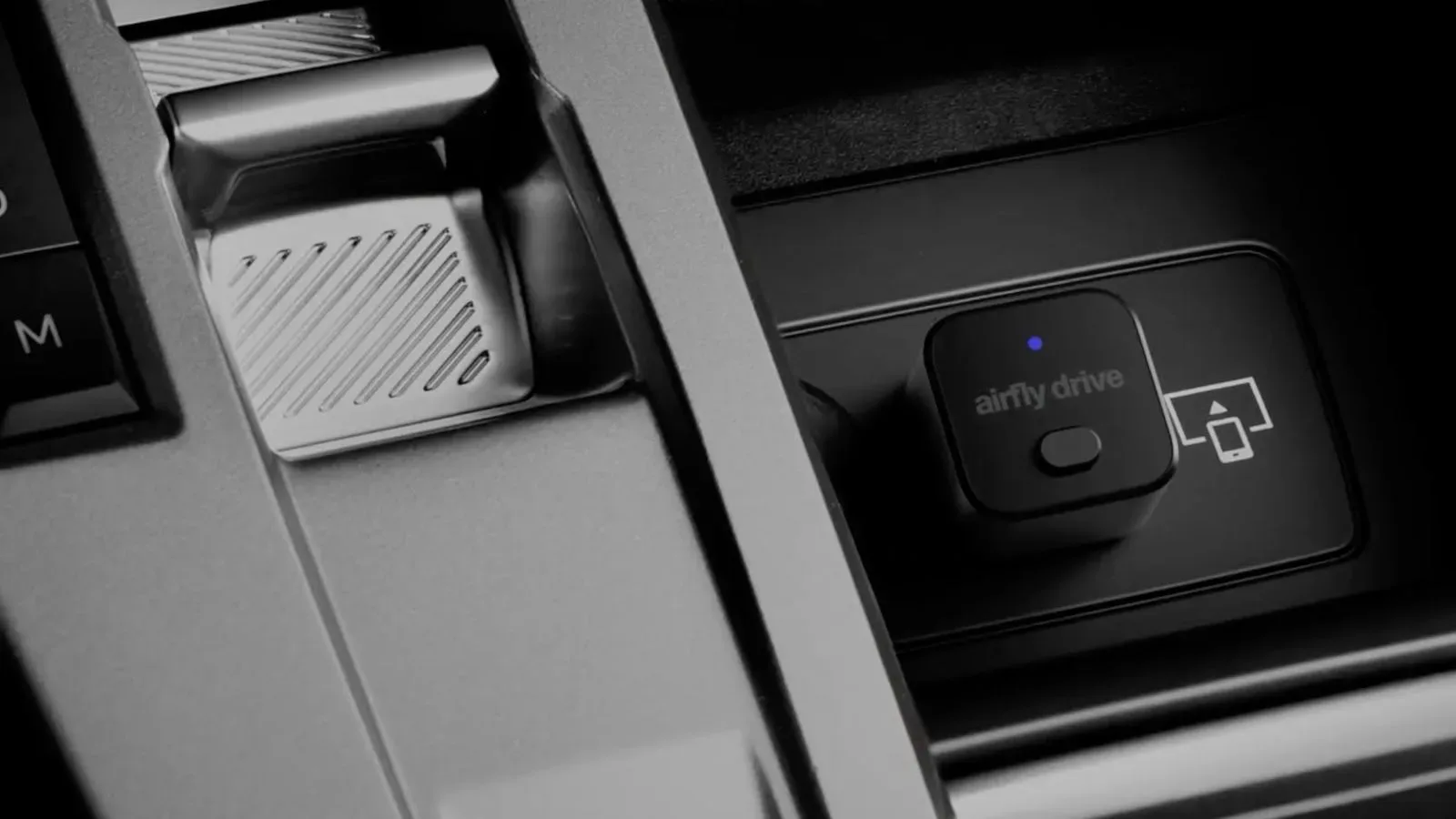
For a non-compatible vehicle, a portable CarPlay screen may be an option worth considering. It is not a repair for the factory dashboard; it is a separate route to using CarPlay where the built-in system does not provide it. For drivers who do have compatible hardware, however, the direct path remains simple: establish whether the car is wired or wireless, complete the initial phone permission or pairing process, and troubleshoot in a deliberate order if the connection refuses to stick.
CarPlay sits within a larger Apple hardware and platform ecosystem, whose component supply has also drawn attention in reporting on a potential multi-year Samsung DRAM supply deal. At the user level, though, a working in-car experience comes down to much more immediate details: a compatible vehicle, the correct connection method, and a phone that is permitted and able to join it.