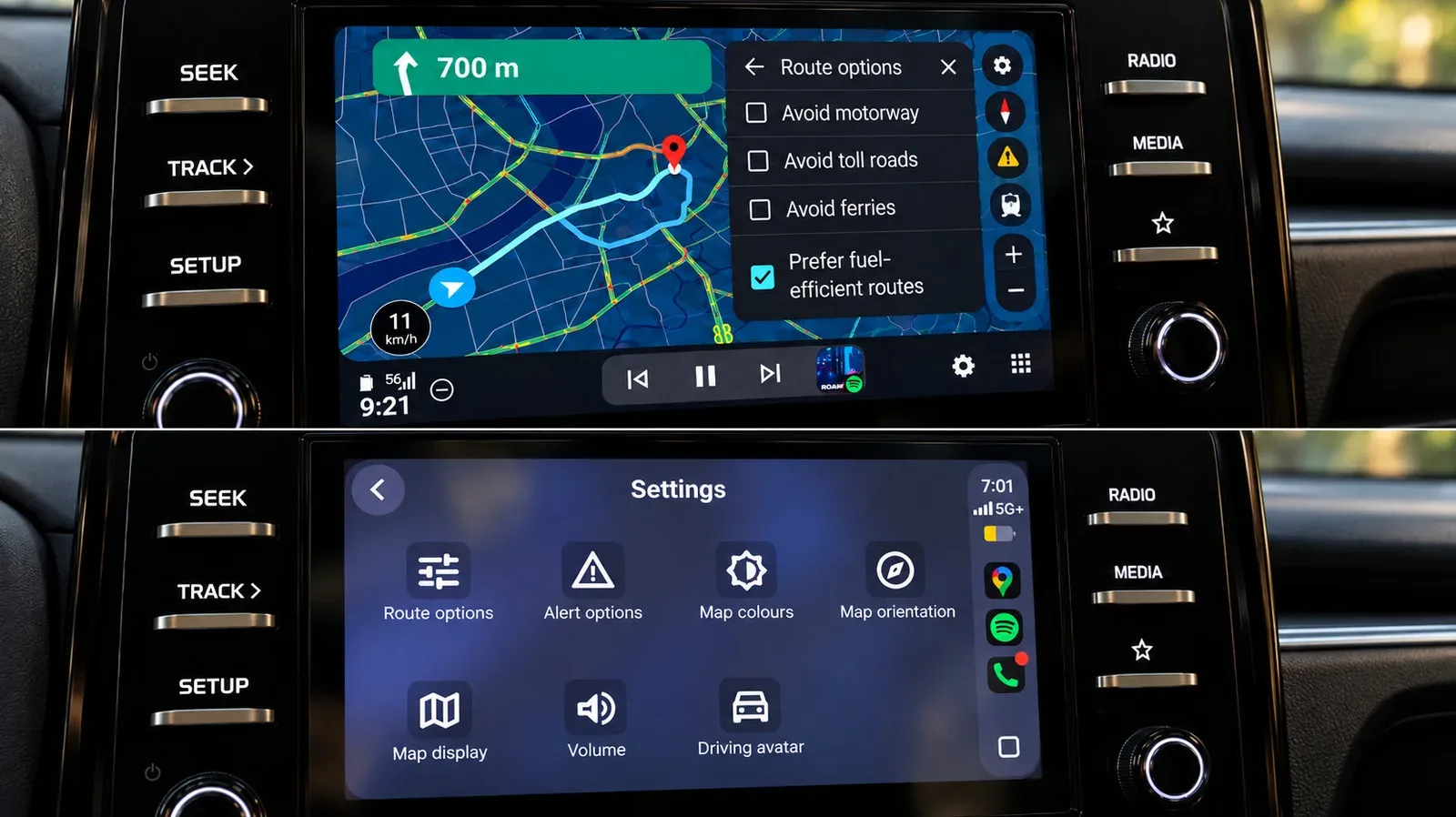
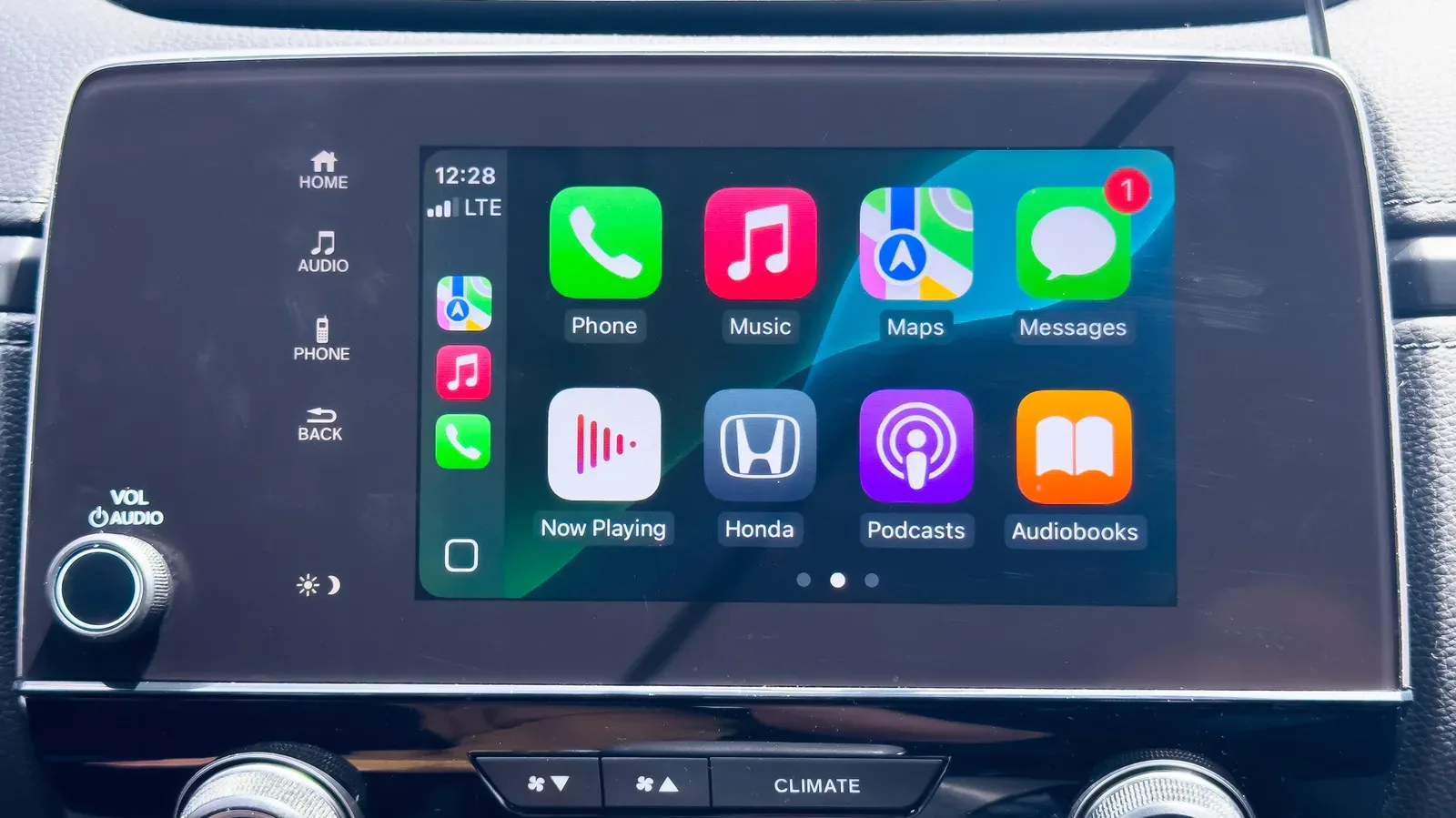
Apple CarPlay can be a meaningful differentiator when comparing cars, particularly for iPhone owners who want their phone’s navigation and music functions presented through the vehicle’s dashboard interface. But “newer car” is not the same thing as “guaranteed CarPlay,” and the name on an infotainment screen can be less revealing than a quick compatibility check.
The simplest approach is to verify the precise vehicle model rather than assume a manufacturer-wide answer. Apple maintains an online compatibility list covering models that support CarPlay. Its breadth reflects how widely the feature has been adopted across major automakers, but there are important omissions: Tesla and Rivian do not support CarPlay. GM had also moved away from Apple’s platform on newer vehicles in favor of its own software approach, but has since brought CarPlay back.
That makes an exact-model check useful for anyone shopping across brands, looking at an unfamiliar trim, or trying to identify what an existing vehicle can do. It also helps separate two related but distinct capabilities: wired CarPlay, which operates through a USB connection, and wireless CarPlay, which connects without keeping the phone plugged into the car.
What Apple CarPlay actually does
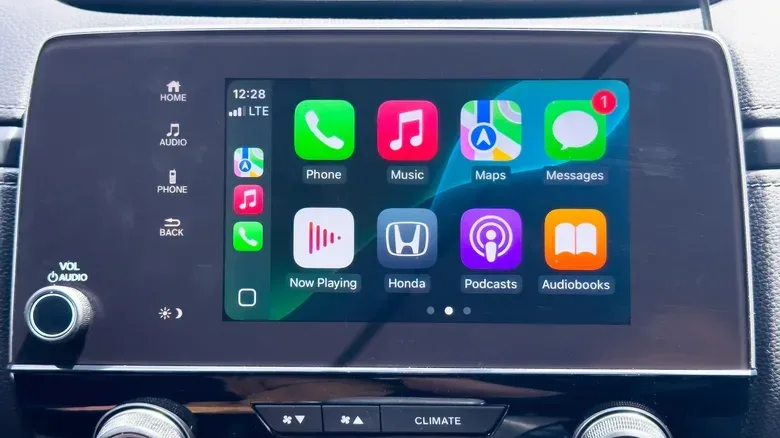
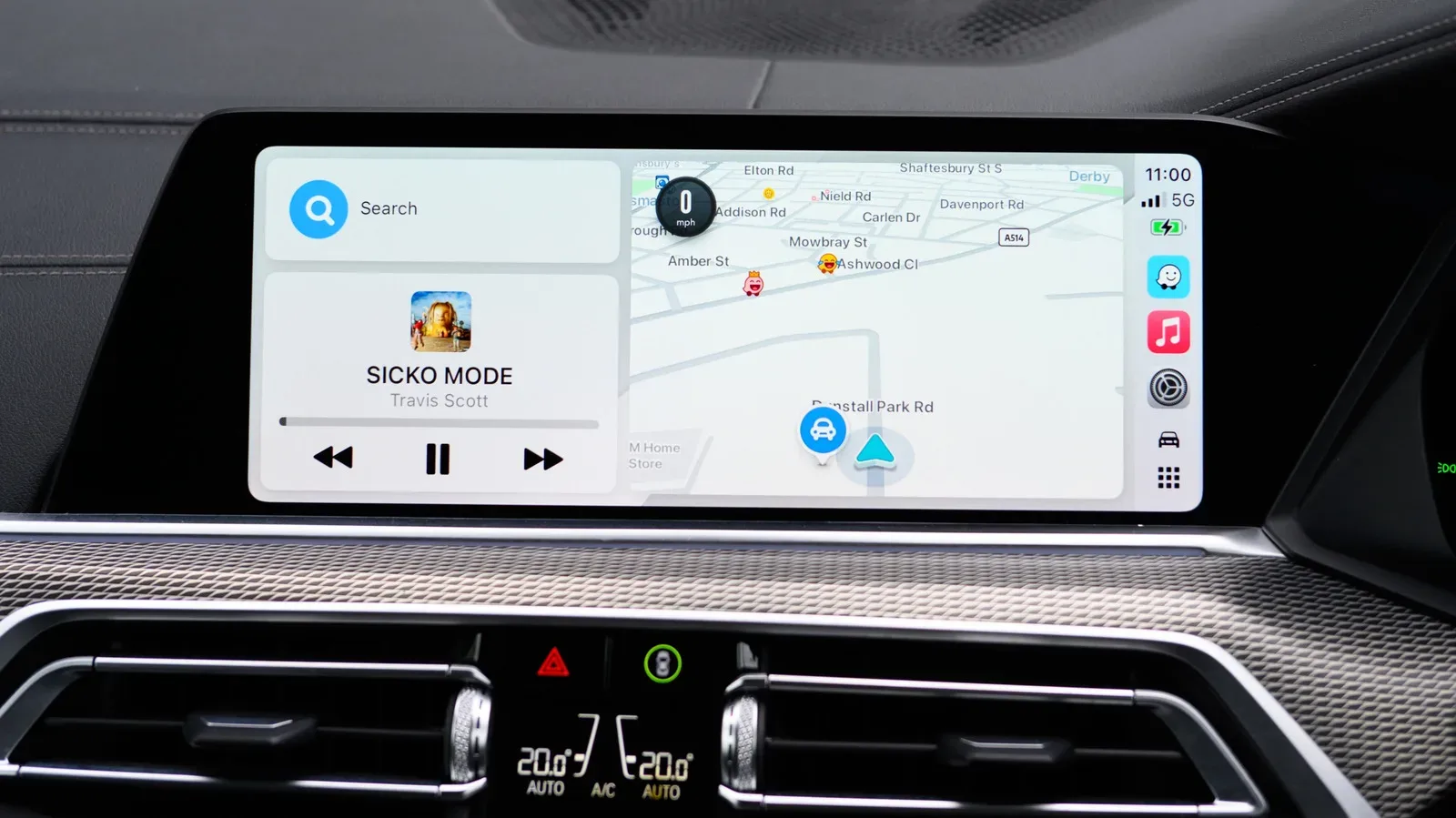
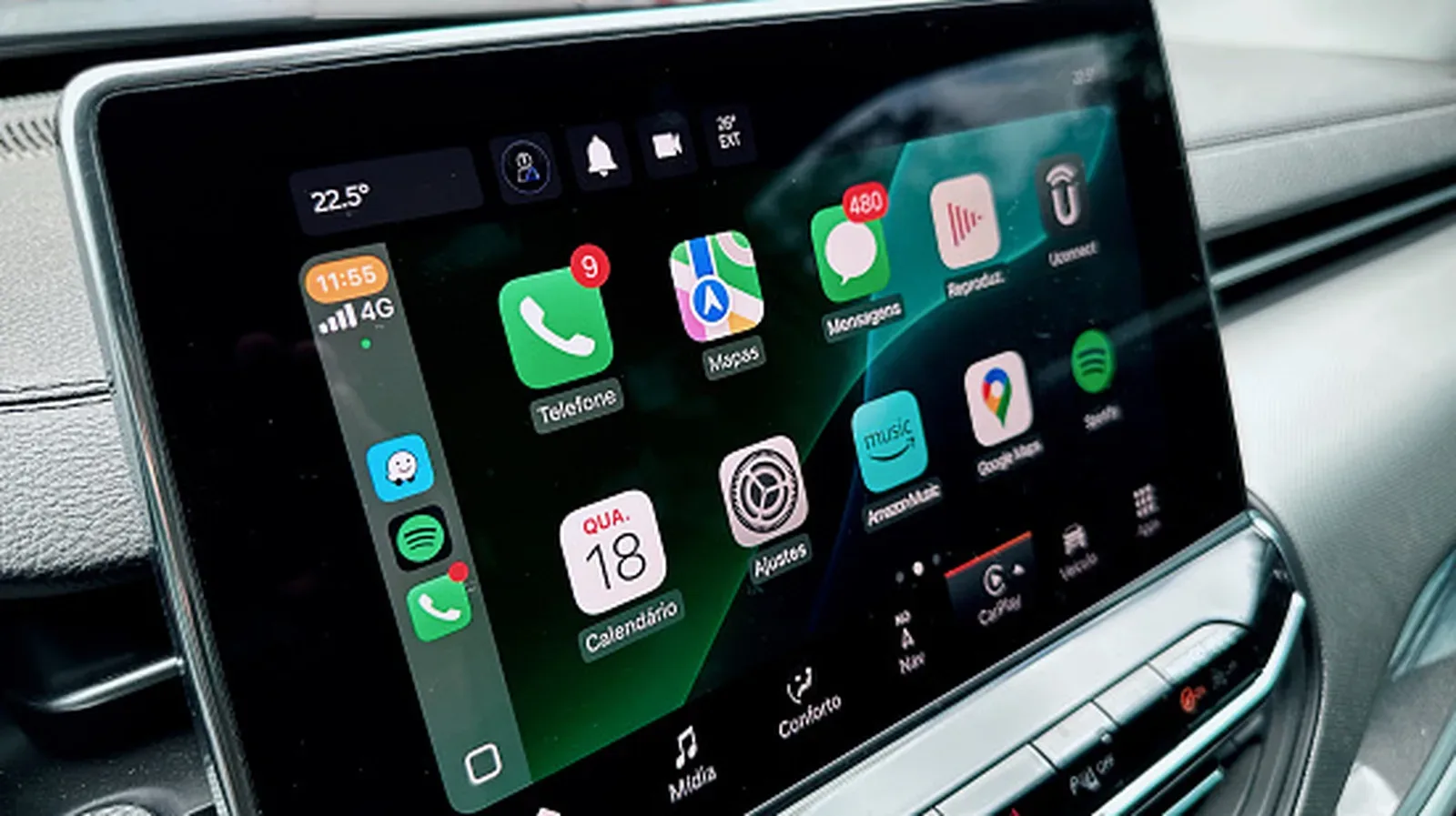
CarPlay is software that lets a compatible car display and control selected iPhone functions through the dashboard system. In practical terms, it brings together navigation and other phone features a driver may use on the road, such as a music player, in a format intended for the car’s screen and controls.
The car is not simply mirroring every part of the phone. The key point for buyers is that CarPlay is an integration between an iPhone and a compatible in-car system. A vehicle can have a large touchscreen, Bluetooth audio, USB ports, voice controls, or built-in navigation without necessarily having CarPlay. Conversely, a CarPlay-capable vehicle may offer the feature by cable only, rather than wirelessly.
For navigation in particular, compatibility can affect which alerts and options are available through the dashboard experience. Drivers looking into that side of the platform can also see which navigation app controls speed-camera alerts in Apple CarPlay.
Start with a model-specific compatibility check
An online compatibility lookup is the clearest first step before visiting a seller or trying to pair a phone. It establishes whether the model is listed as supporting CarPlay and avoids treating an infotainment system’s screen size or branding as proof.
This matters because availability cannot safely be inferred from the badge on the hood. Tesla and Rivian are explicit examples of manufacturers whose vehicles do not support CarPlay, despite the prominence of their in-car displays. At the other end of the spectrum, a substantial number of models from major makers appear on Apple’s compatibility list.
Related coverage includes How to Check if Your Car Supports Apple CarPlay.
For someone deciding between two vehicles, the result can be part of the ownership calculation. If CarPlay is a priority, confirming it ahead of time is more efficient than discovering later that the desired phone interface requires extra hardware, installation work, or a different routine for navigation and audio.
How to check wireless CarPlay in person
When standing in or near the car, a direct pairing attempt can answer the wireless question. The basic process is straightforward:
- Turn on both Bluetooth and Wi-Fi on the iPhone.
- Set the car’s dashboard system to its Bluetooth or wireless mode.
- Press the vehicle’s steering-wheel voice-command button.
- On the iPhone, open Settings > General > CarPlay.
- See whether the vehicle appears in the available-device list.
Bluetooth and Wi-Fi are both part of this check because wireless CarPlay relies on the phone and vehicle being prepared for a wireless connection. Selecting Bluetooth or a wireless setting on the dashboard and using the steering-wheel voice button helps put the car into the relevant pairing state.
If the vehicle shows up under the iPhone’s CarPlay settings, that is a strong practical indication that the car supports the wireless connection route. If it does not appear, the absence alone should not be stretched into a broad conclusion without checking the vehicle’s settings and model compatibility; it may instead be a wired-only setup or a pairing state that has not been properly initiated.
How to test wired CarPlay
Wired CarPlay is often easier to verify. Connect the iPhone to the car’s USB port. If that port and the vehicle support wired CarPlay, the system should prompt the user to activate it.
There are a couple of additional visual clues worth checking:
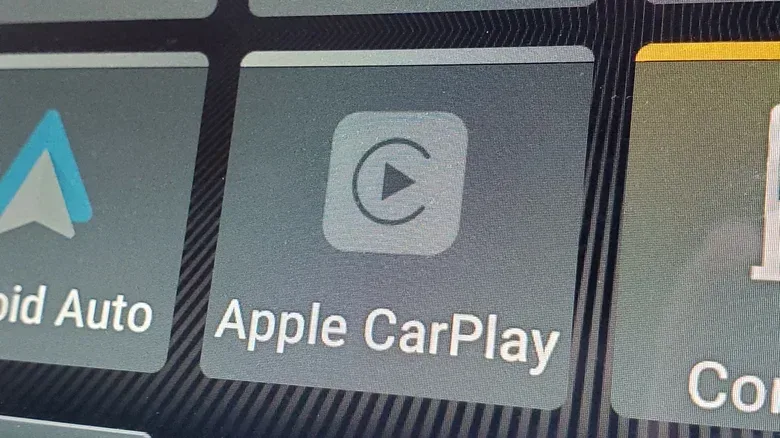
- A CarPlay option may be present on the dashboard display or within the infotainment menus.
- A USB port may carry a CarPlay symbol.
Neither clue should be treated as the sole test. In particular, a supported vehicle may not show a CarPlay symbol beside every relevant port. The connection prompt after plugging in the phone is the more useful real-world check when a cable is available.
Why wired versus wireless matters
The difference is mostly about the connection method, not whether the core CarPlay idea exists. Wired CarPlay requires a physical USB connection between phone and car. Wireless CarPlay removes that cable requirement once the phone and vehicle are set up to communicate wirelessly.
For a shopper, it is helpful to ask the narrower question: “Does this car have CarPlay, and if so, is it wired, wireless, or both?” That prevents the common mismatch between expecting a cordless connection and finding a system that works only after plugging in. For an owner, the distinction tells them which test to perform and whether a missing wireless menu means there is no CarPlay at all.
Adding CarPlay to a vehicle that lacks it
A factory-installed system is not the only route. Owners of vehicles without integrated CarPlay have two broad retrofit paths: an external third-party display or a replacement head unit. Neither is completely frictionless, but both can extend CarPlay capability to vehicles that did not ship with it.
Option 1: A portable third-party CarPlay screen
The less permanent option is a third-party CarPlay display mounted on the dashboard. These products effectively add a new screen, or function as a substitute interface alongside the vehicle’s existing display. Many are made to work with both Apple CarPlay and Android Auto, giving them potential usefulness across phones and vehicles.
The appeal is convenience and portability. These screens are typically priced at around $100 or less, can move from one car to another, and do not require replacing the vehicle’s stereo receiver. That can make one especially attractive for older cars, cars without a built-in screen, or a situation where a driver does not want to make a permanent alteration.
The compromises are physical rather than conceptual. It is another item of hardware to place and manage, and a suitable dashboard mounting location may be difficult to find in some vehicles. Anyone considering this route should think about where the screen will sit before buying one; a portable display only helps if it can be positioned in a workable location.
Option 2: Replace the stereo with a CarPlay head unit
The more integrated route is a CarPlay-compatible head unit. In this context, a head unit is the car stereo receiver, sometimes combined with the vehicle’s display. Replacing it can put a CarPlay-capable screen directly into the dashboard arrangement rather than adding a separate accessory on top of it.
This approach generally involves more complexity. The hardware may cost more than a portable screen, although some units are available in the $100 range. Installation is also more involved, whether an owner undertakes it or pays an installer to do the work.
Its payoff is a cleaner, more permanent setup. Instead of relying on an additional peripheral, the replacement unit becomes part of the vehicle’s stereo-and-screen configuration. The choice comes down to priorities: lower-cost portability and easier movement between cars on one side, versus a more embedded solution that demands more installation effort on the other.
A practical decision checklist
Before treating CarPlay support as a buying requirement or beginning a retrofit, use a short sequence of checks:
- Confirm the exact model on Apple’s CarPlay compatibility list.
- Do not assume compatibility from a touchscreen alone. Tesla and Rivian are notable exceptions, and vehicle software strategies can vary by manufacturer.
- Test a wireless connection with Wi-Fi and Bluetooth enabled, the car in wireless mode, and the iPhone’s CarPlay settings open.
- Try a USB connection to see whether the vehicle prompts for wired CarPlay activation.
- Inspect, but do not over-rely on, symbols and menus. A dashboard CarPlay option or USB-port logo can help, yet a missing logo does not automatically rule out support.
- Choose the retrofit type deliberately if the car lacks the feature: a movable external screen for the simpler route, or a replacement head unit for a more integrated installation.
CarPlay has become widespread enough that many newer cars will support it, but the useful answer is still vehicle-specific. A few minutes spent checking the model, the dashboard pairing options, and the USB response can establish whether the feature is already there—and, if it is not, whether an add-on screen or a new head unit is the better fit.