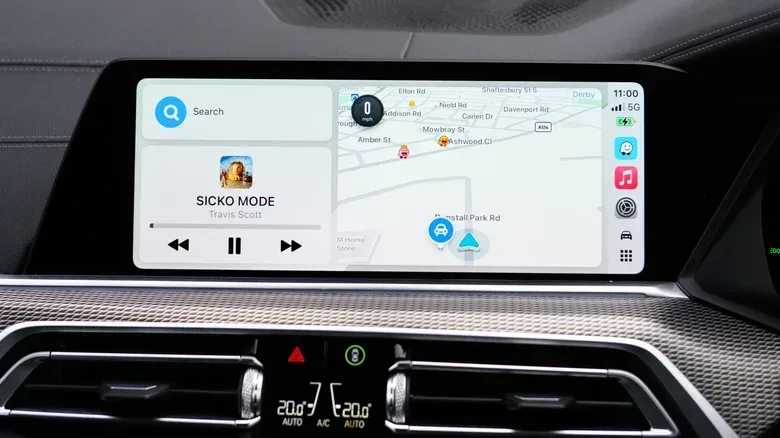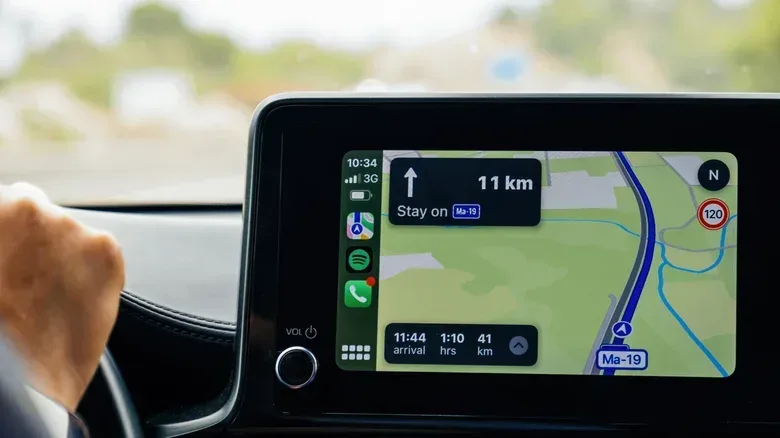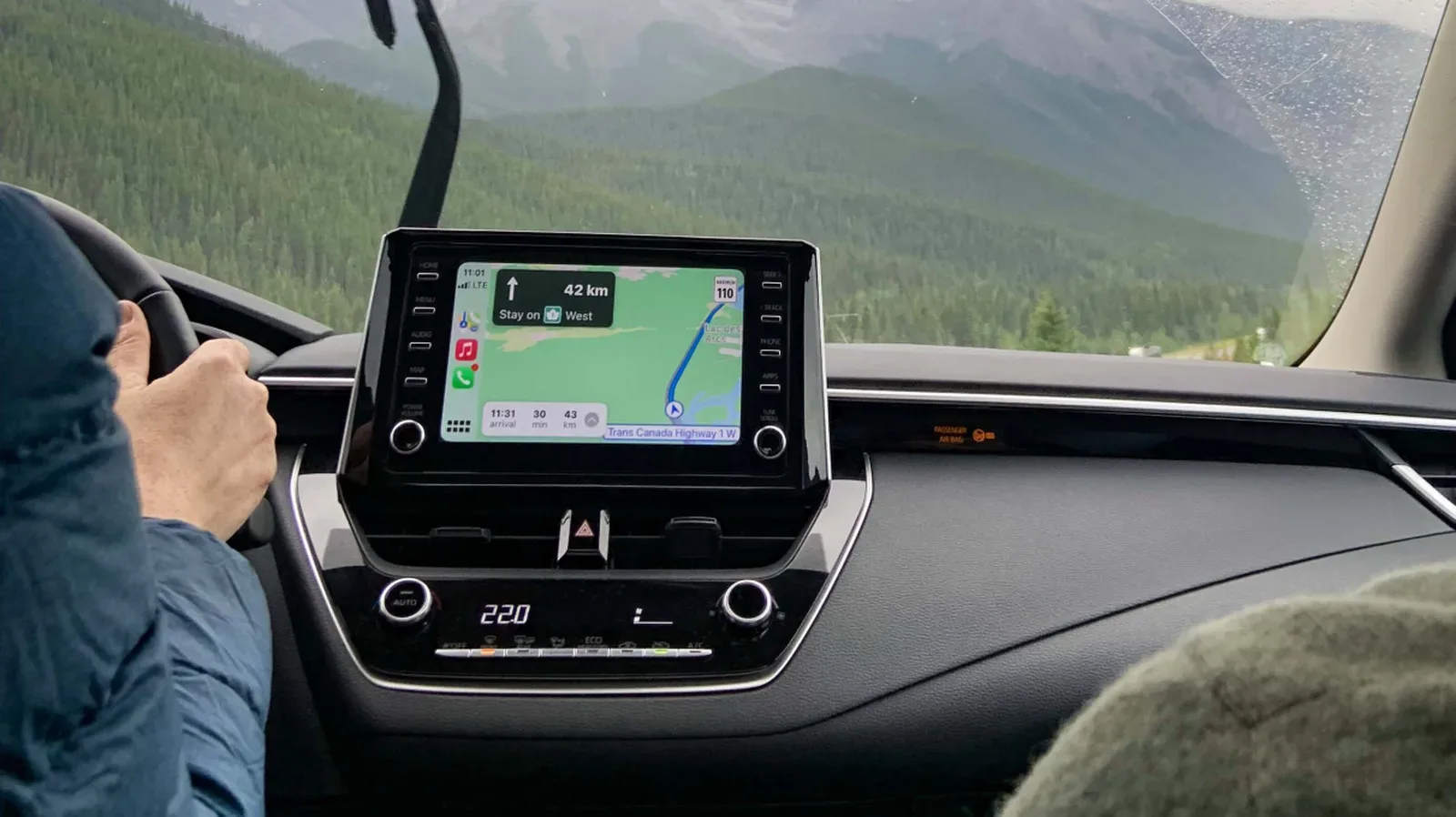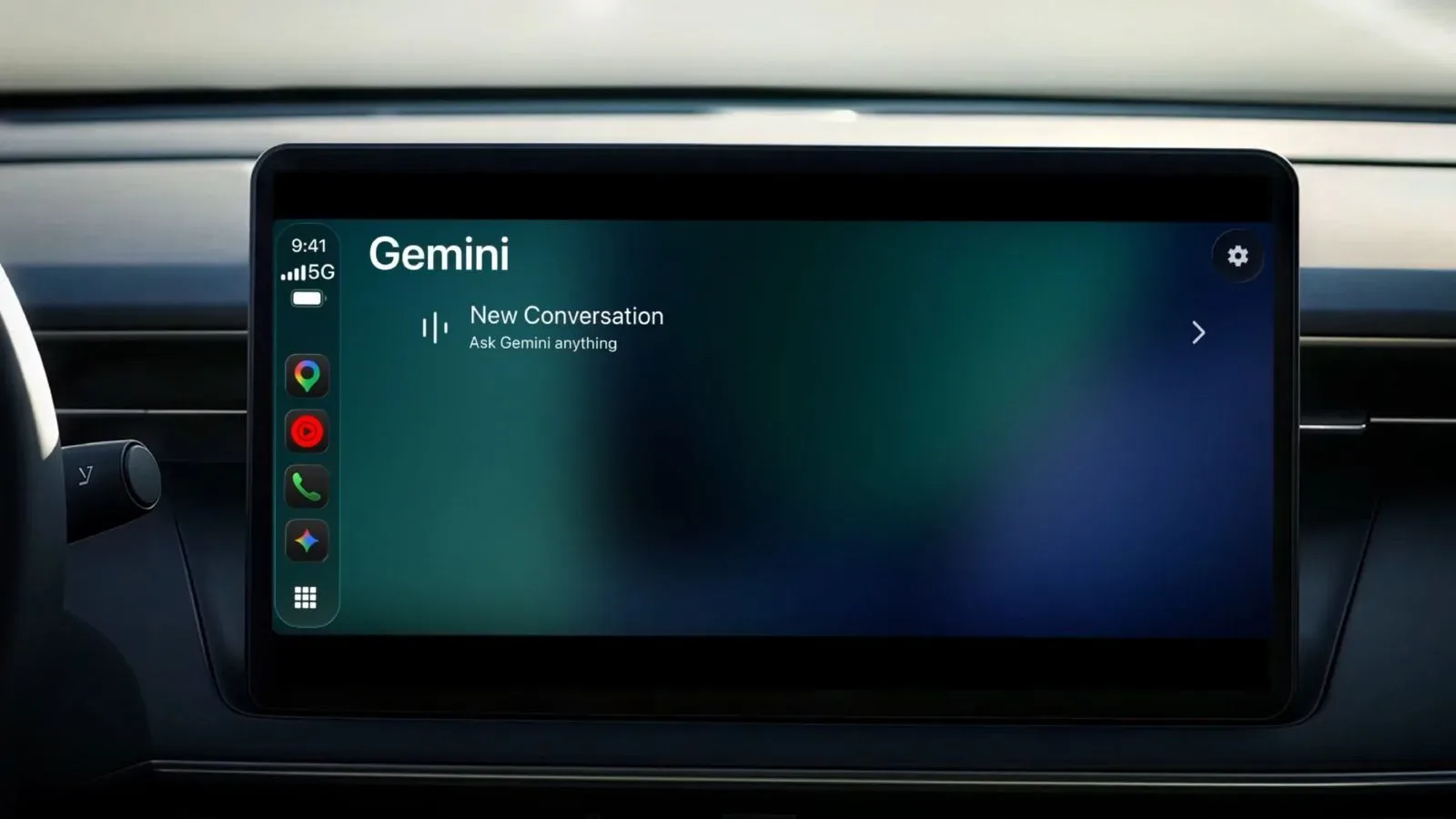
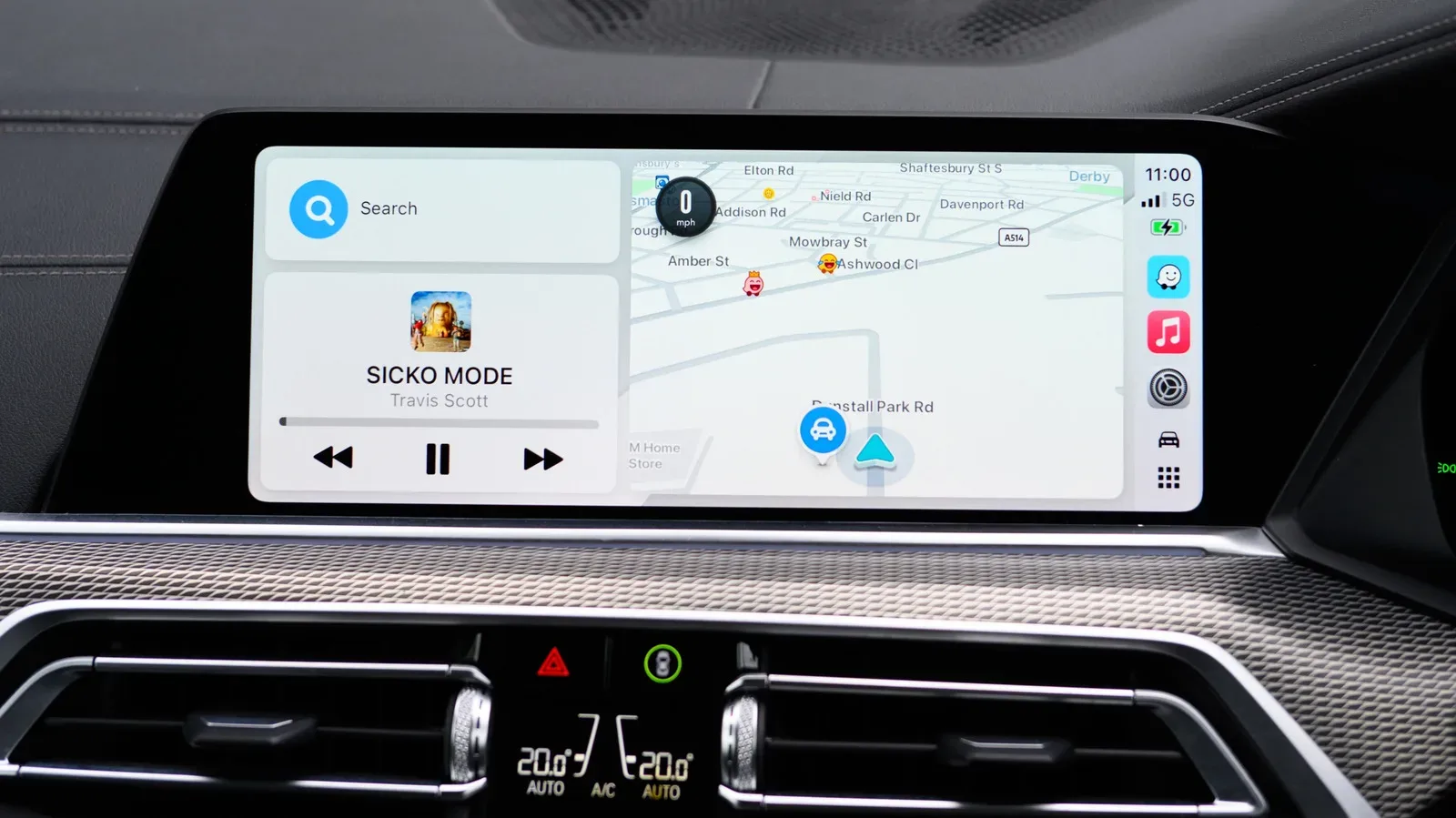
Apple CarPlay can put navigation, calls and media on a vehicle’s display, but it is not itself the service that decides when to warn a driver about a speed camera. That distinction matters when a camera alert is missing, when an alert is too broad, or when a driver simply wants the posted speed limit visible on screen.
In practical terms, CarPlay is the in-car interface. The navigation app—Apple Maps, Waze, Google Maps, or another compatible option—supplies the map data, reports and alert behavior. So there is no single CarPlay-wide switch that makes every navigation app announce speed cameras. Drivers need to check the app they actually use.
It is also worth setting expectations: no navigation app can know the location of every mobile speed detector at every moment. A fixed camera is a relatively stable map feature. A mobile enforcement location can change, and its appearance in a navigation app may depend on someone reporting it. Treat any alert as supplementary information rather than a reason to stop paying attention to road signs, conditions and applicable traffic rules.
Start with the app, not the CarPlay menu
The simplest way to think about the setup is that CarPlay displays an app’s driving experience, while the app retains its own preferences. That means two CarPlay users can have very different warning behavior in the same vehicle depending on whether they use Apple Maps, Waze or Google Maps.
Apple Maps handles camera alerts automatically in regions where the feature is supported. There is not a dedicated camera-alert toggle to enable or disable. If warnings are available for a route and region, Apple Maps is designed to provide them as part of navigation.
That automatic approach is convenient, but it also gives the driver less control over individual camera categories. Anyone looking for per-category choices—such as whether an item should merely appear on the map or also interrupt with a driving alert—will find more adjustment options in Waze.
Waze camera settings
Waze enables camera alerts by default and offers separate controls for camera types. In the Waze app, go to:
- Settings
- Alerts and Reports
- Reports
- Cameras
For each camera type, Waze provides toggles for Show on map and Alert while driving. The first controls map visibility; the second controls whether Waze actively notifies the driver on the road. Keeping those functions separate is useful because a driver may want map awareness without an alert for every item.
Related coverage includes How to Enable Speed Camera Alerts in Apple CarPlay.
There is one operational detail to remember: make Waze changes before connecting to CarPlay. Waze applies the revised choices the next time the phone connects and a drive begins. If a setting seems not to have taken effect immediately on the car display, disconnecting, changing the preference in Waze, then starting a fresh CarPlay session is the relevant sequence.
Google Maps alerts and reports
Google Maps takes a slightly different route. On CarPlay, the Report control can be used to mark a mobile speed camera for other people using the app. That illustrates the crowd-reported side of mobile-camera information: reports can make a changing location visible, but their usefulness depends on timely user input.
To receive alerts that other users have supplied, open Google Maps in CarPlay and use:
- Settings
- Alert options
- All alerts
“All alerts” is the broad option described for receiving the available warning information. It is not a promise that every camera or temporary setup will appear. Mobile locations may move before a report reaches other users, or may never be reported in the first place.
Fixed cameras, red-light cameras and mobile reports are not the same thing
The phrase “speed-camera alert” can describe several kinds of road information. Fixed cameras have a known, persistent location. Red-light cameras are another location-based category. Mobile speed-camera reports concern a location that can change, which makes them inherently less reliable as a continuously accurate map layer.
This difference explains why an app can feel dependable on a familiar route with permanent camera infrastructure yet inconsistent around mobile enforcement. That inconsistency is not necessarily a CarPlay fault or a broken phone connection. It is a limitation of trying to map something movable through reported data.
Some compatible apps are designed to run in the background and issue warnings even when the driver is not actively following a route. Radarbot can provide fixed-camera and red-light-camera alerts through CarPlay with a Gold membership. Roadar includes speed and red-light camera alerts and also lists Flock cameras and other license-plate readers. FlockHopper is another CarPlay-compatible option focused on Flock cameras and is available free of charge.
Those apps serve a different purpose from a traditional turn-by-turn navigation session. Active navigation means the app is directing the driver to a destination. Passive background operation, in this context, means the app is still monitoring for the information it supports without needing an active route. Drivers considering that approach should understand exactly which kind of alert an app offers, rather than assuming every camera-related label refers to speed enforcement.
Showing the speed limit in CarPlay
Camera warnings are only part of the picture. A displayed speed limit can be a more consistently useful piece of navigation information, although availability still depends on the mapping app and its settings.
For Apple Maps, the speed-limit setting is on the iPhone under:
- Settings
- Apps
- Maps
- Driving
- Enable Speed Limit
When navigating, the posted limit can then appear on the display. That is separate from a camera warning: one communicates the mapped limit, while the other flags camera information where supported.
Waze users should first disconnect from CarPlay, then open Waze and follow:
- Settings
- Speedometer
- Show Speedometer
- Set Preferences
- Show Speed Limit
Waze can also warn when the vehicle’s speed rises too high and can give advance notice when a speed limit is about to drop sharply. Those are speed-management features rather than camera alerts, but they can be useful for drivers who prefer advance context over a bare number on the map.
In Google Maps, look under the app’s profile and navigation settings:
- Tap the profile picture
- Choose Settings
- Choose Navigation
- Choose Driving
- Open Speedometer
Google Maps and Waze can display the vehicle’s current speed through CarPlay. Standard CarPlay does not include its own built-in speedometer, so this is another case where the navigation app provides the feature rather than CarPlay itself.
What CarPlay Ultra changes—and what it does not
Apple’s newer CarPlay Ultra is more deeply integrated with vehicle displays than standard CarPlay and can show current speed in the instrument cluster. That differs from having a navigation app place an informational speed reading on the CarPlay screen.
The distinction is important because a navigation-app speedometer is information supplied within that app’s interface. It is not a replacement for the vehicle’s own instrumentation. In short, CarPlay Ultra’s instrument-cluster integration and Google Maps or Waze speed displays are related user-experience features, but they are not the same system.
A sensible setup checklist
- Choose the navigation app you genuinely plan to use most often.
- Configure alerts in that app rather than searching for a universal CarPlay control.
- For Waze, set camera preferences before reconnecting to CarPlay.
- For Google Maps, enable the desired alert option in CarPlay and recognize that mobile reports are community-dependent.
- Turn on the speed-limit display if it is available and useful for your normal driving.
- Know whether an app is reporting fixed cameras, red-light cameras, mobile reports, license-plate readers, or a mixture of categories.
- Use all on-screen information as an aid, not as a substitute for observing speed limits and the road ahead.
The broader lesson is straightforward: the phone-to-car connection does not determine the quality or scope of road alerts by itself. CarPlay is the display and control layer; the chosen navigation service is the decision-maker. That same “check the setting in the app that owns the feature” principle applies across consumer tech, including choosing the right power mode for a mini PC. With CarPlay, selecting the right map app and understanding its limits is more useful than expecting one master camera-warning switch.